
AI Tools 101
OpenClaw Review: The AI Assistant Taking the World by Storm

Unite.AI is committed to rigorous editorial standards. We may receive compensation when you click on links to products we review. Please view our affiliate disclosure.

Last year, Stanford’s 2025 AI Index Report found that over 60% of professionals worry about how AI tools handle their private data. That’s exactly why OpenClaw caught my attention.
Rather than living on a company’s servers, OpenClaw runsectly on your own machine: Mac, Windows, Linux, even a Raspberry Pi. With OpenClaw, your files and conversations stay local, and your automation runs on hardware you control.
But this isn’t just about privacy. It’s about power.
OpenClaw isn’t another chatbot tab sitting in your browser. It’s a fully autonomous agent that can browse the web, execute commands, organize files, connect to messaging apps, and chain together workflows without requiring constant supervision. In other words, it doesn’t just respond. It acts.
At the same time, that level of control comes with real responsibility. Setup is technical, misconfigurations can create risks, and if you’re not comfortable working in a terminal window, OpenClaw will feel overwhelming fast.
In this OpenClaw review, I’ll discuss the pros and cons, what it is, who it’s best for, and its key features. The setup is pretty technical, so I’ll show you the mostect path I have found to getting OpenClaw up and running on a computer.
I’ll finish the article by comparing OpenClaw with my top three alternatives (n8n, Lindy, and BotPress).
If you care about privacy, autonomy, and building an AI assistant that truly belongs to you, this might be the most interesting tool you’ll explore this year. Let’s see if OpenClaw is the right AI Assistant for you.
Verdict
OpenClaw is a powerful, local automation tool that offers full control, customization, and multi-agent workflows. It’s great for technical users, but the complex setup, maintenance, and potential security risks make it challenging for beginners.
Pros and Cons
- Full autonomy for browser automation, file operations, system commands, and multi-agent workflows
- Pluggable LLMs with persistent memory that adapts to your usage over time
- Runs fully local for privacy (no cloud vendor lock-in)
- Granular sandboxing and permission controls to define exact read/write/execute access
- Extensible skills/plugins for APIs, calendars, email, and custom integrations
- Open-source that scales with your hardware (no subscription fees)
- Steep learning curve with complex setup
- Misconfigurations can lead to data leaks or unintended actions
- High LLM costs
- Long tasks may time out
- Community plugins can pose security risks
- LLM hallucinations can cause automation errors
- Requires ongoing maintenance for updates, security, and API costs
What is OpenClaw?

OpenClaw (formerly Clawdbot/Moltbot) is a framework that runs your own personal AI assistant right on your computer. That includes Mac, Windows, Linux, and even Raspberry Pi.
The big difference between OpenClaw and other AI assistants is where it lives. Most AI assistants are sitting on some company’s servers in the cloud, processing everything you say through their systems.
With OpenClaw, your AI assistant isn’t living on some company’s cloud. It’s self-hosted, which means you run it on your own computer or server. Your data never leaves your machine unless you want it to.
That means that with OpenClaw, no corporate servers are reading your conversations, and no terms of service changes that suddenly make your data less private. You’re in control.
More Than a Chatbot
OpenClaw isn’t just a chatbot that answers questions. It’s a 24/7 AI agent that has access to your computer, files, and browser. You can also connect it to different services, which means it’s not just sitting there waiting for you to ask it something.
OpenClaw actually does things for you, whether that’s messaging it on WhatsApp and telling it to summarize a PDF you just downloaded, organize files, scan your emails, or monitor flight prices online. That’s a pretty different experience from typing something into ChatGPT and copying the response back into whatever you’re working on.
The fact that it’s open-source is also worth emphasizing. It means anyone can look at and modify the code, and you’re not dependent on another company to change features or shut it down. You own the whole setup.
Model Flexibility
OpenClaw has excellent model flexibility, so you’re not locked into using just one AI model.
For example, you can use Claude for writing, GPT-5 for coding, or a local model like MiniMax 2.1 when you don’t want to send anything to the Internet at all. With OpenClaw, you don’t need separate apps for everything.
Chat App Integration
Where OpenClaw gets useful for everyday people is the chat app integration. You can talk to your AI through WhatsApp, Telegram, Discord, Slack, Signal, or even iMessage.
That means you’re not learning a new interface or switching between apps constantly. Just message OpenClaw like you would a friend, and it works.
The persistent memory system is also impressive. It remembers your preferences and past conversations across sessions rather than resetting every time you start a new chat.
Open-Source Foundation
OpenClaw was built by Peter Steinberger, and now there’s a whole open-source community working on it. Open-source means you can see what the code is doing and modify it. Plus, the community continuously adds features and improvements.
OpenClaw is not perfect, but if you’re frustrated with AI assistants that feel too limited, this might be worth checking out. Especially if privacy and flexibility matter to you more than just having the shiniest interface.
Who is OpenClaw Best For?
OpenClaw is best for tech-savvy individuals who want a self-hosted AI agent for automation without cloud dependency:
- Developers who want a 24/7 digital assistant that monitors your work, fixes mistakes as they happen, and handles technicalities in the background while you’re away.
- Business owners and solopreneurs automating email sorting, client onboarding, calendars, and daily updates through messaging apps.
- Content creators and marketers managing social scheduling, audience insights, reusing content, and influencer outreach.
- Hobbyists creating smart home tools, file organization, receipt scanning, and personal tracking while keeping data local.
OpenClaw Key Features
Here are OpenClaw’s key features:
- Host natively on Windows, macOS, or Linux. Your data stays where it belongs on your hardware, not in a third-party cloud.
- An evolving long-term memory that learns your workflows and preferences to provide a unique experience.
- Swap “brains” whenever you want. Whether it’s GPT-4, Claude, or Gemini, you choose the model that fits the task.
- Direct Chromium integration allows the agent to navigate the web exactly like a human.
- Give your agent full access or keep it in a secure sandbox. You define exactly what it can read, write, or execute.
- Runs terminal commands, manages files, and chains complex workflows to complete end-to-end jobs.
- 50+ integrations like WhatsApp, Telegram, Slack, and Teams to trigger actions and receive updates.
- Automated triggers for recurring tasks. The agent keeps the inbox tidy and monitors systems automatically without needing prompts.
- Switch between isolated secure sessions or use your existing browser profile to stay logged into the tools you already use.
- Run browser sessions and system tasks in secure environments. Your personal files and browser history remain invisible to the agent until you choose to unlock them.
- Detailed permission controls let you sandbox the agent in Docker or restrict its access to specific folders and system commands.
- Powered by the Pi coding agent, it can autonomously write, test, and hot-reload its own new skills to expand its capabilities.
How to Use OpenClaw
OpenClaw is much more complicated to set up because it’s decentralized compared to other AI assistants.
Unlike standard AI apps, it doesn’t give you a “login” because there is no “OpenClaw server” to log into. Instead, you are building the server yourself.
A simpler and safer alternative is to use an OpenClaw VPS hosting solution from a VPS provider like SSD Nodes. Your instance runs 24/7 in an isolated environment, keeping OpenClaw’s system-level access completely separate from your personal computer.
For now, I’ll show you the mostect path I have found to getting OpenClaw up and running on a computer:
- Download Ubuntu from the App Store
- Create a UNIX Account
- Paste a Command
- Install OpenClaw
- Choose the Quickstart Onboarding
- Select the MiniMax Model Provider
- Select MiniMax 2.1
- Sign Up for MiniMax
- Get the API Key
- Paste the API Key in Ubuntu
- Choose the Default Model
- Choose a Messaging Channel
- Configure the Skills
- Hatch the Bot
- Get the Local URL
- Get the OpenClaw Token
- Start Chatting with OpenClaw
Step 1: Download Ubuntu from the App Store
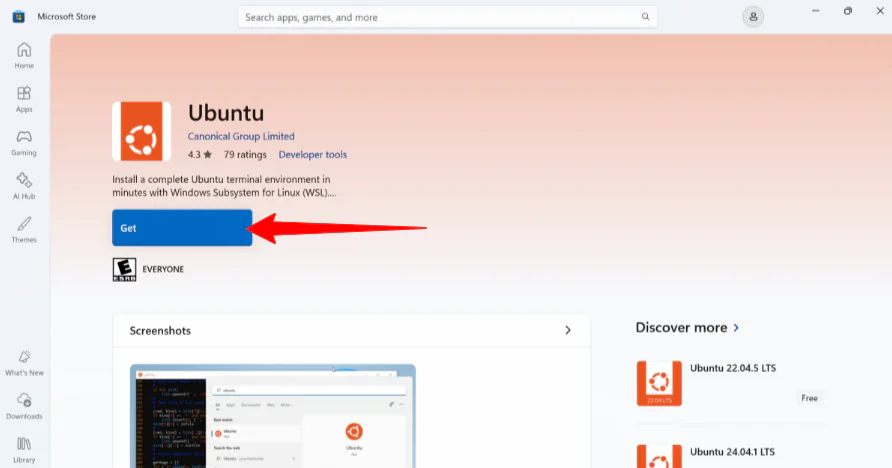
In the Windows app store on my computer, I searched for “Ubuntu.”
Ubuntu is an operating system, just like Windows or macOS. However, unlike Windows or macOS, Ubuntu is “Open Source” (free) and is built by a global community. It allows you to run professional-grade software like OpenClaw.
Once downloaded (it only took a few minutes), I opened it from the Windows app store.
Step 2: Create a UNIX Account

Next, Ubuntu asked me to create a UNIX account by providing a username and password.
Step 3: Paste a Command

Once complete, the installation was successful, and I could start running commands. I ran the OpenClaw command: “curl -fsSL https://openclaw.ai/install.sh | bash.”
Hitting “Ctrl/Cmd + V” didn’t work for me. To paste the command, right-click on your mouse and ensure the command appears, and hit “Enter.”
Step 4: Install OpenClaw

From there, Ubuntu began installing OpenClaw. It asked for my UNIX password one more time and confirmation to continue.
Step 5: Choose the Quickstart Onboarding

Ubuntu also asked which onboarding mode I wanted (Quickstart or Manual). I used my keyboard arrow keys and selected “Quickstart.”
Step 6: Select the MiniMax Model Provider

From there, Ubuntu asked me to select the AI provider I wanted to use. This part can feel overwhelming because there are so many options to choose from.
The AI provider is essentially the “brain” of OpenClaw. It needs to “call” an AI model to understand your instructions and decide which tools to use.
There are plenty of great options (most notably OpenRouter, which connects to dozens of AIs through one platform). However, I chose “Minimax” because it’s one of the easiest to set up.
Step 7: Select MiniMax 2.1

Next, Ubuntu asked me which “auth method” I wanted. I chose “MiniMax 2.1” since it is the smartest of the three.
Step 8: Sign Up for MiniMax

Once selected, I had to provide my MiniMax API key. To access this, I went to platform.minimax.io and signed up.
Step 9: Get the API Key

From there, I went to the “API Reference” section and, under “Get API Key,” I selected “Create new secret key.”

Next. I selected “Create new secret key” again, and I named it “MyBot.”

My secret key was immediately generated! I copied it and hit “Confirm.”
Step 10: Paste the API Key in Ubuntu
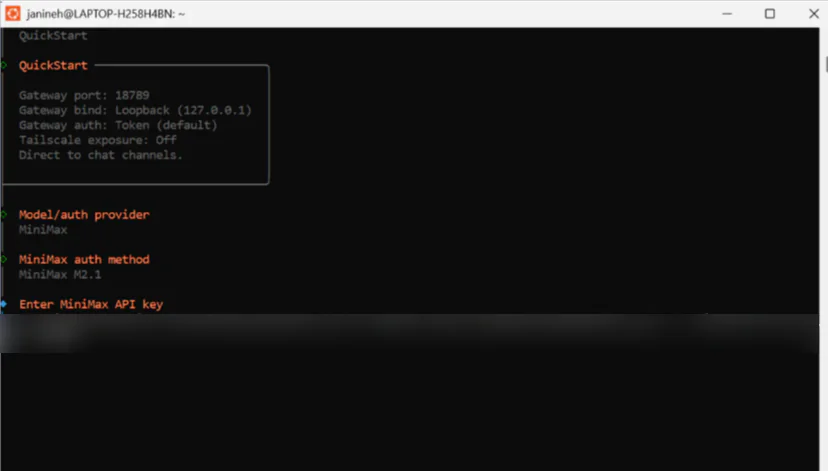
Back in Ubuntu, I pasted my secret key by right-clicking on my mouse and hitting “Enter” on my keyboard.
Step 11: Choose the Default Model
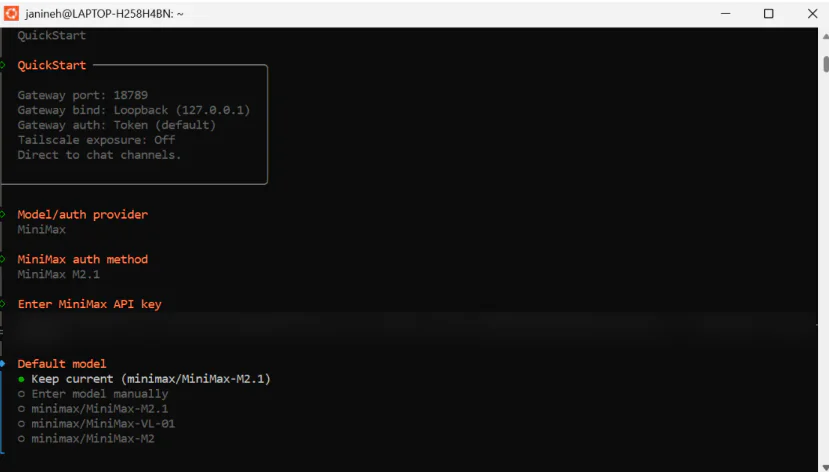
Next, Ubuntu asked which default model I wanted. I selected “Keep Current.”
Step 12: Choose a Messaging Channel

From there, Ubuntu asked me to choose a messaging channel. I selected “Skip for now” at the bottom. Channels can always be added later.
Step 13: Configure the Skills

I also skipped configuring skills. These can be added later.
Step 14: Hatch the Bot

Next, Ubuntu asked me how I wanted to “hatch” my bot. I chose the recommended option: Hatch in TUI.

I wasn’t receiving an output, so I opened a new window in Ubuntu.
Step 15: Open the Local URL

I gave it “openclaw status –deep,” which gave me the specific local URL where my bot was hosting its private website.

Heading to that website, OpenClaw asked me for the token.
Step 16: Get the OpenClaw Token
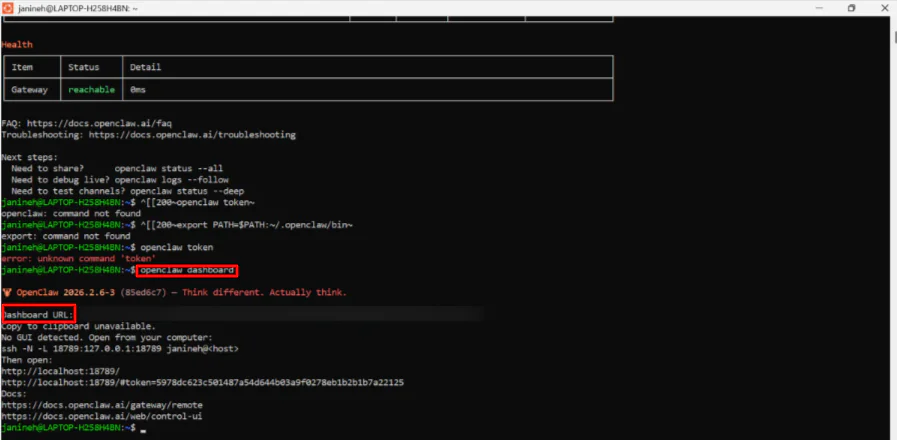
Back in Ubuntu, I typed in “openclaw token.”
I ran into a slight problem where the suggested OpenClaw token command wasn’t recognized. If that happens to you, type: “openclaw dashboard.”
It generated a unique local URL with a long security token attached to the end. I copied that link and pasted it into my browser.
Step 17: Start Chatting with OpenClaw

I was officially granted access to my OpenClaw chatbot on my browser! I could now run tasks locally, connect tools, and automate workflowsectly from my own private OpenClaw dashboard.
Overall, OpenClaw felt incredibly powerful once everything was running. However, getting there required patience, technical knowledge, and careful setup.
OpenClaw is not suitable for beginners. Rather, it’s best for full local control and customization rather than a simple plug-and-play AI assistant.
Top 3 OpenClaw Alternatives
Here are the best OpenClaw alternatives.
n8n
The first OpenClaw alternative I’d recommend is n8n. It’s a flexible workflow automation platform built for technical teams. It combines drag-and-drop design with the precision of code and the option to self-host or run in the cloud.
On the one hand, n8n stands out with its visual builder, 500+ integrations, enterprise features, and fast debugging tools. Meanwhile, OpenClaw focuses on running fully local AI agents, giving you more control and detailed permissions for things like browsing, managing files, and running system commands.
You could see n8n as being “graph-driven,” where you draw a path. OpenClaw is “intent-driven,” where you give a goal and figure out its path.
If you want full control and AI agents you can tweak however you like, choose OpenClaw. For a simple way to automate tasks with built-in tools and collaborate with your team, choose n8n.
Read my n8n Review or visit n8n!
Lindy
The next OpenClaw alternative I’d recommend is Lindy. It’s a text-based AI assistant that manages your inbox, meetings, and calendar.
With Lindy, you’ll find yourself saving hours each day without any complex setup. It’s arguably the most user-friendly AI assistant I’ve tried.
That’s why Lindy stands out for its simplicity and speed. You can set it up in about a minute, run itectly from iMessage, and connect it to hundreds of apps with built-in enterprise-grade security.
Meanwhile, OpenClaw is the opposite of Lindy in many ways. While it is also an AI assistant, it’s much more suitable for developers and technical users.
It offers deeper customization, full local control, and open-source flexibility. However, it requires technical setup, ongoing maintenance, and comfort working in a coding window.
For full autonomy, local hosting, and advanced multi-agent control, choose OpenClaw. For instant setup, proactive inbox and calendar management, and a polished experience built for busy professionals, choose Lindy.
For full control to run everything on your own computer, choose OpenClaw. For an AI assistant that’s quick to set up and that helps manage your inbox and calendar with a smooth experience, choose Lindy.
Read my Lindy Review or visit Lindy!
BotPress
The final OpenClaw alternative I’d recommend is BotPress. It’s a complete AI agent platform that lets you build, deploy, and monitor agents across channels with powerful integrations.
BotPress stands out with its user-friendly builder, handoff to humans, and large Discord community. It gives you everything you need to run and manage bots across different channels. It’s designed to help you manage bots that talk to other people.
Meanwhile, OpenClaw focuses on giving you full local control. It’s an open-source tool that lives on your hardware, browses your files, and runs system commands just for you.
For full control, strong privacy, and everything running on your own machine, choose OpenClaw. For an easier way to build and launch AI agents with built-in tools and support, choose BotPress.
Read my BotPress Review or visit BotPress!
OpenClaw Review: The Right Tool For You?
Overall, I’m really impressed with how much OpenClaw can actually do. It’s not just a chatbot; it’s a local engine that manages your files and system tools while keeping your private data on your own hardware.
This means you’re not handing sensitive documents, API keys, or internal workflows over to a third-party cloud service. Everything runs on your own machine, so you stay in control of your data, permissions, and how deeply the AI integrates with your actual system.
But with that said, it’s not for beginners. Setting it up takes patience, some technical knowledge, and ongoing maintenance.
There are also some major security concerns. Because it runs locally with deep access to your system, a misconfiguration or unsafe permission setup could expose files or create vulnerabilities if you’re not careful.
If you love full control, privacy, and deep customization, OpenClaw is worth the effort. Otherwise, consider these alternatives:
- n8n is best for technical teams who want a visual way to automate workflows with lots of integrations.
- Lindy is best for busy professionals who want an AI assistant that’s quick and easy to set up to manage inboxes, calendars, and meetings.
- BotPress is best for teams building production-ready AI agents with multi-channel support, human handoff, and strong community resources.
Thanks for reading my OpenClaw review! I hope you found it helpful. Try it for yourself and see how you like it!
Frequently Asked Questions
What does OpenClaw do?
OpenClaw (formerly known as Clawdbot or Moltbot) is a local autonomous AI agent. Unlike a standard chatbot (like ChatGPT) that lives on a website, OpenClaw lives on your actual hardware (Mac, PC, or Linux server). It doesn’t just talk, it executes tasks on your behalf across your operating system and messaging apps.
Is OpenClaw free?
The OpenClaw engine is open-source. That means you can install it on your computer and run it without ever paying a subscription fee.
However, to think and actually start working, OpenClaw must connect to an AI model. While local models are free, when you connect OpenClaw to cloud APIs (like Claude or GPT-4), the price can really rack up. This is because every time the agent does any kind of action, it sends thousands of tokens to the cloud.
Is OpenClaw the same as Moltbot?
Yes, OpenClaw is the same as Moltbot (and was originally named Clawdbot). It underwent a rebrand in early 2026.
How do I delete OpenClaw?
Uninstall OpenClaw using the official command: “openclaw uninstall.” Kill the hidden processes, wipe theectories, and revoke cloud access.
Is OpenClaw safe to use?
While OpenClaw is a powerful tool for productivity, many currently consider it unsafe unless you are a technical expert who can deploy it in a hardened, isolated environment.
What can I do with OpenClaw?
OpenClaw can manage your system, files, and browser autonomously via messaging apps like WhatsApp or Telegram.



