
AI Tools 101
Napkin AI Review: Why This Visual Tool Beats Canva & PPT

Unite.AI is committed to rigorous editorial standards. We may receive compensation when you click on links to products we review. Please view our affiliate disclosure.
Have you ever stared at a blank slide wishing you could show your idea instead of fighting with shapes for an hour?
A study cited in “The Big PowerPoint Study” found that employees spend approximately 40% of their time creating PowerPoint presentations on formatting alone. But what if you could skip all that and turn plain text into visuals in seconds?
Napkin AI does exactly that. It takes your plain text and instantly turns it into visuals with no design skills needed. Whether you’re pitching an idea, updating your team, or explaining a concept on your blog, Napkin saves you a significant amount of time so you can focus on what matters: your message.
In this Napkin AI review, I’ll discuss the pros and cons, what it is, who it’s best for, and its key features. Then, I’ll show you how I used Napkin AI to effortlessly generate visuals from text.
I’ll finish the article by comparing Napkin AI with my top three alternatives (NotebookLM, Miro, and Visme). By the end, you’ll know if Napkin AI is right for you!
Verdict
Napkin AI makes it easy for anyone to turn plain text into customizable infographics and diagrams quickly, with simple tools and team-friendly features. However, some advanced tools require a paid plan, and it works best on desktop for full editing control.
Pros and Cons
- Turns plain text into infographics, flowcharts, and diagrams without design skills.
- Easy to use for beginners and professionals with an extremely low learning curve.
- Create and update visuals quickly for team updates and brainstorming.
- Customize icons, connectors, and shapes.
- Create custom styles for brand-aligned visuals.
- Supports team workspaces and live collaboration for smooth workflows.
- Import DOC, PPT, PDF, HTML, or Markdown and export in multiple formats.
- Free plan for casual use; paid plans for more features at affordable prices.
- Create visuals straight from your writing.
- Advanced features require a paid plan.
- Limited editing on mobile; best on desktop for full control.
- No dedicated app for on-the-go design work yet.
- Can’t connect directly to automated workflows or content systems yet.
What is Napkin AI?
Napkin AI turns text into professional visuals, like diagrams, charts, infographics, and sketches.
Its core function lets you input text and instantly generate relevant graphics without any design skills. That means instead of spending hours fumbling through template libraries or trying to align elements manually, you describe what you want and instantly generate visuals.
Napkin AI vs. Canva & PowerPoint
Here’s where Napkin gets interesting compared to Canva or PowerPoint. Those tools start with templates and expect you to fit your content into their predetermined boxes. Meanwhile, Napkin works backwards. It analyzes your actual content first, then builds visuals specifically around your ideas.
Plus, the AI doesn’t just slap random icons together either. It uses natural language processing with computer vision to understand context and relationships in your text.
Napkin AI Technology
Napkin runs on machine learning models specifically trained on visual communication patterns. It combines text analysis with a massive database of design elements, symbols, and layout principles.
The platform is also trained on actual sketch data, like how humans naturally draw concepts. That’s why the output feels so intuitive compared to generic template designs.
The AI processes about 1 credit per word selected, which means you’re not burning through usage limits extremely quickly.
Who is Napkin AI Best For?
Here are the types of people who would get the most from using Napkin AI:
- Business professionals can use Napkin AI to instantly create visuals for presentations, reports, and strategic planning.
- Marketers can use Napkin AI to turn campaign ideas into infographics.
- Educators and students can use Napkin AI to simplify study materials for more engaging classroom presentations.
- Entrepreneurs can use Napkin AI to organize business models, roadmaps, and pitch decks visually.
- Engineers can use Napkin AI to convert technical documents into clear diagrams.
- Anyone without design skills can use Napkin AI to make professional visuals without touching complex design tools.
- Bloggers can use Napkin AI to create eye-catching diagrams and graphics to improve their blog articles.
Napkin AI Key Features
Here are Napkin AI’s key features you should be aware of:
- AI Visual Generator: Instantly converts your text into diagrams, flowcharts, infographics, and more with no design skills or complex prompts required.
- Customizable Visuals: Edit every aspect of your visuals, including style, colors, icons, shapes, connectors, and fonts. Easily match your brand with custom styles and themes.
- Multiple Export Options: Export visuals in various formats such as PNG, SVG, PDF, and PPT. You can also export directly to PowerPoint, Google Slides, Canva, and Keynote for seamless integration into your workflow.
- Collaborative Editing: Real-time collaboration makes it easy for teams to brainstorm, review, and refine visuals together.
- Smart Automation: The AI suggests the most relevant visual types and layouts based on your content.
- Elastic Designs: Ensures visuals scale automatically with your ideas.
- Text-Visual Sync: Any changes made to your source text are instantly reflected in your visuals, eliminating the need for manual updates.
- Extensive Icon & Shape Library: Access a large database of icons, shapes, and connectors for your diagrams and illustrations.
- User-Friendly Interface: A simple workflow that removes technical barriers to visual creation.
- File Import: Import content from PPT, DOC, PDF, HTML, and Markdown files, making it easy to turn existing documents into visuals.
- Branding & Custom Styles: Apply your own branding, colors, and fonts, and remove Napkin branding on paid plans for a fully professional look.
- Flexible Use Cases: Great for presentations, blogs, technical documentation, business storytelling, education, and more.
How to Use Napkin AI
Here’s how I used Napkin AI to effortlessly generate visuals from text:
- Sign Up for Napkin AI
- Create Your First Napkin
- Paste or Generate Text with AI
- Generate a Visual from the Text
- Choose a Style
- Customize the Visual
- Export the Document
Step 1: Sign Up for Napkin AI

I started by going to napkin.ai and selecting “Get Napkin Free” in the top right corner.
Step 2: Create Your First Napkin

After creating my account and answering a few basic questions, I hit “Create my first Napkin.”
Step 3: Paste or Generate Text with AI

Napkin gave me two ways I could add text:
- Pasting text content
- Generating text with AI
I chose the second option.

To generate text with AI, I had to manually write a prompt or choose one of the prompt suggestions:
- The best practices for a hiring interview
- Picking the right CRM for your sales team
- Brand proposal for a plant care company
- Recognizing top performers on your team
I went with the first prompt suggestion: “The best practices for a hiring interview” and hit “Continue.”
Step 4: Generate a Visual from the Text

Immediately, Napkin AI began writing content on the topic I gave it. It didn’t take long for Napkin to generate a structured draft.
At the top, I was asked to generate a visual based on the first paragraph of text. To do this, I hit the blue lightning bolt.
Step 5: Choose a Style

Seconds later, Napkin generated multiple visuals that I could customize. Hovering over the different options, I could choose a style.
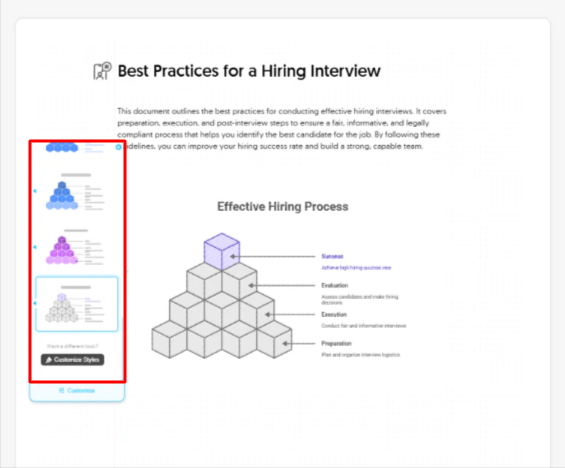
There were lots of styles to choose from in a variety of colors, line weights, and more. There was even an option to customize the styles at the bottom.
Step 6: Customize the Visual
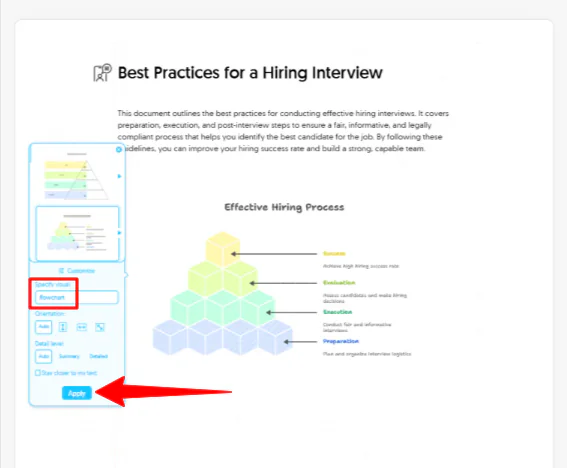
At the bottom of the panel was a blue “Customize” button where I could specify the visual with text and choose the orientation and detail level. I added “Flowchart” to the empty “Specify visual” field and hit “Apply.”
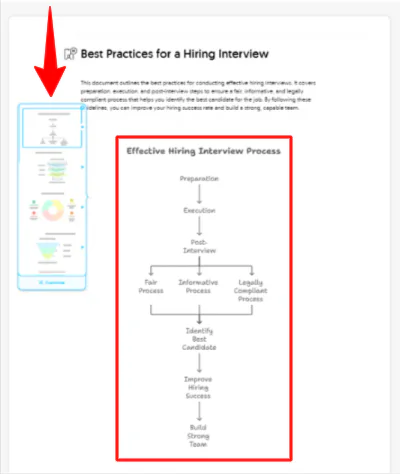
Seconds later, Napkin generated a flowchart just as I’d specified. Once again, I could choose a style and customize it how I wanted.
The other cool thing about Napkin AI is how much you can tweak the generated visuals. Click on any element in the diagram to swap out icons, change colors, or modify text.

There’s even a feature called “Spark Search” with a wide variety of shapes and icons. Just click on the magnifying glass with the lightning bolt in it to start searching for icons. You can drag and drop these icons wherever you want and customize them directly in the diagram.
Step 7: Export the Document

Once I was ready to export, I went to “Share” and “Download PDF.”
Napkin gave me four export formats:
- A single continuous page (great for blog posts)
- A4 format for printing
- 8.5 x 11 inch US letter (also great for printing)
- 16:9 presentation slides.
The presentation format is perfect for client pitches. It exports clean slides that import perfectly into Google Slides or PowerPoint.
Overall, Napkin AI made it easy to turn plain text into visuals with a single click. I liked how quickly I could generate, tweak, and export slides ready for real client work.
Top 3 Napkin AI Alternatives
Here are the best Napkin AI alternatives:
NotebookLM
The first Napkin AI alternative I’d recommend is NotebookLM. NotebookLM is Google’s AI-powered research assistant designed to help those manage, organize, and interact with large volumes of information. It’s great for researchers, students, and knowledge workers who need to extract insights from documents, articles, and research papers.
On the one hand, NotebookLM stands out with its focus on working directly from source documents. You upload your own sources (like PDFs, slides, or even YouTube links) and NotebookLM generates summaries, study guides, timelines, and even podcasts from your material.
Every answer is grounded in your uploaded content, with precise source citations and a dramatically reduced risk of AI hallucination. NotebookLM also allows interactive learning: you can ask questions about your documents, generate audio overviews, and even interrupt podcasts to ask follow-up questions in real time!
Meanwhile, Napkin AI turns ideas into visuals. It uses machine learning to turn text into visuals like mind maps, flowcharts, and diagrams to make complex ideas easier to understand.
For deep research and studying, use NotebookLM. For instantly turning text into customizable visuals within your documents, choose Napkin AI!
Read my NotebookLM review or visit NotebookLM!
Miro
The next Napkin AI alternative I’d recommend is Miro. It’s a collaborative online whiteboard platform that allows teams to brainstorm, organize, and present complex information visually. It’s often used to create flowcharts, infographics, mind maps, and more.
Miro stands out with its collaboration features. It’s built for real-time teamwork, allowing multiple users to edit and comment simultaneously.
Miro also offers a vast template library and a dynamic presentation mode. You can upload documents, generate diagrams from prompts, and customize every element directly on the canvas.
While Napkin AI excels at turning text into diagrams, Miro offers a more robust environment for team collaboration and iterative design.
For quick AI-generated diagrams that embed right into your article, choose Napkin AI. For team brainstorming and ultimate collaboration, choose Miro!
Visme
The final Napkin AI alternative I’d recommend is Visme. Visme is a comprehensive tool that creates engaging presentations, infographics, reports, and other business visuals.
On the one hand, Napkin AI stands out for its quick AI text-to-image generation. Paste or generate your text, and Napkin instantly creates diagrams, infographics, or flowcharts from it. Napkin is free to use, with more advanced features planned for future subscription tiers.
Meanwhile, Visme offers a broader suite of visual content tools. Visme is great for turning ideas into powerful presentations and infographics. Its AI features extend to image and writing assistance, and it’s great for creating polished, branded content.
For quick AI diagrams instantly made from text, use Napkin AI. For a full design suite with templates and branding, use Visme!
Read my Visme review or visit Visme!
Napkin AI Review: The Right Tool For You?
Overall, Napkin AI made it effortless for me to turn plain text into polished visuals in seconds without having to deal with complicated design tools. If you want fast, AI-generated diagrams and infographics with no design hassle, it’s worth trying.
However, if you’re curious about the best Napkin AI alternatives, here’s what I’d recommend:
- NotebookLM is best for researchers, students, and knowledge workers who need deep document analysis and trustworthy AI summaries.
- Miro is best for teams that want real-time collaboration, brainstorming, and flexible visual planning on a whiteboard.
- Visme is best for marketers, presenters, and businesses that need polished presentations, branded content, and a full design suite.
Thanks for reading my Napkin AI review! I hope you found it helpful.
Napkin AI offers a free plan that includes 500 free AI credits per week to generate visuals. Try it for yourself and see how you like it!
Frequently Asked Questions
Is Napkin AI free to use?
Yes, Napkin AI is free to use with some limitations on usage and customization features. Paid plans unlock more credits and advanced design tools for more control and flexibility.
What is Napkin AI used for?
Napkin AI is used to instantly turn text into visuals like infographics, diagrams, mind maps, and flowcharts. Ultimately, Napkin AI streamlines content creation and visual storytelling.
Is Napkin AI safe?
Napkin AI is safe to use. It uses HTTPS and industry-standard security measures to protect your data.
Who is behind Napkin AI?
Napkin AI was founded by Pramod Sharma and Jerome Scholler, who previously created the AI gaming company Osmo. The company is headquartered in Los Altos, California, and is driven by a small, dedicated team of engineers, designers, and product specialists from the US, France, and India.



