
AI Tools 101
FineVoice Review: I Cloned My Voice with AI in 30 Seconds

Unite.AI is committed to rigorous editorial standards. We may receive compensation when you click on links to products we review. Please view our affiliate disclosure.

Have you ever wanted to turn a script into quality voice audio in minutes without voice actors or a recording studio?
AI voice tools have come a long way, and more creators and businesses are leaning on them. Some estimates put it at close to 80% of content teams using AI in some part of their workflow, with voice technology being among the fastest-growing.
FineVoice is one of the tools sitting at the center of that shift, promising realistic voice generation, voice cloning, and a full suite of audio tools without requiring you to have the technical know-how.
In this FineVoice review, I’ll discuss the pros and cons, what it is, who it’s best for, and its key features. Then, I’ll show you how I used FineVoice to generate speech with text and create a voice clone.
I’ll finish the article by comparing FineVoice with my top three alternatives (ElevenLabs, HeyGen, and Murf). By the end, you’ll know which tool is right for you!
Verdict
FineVoice is a user-friendly AI tool with realistic voices, fast cloning, and useful creative features. It isn’t perfect, but it’s a solid option for generating audio and voice content.
Pros and Cons
- Realistic AI voices with customizable tone and speed
- Emotion tags for more expressive delivery
- Fast and accurate voice cloning
- All-in-one platform with text-to-speech, sound effects, music tools, and more
- Supports 150+ languages
- Simple, beginner-friendly interface
- Royalty-free audio for commercial use
- Cloned voices may struggle with certain accents or styles
- Ethical questions around voice cloning (e.g., consent, deepfake use)
- Emotion tags don’t always produce strong inflection or clear tone shifts
What is FineVoice?

Trusted by major media enterprises like Forbes, FineVoice is an AI voice generator and content creation platform for producing realistic voiceovers, music, and sound effects from text. It’s a great tool for creators, educators, and businesses who need fast, studio-quality audio without the traditional recording setups.
Background
FineVoice was developed by Fineshare, a company that’s been building a reputation in the AI audio and voice technology space. They’ve positioned FineVoice as an all-in-one AI voice generator and creative content platform.
Platform Interface
FineVoice’s onboarding experience is surprisingly smooth. The interface is clean, the tools are laid out in a way that makes sense, and most people can get their first audio project done within a few minutes of signing up.
If you’re a creator, educator, developer, or running a digital operation that involves voice content, FineVoice is worth considering.
Who is FineVoice Best For?
Here’s who FineVoice is best for:
- Content creators can use FineVoice to quickly create character voices and background audio for shorts and videos.
- Podcasters and storytellers can use FineVoice for narration. Rather than hiring multiple voice actors, you can choose from 1,500+ AI voices across 150+ languages and accents. Alternatively, record 30 seconds of your voice to create a custom voice.
- Educators can use FineVoice to turn lessons, slides, and PDFs into realistic audio for courses and training in multiple languages.
- Animators and game developers can use FineVoice to create distinct character voices, sound effects, and music for animations and games.
- Marketers and businesses can use FineVoice to produce branded voiceovers, ads, product demos, and training with consistency.
- Developers can use the FineVoice API to build voice features directly into their own apps and products.
Ultimately, FineVoice is best if you’re looking for a one‑stop tool for voices, SFX, and music, you care about emotional delivery and multilingual support, or you need to batch a lot of voice work.
FineVoice Key Features
Here are FineVoice’s key features:
- Text to speech: Turn text into AI-generated speech that sounds natural with control over pitch and speed.
- Large AI voice library: 1,500+ AI voices across 150+ languages and accents for international audiences.
- AI voice cloning: Accurately clones voices from a 30‑second audio clip in under a minute.
- Emotion tags: Uses tags like [happy], [sad], [angry] to generate emotionally expressive speech for storytelling.
- Voice changer: Changes a recorded or live voice into different characters and genders.
- Voice enhancement: Cleans and improves audio quality.
- AI sound effect generator: Generates original royalty‑free sound effects from text or by uploading a video for scenes.
- Background music generator: Generate high-quality background music tracks in various styles for any creative or professional project.
- Speech to text: Quickly and accurately converts voice to text. Export transcripts in multiple formats for subtitles.
- AI talking photo: Animate static portraits to speak your scripts with synchronized lip movements.
- AI voice design: Describe a voice (e.g., “a gravelly, middle-aged detective”) to generate a unique AI persona from scratch.
How to Use FineVoice
Here’s how I used FineVoice to generate speech with text and create a voice clone:
- Create a FineVoice Account
- Explore the Dashboard
- Open the Text-to-Speech Tool
- Give it a Prompt
- Use Emotion Tags
- Tweak the Settings & Generate
- Play the Generation
- Create an Instant Voice Clone
- Record Your Voice
- Tweak the Settings & Start Cloning
- Use the Voice Clone in Projects
Step 1: Create a FineVoice Account

I started by going to finevoice.ai and selecting “Get Started” on the top right.
Step 2: Explore the Dashboard

After creating an account, I was taken to my dashboard. Its two main features (“Text to Speech” and “Custom AI Voice”) were easily accessible right at the top.

Below that were more AI tools, including the voice changer, sound effects, a background music generator, and a tool to make photos speak. Further down were the AI voices (FineVoice offers 1,500+).
All AI voices and tools were easily accessible via the panel on the left.
Step 3: Open the Text-to-Speech Tool

I decided to try one of FineVoice’s main tools: the Text-to-Speech generator, and selected “Get Started Now.”
Step 4: Give it a Prompt

Next, I was asked to enter my text. I wanted to really put FineVoice to the test, so I inserted the following prompt:
“[whispering] It was midnight when the door creaked open. [fearful] I held my breath, praying it was just the wind. [surprised] But then, a voice called out, [happy] ‘Surprise! Happy birthday!'”
Step 5: Use Emotion Tags
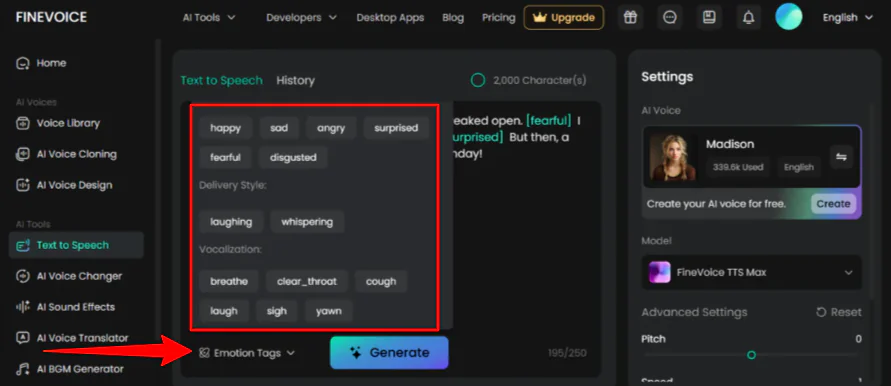
You’ll notice my prompt includes emotion tags like [whispering], [scared], [surprised], and [happy]. I used the “Emotion Tags” at the bottom to control not just what was said, but exactly how it was delivered.
Step 6: Tweak the Settings & Generate

Before hitting “Generate,” I made sure the settings (like pitch and speed) on the right were how I wanted. I kept everything on default, but feel free to choose a different AI voice, model, pitch, speed, etc.
Step 7: Play the Generation

Seconds later, FineVoice generated an AI voice according to my prompt. I hit the play button to hear it.
While her voice sounded realistic and there were dramatic pauses, she wasn’t really whispering. I was expecting her to whisper for the first part and then transition to a normal voice.
Overall, the voice was relatively true to my prompt. However, I was expecting more inflection and emotional range, especially in the moments where the tone was supposed to shift dramatically. The delivery felt a bit too even, rather than fully leaning into the fear, surprise, and excitement I had clearly marked with the emotion tags.
Step 8: Create an Instant Voice Clone

Next, I wanted to try cloning my voice. Right in the “Text-to-Speech” feature, I could create an AI voice for free by selecting “Create” under the AI voice.

To clone a voice, FineVoice gave me four options:
- Instant Voice Clone (clone a voice in 30 seconds by uploading a 10-second recording)
- Voice Design (clone another’s voice)
- Professional Voice Clone (create high-quality voice clones)
- Upload voice model (create a voice by uploading files)
I chose the first option: Instant Voice Clone.

After choosing the Instant option, I was prompted to either upload a file or record live; I opted to record directly in the browser.
Step 9: Record Your Voice

While I could upload an existing recorded audio file of my voice, I selected “Record Audio.”

FineVoice provided a “script” for me to read, which was nice. I selected “Start Recording” and began speaking.
Step 10: Tweak the Settings & Start Cloning

Once the recording was complete, I chose the model image, name, language, and gender, and hit “Start Cloning.”
Step 11: Use the Voice Clone in Projects

Seconds later, my voice clone was complete. It was added to my library of voice clones, where I could instantly start using it, play it back, and edit/delete it. It sounded exactly like me when playing it back.
Overall, FineVoice was easy to navigate and impressively fast. It has a clean dashboard and a wide range of tools that were simple to test immediately.
While the emotion tags and voice cloning worked well (especially the surprisingly accurate instant clone), I found myself wanting more dramatic inflection and emotional depth in the text-to-speech delivery.
Top 3 FineVoice Alternatives
Here are the best FineVoice alternatives:
ElevenLabs
The first FineVoice alternative I’d recommend is ElevenLabs. It’s one I tested myself by generating a Santa Claus voice. I was pleasantly surprised: It sounded natural and warm, which was exactly what I wanted.
Both FineVoice and ElevenLabs handle AI voice generation and voice cloning well, so either one is a solid choice.
However, ElevenLabs goes deeper into voice quality. You get more granular control over stability, clarity, and style, which makes a significant difference for professional narration or any project where the voice needs to sound believable. Its latest v3 model is their most expressive AI voice model yet.
Meanwhile, FineVoice offers a wider toolkit with things like sound effects and music generation all in one place.
Choose ElevenLabs for excellent voice realism. Otherwise, choose FineVoice for more tools under one roof.
Read my ElevenLabs review or visit ElevenLabs!
HeyGen
HeyGen is a bit different than the other FineVoice alternatives I’d recommend, but that’s actually what makes it worth talking about.
When I first tested it, I went in through one of their premade templates to see how quickly I could get something usable. I had a video ready in a few minutes: no camera, no recording setup, no editing software. Just a script, an avatar, and a surprisingly clean editor.
What sets HeyGen apart is that it goes well beyond voice. You’re getting AI avatars with realistic lip-syncing, over 300 customizable templates, video translation into 175+ languages, and a ScriptGen tool that writes your script for you.
I even turned the Mona Lisa into a talking video just to test the TalkingPhoto feature. It worked better than I expected, with accurate lip-sync.
However, HeyGen and FineVoice aren’t really going head-to-head in the same category. FineVoice is built around audio, offering voice generation, sound effects, and music tools. Meanwhile, HeyGen is a full video creation platform that happens to include voice. So the overlap is there, but the use cases are pretty different.
If you need voiceovers and audio content, choose FineVoice. But if you’re trying to create actual videos with avatars (without ever stepping in front of a camera), choose HeyGen.
Read my HeyGen review or visit HeyGen!
Murf
The last FineVoice alternative I’d recommend is Murf AI, another one I’ve spent time with. What surprised me most when I first logged in was how much control I had over the voice output.
With Murf, you don’t just pick a voice and hit generate. You can highlight individual words and change how they’re pronounced, adjust pitch, and add pauses depending on the flow you’re going for.
That level of fine-tuning made a noticeable difference in the final product, especially for longer content like explainer videos or course material.
I also tested the Canva add-on, which made my life easier than I expected. I didn’t have to export anything or jump between tabs. The voiceover just lived inside my Canva design and synced up with the visuals. The Google Slides add-on works the same way.
However, FineVoice still wins if you want music generation and sound effects baked into the same platform. Otherwise, if professional voiceover quality and workflow integrations matter more to you, choose Murf.
Read my Murf AI Review or visit Murf!
FineVoice Review: The Right Tool For You?
Ultimately, I found FineVoice to be a solid platform that does a lot of things well without making you feel like you need a manual to get started.
My time with it was mostly smooth. Voice generation was fast, cloning was easier to set up than I expected, and having audio tools like sound effects and music all in one place saved me from jumping between apps.
With that said, there were moments when I wanted more. I found myself wishing for more control over some of the finer vocal details. If that’s the case for you, you might want to consider one of these alternatives:
- ElevenLabs is best for creators and professionals who need realistic voice generation and deep control over tone and style.
- HeyGen is best for video creators who want AI avatars, talking videos, and video translation.
- Murf AI is best for businesses and educators needing professional voiceovers with pronunciation control.
Thanks for reading my FineVoice review! I hope you found it helpful.
FineVoice offers 2,000 characters for text-to-speech and 5 clones for voice cloning for free. Try it for yourself and see how you like it!
Frequently Asked Questions
Is voice cloning illegal?
Cloning someone’s voice without their explicit consent is illegal in most cases. Using it on yourself or with proper authorization is fine, but using it to impersonate or deceive someone else can carry significant criminal consequences.
Is FineVoice free to use?
FineVoice offers a free plan, so you can test it out. However, the more advanced features are locked behind the paid tiers.
Is FineVoice good?
Yes, FineVoice is good. It’s fast, easy to use, and packs a solid range of audio tools into one platform. Just don’t expect the same level of vocal realism you’d get from more specialized alternatives.
Is FineVoice free?
Yes, FineVoice has a free plan that lets you test out the core features. It’s a great way to get a feel for the platform before committing to a paid tier.



