
-
Best Of
10 Best AI Transcription Software & Services (February 2026)
AI transcription software has evolved into one of the most valuable productivity tools available today. These... -
Best Of
10 Best AI Assistants (February 2026)
AI assistants have evolved far beyond simple voice commands or scripted responses. Today’s AI assistants... -
Best Of
10 Best AI Apps (February 2026)
Artificial intelligence (AI) is taking over nearly every market, including the highly competitive mobile app... -
Best Of
10 Best AI Tools for Business (February 2026)
Running a business today means juggling content creation, customer support, sales outreach, social media, and... -
Best Of
6 Best AI Tools for Public Speaking (February 2026)
In the realm of artificial intelligence, the application of AI tools in public speaking marks a significant... -
Best Of
10 Best AI Scheduling Assistants (February 2026)
Managing time has become one of the biggest challenges in today’s fast-paced work environment. Back-to-back...


AI Tools 101
Fieldy Review: This AI Notetaker Fixed my Goldfish Memory

Unite.AI is committed to rigorous editorial standards. We may receive compensation when you click on links to products we review. Please view our affiliate disclosure.

Have you ever walked out of a meeting only to realize you forgot half the key points? It happens to me constantly.
Research based on Hermann Ebbinghaus’s work indicates that (without reinforcement) the average person is likely to forget an average of 70% of new information within a day. No wonder nothing would stick when I was in school…
I recently came across Fieldy, and it became the answer to many of my problems. It’s a sleek, wearable AI device that captures conversations, transcribes them, and turns them into organized summaries and tasks.
In this Fieldy review, I’ll discuss the pros and cons, what it is, who it’s best for, and its key features. Then, I’ll show you how I set up the device, used it to record my first meeting, and accessed the meeting information on the app.
I’ll finish the article by comparing Fieldy with my top three alternatives (MeetGeek, Fathom, and Otter.ai).
Whether you’re juggling back-to-back meetings, managing projects, or just trying to stay on top of your conversations, Fieldy promises hands-free memory assistance that actually works. Let’s see if Fieldy is right for you.
Verdict
Fieldy is a sleek wearable device that records and transcribes meetings, creates summaries and tasks, and works in 100+ languages with strong privacy. However, its drawbacks are a limited free plan, occasional errors, Bluetooth dependency, and the need to buy the device and a subscription for full use.
Pros and Cons
- Accurate transcription with speaker detection
- AI summaries, task extraction, and reminders that sync with Google and Outlook
- Up to three days of battery life and built-in noise filtering
- No raw audio stored after processing
- Easy exports to external tools
- AI chat for past notes
- Wearable and sleek
- Searchable history
- 100+ languages
- Strong security
- The free plan is limited
- The transcriptions aren't totally accurate
- Dependent on connecting to your phone via Bluetooth
- Can make mistakes in noisy environments or with accented speech
- Must purchase the device and pay for a monthly plan for the full experience
- Constant listening (when the recording is turned on) may raise privacy concerns
What is Fieldy?
Fieldy is a wearable AI note-taking device that hangs around your neck and captures conversations, ideas, and important moments throughout your day. It’s like having an assistant who never forgets anything you say.
The device itself is small, lightweight, surprisingly stylish, and discreet (you can even hide it under clothes). You won’t find yourself walking around with some clunky piece of technology bouncing on your chest all day.
Fieldy vs. Traditional Note-Taking Apps
But what makes Fieldy different from using your phone’s voice recorder or another note-taking app? The big difference is the AI processing.
Fieldy doesn’t just record audio. It uses natural language processing and machine learning to transcribe, organize, and summarize everything it captures in a sleek interface. You’re no longer scrolling through hours of recordings trying to find that one thing your boss mentioned last Tuesday.
But it doesn’t stop at storing and organizing your conversations. You can also ask the built-in AI chatbot questions about your recorded conversations to get clearer insights, and use the Fieldy app to manage tasks and set reminders.
Fieldy’s Promise
Fieldy’s core promise is this: hands-free memory assistance that actually works. You wear it, it listens, and later you can review organized, searchable notes about everything that happened during your day.
That means no more frantically typing notes during meetings or kicking yourself later because you forgot something important.
Who is Fieldy Best For?
Here’s who Fieldy is best for:
- Busy professionals can use Fieldy to capture tasks and summaries hands-free during back-to-back meetings.
- Healthcare workers can use Fieldy to capture and summarize patient consultations.
- Neurodiverse individuals with ADHD or memory challenges can use Fieldy for reminders and searchable conversation histories.
- Journalists, researchers, and lawyers can use Fieldy to capture interviews and generate organized notes.
- Students, teachers, and content creators can use Fieldy to manage lectures, talks, and in-person interactions.
- Real estate agents can use Fieldy to document client preferences during home tours and automatically generate follow-up tasks for specific listings.
- Contractors can use Fieldy to record site visits and material lists while keeping their hands free for tools or measurements.
Fieldy Key Features
Here are Fieldy’s key features:
- A wearable AI device that connects to your phone via Bluetooth and runs for up to three days on a single USB‑C charge.
- Automatic transcription of real-time conversations so you can stay present rather than taking manual notes.
- AI-generated summaries that distill key points and action items after each meeting or conversation.
- Smart task and reminder creation that turns spoken commitments (e.g., “I’ll send it Friday”) into tasks.
- Synchronizes tasks and reminders into Google Calendar and Microsoft Outlook.
- Searchable notes and AI chat so you can search by keyword or ask an assistant questions about past conversations.
- Multilingual speech recognition (100+ languages).
- Speaker identification for up to six voices in group meetings.
- Privacy that focuses on encryption and control over what is recorded and stored.
- High-quality microphone with noise filtering.
- A status light to indicate when it’s ready for syncing, active, or in need of charging.
How to Use Fieldy
Here’s how I used Fieldy to automatically record, transcribe, and summarize a meeting:
- Order the Fieldy Device
- Assemble the Device
- Download the Fieldy App
- Create a Fieldy Account
- Turn on the Device
- Connect the Device to the App
- Personalize Your Experience
- Give Fieldy Microphone Access
- Start a New Conversation & Record
- Generate a Summary of Your Meeting
- Add a New Task
- Ask AI About Your Meeting
Step 1: Order the Fieldy Device

I started by going to fieldy.ai and selecting “Order Now.”

I ordered the device and received it a couple of weeks later.

There were two boxes:
- FIELDY No.1 (the Fieldy device with the charger)
- FIELDY Loop (the string you attach your Fieldy device to that goes around your neck)
Step 2: Assemble the Device

Attaching the Fieldy device to the Loop was easy. I clipped the stainless steel carabiner-style clasp into the hole on the Fieldy device.

The Loop itself is nice, too. The rope is very durable, and the magnetic clasp on the Loop was strong. I wasn’t worried at all about it falling off.
Step 3: Download the Fieldy App

Next, I downloaded the Fieldy app from the App Store.
Step 4: Create a Fieldy Account

Once the app was downloaded, I hit “Get Started” and created an account.
Step 5: Turn on the Device
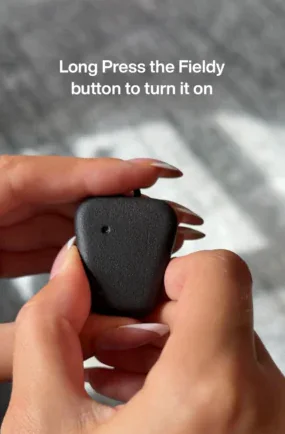
After creating an account, I turned the Fieldy device on by holding and pressing the button until the light turned on. The device doesn’t come charged (at least, mine didn’t), so you’ll have to charge it before using it with the USB-C charging.
Step 6: Connect the Device to the App

The white light on the device should be blinking (“breathing white”), indicating it is waiting to be connected to the Fieldy app.
I hit “Connect” on the Fieldy app to pair it with the device. Once paired, the light on the device went solid, and the app said “Accessory Paired.”
Step 7: Personalize Your Experience

Next, I went through a series of questions to personalize my Fieldy app for a better experience:
- What is your name?
- Why did you get Fieldy?
- What do you want Fieldy to do?
- How old are you?
- How do you plan to use Fieldy AI?
- Which industry do you work in?
- Where did you find out about Fieldy?
- What language do you speak most often?
Step 8: Give Fieldy Microphone Access

From there, Fieldy asked for microphone access and for me to read some text aloud. This allowed Fieldy to recognize my voice during conversations.
Step 9: Start a New Conversation & Record

I really love the interface. The design is sleek, and I found it really easy to navigate.
Within the app, I started a new conversation and resumed recording with the device.
Step 10: Generate a Summary of Your Meeting

Selecting “Start a New Conversation” ended my current conversation and instantly created a summary at the top of the “Home” tab.
Step 11: Add a New Task

To the left of the “Home” was “Tasks.” At the top, I selected “Add New Task.”

I added a task title, date, and time.

Tasks and reminders will automatically be created during your meeting, but you can always manually create them in this tab.
Step 12: Ask AI About Your Meeting

To the right of the “Home” tab was “Chat.” This is Fieldy’s AI chat assistant that helps keep track of everything:
- Remembering details
- Summarization
- Conversation preparation
- Pattern analysis, etc.
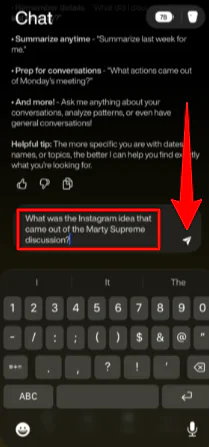
I decided to put Fieldy’s AI assistant to the test by asking it, “What was the Instagram idea that came out of the Marty Supreme discussion?”

Seconds later, I had my answer. The AI assistant instantly pulled the exact idea from context.
Overall, Fieldy made it effortless to capture and summarize meetings without breaking my flow. While the transcription wasn’t totally perfect, it captured the gist of what was said, gave an accurate overview of my meeting, and felt fast and useful.
Top 3 Fieldy Alternatives
Here are the best Fieldy alternatives:
MeetGeek
The first Fieldy alternative I’d recommend is MeetGeek. It’s built for teams that want powerful AI notes, summaries, and integrations across online meetings.
Both Fieldy and MeetGeek record conversations, generate summaries, and allow you to ask AI questions later. Both help you stay present rather than taking notes during meetings.
However, MeetGeek stands out as a team-centric solution in online meetings. It also provides meeting insights for self-coaching and training (something Fieldy lacks), as well as CRM synchronization for improved workflows. Meanwhile, Fieldy stands out with its wearable device and effortless in-person recording.
For team collaboration and integrations, choose MeetGeek. For hands-free, real-world conversations, choose Fieldy!
Read my MeetGeek review or visit MeetGeek.
Fathom

The next Fieldy alternative I’d recommend is Fathom. Fathom automatically records, transcribes, and summarizes meetings, so you can focus on the conversation.
Fieldy and Fathom offer AI summaries, action tracking, and meeting insights. On the one hand, Fathom stands out for its easy integrations with Zoom, Google Meet, Slack, Asana, and more. It also comes with searchable AI summaries.
Meanwhile, Fieldy is better for personal use. It has voice recognition, a personal AI assistant, and automatically and manually creates tasks.
Choose Fathom for team collaboration and cross-platform use. Otherwise, choose Fieldy for personal AI support and task management.
Read my Fathom review or visit Fathom!
Otter.ai
The final Fieldy alternative I’d recommend is Otter.ai. It automatically records, transcribes, and summarizes meetings, just like Fieldy.
However, Otter.ai stands out for teams. It lets you comment, highlight, assign tasks, and automatically join Zoom, Google Meet, or Teams meetings. You can also ask Otter AI Chat to summarize meetings or draft follow-up emails.
Choose Otter.ai for team collaboration and more advanced AI note features. Otherwise, choose Fieldy for simple personal meeting tracking with a wearable device and app.
Read my Otter AI review or visit Otter.ai!
Fieldy Review: The Right Tool For You?
After trying Fieldy, my takeaway is that it’s a specialized tool for a specific type of person. If you are someone who spends your day in back-to-back in-person meetings, site visits, or clinical sessions where pulling out a phone or laptop feels intrusive, Fieldy comes in handy.
However, if you primarily work at a desk and attend Zoom or Teams calls, Fieldy’s hardware might feel like overkill compared to software-only solutions. If that’s the case, consider these alternatives:
- MeetGeek is best for teams needing analytics and CRM integration.
- Fathom is the best option if you want easy Zoom/Meet transcription.
- Otter.ai is best for offices where teams collaborate on transcripts in real-time.
Thanks for reading my Fieldy review! I hope you found it helpful.
Fieldy offers 150 free transcription minutes every month. Try it for yourself and see how you like it!
Frequently Asked Questions
Is Fieldy AI any good?
Fieldy AI reviews are mostly positive, highlighting its strong transcription and summary features.
Is Fieldy AI secure?
Yes, Fieldy AI is designed with security and privacy in mind. It features end-to-end encryption and HIPAA compliance.
Is Fieldy AI HIPAA compliant?
Yes, Fieldy AI is HIPAA compliant.
Can I wear Fieldy under my shirt?
Yes, you can wear the Fieldy device under most shirts. Thicker or lighter-colored shirts hide it and its light best, or you can keep it in your pocket.



