
Voice Generators
Murf AI Review: This AI Voice Generator Nailed Pronunciation

 Add Unite.AI to your preferred sources on Google
Unite.AI may receive compensation when you use links to products we review. This does not influence our editorial evaluations. Read our affiliate disclosure.

If you’ve ever recorded your own voiceover, you know the routine. You do take after take, trip over the same brand name, and cringe when you hear your own voice played back. Hiring a voice actor solves that, but it’s slow and expensive when all you need is narration for a training module, a product demo, or a YouTube intro.
That’s the gap Murf AI fills. You paste in a script, pick from 200+ AI voices, and adjust pitch, speed, pauses, and pronunciation until it sounds right. Murf also handles voice changing, dubbing, and presentation narration through Canva, Google Slides, and PowerPoint.
I wanted to know what Murf could actually produce, so I ran three tests: a YouTube voiceover packed with tricky words, a narrated training video, and a voice-changer test on a recording of my own voice.
In this Murf AI review, I’ll show you how it worked, where it impressed me, and where I think it falls short. I’ll finish the article by comparing it to my top three alternatives: ElevenLabs, Speechify, and WellSaid.
Verdict
Murf produces clear and professional voiceovers quickly, and its pronunciation editor makes small fixes easy. However, the default voice settings often need adjusting, some voices still sound noticeably AI-generated, and many of its best features (Variability, Google Slides, translation, and voice cloning) sit behind the Business or Enterprise plans.
Pros and Cons
- Fast voice generation, producing a 44-second voiceover in about 15 seconds.
- Accurate pronunciation of brand names and challenging words.
- One-click pronunciation fixes with phonetic suggestions.
- Effortless control over speed, pitch, and pauses without rewriting the script.
- Voice Changer preserves your original timing and pauses when re-voicing recordings.
- 200+ voices across 30+ languages and accents, with different speaking styles.
- Integrations with Canva, Google Slides, and PowerPoint.
- Built-in stock images, video, and music for creating narrated videos.
- Free plan with 10 minutes of voice generation and no credit card required.
- Strong security credentials, including SOC 2 Type II, ISO 27001, GDPR, and HIPAA compliance.
- Low-latency Falcon API for building voice agents and IVR systems.
- The free plan doesn’t allow downloads, so you’ll have to upgrade to the paid plan.
- Default voice settings can be off, with some voices starting too slow or using the wrong style.
- Some voices can still sound robotic and lack emotion.
- There’s no option to read numbers as individual digits, so scripts may need manual edits.
- Advanced editing tools and some integrations require the Business plan.
- AI Translation and voice cloning are limited to Enterprise.
- Stock media search can return irrelevant results, and images don’t sync with the narration automatically.
- You can’t clone your voice yourself; it’s an Enterprise add-on.
What is Murf AI?
Murf AI is an AI voice generator that’s been around since 2020. Its main product (Murf Studio) is an online editor that lets you turn a script into a voiceover.
Murf is built more for business content than entertainment. Its customers are mostly companies that produce training videos, product demos, presentations, and ads.
How to Use Murf AI
To start using Murf, you create a project, paste your script into a “block,” and choose a voice and style. Murf splits the block into paragraphs, and each paragraph can be generated, played, and edited separately.
If a word sounds wrong, fixing it is simple: You highlight it and pick a different pronunciation. If the pacing is off, all you have to do is change the speed or add a pause. You only regenerate the part you changed, and you never have to hire a voice actor or rerecord the entire thing just to fix a small mistake.
Under each project is a timeline where you can add your own video, Murf’s stock images and footage, and background music. That makes Murf more than a text-to-speech generator, though it’s not a full video editor.
Improvements
A lot has changed since I originally reviewed Murf:
- More voices: Murf now offers 200+ voices in 35+ languages and accents, up from 120+ voices in 20+ languages.
- New models: Murf Gen 2 powers Studio, and Murf claims it has 99.38% pronunciation accuracy. Falcon is a separate low-latency model for real-time apps and voice agents.
- Voice Changer transcribes your recording, turns it into an editable script, and re-voices it with an AI voice while keeping your timing.
- More products: Murf also sells AI dubbing, a TTS API, and conversational voice agents for call centers.
Who is Murf AI Best For?
Here’s who Murf AI is best for:
- L&D and training teams can narrate onboarding, compliance, and safety modules. If they ever need to, they can update a single line instead of re-recording the entire module.
- Course creators can add consistent narration to lessons and slides, and easily fix mispronounced terms once with the pronunciation library.
- Marketers can create explainer videos, product demos, and ad voiceovers in different voices and styles without having to book a studio or hire a voice actor.
- Canva and Google Slides users can add narration directly into their designs and decks instead of exporting audio first.
- YouTubers who don’t want to use their own voice can create narrations for faceless channels, as long as they’re willing to make tweaks.
- Teams with recordings can use Voice Changer to swap a rough self-recorded narration for a cleaner AI voice while keeping the original timing.
- Developers can use the Falcon API for real-time voice apps, IVR systems, and support agents.
- Regulated industries like healthcare and finance get SOC 2, HIPAA, and GDPR compliance.
Murf AI Key Features
Here are Murf’s key features that stood out te most to me:
- Murf Studio: A block-based editor where each paragraph can be generated and edited on its own, so you don’t have to regenerate the entire script to fix one line.
- 200+ voices & styles: Voices are filtered by language, accent, age, and use case, and many voices come with multiple styles like Conversational, Calm, Narration, Promo, and Newscast.
- Pronunciation editor: Highlight any word to see phonetic suggestions or create your own. You can apply a fix to the project or save it to a reusable library.
- Speed, pitch, and pauses: Adjust delivery at the block or paragraph level, and insert timed pauses where you want the audio to breathe.
- Emphasis & Variability (Business): Emphasize specific words, or generate multiple variations.
- Say It My Way (Business): Record yourself reading a line, and the AI voice mimics your delivery.
- Voice Changer (Audio to Text): Upload an MP3 or MP4. Murf transcribes it, keeps your pauses, and re-voices it with an AI voice of your choice.
- Built-in media library: Stock images and video (from Pexels), music, and a timeline to sync visuals to your narration.
- Integrations: Canva (Creator plan), Google Slides and PowerPoint (Business plan), plus Adobe Captivate and Murf voices for Windows apps.
- Falcon TTS API: A text-to-speech API built for real-time apps, which Murf says reaches time-to-first-audio under 100ms.
Hands-On Testing: What Murf AI Actually Produced
I tested Murf on the free plan, which includes 10 minutes of voice generation and temporary access to Business features. To download the audio from my tests, I had to upgrade to the Creator plan.
For each test, I judged the finished audio: how natural it sounded, how accurate it was, and how much fixing it needed before I’d publish it.
Test 1: A YouTube Voiceover with Tricky Words

For my first test, I wrote a 44-second YouTube intro and packed it with things AI voices often trip over:
- Brand names (“Murf,” “Canva”).
- A price.
- A percentage (99.38%).
- The acronyms SaaS, API, and GIF.
- The words “quinoa” and “Worcestershire.”
- A question.
I chose Natalie with the Conversational style.
Murf generated 44.4 seconds of audio in about 15 seconds. Everything was pronounced correctly, including “Worcestershire” and “quinoa,” and the voice rose at the end of “can an AI voice actually replace that?” like a real question.
The one mistake was “GIF,” which Natalie spelled out letter by letter (“G-I-F”). Overall, her voice sounded a bit robotic, which would be a giveaway that her voice is AI-generated.
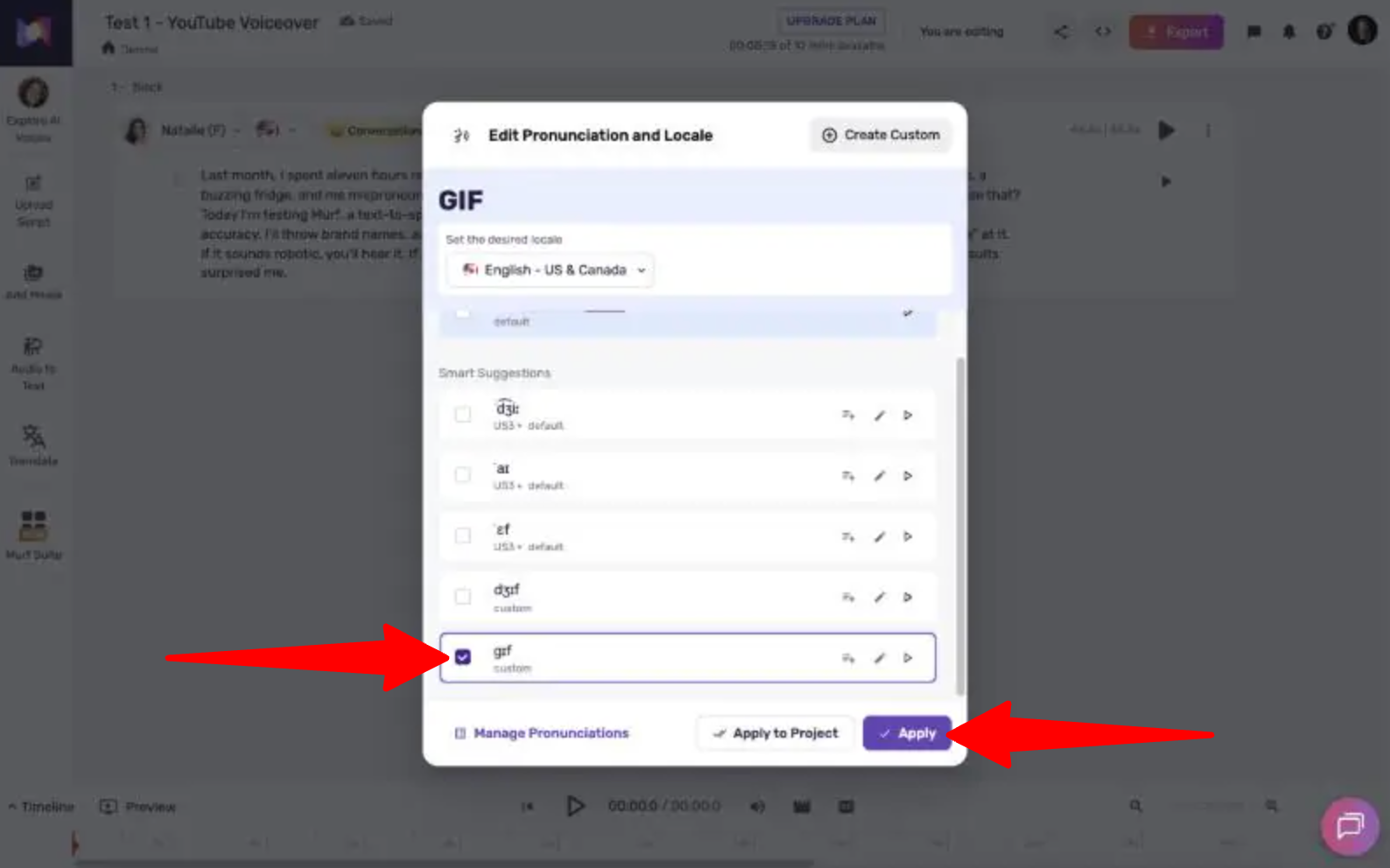
To fix “GIF,” I highlighted the word and opened the pronunciation editor. It offered several options, including the hard-G “gif” and the soft-G “jif.” I picked the hard G and regenerated.
My Take
One fix and one regeneration were all it took! The second take pronounced “GIF” correctly, and to my surprise, Natalie no longer sounded as robotic as she did in the first take.
That suggests that regenerating can produce noticeably different results, even when you only change one word. This is good enough to publish for a YouTube intro, though an attentive listener could probably still tell it’s AI.
Test 2: A Narrated Fire Safety Training Video
For my next test, I gave Murf a five-slide fire safety script. The script included the acronym “PASS,” “Assembly Point B,” and “extension 4127.”

I chose Terrell with the Calm style, then added stock images from Murf’s built-in library to turn it into a short training video.
Terrell’s first take was 42.4 seconds long. “PASS” sounded clear, and Murf read it as a word rather than spelling it out, which I was fine with for an acronym.
But two things needed fixing:
- The extension number: Murf read “extension 4127” as “four thousand one hundred twenty-seven.” The pronunciation editor only offered word fragments like “four,” “thousand,” and “hundred,” with no option to read the number as digits. So I had to manually rewrite it as “4-1-2-7” in the script.
- The pacing: Terrell’s default speed was -10%, and his delivery was almost painfully slow. I raised it to +10% (37.7 seconds), which helped but still felt slow. At +19%, it came down to 36.3 seconds. Adjusting the speed made Terrell sound more natural.
I found the visuals to be the weakest part.
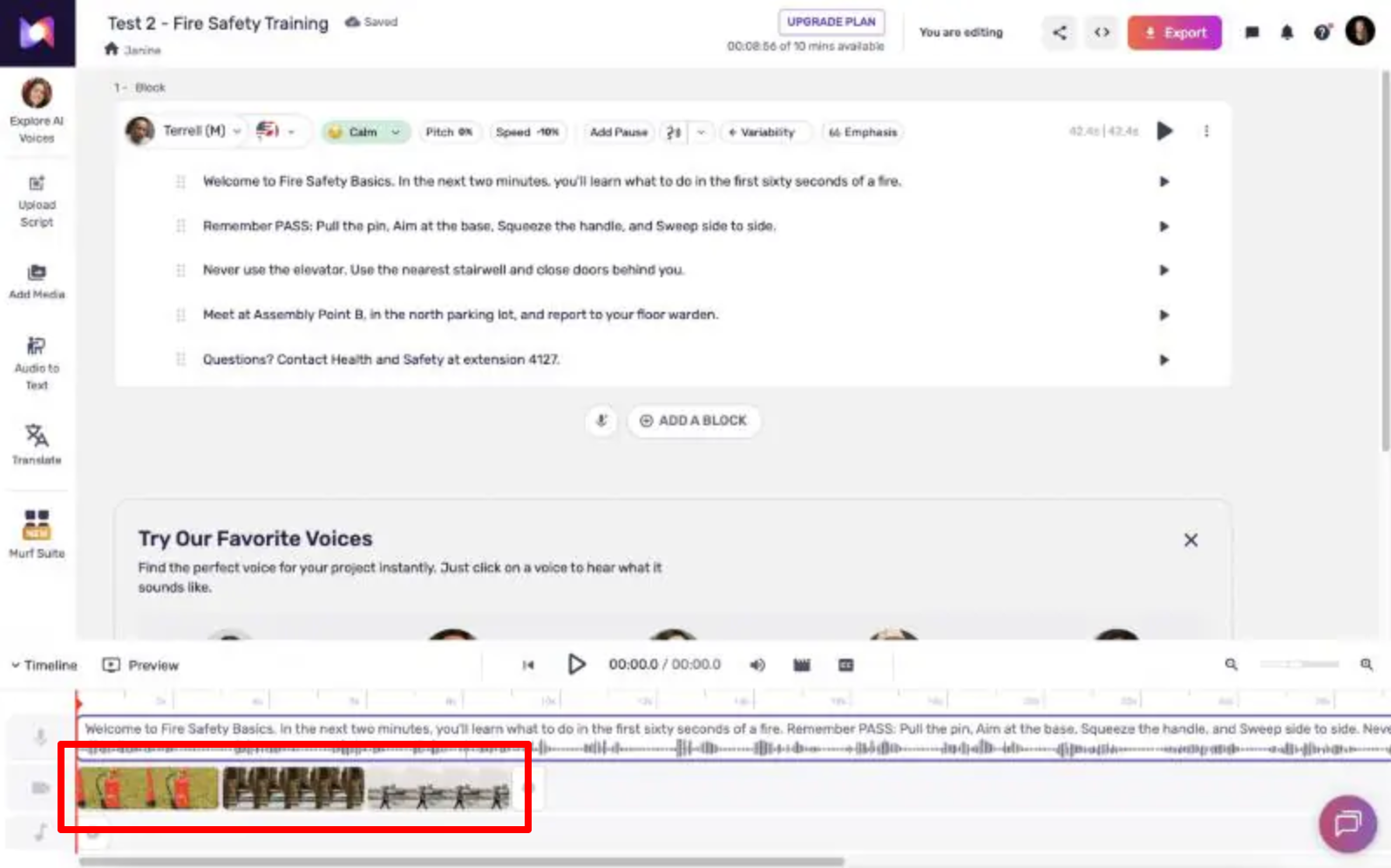
Searching Murf’s stock library for “fire extinguisher” mostly returned fashion photos of models posing next to extinguishers. “Emergency stairwell” returned ambulances and paramedics, not a single stairwell.

When I added three images, Murf placed them on the timeline back to back at a fixed length. They didn’t line up with the narration, so I’d have to drag each one into place myself.
My Take
After two fixes, the narration was usable for an internal training module. The extension number fix was easy, but you have to know to listen for it because Murf won’t warn you.
If you’re building training videos, I’d use Murf for the voice and add your own slides or visuals. The stock library isn’t really good enough to carry a video on its own. Unlike Fliki, Murf doesn’t automatically match visuals to the script.
Test 3: Turning My Own Recording into an AI Voice
For my final test, I uploaded a 23.5 second recording of myself reading a short intro that could be used for YouTube. Next, I used Murf’s Voice Changer (it’s under Audio to Text in Studio) to convert it into an AI voice.
Murf doesn’t accept M4A files, so you might have to convert your recording to MP3 first.
Murf took about 50 seconds to transcribe the recording. It split my audio into blocks and kept my natural pauses (1.1, 0.6, and 0.9 seconds) as timed gaps. Every word in the transcript was correct, but the punctuation wasn’t:
- Both questions (“So what changed” and “…worth twenty dollars a month”) were missing question marks.
- “And” and “because” were left lowercase after periods.
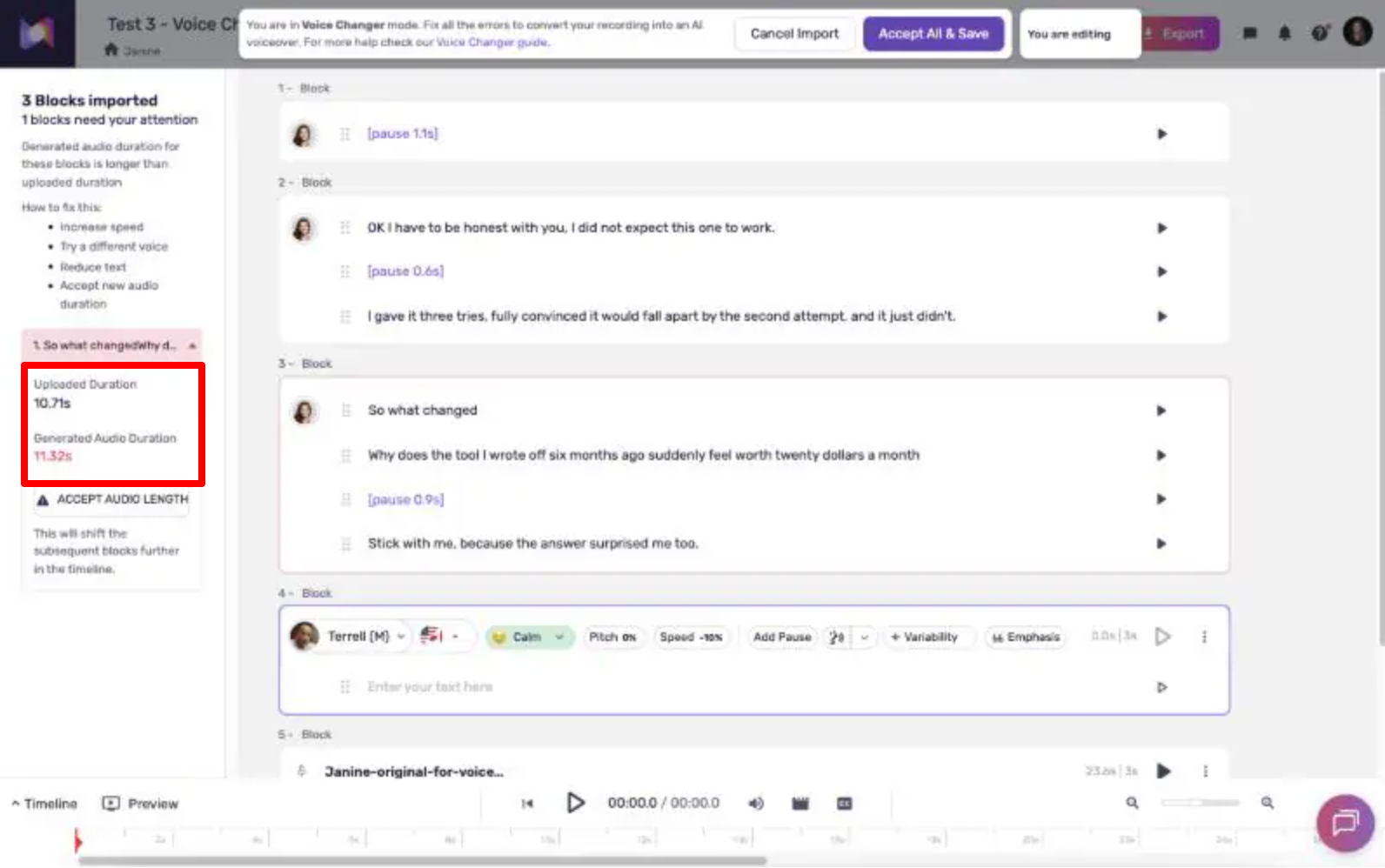
Murf assigned Natalie with the Angry style by default. In that style, one section ran 11.32 seconds versus my original 10.71, and Murf flagged it.
After I added the missing question marks and switched to Conversational, the AI version came in at about 21.6 seconds. That fits inside my original timing.
Here is my original recording (the v0lume is. a bit more quiet):
And here is my recording done with Murf’s Voice Changer:
My Take
The transcription and timing were impressive, but I felt like the voice performance didn’t quite capture mine. Parts of the first section felt rushed and a bit robotic, Natalie had heavy vocal fry on the word “tries,” and I felt like the disbelief in “and it just… didn’t” was missing completely.
Voice Changer is useful if you have a rough recording and want a cleaner voice over top of it. But if your delivery has personality, Murf tends to flatten it. I’d also check the punctuation before generating, because missing question marks change how the AI reads the line.
Results & Output Quality
Here’s how Murf performed across all three tests:
- Pronunciation: Excellent. Murf got “Worcestershire,” “quinoa,” “Canva,” “SaaS,” “API,” “PASS,” and “99.38%” right on the first take. It only struggled with “GIF” and a four-digit extension number.
- Naturalness: Mixed. The voices sounded clear and professional, but Natalie sounded robotic in some of the generations. And unfortunately, Murf’s voices didn’t convey surprise or emotion where the script called for it.
- Consistency: Regenerating the same script can noticeably change how natural the voice sounds. In Test 1, Natalie sounded robotic in the first take but much more natural in the second.
- Speed: Fast. A 44 second voiceover generated in about 15 seconds, and each paragraph took around 2 seconds.
- Editing required: Light but constant. Every test needed at least one fix: a pronunciation, a number, the speed, the style, or the punctuation. None took more than a minute, but Murf never flagged the problems for me so I had to identify them myself.
- Defaults: This was the most surprising weakness. Two of my three tests started on the Angry style, and Terrell’s default speed was -10%. You need to check every setting before generating, which can get annoying.
- Where it fell short: Emotional delivery, the stock media search, and the number of features locked behind Business or Enterprise.
How to Get Good Results with Murf AI
When it comes to getting good results with Murf AI, what matters is making a few intentional decisions before you generate:
- Check the voice style and speed first. Don’t trust the defaults. Pick a style that matches your content (Conversational for YouTube, Calm or Narration for training) and listen to a preview before generating the entire script.
- Write for the ear. Punctuation shapes the delivery, so make sure questions end with question marks. Also, write numbers the way you want them read (“4-1-2-7” rather than “4127”).
- Fix pronunciation once. Highlight any word Murf gets wrong, pick the right pronunciation, and save it to your project or library so it stays fixed.
- Regenerate only what’s broken. Edit and regenerate individual paragraphs instead of the whole block, since every generation uses your voice-generation time.
- Add your own visuals. I found that Murf’s stock library is hit-or-miss, so upload your own slides or footage instead. If you already design in Canva (Creator plan) or Google Slides (Business plan), Murf’s add-ons let you add narration directly to your slides.
Top 3 Murf AI Alternatives
Here are the best Murf AI alternatives I’ve tried that I’d recommend.
ElevenLabs
ElevenLabs is the first alternative I’d choose if voice realism matters most.
When I tested it, Eleven v3 delivered convincing pauses, inflection, and energy, and its audio tags let you direct emotions like whispers and laughs. Emotional delivery is exactly where Murf fell short in my Voice Changer test, so ElevenLabs would solve that problem.
ElevenLabs also lets you clone your own voice for a very affordable price on their Starter plan. With Murf, cloning is an Enterprise add-on. On top of that, ElevenLabs includes dubbing, transcription, music, and sound effects.
But where Murf wins is workflow. Its Canva, Google Slides, and PowerPoint integrations make it easier to narrate presentations, and its compliance certifications appeal to larger businesses. Murf’s pricing is also more predictable, since it’s based on hours rather than shared credits.
Choose ElevenLabs for the most realistic, expressive voices and voice cloning. Otherwise, Murf is a good choice for creating training videos and presentations.
Read my ElevenLabs review or visit ElevenLabs!
Speechify
Speechify started as a text-to-speech reader, and that’s still its biggest strength. It reads documents, emails, and web pages aloud on iPhone, Android, Mac, Chrome, and Edge. It’s a great tool for students and people with dyslexia or ADHD.
Speechify Studio is the feature that competes with Murf. It offers voiceovers, dubbing, voice changing, and AI avatars.
Meanwhile, Murf gives you more granular control over how the voice sounds. Its pronunciation editor, speed and pitch controls, and pauses make it easier to fix exactly what’s wrong. That precision matters for training and compliance content where terms need to be right.
Choose Speechify if you mainly want AI to read content to you, with voiceovers and avatars as a bonus. Otherwise, choose Murf if your main goal is creating voiceovers that sound natural.
Read my Speechify review or visit Speechify!
WellSaid
My final Murf alternative is WellSaid. It’s Murf’s closest competitor for corporate training. Both tools target L&D teams, both focus on professional narration, and both have strong security credentials.
But the difference is where the voices come from. Every WellSaid voice is built with a professional voice actor, and there’s no cloning or community voices.
WellSaid’s 280+ voices are mostly English unless you’re on Enterprise. Meanwhile, Murf covers 30+ languages and accents. WellSaid’s Starter plan is also cheaper than Murf’s Creator plan, but Murf adds Canva and Google Slides integrations.
If voice rights and consistency across a large library matter most, WellSaid’s actor-licensed approach is easier to defend. But if you need multiple languages or work in Canva and Google Slides, Murf is more flexible.
Choose WellSaid for Enterprise training in English. Otherwise, choose Murf for multilingual content and presentation workflows.
Read my WellSaid Labs review or visit WellSaid!
Murf AI Review: The Right Tool For You?
What I liked most about Murf was its pronunciation accuracy. I was impressed by how it nailed challenging words like “Worcestershire” and “quinoa” on the first take. And when it did get something wrong (like “GIF”) the pronunciation editor fixed it in a single click.
However, what I didn’t like was how much I had to check. At times, the voices defaulted to the Angry style, Terrell’s default speed was painfully slow, a four-digit number came out as “four thousand one hundred twenty-seven,” and Voice Changer dropped the question marks from my transcript. None were hard to fix, but Murf never flagged them for me.
Overall, I’d recommend Murf to anyone creating training materials, courses, or marketing content, especially if you work in Canva or Google Slides. The Creator plan is reasonable for individuals, but many of the features that make the output sound more natural (Variability, Emphasis, and Say It My Way) require Business.
But if you want the most expressive voices or voice cloning that isn’t exclusively available on Enterprise, you’ll get more for your money elsewhere:
- ElevenLabs is best for the most realistic, expressive voices, voice cloning, and dubbing.
- Speechify is best for people who mainly want AI to read content aloud, with voiceovers and avatars as a bonus.
- WellSaid is best for English-only corporate training where actor-licensed voices provide more peace of mind.
Thanks for reading my Murf AI review! I hope you found it helpful. If you want to try Murf AI for yourself, sign up for free and see what it can do for you.
Frequently Asked Questions
Is Murf AI free?
Yes, Murf has a free plan with 10 minutes of voice generation and no credit card required. However, you can’t download your audio or use it commercially until you upgrade to a paid plan.
Can I use Murf AI voices commercially?
Yes, but only on a paid plan. Creator includes commercial rights for things like YouTube videos and podcasts, while Business adds a business license. The free plan doesn’t include commercial rights.
Can Murf AI clone my voice?
Yes, but not on your own. Voice cloning is an Enterprise add-on that requires contacting Murf’s sales team. If you want to clone your voice yourself, ElevenLabs offers instant voice cloning on its Starter plan.
Is Murf AI worth it?
Murf is worth it if you need professional narration for training videos, presentations, or explainer videos. If you need more expressive voices, emotional delivery, or self-serve voice cloning, ElevenLabs is the stronger choice.


