
AI Tools 101
Vista Social Review: Taming My Social Media Chaos with AI

Unite.AI is committed to rigorous editorial standards. We may receive compensation when you click on links to products we review. Please view our affiliate disclosure.

If you’ve ever felt overwhelmed staring at multiple social media accounts, juggling posts, messages, and analytics simultaneously, plenty of others are in your shoes. In fact, 52% of marketers say that the time and budget required for maintaining multiple social platforms is their primary ROI concern.
That’s why I decided to try Vista Social. It’s an all-in-one social media management platform that makes scheduling, engagement, analytics, and content creation simple and surprisingly affordable.
In this Vista Social review, I’ll discuss the pros and cons, what it is, who it’s best for, and its key features. Then, I’ll show you how I used it to create and schedule a new post so you can do the same.
I’ll finish the article by comparing it to my top three alternatives (Hootsuite, Circleboom, and StoryChief). By the end, you’ll know which tool is right for you!
Verdict
Vista Social is a reliable, all-in-one AI social media tool featuring a unified inbox, smart scheduling, analytics, and helpful team features, all presented in a clean dashboard. It can feel overwhelming at first, and there are some limitations, but it’s a solid choice for team growth.
Pros and Cons
- Unified inbox for DMs, comments, mentions, and reviews
- Visual content calendar with bulk scheduling and optimal timing
- Multi-platform composer with AI captions and hashtags
- Built-in AI tools for faster content creation
- Analytics, social listening, and custom reporting
- Team collaboration with approvals and role permissions
- Link-in-bio page builder
- Integrations with platforms like Bluesky, Reddit, and Threads
- Clean, intuitive dashboard
- Guided tutorials and onboarding resources
- Responsive customer support
- Free 24-day trial with no credit card required
- The number of tools and features might overwhelm beginners
- The AI-generation tools can produce errors
- The mobile app has formatting glitches and missing features
- Plans cap team members and AI credits on most plans, which may run out for heavy users
What is Vista Social?

Vista Social is a social media management platform that plans, publishes, and analyzes content across social media networks. It brings scheduling, one shared inbox, analytics, social listening, review tracking, and AI tools into one place.
It supports an impressive number of social networks: Facebook, Instagram, LinkedIn, TikTok, X (formerly Twitter), YouTube, Reddit, Snapchat, Threads, and even Bluesky. They’re even being used by over 30,000 brands and agencies worldwide.
They’ve also racked up some pretty impressive recognition on G2, which, if you’re not familiar, is basically like Yelp for software tools. When a platform is consistently winning awards on G2 for things like ease of use and best customer support, meaning real users are vouching for it.
User Experience Considerations
Another thing that stands out about Vista Social is that it doesn’t just keep bolting on new features without considering the user experience. It feels modern and user-friendly.
The UI is clean, the onboarding process isn’t overwhelming, and they actually listen to user feedback.
Who is Vista Social Best For?
Here’s who Vista Social is best for:
- Agencies and social media managers can use Vista Social to manage multiple clients and profiles with bulk scheduling, reporting, and a shared inbox.
- Brands and businesses can use Vista Social to track reviews, DMs, and analytics in one place while coordinating consistent posting at scale.
- Creators and small businesses can use Vista Social to save time with AI content assistance, smart scheduling, and templates.
- Enterprises can use Vista Social to streamline collaboration, maintain brand consistency across departments, automate approvals, and gain insights from advanced analytics at scale.
Vista Social Key Features
Here are Vista Social’s key features:
- Use AI to create posts, notes, and ideas
- Automated post scheduling
- Customize content per platform with the composer
- Built-in content calendar to plan, organize, and visualize upcoming posts at a glance
- AI assistance for captions and titles
- All-in-one inbox to respond to comments, messages, and reviews from connected profiles
- Track performance and engagement metrics of your social media posts to see what works and what doesn’t
- Run, schedule, and build customizable reports, focusing on different types of performance and analysis (competitor and sentiment)
- Media library to upload your media and use it in your content
- Social listening tools to monitor network conversations on specific keywords (like your brand name)
- Plenty of integrations like Zapier and Slack
- Link-in-bio pages and white-label options for agencies
How to Use Vista Social
Here’s how I used Vista Social to create and schedule a new post:
- Start a Free Trial
- Connect Social Profiles
- Explore the Dashboard
- Create a New Post
- Choose Your Profiles
- Discover Content
- Select Content
- Generate a Video Title
- Choose the Mode
- Add the Content, Tone, & Format
- Select a Title
- Generate Post Content
- Send the Content to the Composer
- Add Hashtags
- Add a First Comment
- Turn On Create First Like
- Schedule Content
Step 1: Start a Free Trial

I started by going to vistasocial.com and selecting “Start Your Free Trial.” Vista Social offers 14-day free trials of the Professional, Advanced, and Scale plans.
Step 2: Connect Social Profiles

After signing up and choosing my plan (I didn’t have to provide credit card credentials, which was nice), I was asked to connect my social profiles.
Vista Social integrates with a wide range of social media platforms, including Instagram, Facebook, TikTok, and more. Feel free to connect as many social profiles as you want.
Step 3: Explore the Dashboard

Once I connected my social media accounts, I was taken to my dashboard. At the top were some guides and helpful resources.

On the left, I could see the social media accounts I’d connected. In the middle were my recent and scheduled posts, and on the right were my activities and alerts.
Step 4: Create a New Post
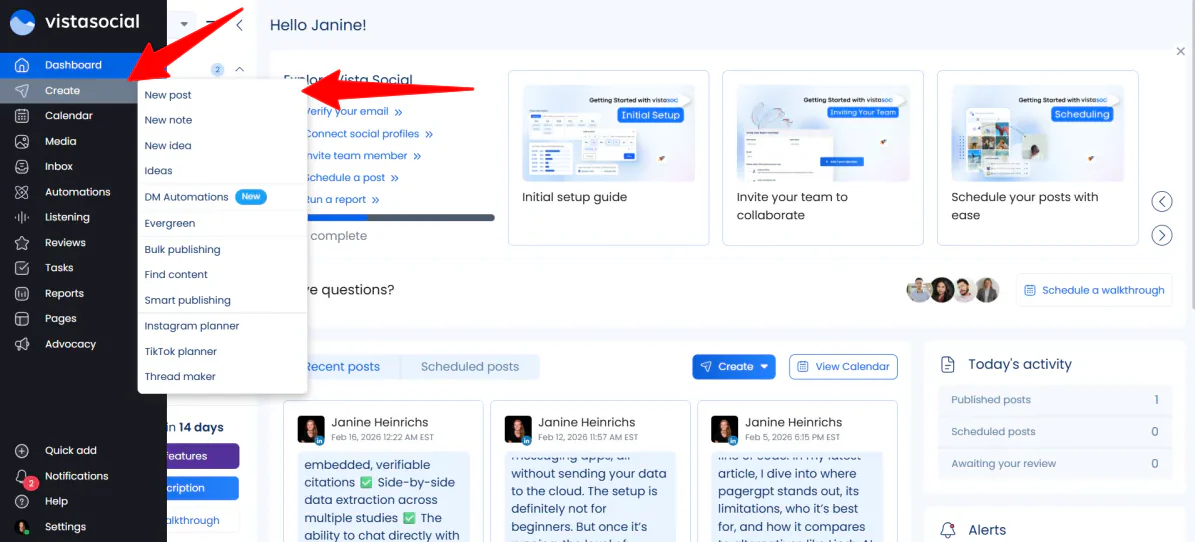
I wanted to explore the types of content Vista Social could create. In the far left navigation panel (where I could access all my features), I went to “Create” and selected “New post.”
Step 5: Choose Your Profiles

On the left, I could select any of the social media profiles I connected to Vista Social. I connected my LinkedIn and YouTube accounts, but only kept my YouTube account selected.
Step 6: Discover Content
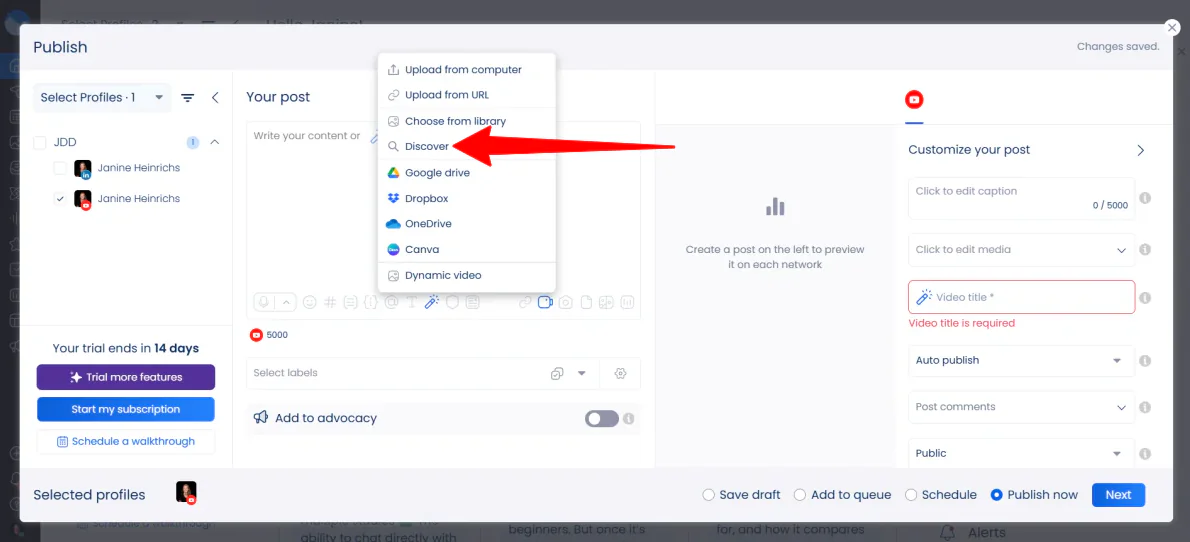
Next, I uploaded a video.
Vista Social gave me plenty of options (from device, URL, library, and more). I chose “Discover,” which gave me access to the Pexels media library.
Step 7: Select Content

I searched “city aerial” and uploaded one I thought looked cool and had a vertical 9:16 aspect ratio.
Step 8: Generate a Video Title

I wanted to get Vista Social’s AI to generate the title for me rather than having to think of one myself. In the “Video title” field, I clicked on the magic wand icon.
Step 9: Choose the Mode

Immediately, the AI assistant window opened.
There were two modes: Guided and Advanced. I went with “Guided” because it’s more user-friendly, but feel free to choose “Advanced” to generate a title with a prompt.
Step 10: Add the Content, Tone, & Format

Next, I added the following for the original content:
“Generate a YouTube video title based on the following message: A cinematic aerial view of a modern city skyline. Use this to introduce our new guide on ‘The Future of AI in Marketing’ and explain why the future of business is happening now.”
I also chose “Catchy” as the tone and “Expand” as the format.

As I filled in the blanks and selected my preferences, Vista Social automatically generated different video titles.
While the titles overall were a good start, they were too wordy. Also, one of them made a mistake by adding “Also, please provide the message I need to convert into a catchy video title” at the end.

Rather than settling for one, I gave Vista Social a new prompt that was more specific:
“Write a short, punchy YouTube title (under 60 characters) about the Future of AI in Marketing. Use a city aerial video as the visual hook.”
Step 11: Select a Title

These titles were much more concise. I selected “Aerial View: Skyrocketing Future of AI in Marketing!” and went to “Use as video title” in the bottom right.
Step 12: Generate Post Content

Next, I still had to generate the content of my post. In the empty content field, I selected “Use the AI Assistant.”

Generating content was the same process as generating titles.
I added the following to the empty “original content” field:
“Write a detailed YouTube video description for a video featuring a cinematic city aerial view. The video introduces our new guide: ‘The Future of AI in Marketing.’ Explain that the world of business is moving fast, and this guide helps you stay ahead. Remind viewers to click the link in the first comment to download the guide and to subscribe to more marketing tech updates.”
I also selected “Catchy” for the tone and “Shorten” for the format.
Step 13: Send the Content to the Composer

As I made my selections, Vista Social generated the content on the right. I selected the one I liked the most and hit “Send to composer” on the bottom right.
Step 14: Add Hashtags

Once you have the caption, feel free to make any direct edits and add hashtags at the end.
Step 15: Add a First Comment

With the content set, I added the finishing touches.
Rather than cluttering my description with a long URL, I used Vista Social’s First Comment feature. I would paste a link to “The Future of AI in Marketing” guide here, but I just added a placeholder link.
This ensures that as soon as the video goes live, the link is pinned and ready for viewers to click.
Step 16: Turn On Create First Like

I also made sure the “Create First Like” toggle was turned on. It’s a subtle trick that ensures your post doesn’t sit at zero engagement for those first few critical minutes.
Last but not least, I selected “Schedule” and hit “Next” to continue.
Step 17: Schedule Content

Selecting “Schedule” rather than posting immediately meant I didn’t have to guess when my audience would be online. Vista Social gave me an optimal time for posting based on engagement, so I could set it and forget it.
Once I was happy with everything, I hit “Schedule.” Immediately, my content was scheduled for posting and placed on my calendar.
Overall, once I clarified my prompts, I appreciated how quickly Vista Social allowed me to move from idea to scheduled post without juggling multiple tools. It saved me time on both brainstorming and publishing content.
Vista Social provides all the tools needed to plan, create, optimize, and schedule content in one streamlined workspace, making it far more efficient than switching between separate apps.
Top 3 Vista Social Alternatives
Here are the best Vista Social alternatives:
Hootsuite
The first Vista Social alternative I’d recommend is Hootsuite. It’s been around since 2008, eventually evolving into an established platform that focuses on real-time social insights. It also offers the ability to create content with AI, trend tracking, and social media analytics in one unified dashboard.
Compared to Vista Social, Hootsuite stands out with its trend discovery tools, OwlyGPT AI (a social media AI assistant), 100+ integrations, and long-standing reputation. It also emphasizes performance reporting and excellent security features.
Meanwhile, Vista Social stands out with its link-in-bio tools, review management features, and generous free trial without requiring a credit card. It’s much more suitable and accessible for freelancers and smaller teams.
Choose Hootsuite for deeper trend insights, competitor tracking, and advanced AI tools. Otherwise, choose Vista Social for a more affordable platform with strong inbox and publishing features.
Read my Hootsuite Review or visit Hootsuite!
Circleboom
The next Vista Social alternative I’d recommend is Circleboom. It focuses on simple social media tools designed to help creators, brands, and SMBs grow their accounts.
It’s actually split into two different products: one that specifically focuses on X (formerly Twitter), and another where you can manage all your social media platforms in one place.
Compared to Circleboom, Vista Social stands out with its unified inbox for DMs, comments, mentions, and reviews. It also offers deeper collaboration features like approvals, role permissions, social listening, and AI content generation tools.
Meanwhile, Circleboom leans into simplicity. It emphasizes ease of use, focused feature sets, and platform-specific tools (particularly for X). You’ll also get straightforward publishing across channels like LinkedIn, Instagram, and Pinterest.
For advanced team features, a unified inbox, and an all-in-one dashboard, choose Vista Social. For a simpler tool with strong X management and multi-platform posting, choose Circleboom.
StoryChief
The final Vista Social alternative I’d recommend is StoryChief. It’s a centralized content marketing hub that helps teams plan, create, and publish blog posts, social media content, and campaigns with AI and SEO tools.
StoryChief stands out with its focus on SEO content marketing, specifically its AI & SEO Content Editor. It also comes with content audits, LLM citation insights, plagiarism checks, and website publishing on platforms like WordPress, Webflow, and Shopify.
Meanwhile, Vista Social is more social-first. With it, you’ll get access to a unified inbox for DMs and reviews, stronger social engagement management, and platform integrations like Bluesky, Reddit, and Threads.
Choose StoryChief for more SEO-focused content, blog publishing, and team collaboration. Otherwise, choose Vista Social for social media management, engagement tracking, and unified inboxes.
Read my StoryChief review or visit StoryChief!
Vista Social Review: The Right Tool For You?
Overall, my experience with Vista Social was pretty seamless. Once I clarified my AI prompts, I was able to schedule my post quickly without having to juggle multiple tools.
Its unified inbox, AI-assisted content creation, scheduling features, and analytics make it a solid platform for social media management. It’s particularly useful for small teams, creators, and agencies that want to streamline publishing and engagement in one place.
However, Vista Social isn’t the best solution for everyone. If that’s the case for you, consider these alternatives:
- Hootsuite is best for teams that want trend tracking, competitor insights, and social media analytics.
- Circleboom is best for creators or SMBs seeking simplicity, easy X (Twitter) management, and posting on multiple platforms.
- StoryChief is best for content that needs to be SEO-optimized, blog publishing, and structured editorial collaboration.
Thanks for reading my Vista Social review! I hope you found it helpful.
Vista Social offers a free 14-day trial on any of the plans, no credit card required. Try it for yourself and see how you like it!
Frequently Asked Questions
What does Vista Social do?
Vista Social is a social media management platform for brands and agencies to streamline content scheduling, publishing, analytics, and engagement across multiple networks.
Who owns Vista Social?
Vista Social was founded by Vitaly Veksler, who serves as the CEO and founder.
Is Vista Social good for small businesses?
Yes, Vista Social is an excellent and affordable social media management tool for small businesses with rich features.
Is Vista Social legit?
Yes, Vista Social is a legitimate, highly-rated, and widely used social media management platform.
Is Vista Social good for agencies?
Yes, Vista Social is a great tool for agencies. It’s a robust, modern, and affordable platform for managing multiple clients.



