
AI Tools 101
Tripo Review: The AI That Turns Text Into Stunning 3D Models

Unite.AI is committed to rigorous editorial standards. We may receive compensation when you click on links to products we review. Please view our affiliate disclosure.

If you’ve ever spent hours in Blender painstakingly sculpting 3D models, you know how tedious it can be to get every vertex, edge, and texture just right.
That’s exactly why I was curious to try Tripo, an AI 3D platform that generates models from text or images in minutes. I wanted to see if Tripo could help me streamline my workflow without compromising quality.
In this Tripo review, I’ll discuss the pros and cons, what it is, who it’s best for, and its key features. Then, I’ll show you how I used it to generate a gingerbread house and instantly change the texture.
I’ll finish the article by comparing Tripo with my top three alternatives (Meshy, Sloyd, and Spline). By the end, you’ll know which tool is right for you!
Verdict
Tripo enables both beginners and professionals to quickly and effortlessly create 3D models. Some cleanup and guidance are needed for complex designs, but with 300 free credits and useful tools, it’s a great way to start exploring 3D modelling with AI.
Pros and Cons
- Creates 3D models with clean topology and high-quality PBR textures
- Generates 3D models fast to cut manual design time from hours/days to minutes
- Smart workflow tools like intelligent segmentation, symmetry, and one-click rigging
- Runs in the browser, making it simple for beginners and efficient for professionals
- Integrates smoothly with game engines, animation software, and standard 3D pipelines
- Supports text, images, and sketches as input
- Get 300 credits for free
- Generated models may still need some manual cleanup
- Lacks deep artistic creativity and needs clear guidance for complex designs
- Relies on learned patterns, so it struggles to create truly original concepts
- Texture detail and format options aren’t as strong as a few competitors
What is Tripo?
Tripo is an AI platform that generates 3D models from text descriptions or 2D images.
Rather than spending hours manually sculpting vertices and mapping textures like you would in traditional software, you tell Tripo what you want or upload a picture. The AI then creates a 3D asset in minutes, while conventional 3D modeling can take anywhere from several hours to multiple days.
Tripo & Other AI Creative Tools
What’s interesting is how Tripo fits into the larger ecosystem of AI creative tools that’s been exploding lately. You’ve got ChatGPT for text, Midjourney for images, ElevenLabs for voice, and platforms like Tripo for 3D content.
But Tripo isn’t trying to replace 3D artists. It’s more about giving people who aren’t technical modelers the ability to create 3D content and giving professional artists a way to speed up their workflow.
At the end of the day, you still need human creativity toect the AI, refine the outputs, and make artistic decisions. The AI handles the grunt work that used to consume a lot of time.
Who is Tripo Best For?
Here’s who Tripo is best for:
- Professional 3D artists can use Tripo to speed up asset creation with AI.
- Startups and businesses can use Tripo to produce high-quality 3D models quickly.
- Small teams can use Tripo to turn ideas into assets without technical work.
- Developers can use Tripo to generate 3D content through its API for games, virtual worlds, and commerce.
- Hobbyists can use Tripo to make and edit 3D content with no modeling skills.
- Game developers can use Tripo to create props, environments, and characters far faster than traditional modeling.
- 3D printers can use Tripo to generate custom models that they can clean up and print.
- AR and VR builders can use Tripo to prototype immersive environments and objects quickly.
Tripo Key Features
Here are Tripo3D’s key features:
- AI Model Generation: Automatically generate high-quality 3D models from text prompts or images.
- Advanced Texture Tools: Texture generation with style transfer, PBR (Physically Based Rendering) support, and magic brush tools for realistic surfaces.
- Efficient Retopology: Convert high-poly meshes into low-poly versions for real-time applications.
- Rigging & Animation: One-click rigging and animation tools compatible with any model.
- Seamless Export & Compatibility: Models can be exported for use on popular platforms, including Three.js, Unity, Unreal Engine, and Blender.
- Cloud-Based Workflow: Generate, edit, and exportectly from the browser.
How to Use Tripo
Here’s how I used Tripo3D to generate a gingerbread house and change the texture:
- Sign Up for Tripo
- Give Tripo a Text Prompt
- Upload an Image
- Add a Text Prompt
- Generate a 3D Model
- View the Model
- Add a Texture
- Describe & Generate a Texture
- View the New Model
Step 1: Sign Up for Tripo
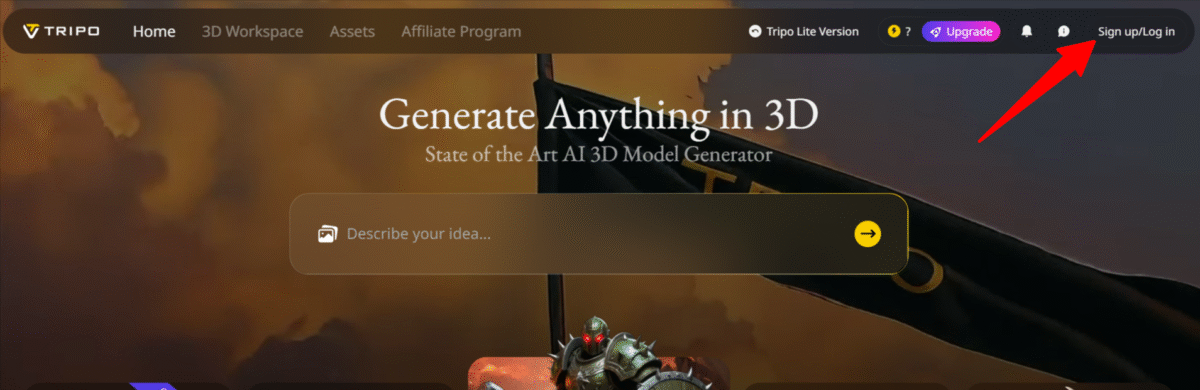
I started by going to studio.tripo3d.ai and selecting “Sign up/Log in” on the top right.
Step 2: Give Tripo a Text Prompt
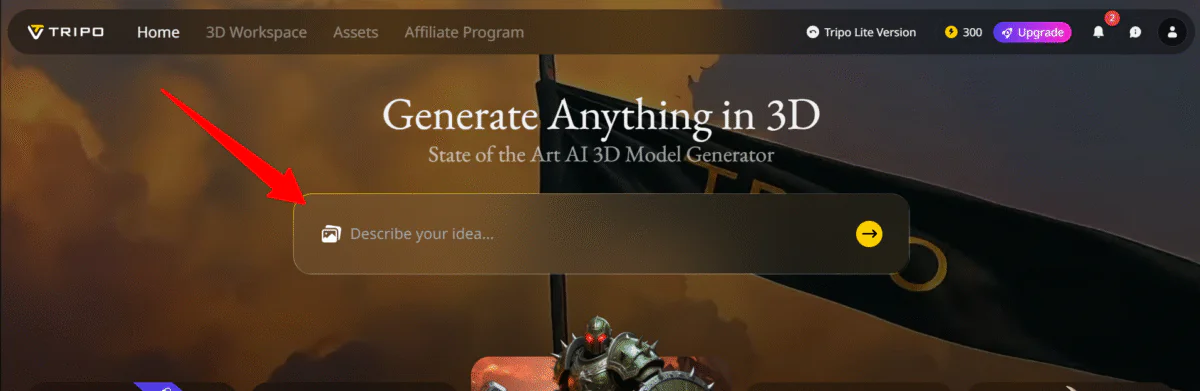
After creating an account, I was granted 300 free credits. I was taken back to the homepage, where I started generating 3D models by describing my idea.
Step 3: Upload an Image
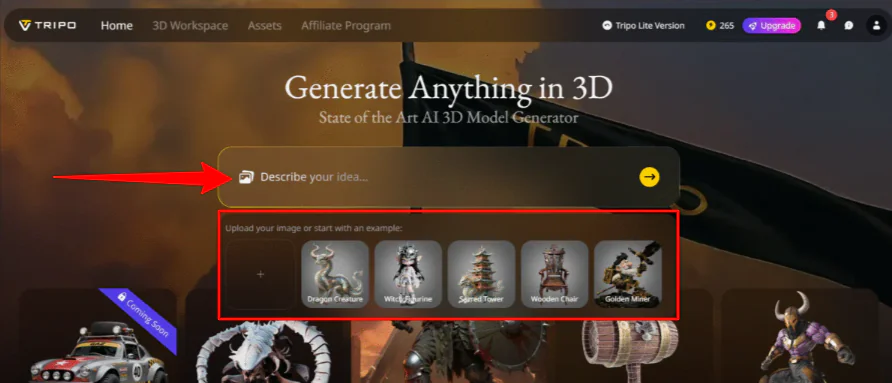
I could also generate a 3D model by selecting the image icon within the prompt field and uploading an image.
Step 4: Add a Text Prompt
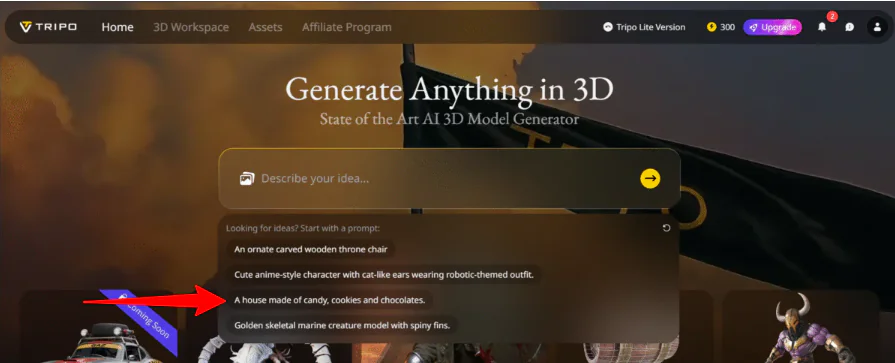
When I clicked on the prompt field, a window appeared giving me some prompt suggestions. I selected “A house made of cookies, candy, and chocolates.”
Step 5: Generate a 3D Model

Next, I hit the send button, which told me it would cost 35 credits to generate.
Step 6: View the Model

Immediately, Tripo began generating the 3D model (it took a couple of minutes, but you can speed it up by spending additional credits). Once it was ready, I selected it on the right to get a better look at what had been created.

I was impressed by the level of detail. The textures looked detailed, the colors popped, and it felt like something straight out of a storybook. This would have taken me forever to do manually.
Step 7: Add a Texture

However, I wanted to push things further. I tried one of Tripo’s more advanced tools: the texture editor, which can be accessed by selecting “Texture” at the top.
Step 8: Describe & Generate a Texture

Next, I selected “Text” and described the texture I wanted to generate on the model:
“Apply a rich, glossy caramel drizzle texture over the cookie walls, with smooth melted caramel streaks, realistic shine, and soft reflections. Keep the candy parts bright and colorful, and add a subtle sugar-crystal sparkle on top.”
I hit “Generate Texture,” which cost 10 credits.
Step 9: View the New Model

Immediately, Tripo began texturing my model.
A few minutes later, my textured model was ready. It looked warm, glossy, and exactly as I had pictured. I was impressed.
Overall, Tripo made creating a detailed 3D model easier than expected. I was particularly impressed with the text-to-texture feature, which turned my simple concept into a realistic texture.
Top 3 Tripo Alternatives
Here are the best Tripo alternatives.
Meshy
The first Tripo alternative I’d recommend is Meshy. It’s a fast way to turn text and images into detailed 3D models. It focuses on speed, creative freedom, and broad production workflows.
On the one hand, Meshy stands out with its huge toolset. It offers bulk generation, remeshing, a massive animation library of over 500 motions, multilingual support, and a wide range of export options, including FBX, GLB, OBJ, STL, and more. It also supports plugins for Unity, Unreal, Blender, Maya, and even 3D printers. Meanwhile, Tripo keeps things simpler with clean topology and fast generation.
For large teams and heavy production needs, choose Meshy. For clean models and quick results, choose Tripo.
Read my Meshy review or visit Meshy!
Sloyd
The next Tripo alternative I’d recommend is Sloyd. It focuses on generating fast text-to-3D and image-to-3D generation, all wrapped in a simple interface that makes it easy to create objects without heavy modeling skills.
Compared to Tripo, Sloyd stands out with its template editor, providing a quick starting point you can adjust in seconds. It also offers a Blender plugin. Meanwhile, Tripo delivers cleaner topology, stronger PBR textures, and one-click rigging.
For quick drafts and useful templates, choose Sloyd. For higher-quality models, choose Tripo.
Spline
The final Tripo alternative I’d recommend is Spline. It’s an online collaborative platform where designers create interactive 2D and 3D experiences to make interactive websites, product mockups, and gamified content.
Spline stands out with its interactivity, timeline animations, physics, and multi-layered materials. As a result, teams can create fully interactive 3D experiences without needing a developer. Meanwhile, Tripo offers AI generation, texture tools, and rapid prototyping to reduce the time to develop base models.
Choose Tripo to quickly generate 3D models and textures with AI. Otherwise, choose Spline for interactive, animated 3D experiences ready for web and mobile.
Tripo Review: The Right Tool For You?
Overall, my experience with Tripo was smooth and fun. It was incredibly easy to bring my gingerbread house idea to life using the text-to-texture feature. I even generated a “caramel drizzle” texture that looked incredible.
While some cleanup is still required for complex designs, the combination of AI generation and one-click rigging makes Tripo a powerful tool for anyone interested in speeding up their 3D asset creation. Otherwise, you may want to consider these alternatives:
- Meshy is best for large teams that require bulk generation, animation libraries, and lots of export options.
- Sloyd is best for creators who want quick drafts and adjustable templates without deep modeling skills.
- Spline is best for designers and teams who want to create interactive, animated 3D experiences for web and mobile.
Thanks for reading my Tripo review! I hope you found it helpful.
Tripo offers 300 free credits just by signing up. Try it for yourself and see how you like it!
Frequently Asked Questions
Is Tripo3D worth it?
Tripo3D is worth it for creators seeking fast, high-quality AI 3D modeling.
Who created Tripo3D?
Tripo3D was created by the company Tripo AI (operating under the name VAST), which was co-founded by Simon Song and Guoli Su in 2023.
Is Tripo AI free?
Yes, Tripo AI has a free plan that includes 300 monthly credits for generating 3D models from images or text.



