
AI Tools 101
Suno Review: v5.5 Turned Me Into a Pop Star With My Voice

 Add Unite.AI to your preferred sources on Google
Unite.AI may receive compensation when you use links to products we review. This does not influence our editorial evaluations. Read our affiliate disclosure.

Have you ever had a song idea hit you out of nowhere? A hook you can’t shake, a mood you can’t quite explain, a full track living rent-free in your head with nowhere to go. That gap between the idea and the actual song is where most people get stuck.
That’s the exact gap Suno is going after. And right now, all eyes are on v5.5.
This version update feels different than the others. It’s not just a quality bump, but a shift in what the tool is trying to be. Suno describes v5.5 as their “best and most expressive model yet,” and that kind of launch language holds up when you dig into the features.
The biggest one: Voices lets you capture or upload your own singing voice and use it to generate new songs. Here’s a song I generated with Suno that sounds like me using v5.5:
I don’t know about you, but I think I sound somewhere between Billie Eilish and Gracie Abrams. I’m joking, but the fact that I could get anything remotely close to my own vocal identity from a text prompt feels pretty unreal.
And the scale behind all of this is already hard to ignore: Around 2 million paying subscribers and roughly $300 million in annual recurring revenue. AI music creation isn’t an experiment anymore.
But the question I keep coming back to is this: when a tool starts learning your voice, your style, and your taste, does that make you more creative? Or does it eventually start making the creative decisions for you? That’s what I’m digging into in this review.
In this Suno review, I’ll discuss what it is, who it’s best for, its key features, and the pros and cons. Then I’ll show you how to make songs using the Simple and Advanced modes, followed by how easy it is to generate a song in any genre with a voice that sounds just like you using v5.5.
I’ll finish the article by comparing Suno with my top three alternatives (Udio, Riffusion (Flow Music), and MusicGPT). By the end, you’ll know which AI music generator is right for you.
Verdict
Overall, Suno makes it easy to quickly create full songs with strong vocals, making it a great choice for ideas and demos. However, it has limited control, some quality issues, and important features locked behind paid plans.
Pros and Cons
- Quickly creates full songs (with vocals and instruments!)
- Generate 10 songs daily on the free plan
- Excellent vocal quality with support for a wide range of genres
- Easy to use, even with no music production experience
- An affordable option for song demos, ideas, and quick projects
- Works with other platforms (e.g., Microsoft Copilot plugin)
- Constant version improvements (including v5.5) to personalize or clone your own voice
- Generate songs on the go with their app for iOS and Android
- Basic editing/remix tools built into the platform
- Limited control over melody, structure, and detailed edits
- Sometimes the vocals and beats do not match or get the vocals/style wrong
- Occasional audio issues like unwanted vocalizations
- Ongoing concerns around originality and music rights
- Voice cloning and the latest versions are only available on paid plans
- Suno Studio (for more detailed edits) is locked behind the highest paid plan
What is Suno?
Suno AI is an AI music generator that turns text prompts into full songs (with vocals and instruments) in about 30–60 seconds. Think of it like ChatGPT, but instead of writing you a paragraph, it writes you an entire song. Full production, not just a jingle.
Brief History & Background
The company, Suno, Inc., is headquartered in Cambridge, Massachusetts. It was founded by four people: Mikey Shulman, Georg Kucsko, Martin Camacho, and Keenan Freyberg. They all previously worked together at Kensho (an AI startup) before starting their own company.
The team describes themselves as musicians and AI experts, and they’re proud alumni of companies like Meta, TikTok, and Kensho. In other words, this isn’t just a bunch of coders who happen to like music. They actually know what a good song is supposed to sound like.
Suno has been widely available since December 20, 2023, following the launch of its web app and a partnership with Microsoft, which integrated Suno as a plugin in Microsoft Copilot.
Since its launch, it’s grown fast. Today, the platform has 2 million paying subscribers and around $300 million in annual recurring revenue.
How Does Suno Turn Words Into Music?
To use Suno, you give it a prompt that revolves around one of three things:
- A feeling (e.g., “sad but hopeful, like the end of summer”)
- A genre (e.g., “upbeat reggaeton with a trap hi-hat”)
- A concept (e.g., “a punk rock song about a dog who hates Mondays”)
The AI then processes that text and generates a full track (lyrics, melody, instrumentation, and a vocal performance) all baked together into one cohesive song.
Version History (and Why v5.5 Is a Big Deal)
Suno has been improving at a pretty fast pace:
- Version 4 delivers “cleaner audio, sharper lyrics, and more dynamic song structures,” and it highlights a new lyrics model and remastering.
- Version 4.5 (which dropped in May 2025) pushed track length up to 8 minutes, expanded genre support, and improved vocal expressiveness.
- Version 5 improved audio fidelity, vocal clarity, and overall polish.
But the version we’re at now (v5.5) is the one that really changes things.
Suno released version 5.5 on March 26, 2026, describing it as their “best and most expressive model yet.”
And it’s not just a quality bump. Alongside the new model, Suno launched three features: Voices, Custom Models, and My Taste.
Voices lets you upload or record your own singing voice and use it to generate songs on Suno. There’s a built-in verification process so nobody can clone someone else’s voice, which was a smart call.
Custom Models let you upload your own tracks to train a version of the model that adapts to your style, so the generated music better matches your sound and creative preferences. Pro and Premier subscribers can create up to three of them.
My Taste offers a unique form of personalization. As you use Suno, it gradually learns your preferred genres and the moods you revisit most often. This feature is available to everyone, not just paid subscribers.
Simple Mode vs. Advanced Tools (Which to Use?)
When you first open Suno, you get a simple prompt box. Just type what you want.
For beginners, this is perfect. You don’t need to know anything about music theory, BPM, key signatures, or anything music-related. Just write like you’re texting a friend: “chill lo-fi beat, rainy day, no vocals.” The AI will handle everything else.
But if you dig into the advanced settings (and I’d encourage you to once you’re comfortable), you unlock a lot more control. You can write your own lyrics, specify a style tag (like “bossa nova”), and even define song structure sections like a verse, chorus, and bridge separately.
My advice? Start simple. Generate a few songs with basic prompts on Simple mode to get a feel for it. Once you see what the AI does naturally, you’ll have a better sense of where you want to steer it with the advanced tools.
Suno is one of those tools that lowers the floor for music creation without lowering the ceiling. Whether you’ve never written a lyric in your life or you’ve been producing music for years, there’s something here for you. And v5.5 just made that more true than ever.
Who is Suno Best For?
Suno AI is best for people who want to make music quickly without traditional production skills:
- Beginners and hobbyists who want to turn simple prompts into entire songs that sound like you’d hear them on the radio.
- Content creators and marketers who need fast, custom background music, jingles, or theme music for ads and videos.
- Songwriters and artists looking to prototype melodies, lyrics, or song ideas.
- Educators and students exploring song structure, genre, or creative music projects.
In a nutshell: If your goal is to generate an entire high-quality song in the fastest way possible, Suno is an excellent choice. But if your goal is to produce every note and mix yourself, a traditional music production setup will be better.
Suno Key Features
Here are Suno’s key features:
- Use natural language to describe a song (style, mood, or genre), and create a full track in 30-60 seconds.
- Generate songs with sung vocals, not just instrumentals.
- “Simple” mode for quick and broad song generations, while “Advanced” mode gives more control over style and lyrics.
- Upload or record your own audio and have Suno edit, remix, rewrite lyrics, or reorder sections.
- Edit or create new versions of songs (covers) based on existing audio you upload or record on Suno.
- Share music publicly and explore what others have made.
- Commercial rights for new songs made with Suno on paid plans.
- Break a song into as many as 12 separate vocal and instrumental parts.
- Upload audio clips up to 30 minutes long.
- Suno Studio provides a generative audio workstation (GAW) where you can work with individual stems (like vocals, drums, and synths), tweak elements like tempo and volume, and export your project as audio or MIDI.
- Create custom music with your own voice by uploading a recording or capturing it directly on your device using v5.5.
- My Taste allows Suno to learn about what you are drawn to (like genres and moods).
- Voices (v5.5) lets you upload or record your own singing voice and use it to generate songs on Suno.
- Custom Models (v5.5) let you upload your own tracks to train a version of the model that adapts to your style, so the generated music better matches your sound and creative preferences.
How to Use Suno
Here’s how I used Suno AI‘s AI music generator to generate songs, as well as a song that sounds just like me with v5.5:
- Sign Up for Suno AI
- Find the Music Generator
- Learn How to Generate an Advanced Song
- Generate a Song with a Prompt
- Preview the Songs
- Try Advanced Mode
- Generate Lyrics
- Add Tags to the Lyrics
- Add Final Tweaks & Generate
- Explore the Options in the Song Menus
- Upgrade & Access the Music Generator
- Create a Recording
- Trim Your Recording
- Verify Your Voice
- Tweak the Voice Details
- Add Lyrics & Styles & Generate a Song
Step 1: Sign Up for Suno AI

I started by going to suno.com and signing up on the top right.
Step 2: Find the Music Generator

After setting up my profile, I was taken to the “Create” page. There were two ways to generate a song.

“Simple” was the fastest way to generate a song. All I had to do was describe it in natural language in the empty field.
From there, Suno did everything for me: it wrote the lyrics, chose the song structure, and picked the instruments based on my description.
This method is best for quick experiments or when you have an idea but no specific lyrics in mind.
Step 3: Learn How to Generate an Advanced Song

“Advanced” is where the real power of Suno comes to life. The input is split into three sections.

The first section (“Lyrics”) lets you paste or generate lyrics with AI. Use structure tags (like [Verse], [Chorus], [Bridge], or [Guitar Solo]) to tell the AI when to change the energy.

The “Styles” section allows you to use descriptive tags (like dramatic piano, horror rock, and uptempo) to help you describe the style of your song.

Last but not least were the toggle options under “More Options,” where you can choose:
- The gender of the generated vocals
- Whether the lyrics are written manually or with an AI prompt
- The level of weirdness
- How much the results match your style description
Step 4: Generate a Song with a Prompt

I decided to give both a try to see if one would outperform the other, starting with “Simple” mode. I gave it this weird prompt to see how creative the AI is on its own:
“A pirate shanty about working in a modern IT department.”
I clicked “Create” and used 10 of my 50 free signup credits to generate two songs.
Step 5: Preview the Songs

A few minutes later, two songs were generated in the right panel! I previewed both of them, and this was my favorite of the two:
Both tracks sounded good, but this was my favorite of the two. They were both pretty similar, but each had slight variations in tone and pacing that gave them a sense of individuality.
Step 6: Try Advanced Mode

While the “Simple” mode results were impressive, they felt a bit “luck of the draw.” To get closer to my specific vision, I switched to “Advanced.”
In the “Styles” box, I listed the genre and instruments: “Pirate Shanty, Sea Shanty, Male Vocals, Accordion, Stomps, Fiddle, 90 BPM.”
Step 7: Generate Lyrics

In the “Lyrics” box, I clicked “Generate lyrics.”

In the pop-up, I added the prompt I used in “Simple” mode: “A pirate shanty about working in a modern IT department” and hit “Write Lyrics.”

Suno generated two versions of the lyrics, and I chose the one I liked most.
Step 8: Add Tags to the Lyrics

The “Lyrics” field was automatically filled with the lyrics I selected. I added a few tags (“[Stomp and Clap Intro]” at the beginning and “[Fiddle Solo]” after the first chorus).
Step 9: Add Final Tweaks & Generate

Before hitting “Create,” I opened the “More Options” menu to make the final tweaks. I toggled “Vocal Gender” to Male to keep it consistent with a traditional shanty crew and hit “Create.”
A few minutes later, my songs were generated:
Neither of them had quite the distinct stomps and claps at the beginning I was looking for, but it was close enough. But there was a fiddle solo in the middle of both of them as requested.
By using structural tags in “Advanced” mode, I forced a break in the music, where the fiddle solo took center stage. In the “Simple” version, the AI just sang continuously until the end. Rather than spitting out random results, the “Advanced” mode gives you more control over the output.
Step 10: Explore the Options in the Song Menus

For each of the songs I generated, there were three dots I could click on to open a menu with various options.
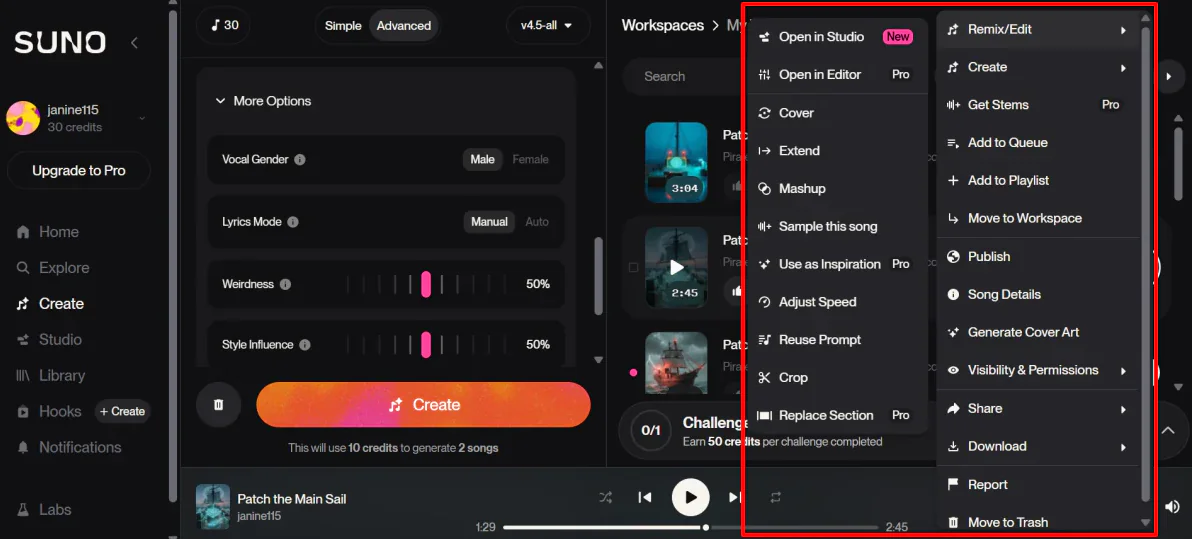
Hover over “Remix/Edit,” and a studio, editor, and plenty of editing options will appear.
You can get stems, generate cover art, and download the song as an MP3, WAV, or video. For editing the song, extend, adjust speed, and crop.
That’s how to use the Simple and Advanced modes on the free plan. But since everyone is making such a big deal about Suno’s latest version 5.5 (where you can upload or record your own voice to create any song you want), I had to upgrade and try it for myself.
Step 11: Upgrade & Access the Music Generator

After upgrading to the Pro plan, I stayed in the “Create” tab, selected “Advanced” and then “Voice” in the music generator.
Step 12: Create a Recording

Next, I selected “Create Voice” to record/upload my voice.
Step 13: Trim Your Recording

I recorded about a minute and a half of myself singing with my laptop’s microphone (though you can use an actual microphone for potentially better results) and hit “Use Voice.”
Step 14: Verify Your Voice

Next, Suno asked to verify my voice by having me read the following text: “Sing a song with your favorite happy melody now.” Once recorded, I hit “Submit.”
Step 15: Tweak the Voice Details

Lastly, Suno wanted me to fill out some final voice details: Name, Style Tags (optional), and Description (optional). I just named it “My Voice” and hit “Save.”
Step 16: Add Lyrics & Styles & Generate a Song

With my custom voice selected at the top, I added my lyrics and styles (indie folk, bedroom pop) and hit “Create” at the bottom.
Suno immediately got to work. About a minute later, here is one of the two songs it came up with:
I was impressed with the results. It sounded like me, it matched the lyrics, and it aligned with the styles I gave it.
Overall, Suno made it shockingly easy to go from simple prompts to fully produced songs. The v5.5 voice feature stood out most, since it produced a result that actually sounded like my own voice while still matching the lyrics and genre direction.
Top 3 Suno Alternatives
Here are the best Suno alternatives I’ve tried:
Udio
The first Suno alternative I’d recommend is Udio. Like Suno, you can create music with prompts. I went with something I saw suggested on the platform: “A song about why the rent is too goddamn high, country, folk.”
A few minutes later, I had two 30-second tracks with vocals, melody, instrumentation, and even AI-generated cover art:
If nobody told me those came from a text prompt, I would’ve assumed someone recorded them in a studio.
As you can see, both Udio and Suno generate entire songs with vocals and instrumentation. But Udio has a feature called Inpaint that really stood out to me.
You grab a specific section of your song, highlight the lyrics, and the AI regenerates just that part of the song without touching the rest of it:
I tried it on my country song, and the singer’s delivery shifted to something more melancholic. It kept the same composition, but emotionally, it felt different. You don’t have much fine control over how it changes, but the fact that it works at all is pretty cool!
If you want to build on a song idea and fine-tune specific parts over time, Udio is great for that. But if you want faster generation, simpler workflows, and stronger voice features, choose Suno.
Read my Udio review or visit Udio!
Riffusion (Flow Music)

Another Suno alternative worth trying is Riffusion (Flow Music).
After signing up, you choose between two modes: Prompt (describe what you want) or Compose (more hands-on, where you can write lyrics and upload your own audio to blend with AI elements).
I went the Prompt route and typed: “A dreamy lo-fi jazz beat with soft piano, mellow saxophone, and a chill hip-hop groove. Imagine a midnight café with rain tapping on the windows.”
Seconds later, I had full songs ready to preview and download. I’ve found that being specific but not overly complicated with your prompt is the sweet spot.
And let’s not forget about the editing tools: Cover (recreate with different instruments), Extend (add length), Replace (swap specific sections), and Use Prompt (regenerate with tweaks). The editing capabilities aren’t as deep as Suno Studio, but it covers the basics for most creators.
Where Riffusion separates itself is how it feels more like a “studio sandbox.” You can branch into music video creation, stem splitting, and audio effects. It’s a more experimental environment than Suno.
For quickly generating professional songs with vocals, choose Suno. But if you like poking around and building something more multimedia, Riffusion (Flow Music) is a fun one to play with.
Read my Riffusion review or visit Riffusion!
MusicGPT
The last Suno alternative I’d recommend is MusicGPT.
For my test, I typed: “upbeat acoustic folk track with guitar, banjo, and gentle drums at 110 BPM, suitable for a travel montage.” You’ll want to be specific. MusicGPT responds really well to details about instruments, tempo, and mood.
A few minutes later, I had two versions of the same song with a different feel.
The one thing I wished for was more post-generation control, like fine-tuning vocals, swapping instruments, and making small edits. MusicGPT is useful for generating quick content, but limiting if you want something specific.
For professional songs with a clean experience, choose Suno. For a wider range of audio tools beyond just music, try MusicGPT.
Read my MusicGPT review or visit MusicGPT!
Suno Review: The Right Tool For You?
Suno ended up being one of those tools that’s actually fun to use, not just impressive on paper. I went from a random pirate shanty to a song in my own voice in under an hour. While it’s not perfect, it’s easily one of the fastest ways to turn ideas into something that sounds real and shareable.
If you want something quick, creative, and surprisingly polished without getting lost in technical details, Suno is absolutely worth it. But if you care more about things like fine-tuning every element, you might want to consider these alternatives:
- Udio is best for tweaking specific parts of a song and gradually refining it over time.
- Riffusion (Flow Music) is best for a more experimental, sandbox-style experience with additional creative tools like video and effects.
- MusicGPT is best as an all-in-one AI audio tool for generating music, sound effects, and voice content quickly.
Thanks for reading my Suno review! I hope you found it helpful.
Suno has a free plan where you can generate ten videos a day. Try it for yourself and see how you like it!
Frequently Asked Questions
Why is Suno being sued?
In 2024, Suno was facing a lawsuit for large-scale copyright infringement, with major record labels claiming it used their music to train its AI without permission or payment. The following year, Warner Music Group reached a deal with Suno (WMG ) to launch a licensed model in 2026, with Suno paying for rights and artists able to opt in to use their voices and likenesses.
Is Suno AI music legal?
Suno AI music is usually legal to make and use, but who owns it depends on your plan. Paid plans let you own your songs and use them commercially. Free plans are for personal use only. Copyrighting fully AI-made music is still tricky, and there are ongoing legal questions about how the AI is trained.
Is Suno AI free or paid?
Suno AI has a free and paid option. The free plan gives about 50 daily credits (roughly 10 songs) for personal use only. Paid plans include more credits, faster song creation, and ownership rights so you can use the music for commercial purposes.
Is Suno music allowed on Spotify?
Songs created with a Pro or Premier plan on Suno can be used commercially. You can upload them to platforms like Spotify and Apple Music or use them in videos on YouTube and TikTok. You don’t need to credit Suno, though you can if you want.
Can I sell music made with Suno AI?
Yes, you can sell music made with Suno AI if you have a paid Pro or Premier plan. Those plans give you ownership and commercial rights, so you can earn money from platforms like Spotify, Apple Music, and YouTube. Free users cannot use the music for commercial purposes.
Which country owns Suno AI?
Suno AI is owned by Suno, Inc., a company based in the United States. Their headquarters are in Cambridge, Massachusetts.
Can Suno AI be trusted?
Suno AI can make music easily, but there are legal risks because of ongoing lawsuits about how it was trained. Paid users own what they create, but Suno can’t promise it won’t involve copyright issues from others. It’s generally fine for personal use, but using it to make money carries more risk.
Is it worth getting Suno Studio?
Suno Studio is great for creators who want more control, like editing parts of a song, extending tracks, or working with vocal clips. It has more advanced tools than the basic generator. However, it’s still early, so it can feel a bit rough and may not always match the quality of traditional music software.



