
AI Tools 101
Sider AI Review: How I Cut Hours Off Research & Writing

Unite.AI is committed to rigorous editorial standards. We may receive compensation when you click on links to products we review. Please view our affiliate disclosure.

If you’ve ever spent hours toggling between tabs to research a topic or draft content, you know how much time and focus it can cost.
That’s exactly why I was interested in trying Sider AI, a browser extension trusted by over 10 million users. It brings multiple AI models, including GPT-5.1, Claude Sonnet, and DeepSeek, into a single sidebar for side-by-side answers.
In this Sider AI review, I’ll discuss the pros and cons, what it is, who it’s best for, and its key features. Then, I’ll show you how I used it to ask multiple AI assistants a question simultaneously through the Chrome extension.
I’ll finish the article by comparing Sider with my top three alternatives (ChatGPT, Claude, and Notion AI).
From quick summaries to multi-model research, Sider promises to cut through the clutter and put everything you need right where you’re already working. No extra tabs, apps, or copying and pasting required.
Verdict
Sider AI delivers solid value with its fast performance, multiple models, and broad toolset that cuts time on research, reading, and content creation. The number of features can feel overwhelming at first, and some features are behind a paywall. However, it’s efficient as long as your device and connection keep up.
Pros and Cons
- Multiple AI models in the sidebar to answer questions simultaneously
- Research and summarization across webpages, PDFs, and videos
- Fast and stable performance on numerous platforms (browser, mobile, desktop)
- AI features for writing, translation, image generation and editing, and video summarizing
- Saves significant time on content creation, research, and reading tasks
- The number of features can feel overwhelming
- May slow down devices due to running multiple AI models
- Privacy concerns due to the integration of many AI services
- Dependency on a reliable Internet connection
- Some advanced models and features require paid plans
What is Sider AI?
With over 10 million active users, Sider AI is an AI browser extension and productivity assistant compatible with major browsers, like Chrome and Edge.
It brings several AI models (like GPT-5.1, Claude Sonnet, Gemini, and DeepSeek) into one sidebar. That means you can interact with multiple AIs simultaneously and compare answers.
This is Sider’s core purpose: to give you instant access to multiple AI models without the need to switch tabs or open different apps. Rather than going to ChatGPT’s website and then jumping over to another tool, Sider brings everything to wherever you’re already working.
Sider AI vs Other AI Assistants
The biggest difference between Sider and other AI assistants (e.g., ChatGPT, Notion AI, or Jasper) lies in their integration and accessibility.
ChatGPT requires you to visit its website and copy and paste information back and forth, which can quickly get exhausting. Notion AI only works inside Notion, so if you’re researching on a random webpage, you’re out of luck. Jasper is more focused on marketing copy and content creation, with templates and workflows built for that purpose.
Meanwhile, Sider is designed to work anywhere you browse, including Reddit, Gmail, Google Docs, and research articles, among others. The sidebar can be pulled up on any webpage, and the text selection feature means you can interact with content that’s already on your screen.
History & Background
Sider AI was developed by a team seeking to address the problem of AI accessibility. While it isn’t as old as some of the major players in the AI space, it has gained traction quickly because it focuses on meeting users where they already are rather than constantly having to adapt to new platforms.
Platform Compatibility (Chrome, Edge, and Safari)
Sider works on Chrome, which is the most popular, but it’s also compatible with Edge, Safari, and other Chromium-based browsers. Installing it takes almost no time, and it’s pretty lightweight. It doesn’t slow down your browser like some extensions do.
Who is Sider AI Best For?
Here’s who Sider AI is best for:
- Students can use Sider AI to get fast summaries, research help, translations, and study notes from papers, PDFs, and videos.
- Researchers & analysts can use Sider AI to run the deep research agent and get structured reports with sources.
- Writers & content creators can use Sider AI to write content and create AI slides, web pages, and shorter videos.
- Knowledge workers can use Sider AI to summarize documents, translate text, and clarify complex content.
- Readers can use Sider AI to summarize, translate, or explain long articles.
Sider AI Key Features
Here are Sider’s key features:
- Multi-Model Chat: Ask the AI chatbot a question and get answers from several AI models at once.
- Research Agent: Scans over 100 sources and quickly creates structured reports with citations.
- Summarization: Breaks down long pages, PDFs, and videos into quick key points.
- Translation: Translates text in 50+ languages.
- Content Creation: Helps write content with the AI Writer and can generate slides or simple web pages from a prompt.
- Real-Time Web Access: Pulls fresh information with AI search.
- AI Art: Generates images, edits photos, and upscales visuals.
- Sidebar Tool: All features are conveniently located in a simple browser sidebar for quick access.
- Cross-Platform Sync: Works on macOS, Windows, iOS, and Android.
- Additional Tools: Website creator, text and background remover, photo eraser, and more.
How to Use Sider AI
Here’s how I used Sider AI to ask multiple AI assistants a question simultaneously:
- Add Sider AI to Chrome
- Create a Sider AI Account
- Get Sider to Explain Text
- Open the Sidebar
- Ask the Chatbot a Question
- Select Multiple AI Assistants
- Ask a Question to Multiple AI Models
Step 1: Add Sider AI to Chrome

I started by going to sider.ai and selecting “Add to Chrome” on the top right. You can add Sider to any major browser or device.

In the Google Chrome web store, I selected “Add to Chrome.”
Step 2: Create a Sider AI Account

A few seconds later, Sider was added to my browser. The last thing I had to do was create an account, and I’d be granted 30 free daily credits.
Step 3: Get Sider to Explain Text

Once installed, I went to my extensions and pinned it to my toolbar for easy access. Next, I highlighted some text on a website and was presented with the following options:
- Ask AI (Ctrl + J)
- Copy
- Highlight
- Explain
- More
I selected “Explain” to see what would happen.
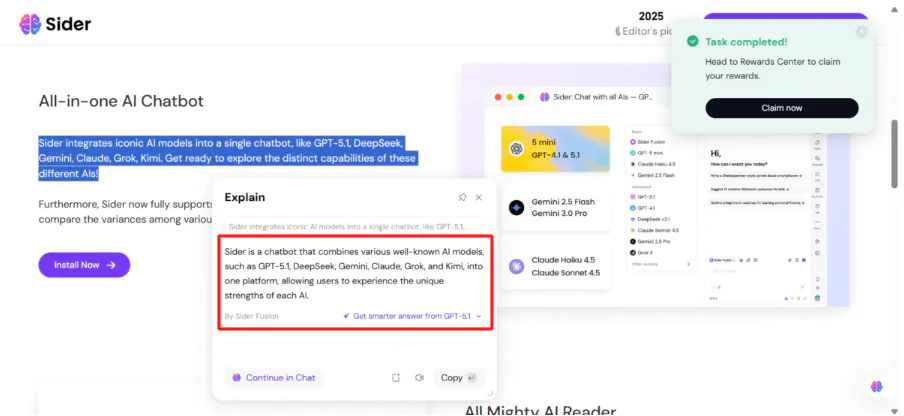
Immediately, a window appeared explaining what I’d highlighted. I could continue in the chat, save it as a note, or copy it. This feature is great if you’re doing research and come across dense academic articles.
Step 4: Open the Sidebar

However, the sidebar feature is probably the most useful part. I opened it by clicking the extension icon.
Step 5: Ask the Chatbot a Question
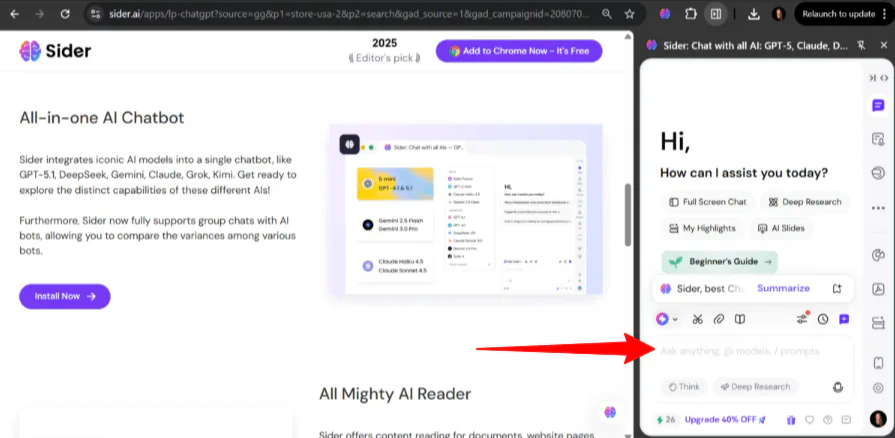
This brings up a chat interface where you can ask questions about the page you’re on, or have a general conversation with the AI to brainstorm ideas.
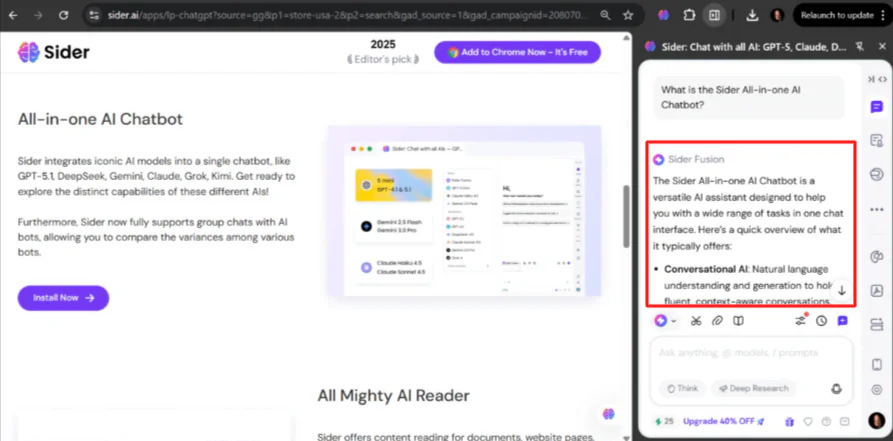
For example, I asked the Sider AI chatbot what the Sider All-in-one AI Chatbot was, and it responded with a clear summary of its functionality.
Step 6: Select Multiple AI Assistants

One unique aspect of Sider worth noting is that it provides access to multiple AI assistants, including GPT-5.1, Claude Sonnet, DeepSeek, and others. Each one has different strengths (some are better suited to creative writing, while others are better suited to technical explanations).
Step 7: Ask a Question to Multiple AI Models
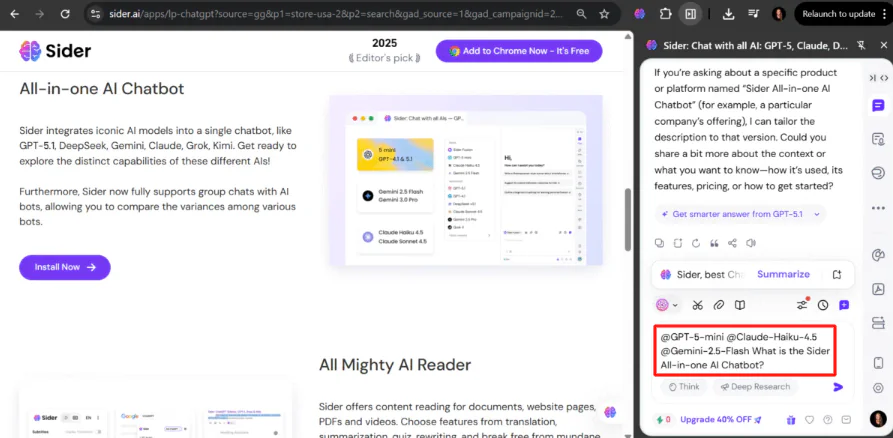
I wanted to select multiple AI models and ask them a question simultaneously to compare answers.
In the prompt field, I typed in “@” and selected the AI models I was interested in (@GPT-5-mini, @Claude-Haiku-4.5, and @Gemini-2.5-Flash). I typed my question and sent my message.

In seconds, Sider gave me responses from each AI model. I could easily see how their answers differed, spot strengths and weaknesses, and decide which explanation made the most sense.
Overall, Sider AI made my workflow faster by providing quick explanations, summaries, and answers without breaking my focus. It also made it easy to compare multiple AI models for better insights.
Top 3 Sider AI Alternatives
Here are the best Sider AI alternatives.
ChatGPT by OpenAI
The first Sider AI alternative I’d recommend is ChatGPT. ChatGPT offers a clean interface that makes it easy to draft content and get reliable answers quickly.
While both platforms offer strong AI assistance, ChatGPT maintains a simpler approach with a streamlined chat experience, deep reasoning, and strong creative and analytical output.
Meanwhile, Sider AI stands out with its chatbot, which features multiple models inside the browser sidebar. It allows you to compare answers from multiple AI models simultaneously. It also includes tools like webpage and PDF summarization and translation.
Choose Sider AI to get answers from multiple models simultaneously and for research-heavy tasks. Otherwise, choose ChatGPT for effortless conversations and problem-solving.
Claude by Anthropic
The next Sider AI alternative I’d suggest is Claude. It’s an AI assistant from Anthropic that’s capable of summarizing, writing, answering questions, coding, and more via chat.
Both Sider AI and Claude support research, summarization, and content creation. However, Sider stands out with its multi-model sidebar for comparing AI responses. Meanwhile, Claude stands out for its reliability, creativity, and safety.
Choose Sider AI for side-by-side answers and multitasking across web content. Otherwise, choose Claude for creative writing, coding, and more.
Read my Claude review or visit Claude!
Notion AI
The final Sider AI alternative I’d recommend is Notion AI. It’s an AI workspace that helps you take notes, manage projects, generate documents, automate workflows, and even summarize or translate content.
On the one hand, Notion AI works well as a single workspace where you can manage documents, tasks, databases, and custom AI agents in one place. Meanwhile, Sider AI stands out with real-time webpage, PDF, and video analysis alongside a browser sidebar for multitasking.
For fast research, quick summaries, and side-by-side answers from multiple AI models, choose Sider AI. Otherwise, choose Notion AI for a single workspace that seamlessly blends AI with notes, projects, and workflow automation.
Read my Notion review or visit Notion
Sider AI Review: The Right Tool For You?
Sider AI surprised me with how smoothly it fit into my daily workflow. I didn’t have to jump between tabs or tools. Instead, Sider brought everything to me in one place and made research, writing, and comparison much faster.
For me, Sider is a great fit when I want quick summaries, instant explanations, or side-by-side answers. However, when I’m working on longer writing sessions or more in-depth work, I still lean on tools like ChatGPT, Claude, or Notion.
- ChatGPT is best suited for fast conversations, particularly in writing, planning, and problem-solving.
- Claude is best for thoughtful long-form content and detailed analysis.
- Notion AI is best for a single workspace that combines docs, tasks, and project organization.
Sider stands out with its speed and convenience when I’m already in the browser and need help on the fly.
Thanks for reading my Sider AI review! I hope you found it helpful.
Sider AI offers 30 free daily credits for signing up. Try it for yourself and see how you like it!
Frequently Asked Questions
Is Sider AI better than ChatGPT?
Sider AI surpasses ChatGPT in that it features multiple built-in assistants and excellent integration with Google Chrome.
What are the benefits of Sider AI?
Sider AI’s benefits include enhancing productivity through quick search, summarizing, and writing assistance.



