AI Tools 101
Proton Pass Review: I Finally Stopped Resetting Passwords

 Add Unite.AI to your preferred sources on Google
Unite.AI may receive compensation when you use links to products we review. This does not influence our editorial evaluations. Read our affiliate disclosure.

Have you ever tried to log into something where your password should work… and suddenly your brain goes completely blank? You try three versions of it, then give up and hit “forgot password” for the tenth time this month.
We’ve all been there. Studies show the average person manages around 178 online accounts. No wonder password overload has become such a problem in everyday life.
But that’s where Proton Pass comes in.
Built by the team behind Proton Mail and rooted in Swiss privacy standards, it promises a simpler, safer way to manage everything from logins to email aliases without the usual chaos. Instead of juggling weak passwords or reusing the same one everywhere (we’ve all done it), it quietly handles security in the background while you just get on with your day.
In this review, I’ll show you how to use it and whether it’s truly worth switching to or just another “privacy-first” tool that sounds better than it performs.
Whether you’re trying to lock down your personal accounts or are a business leader looking to secure your team’s credentials, this guide covers everything you need to know about Proton Pass.
Verdict
Proton Pass stands out for its strong privacy, a solid free plan, and reliable security features. It has great modern tools, but some features are locked behind a paid plan, and it’s still less developed than older competitors.
Pros and Cons
- Free plan includes unlimited passwords, device syncing, password generator, autofill, and email aliases
- Strong privacy and security with end-to-end encryption, zero-knowledge design, strong encryption, and audited open-source code.
- Identity protection tools like email aliases, dark web monitoring, and password health checks
- Supports passkeys and built-in 2FA for safer logins that resist phishing
- Works across all major platforms (desktop, mobile, and browser extensions)
- Seamlessly connects with other Proton tools like Mail, VPN, and Calendar, plus extra monitoring on paid plans
- Easy to use with reliable autofill, autosave, and customizable password options
- Affordable pricing with a generous free plan
- Emergency access on paid plans
- Some features (like secure sharing, unlimited aliases, MFA, and dark web monitoring) need a paid plan
- Limited support with no live chat or phone help
- Newer product may feel less complete than older competitors
- The free plan has limits, including only 10 email aliases and no custom domains for aliases
What is Proton Pass?
Proton Pass is an open-source password manager developed by Proton AG, the Swiss privacy company behind Proton Mail (the world’s largest encrypted email provider). Rather than a random startup with a flashy website, Proton has been a trusted name in cybersecurity since 2014.
The company was founded by former scientists who met at CERN, and Swiss privacy laws strictly protect every product they make. Proton Pass launched in 2023 as a natural, highly requested expansion of their privacy-focused ecosystem.
End-to-End Encryption
At its core, Proton Pass uses zero-knowledge, end-to-end encryption. This means your passwords, usernames, and notes are completely scrambled on your device before they ever touch a server.
Nobody at Proton can read your data. Not their engineers, not their support staff, not anyone. If they were ever hacked, there is simply nothing for anyone to see.
Available Platforms
Platform-wise, Proton Pass has achieved full cross-platform coverage. There are native apps and browser extensions for almost everything:
- Mobile: iOS and Android
- Desktop: Windows, macOS, and Linux
- Browsers: Chrome, Firefox, Safari, Edge, and Brave
I use the Chrome extension, and it works exactly like you’d expect. Auto-fill, password generation, the works.
The “Privacy by Default” Philosophy
What really separates Proton from the crowd is its “privacy by default” philosophy. Many companies claim to care about privacy, but Proton built its entire business model around it.
They don’t sell ads, and they don’t monetize your data. Their revenue comes entirely from paid subscriptions, meaning their users are the customers, not the product.
Who is Proton Pass Best For?
Proton Pass is best for the following types of people:
- Individuals who care about privacy and want strong security where no one else can access their data, plus open-source transparency.
- People who want a free plan with unlimited password storage and syncing across devices.
- People who want to avoid spam and phishing can use built-in email aliases.
- People who are already using Proton services like Mail, VPN, or Calendar and want everything to work smoothly together.
- Teams and small businesses that need secure password sharing, access control, and dark web monitoring (Plus/Family plans).
- People who want passkeys for safer logins that resist phishing at no extra cost.
- Enterprise organizations that need strong compliance and data control, with added trust from Swiss privacy laws.
Proton Pass Key Features
Here are Proton Pass’s key features:
- Password manager with unlimited logins and sync across devices on the free plan.
- End-to-end encryption and zero-knowledge design (even Proton can’t read your vault contents).
- Autofill for passwords and sign-ins across browsers and devices.
- Password generator for creating strong and unique passwords.
- Hide-my-email aliases to protect your real address and reduce spam/phishing.
- Passkey support for phishing-resistant logins.
- Two-factor authentication support, including an integrated authenticator on Proton Pass Plus.
- Password health and breach monitoring, including weak/reused password alerts and dark web leak alerts (Pass Plus feature).
- Open-source (anyone can inspect the code), with security audits for transparency.
- Secure notes, credit card storage, and identity details in vaults with end-to-end encryption.
- Share passwords and sensitive items with others.
- Desktop, mobile, browser extension, and cross-platform support.
How to Use Proton Pass
Here’s how to set up and start using Proton Pass:
- Get Proton Pass
- Save Your Recovery Phrase
- Install the Extension
- Autofill & Generate an Email Alias
- Autofill & Generate a Password
- Tweak the Password Generation Settings
- Save the Login Credentials
- Access Your Settings
- Migrate Data from Password Managers
- Create a Manual Login
- Download the Mobile App
Step 1: Get Proton Pass

Start by selecting Get Proton Pass.
Step 2: Save Your Recovery Phrase

Once your account is created, Proton Pass will create a recovery phrase to restore your Proton Account if you’re locked out. It’s the only way to recover everything, so store it safely.
Download the PDF, save it in a secure location, and consider keeping a printed copy somewhere safe as a backup.
Step 3: Install the Extension

Choose your plan, and Proton Pass will suggest getting the browser extension. It has incredible ratings, and it’ll make logging in, generating passwords, and autofilling effortless.
Step 4: Autofill & Generate an Email Alias
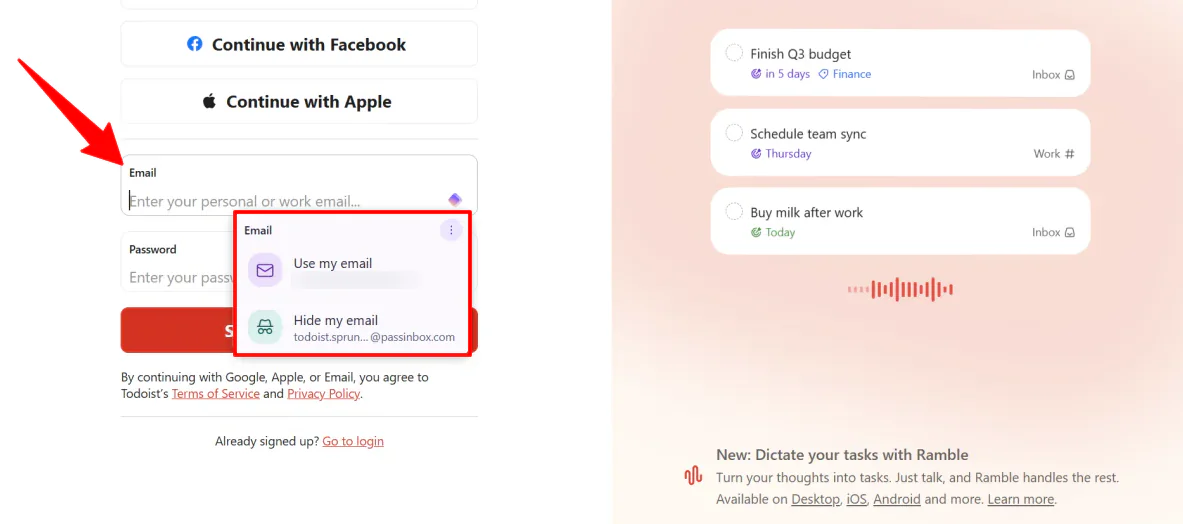
With your account created and extension installed and pinned, it’s time to see what Proton Pass is capable of.
First things first, when you enter an email while creating a new account on a website, Proton Pass will prompt you to autofill either your real email address or an email alias.
Email aliases are unique addresses that sit between you and the websites you sign up for. They let you sign up without exposing your real inbox, while still sending all messages straight to you.
So if a site starts sending spam or gets breached, you can disable or delete that alias without affecting your real email address. It’s great for safeguarding corporate addresses, keeping your personal inbox clean, and reducing spam.
Step 5: Autofill & Generate a Password
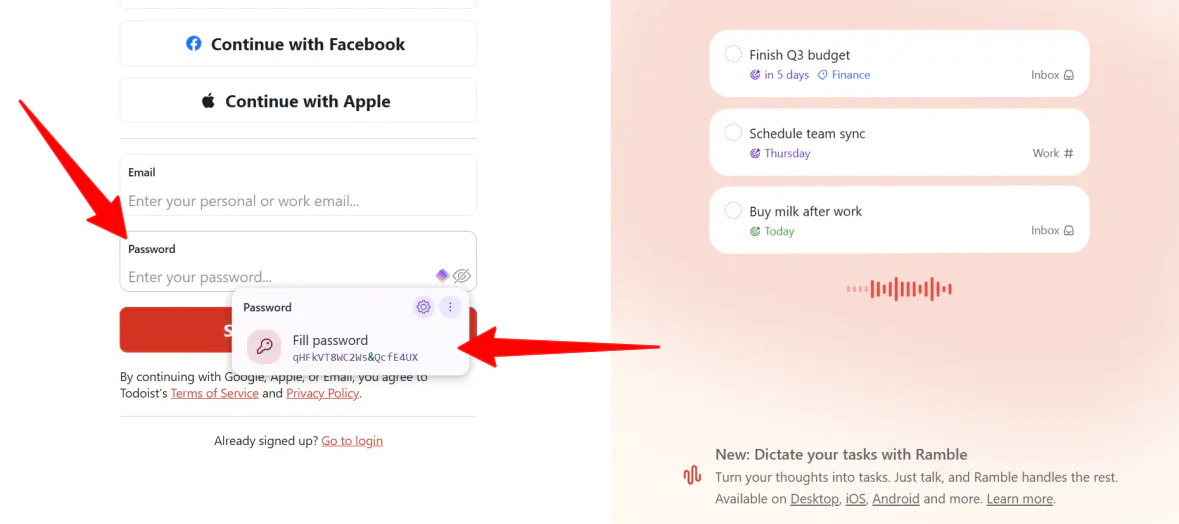
Proton Pass works the same way with passwords.
When you click into an empty password field while creating a new account, it instantly generates a strong password you can click to autofill.
No separate password generator needed. It’s all built in.
Step 6: Tweak the Password Generation Settings
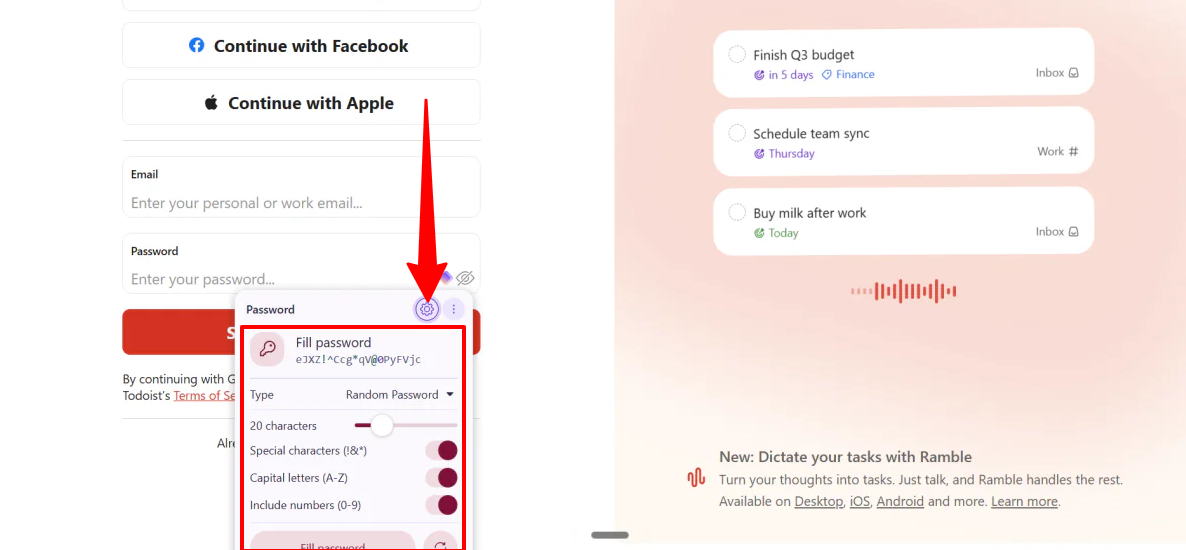
You can even hit the little gear icon to choose the password type, number of characters, and type of characters.
Step 7: Save the Login Credentials
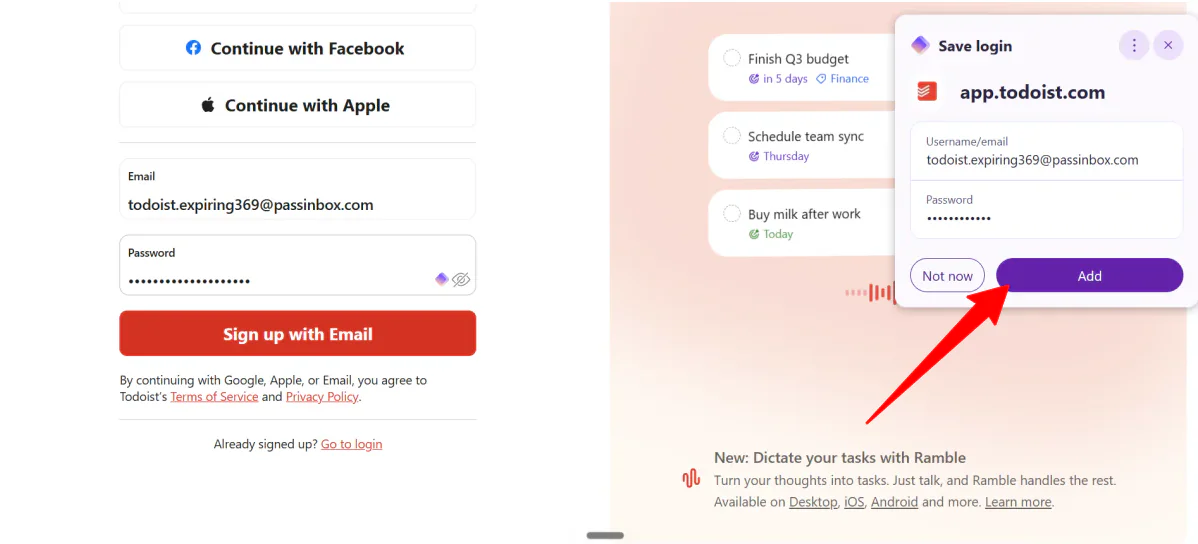
Once you create your account, Proton Pass will prompt you to save your login for future use.
Step 8: Access Your Settings
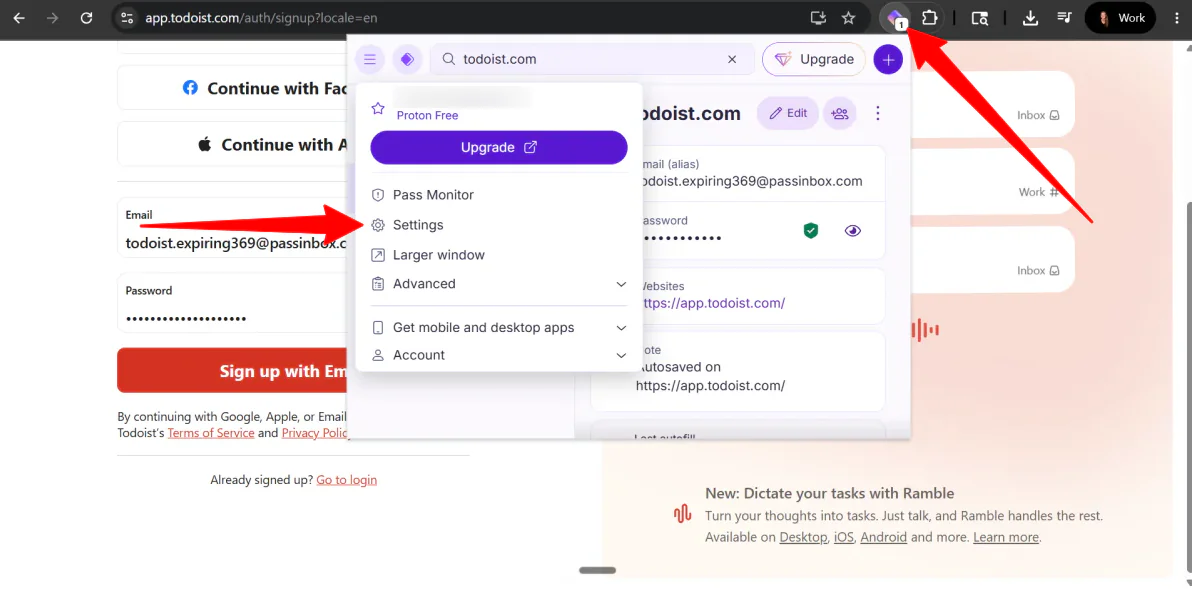
That’s how effortlessly Proton Pass lets you generate emails and passwords, then save them for future use right through the browser extension.
If you’re moving from Chrome, 1Password, or Bitwarden, you don’t have to start from scratch. You can export a CSV file from your old manager and drop it right into Proton Pass to populate your vault in seconds.
Open the Proton Pass extension, and click on Settings.
Step 9: Migrate Data from Password Managers
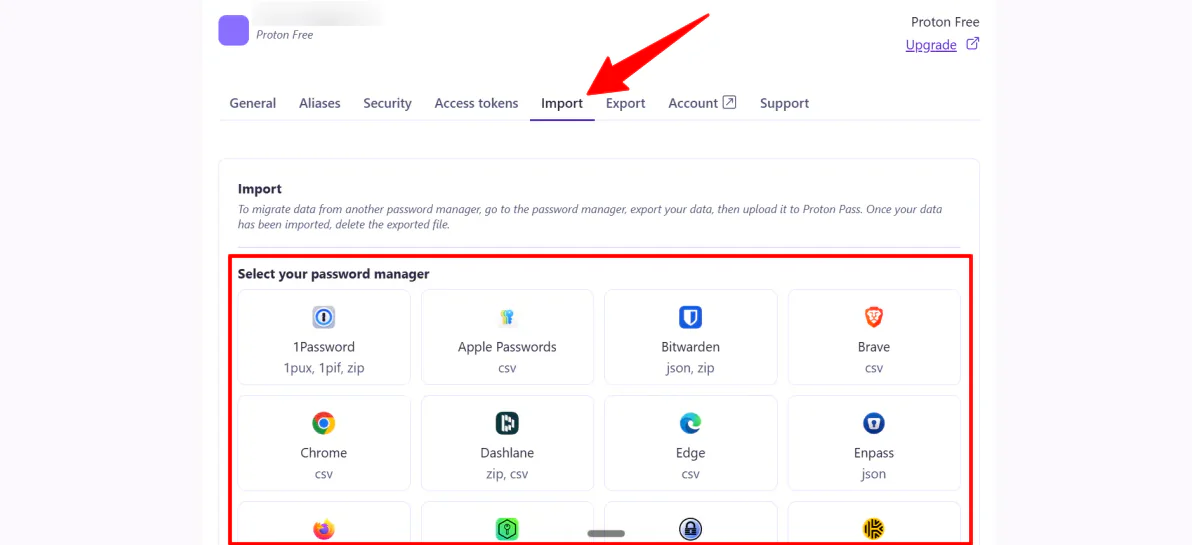
Within the Settings, click on the Import tab and choose the password manager to migrate your data from.
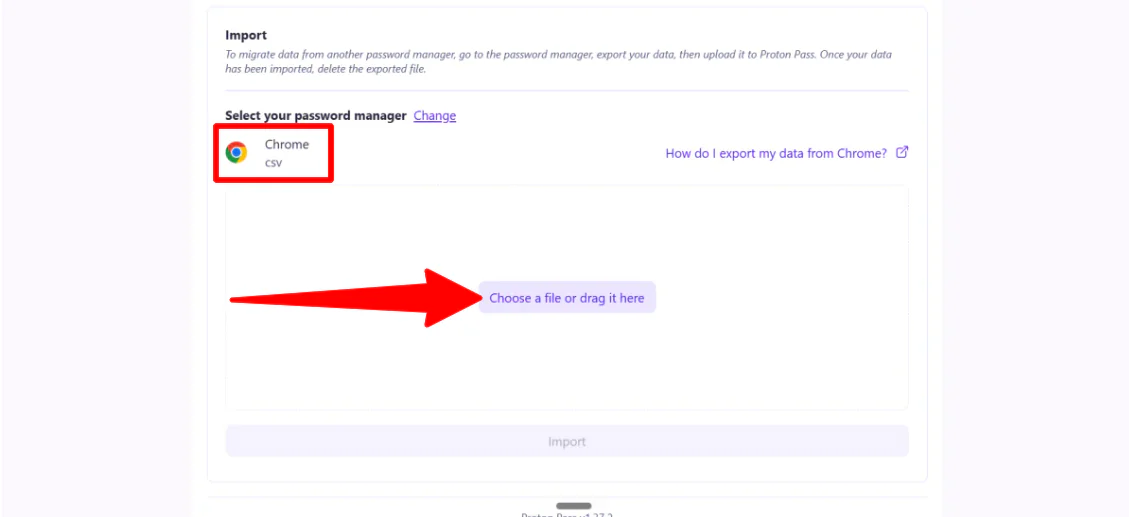
To migrate your data, head to your current password manager, export your information in the correct file format, then upload it directly into Proton Pass. Pretty straightforward.
Step 10: Create a Manual Login
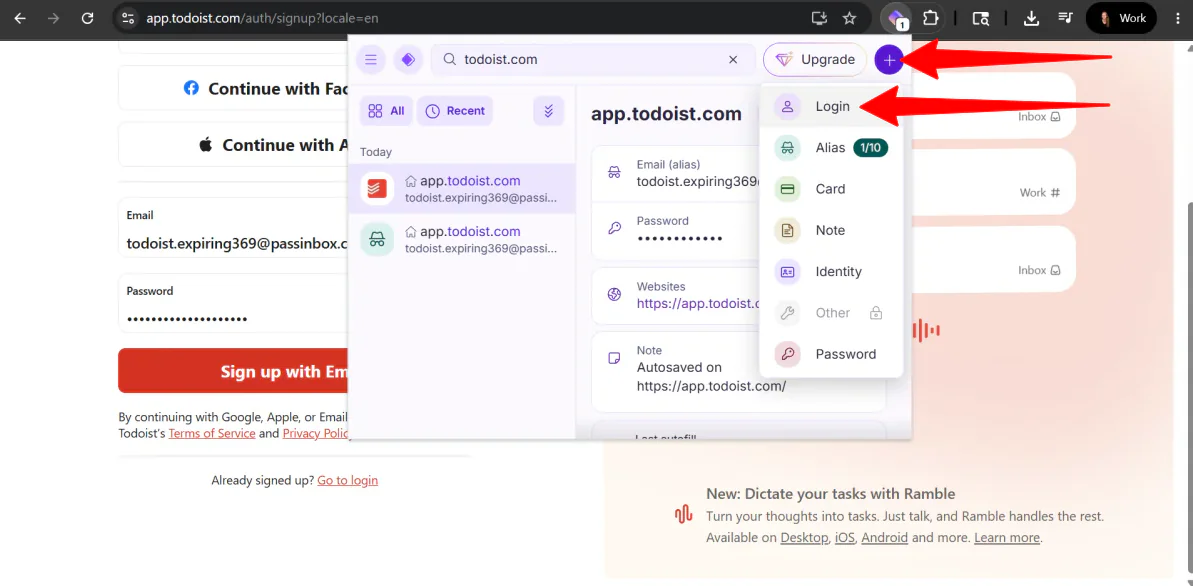
Want to create a login manually? Not a problem.
Open the extension, click the “+” icon, and select Login.
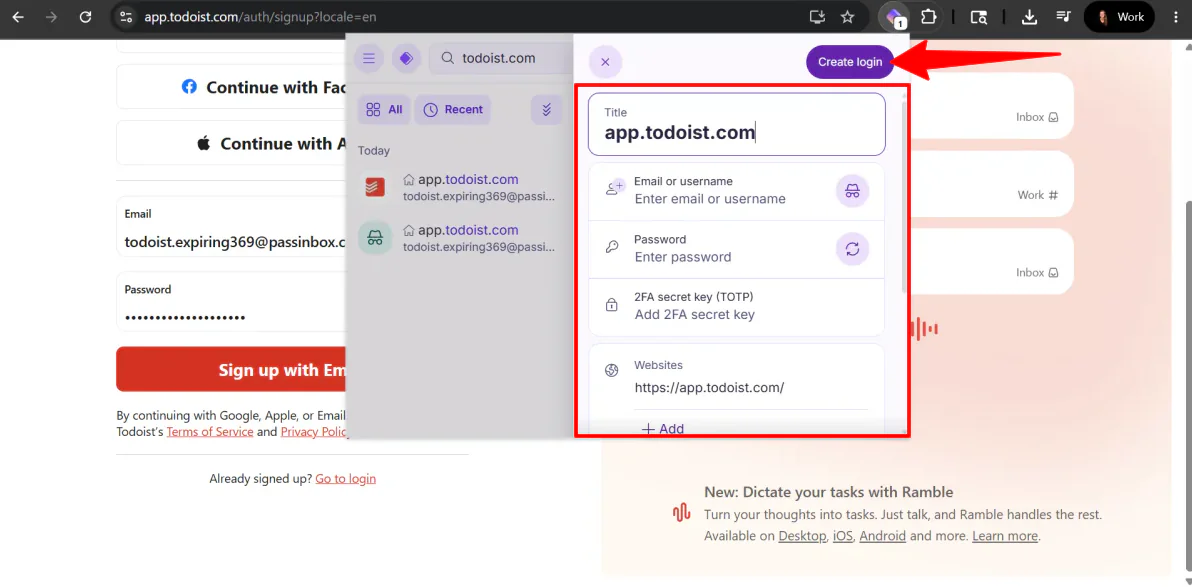
Give the login a title, create or generate an alias and password, and even add a 2FA secret key.
It simplifies two-factor authentication by keeping everything in one place and automatically generating your codes when you need to sign in.
Step 11: Download the Mobile App

A password manager isn’t much help if it’s trapped on your computer.
Your final step is to download the Proton Pass mobile app for iOS or Android. Log in with the account you created in step one, and make sure to enable Autofill in your phone’s system settings.
This allows Proton Pass to securely pop in your credentials whenever you open an app or website on your phone, with biometric unlock (like FaceID or fingerprint scanning) for quick access.
Overall, Proton Pass makes setting up, securing, and managing accounts feel effortless from start to finish. It removes a lot of friction from everyday logins while still keeping everything tightly secured and easy to access across devices.
Top 3 Proton Pass Alternatives
Here are the best Proton Pass alternatives I’ve tried.
Bitwarden
The first Proton Pass alternative I’d recommend is Bitwarden. It’s a highly trusted, open-source password manager built for strong security, simple password storage, and easy management across all devices.
Both tools offer zero-knowledge encryption, password generation, autofill, and strong protection against breaches, making both of them excellent choices for secure password management.
However, Bitwarden stands out for its long track record, enterprise-level controls, self-hosting option, and flexibility for teams and IT departments. Meanwhile, Proton Pass focuses more on privacy-first simplicity, identity protection tools like email aliases, and integration with other Proton services.
For maximum control, business features, and self-hosting, choose Bitwarden. For a more privacy-focused personal ecosystem with identity protection, choose Proton Pass.
1Password
The next Proton Pass alternative I’d recommend is 1Password. It’s a password manager for individuals, teams, and families, with strong security, vault organization, and advanced access controls.
Both tools help you store passwords securely, autofill logins, and sync across devices, making them solid options for everyday password management.
However, 1Password stands out with its deeper team and enterprise capabilities. It supports structured vault permissions, secure sharing, onboarding tools, and admin controls for managing access across people and systems. It also focuses on securely giving AI agents and systems controlled access to accounts so they can use only the data they’re allowed to without exposing personal logins.
In practice, 1Password feels very smooth to set up, from importing passwords to organizing vaults and managing team access.
Meanwhile, Proton Pass is more focused on privacy and simplicity. It offers end-to-end encryption, open-source transparency, and a generous free plan with unlimited passwords and easy syncing. It’s quicker to use daily, but less advanced with enterprise-level controls and team management.
For enterprise-level access control and advanced team workflows, choose 1Password. For a simple, privacy-first password manager with a great free plan, choose Proton Pass.
Read my 1Password review or visit 1Password!
NordPass
The final Proton Pass alternative I’d recommend is NordPass. It’s built for individuals and businesses that want simple password security with strong encryption, breach monitoring, and easy team management.
On the one hand, NordPass is more ideal for businesses and larger teams. It gives admins easy tools to set rules, manage who can access what, track activity, organize teams, and monitor security issues in one place, which makes it simple to use across a company. It also includes breach alerts, activity tracking, and 2FA support to help keep everything secure.
Meanwhile, Proton Pass focuses more on personal use, with end-to-end encryption, open-source transparency, and a generous free plan that includes unlimited passwords and device syncing. It also integrates well with the wider Proton ecosystem, like Mail, VPN, and Calendar, if you’re already inside that environment.
For private, open-source password protection with a strong free plan, choose Proton Pass. If you need simple tools to manage users, stay secure, and effortlessly grow, choose NordPass.
Read my NordPass review or visit NordPass!
Proton Pass Review: The Right Tool For You?
After using Proton Pass, the biggest strength is how effortless it feels. Getting started was quick, and things like password generation, email aliases, and autofill work without having to overthink anything.
What stood out most is how smoothly it handles everyday use. Creating new accounts is faster, saving logins is automatic, and the built-in security features like aliases, 2FA support, and encrypted storage effortlessly keep things secure. The mobile app and browser extension also make it easy to stay synced everywhere.
However, it’s not the most advanced option for deep team controls or highly customized admin features. If that’s what you’re looking for, you might want to try one of these alternatives:
- 1Password is best for individuals, families, and teams that want powerful sharing tools and advanced access control.
- NordPass is best for secure password management with easy team setup, breach monitoring, and simple admin tools.
Otherwise, choose Proton Pass for personal use and privacy over complex business setups.
Thanks for reading my Proton Pass review! I hope you found it helpful. Try it for free and see how you like it.
Frequently Asked Questions
Can Proton Pass be trusted?
Yes, Proton Pass can be trusted. It’s made by the same team behind Proton Mail and is known for strong security and privacy.
Is Proton Pass truly free to use?
Yes, Proton Pass has a free plan that is ad-free and includes unlimited use of core features.
How do I get Proton Pass?
You can start using Proton Pass for free by adding the browser extension.
Is a paid Proton Pass account worth it?
A paid Proton Pass plan depends on whether you want extra privacy tools and advanced security features. If you only need password storage, autofill, and syncing across devices, the free plan is already very generous with no limits on passwords or devices.
Has Proton Pass ever been breached?
No, Proton Pass has never been breached.