AI Tools 101
Keeper Security Review: The Password Manager Worth Keeping?

 Add Unite.AI to your preferred sources on Google
Unite.AI may receive compensation when you use links to products we review. This does not influence our editorial evaluations. Read our affiliate disclosure.

Have you ever tried logging into an account, only to hit that familiar pause where you’re guessing which password you used this time?
According to Security Magazine, over 78% of people reuse passwords across multiple accounts. That means even a single data breach can quickly snowball into a much bigger security problem than most people realize.
Scary, right? In a world where one breach can damage reputations overnight, choosing the right password manager isn’t just something nice to have. It’s nonnegotiable.
Luckily for you, we have reliable solutions like Keeper Security. It’s not just another password vault. It’s a full security platform built on zero-trust, zero-knowledge architecture and trusted by over 85,000 business customers across 150+ countries.
I personally tested it by going through the full setup process, and what stood out most was how quickly it helped me go from “messy and vulnerable” to “organized and secure” in just a few minutes.
But does that level of security actually make everyday life easier, or does it add unnecessary complexity?
In this Keeper Security review, I’ll break down the pros and cons, what it is, who it’s best for, and its key features. I’ll also show you how I used it to import my existing passwords, run a security audit, and upgrade my security.
Finally, I’ll compare it to my top three alternatives (1Password, Bitwarden, and Proton Pass) so by the end, you’ll know exactly which password manager is right for you.
Verdict
Keeper Security is a an excellent password manager for secure password storage, organization, and sharing across devices. However, it can be expensive and a bit much if you just need a basic password manager.
Pros and Cons
- Strong security with zero-knowledge and end-to-end encryption
- Easy organization with folders and clear structure
- Simple sharing tools for families and teams
- Works across major devices and browsers
- 30-day free trial so you can try it before committing
- Can feel a bit clunky when adding new entries
- More expensive than some budget alternatives
- Can feel less flexible compared to competitors
- Overkill if you only need a basic password manager
What is Keeper Security?
Keeper Security is a cybersecurity company that helps individuals and businesses securely store passwords, passkeys, and other sensitive information in encrypted vaults with zero-knowledge security.
Keeper Security was founded in 2011, and they’re headquartered in Chicago, Illinois. Today, they serve millions of users across more than 150 countries, and they work with tens of thousands of businesses too.
They’re not some scrappy startup anymore. This is a well-established company with a serious reputation in the cybersecurity space.
Zero-Trust & Zero-Knowledge
But what actually makes Keeper different from just saving passwords in your browser? Two words: zero-trust, zero-knowledge.
The zero-trust model means that no one (not even Keeper’s own employees) is trusted with access to your data. Every access request gets verified every time.
The zero-knowledge part takes it a step further. It means Keeper literally cannot see your passwords, even if they wanted to.
How End-to-End Encryption Works
Here’s how the encryption works. When you save a password or a record in Keeper, it gets encrypted on your device before it ever leaves.
It uses AES-256 bit encryption, which is the same standard used by governments and militaries. Then that already-encrypted data gets sent to Keeper’s servers.
So what’s sitting on their end? Scrambled nonsense that’s useless without your master password (which only you know).
Why Keeper Can Never Access Your Data
That last part is worth repeating. Keeper never has access to your master password.
It never gets transmitted to their servers. If you forget it, they cannot recover it for you.
Because if Keeper can’t access your data, neither can a hacker who breaches their servers. Your vault is completely yours.
Platforms & Devices Supported
One thing I really appreciated when I started using Keeper is how many platforms it supports.
If you’ve got a Mac at home, a Windows machine at work, and you’re constantly switching between Chrome and Safari, Keeper covers all of it: Mac, Windows, and Linux for desktop, plus browser extensions for Chrome, Firefox, Safari, and Edge.
There are also mobile apps for both iOS and Android, so your passwords follow you everywhere without you having to think about it.
If you’re someone who’s been putting off getting a password manager because it seems complicated or overkill, Keeper is built around the idea that security shouldn’t be. The encryption happens in the background, the interface is easy to navigate, and safety is baked in automatically.
That’s a pretty solid foundation to build on.
Who is Keeper Security Best For?
Keeper is a solid choice for individuals and teams who want a password manager built with security as the top priority:
- Anyone looking for a secure way to store and manage their passwords.
- Families that want to safely share access to important accounts and have a backup plan for emergencies.
- Small and growing businesses that need a simple way to manage and control access to shared credentials in one place.
- DevOps and IT teams that need a secure way to manage API keys, secrets, and privileged access.
Keeper Security Key Features
Here are Keeper’s core features, including security and business tools.
Core Features
- Secure password vault that’s encrypted to securely store passwords.
- A built-in free password generator to generate strong passwords when creating new login records.
- Autofill automatically fills in your usernames and passwords across websites and apps through the browser extension and mobile app.
- Two-factor authentication support to add an extra layer of security to your account.
- Sharing tools that let you safely share passwords and records with trusted contacts.
- Cross-device sync that keeps your passwords and vault data updated across all of your devices.
Security & Business Tools
- Breach monitoring that alerts you if your passwords appear in known data breaches or compromised databases.
- Emergency access that allows trusted contacts to access your vault in urgent situations.
- Zero-knowledge encryption ensuring only you can access your stored data.
- Secure add-ons, like advanced reporting and alerts, that help you monitor security activity and add extra layers of protection.
- Admin console for adding users, assigning responsibilities, and managing access across your organization.
- Biometric login for fast, secure access using Face ID, Touch ID, or Windows Hello without typing a password.
How to Use Keeper Security
Here’s how I used Keeper to import my existing passwords, do a security audit, and upgrade my security:
- Try Keeper for Free
- Create a Master Password
- Import Your Passwords
- Download the Extension
- Turn Off AutoFill
- Check the Security Audit
- Generate Strong Passwords
Step 1: Try Keeper for Free

Start by going to keepersecurity.com and selecting “Try It Free.”
Step 2: Create a Master Password
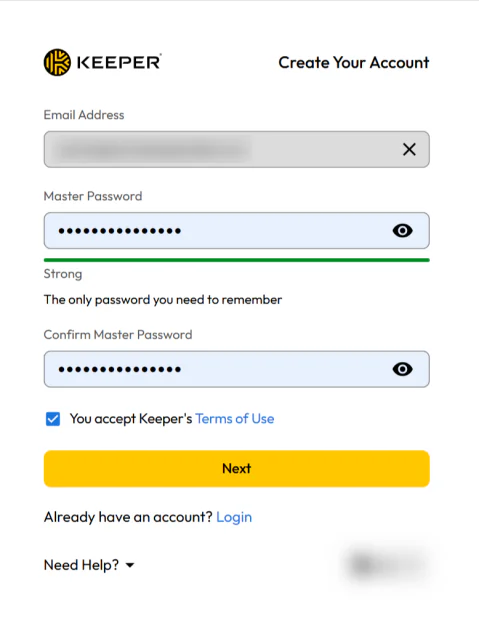
Create a Master Password. This is the password you’ll use to unlock your Keeper vault and access all of your saved passwords, secure files, and other sensitive data. Make sure it’s strong, store it somewhere safe, and never share it with anyone.
Keeper uses a zero-knowledge security model, which means Keeper cannot reset your Master Password or recover your data if you lose it. Be sure to write down and securely store your recovery phrase.
Step 3: Import Your Passwords
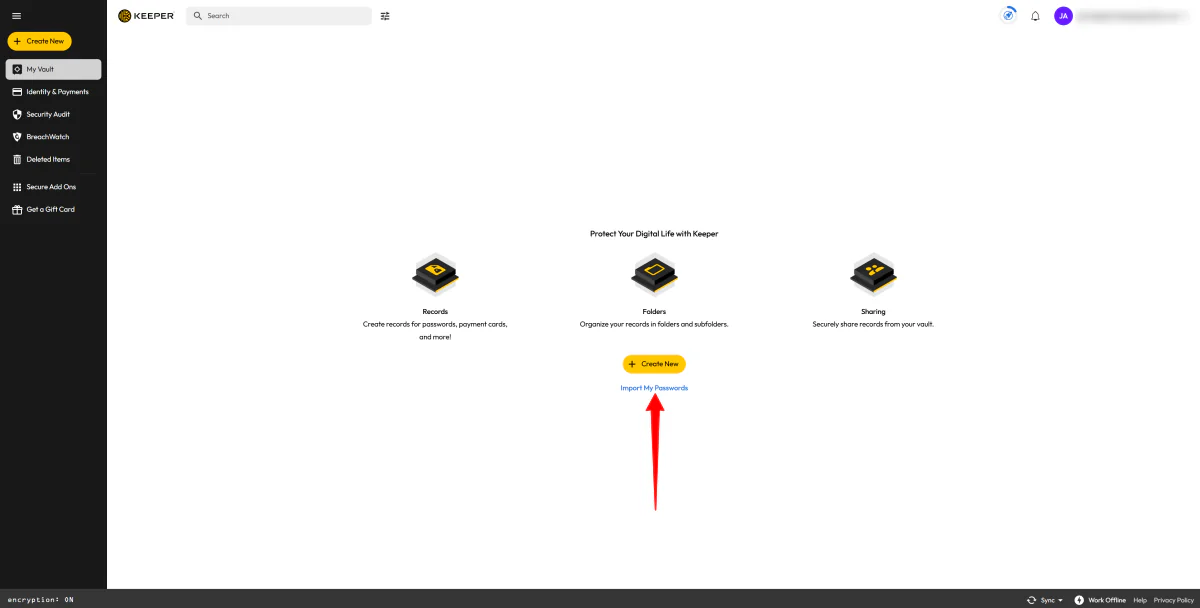
After verifying your email, you’ll immediately be taken to your vault. The signup process only takes about two minutes, and the interface is clean and easy to navigate.
Import passwords from a browser (Chrome, Safari, Edge) or an old manager by selecting “Import My Passwords.”
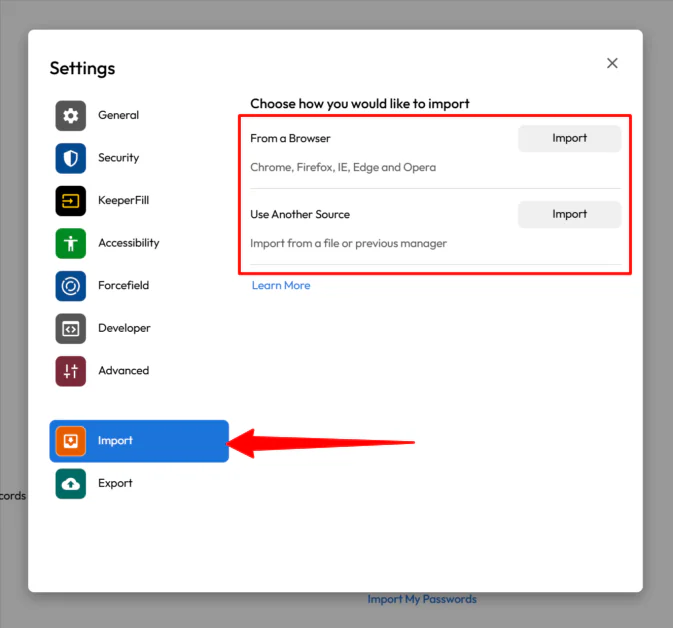
Keeper allows direct syncing from a browser, another password manager, or a standard text file.
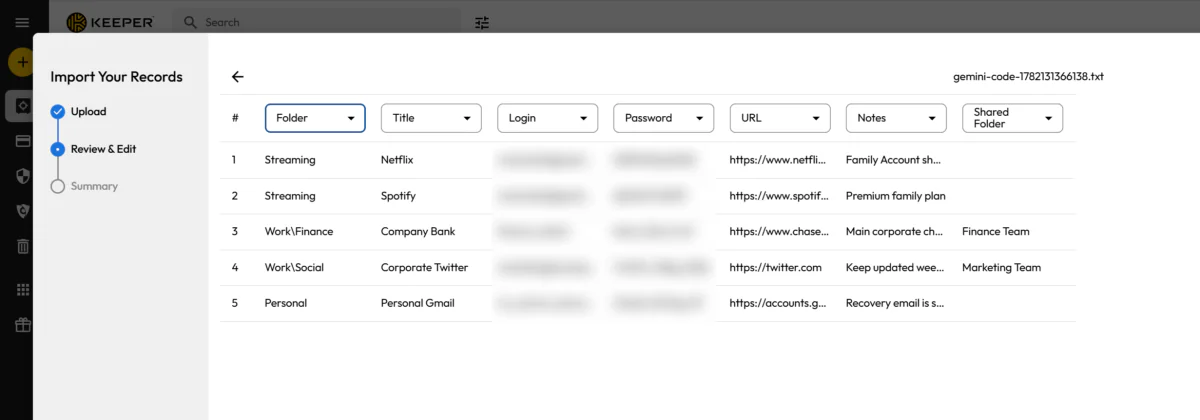
After your password file is imported, Keeper will automatically organize your credentials into the appropriate categories and folders within your vault, as long as that structure is included in your file.
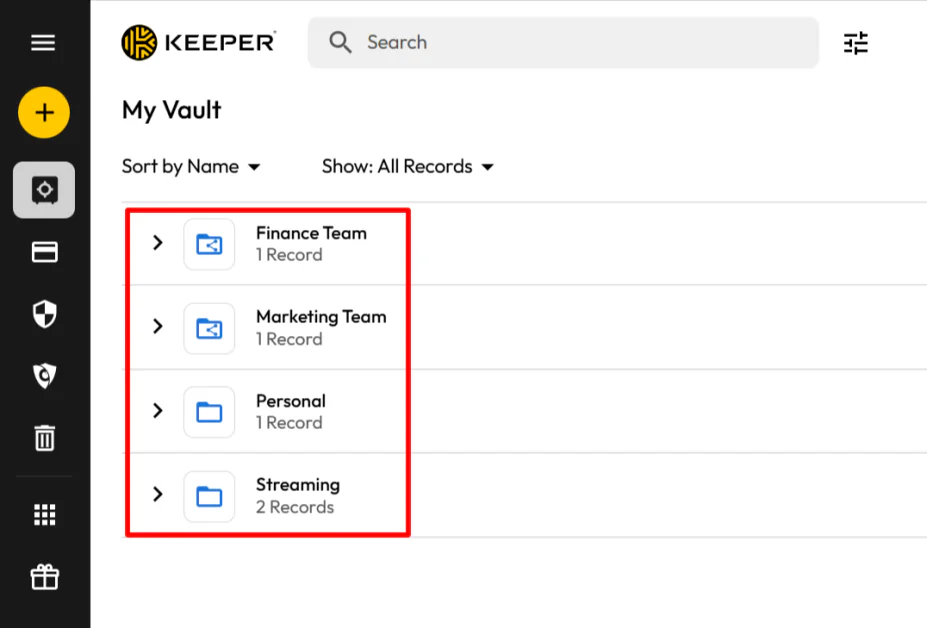
Once the import is complete, your records will land exactly where they belong, keeping your vault organized from day one.
Step 4: Download the Extension

Download the Keeper extension for your browser and the app for your phone. The browser extension is available on all major browsers (Chrome, Firefox, Safari, and Edge) and iOS and Android for phones.
Immediately turn on Face ID, Touch ID, or Windows Hello. If you don’t, you will have to type your long Master Password every single time you want to log into a website, which can ruin the entire experience.
Step 5: Turn Off AutoFill

Next, you’re going to want to turn off the built-in password managers in Chrome or Safari (it’s in your browser settings). If you skip this step, Keeper and Chrome/Safari will constantly battle for control of the autofill box, which will be frustrating.
Step 6: Check the Security Audit

Last but not least, take advantage of Keeper’s Security Audit tool. It flags weak, reused, or compromised passwords.
Step 7: Generate Strong Passwords

If you need to create a new password, you don’t have to think of one.
Whenever you create a new login record, Keeper’s built-in password generator creates a strong, randomized password and instantly rates its strength.

Choose the character length and type (numbers, symbols, etc.). It instantly creates a bulletproof password, lets you know its strength, and saves it automatically.
Overall, Keeper made password management feel effortless. The setup process was quick, importing my existing passwords was seamless, and features like Security Audit and the built-in password generator made it easy to improve my security without the extra work.
Top 3 Keeper Security Alternatives
Here are the best Keeper alternatives.
1Password
The first Keeper alternative I’d recommend is 1Password. It’s another secure password manager that focuses on strong encryption, easy vault organization, and access across devices.
Both platforms are excellent for securely storing passwords, sharing credentials, and syncing data across devices while using strong encryption to protect sensitive information.
However, 1Password generally has a smoother user experience, especially for adding and managing entries and for team workflows. Meanwhile, Keeper leans more heavily into security and structured organization, but some people find it a bit less flexible in everyday use.
Choose 1Password for easy and smooth family and team use. Otherwise, choose Keeper if you prefer tighter security controls and a more business-focused setup.
Read my 1Password review or visit 1Password!
Bitwarden
The second Keeper alternative I’d recommend is Bitwarden. It’s an open-source password manager built for simple, secure storage with strong support across all major devices and browsers.
Both tools let you safely store and manage passwords in encrypted vaults. They also both include features like autofill, secure sharing, and cross-device syncing.
Where they differ is in approach. Bitwarden is lighter, more affordable, and fully open-source, which makes it popular with those who value transparency and simplicity. Keeper feels more enterprise-focused with powerful tools like admin controls, optional add-ons, and stronger enterprise admin and security controls.
If you want something simple, open, and affordable, choose Bitwarden. But if you need a more feature-rich security platform for personal, family, and business use, choose Keeper.
Proton Pass
The final Keeper alternative I’d recommend is Proton Pass. It’s a user-friendly password manager that makes it easy to generate passwords, create email aliases, autofill credentials, and securely manage accounts across all of your devices.
Both platforms provide secure password storage, password generation, autofill, cross-device syncing, password sharing, and strong encryption, making them excellent choices for protecting sensitive information.
However, Proton Pass stands out with its built-in email alias feature, which helps protect your inbox from spam and data breaches. It also delivers a more streamlined experience for generating passwords and managing two-factor authentication directly from the browser extension.
Meanwhile, Keeper offers more advanced business features, including admin controls, privileged access management, and broader enterprise security tools. Proton Pass is a strong, privacy-focused option for everyday users and small teams, but it does not offer the same depth of enterprise control that Keeper provides.
Choose Proton Pass if you want a simpler password manager with built-in email aliases. Otherwise, choose Keeper if you want stronger business and security features.
Read my Proton Pass review or visit Proton Pass!
Keeper Security Review: The Right Tool For You?
After using Keeper, I came away impressed by how easy it was to improve my password security without completely changing my workflow. The setup took only a few minutes, importing my existing passwords was effortless, and tools like Security Audit quickly showed me which accounts needed attention.
What stood out most was how organized everything felt. Keeper sorted my imported records into folders, made it easy to generate strong passwords, and kept everything synced across my devices. While adding new entries occasionally felt a bit less streamlined than some competitors, the trade-off was a tool focused on security and packed with useful features.
If you’re looking for a secure password manager with excellent organization, sharing tools, and advanced security features, Keeper is a great choice. But if you only need basic password storage and want the simplest or cheapest option available, consider one of the alternatives below:
- 1Password is best for families and teams that want the smoothest and most user-friendly experience.
- Bitwarden is best for those on a budget who want an affordable, open-source password manager.
- Proton Pass is best for those who want built-in email aliases and a simple everyday experience.
Thanks for reading my Keeper Security review! I hope you found it helpful.
Keeper offers a 30-day free trial. Sign up for free and try it yourself to see how you like it.
Frequently Asked Questions
Is Keeper a safe password manager?
Yes, Keeper is widely considered a secure password manager. It uses zero-knowledge encryption, which means your passwords and sensitive data are encrypted on your device before they are stored in the cloud. Only you can access them.
Has Keeper ever been compromised?
Keeper has never experienced a vault breach since launching in 2011. Its zero-knowledge security model means that even if Keeper were breached, your vault data would remain encrypted and inaccessible to both Keeper and attackers.
Is Google Password Manager better than Keeper?
Whether Keeper is better than Google Password Manager depends on what you need. Keeper is better for security, advanced features, and working across different devices, while Google Password Manager is better for simple, free use inside Chrome.
Is Keeper Security legit?
Keeper Security is a legitimate and widely trusted password manager known for its strong security and zero-knowledge design. It also holds major security certifications like SOC 2 Type 2 and ISO 27001 and has not had any known breaches.
What is Keeper Security and do I need it?
Keeper Security is a password manager that uses zero-knowledge security to keep your data private. It gives you a secure vault to store passwords, passkeys, financial information, and documents. It can also generate strong passwords, sync across devices, and autofill passwords them as you browse.
Keeper is a good fit if you reuse passwords, forget logins often, or just want an easier way to keep your online accounts secure.