
AI Tools 101
Divi Review: How This Builder Saves Hours on Website Design

Unite.AI is committed to rigorous editorial standards. We may receive compensation when you click on links to products we review. Please view our affiliate disclosure.
If you’ve ever tried building a website from scratch, you know the struggle: endless plugins, confusing layouts, and hours lost just trying to make things look right.
That’s why Divi caught my attention. This WordPress builder doesn’t just provide a template; it lets you design your website exactly how you want, no coding needed. Divi keeps it simple while providing the flexibility to create unique websites.
In this Divi review, I’ll discuss the pros and cons, what it is, who it’s best for, and its key features. Then, I’ll show you how I used the Divi plugin to generate an entire article in minutes.
I’ll finish the article by comparing Divi with my top three alternatives (Wix, B12, and Brizy). By the end, you’ll know if it’s right for you!
Verdict
Divi is a website builder that effortlessly creates customizable websites without coding. However, it can be slower if unoptimized, and the default templates may look unoriginal if left unchanged.
Pros and Cons
- Drag-and-drop interface, no coding needed
- Thousands of pre-made templates for fast setup
- Responsive design for all devices
- Theme Builder for custom headers, footers, and templates
- Integrates with plugins, WooCommerce, and marketing tools
- Advanced design options: animations, hover effects, CSS, and global styles
- AI tools to simplify content creation and design
- Regular updates with new features
- Can be slower than some competitors if not optimized
- Default templates can lead to similar-looking designs
What is Divi?
Divi is a popular WordPress theme with a powerful visual page builder developed by Elegant Themes. You can use it to create fully customizable websites without writing code through its drag-and-drop interface.
Divi stands as one of the most recognizable names in the WordPress page builder space. However, many don’t realize it’s actually two products in one. At its core, Divi functions both as a complete WordPress theme and as a standalone page builder plugin for flexibility.
The Dual Nature of Divi
Unlike traditional WordPress themes that lock you into predetermined layouts and limited customization options, Divi breaks down these barriers entirely.
The theme provides a clean and responsive base for any content. Meanwhile, the builder plugin turns website editing into a drag-and-drop experience.
This dual approach means you can apply Divi’s building capabilities to any WordPress theme through the plugin, or use the complete Divi theme for a fully integrated experience. You get the flexibility to use Divi with themes you already love.
From Simple Theme to Visual Powerhouse
Elegant Themes launched Divi in 2013 as a WordPress theme, but it has undergone a dramatic transformation over the past decade.
The original version used a backend interface. However, it didn’t offer the live, visual editing options.
The introduction of the Visual Builder in 2016 marked a turning point. Users could now edit their websites directly on the frontend with real-time previews.
Subsequent updates have added advanced features, including:
- Dynamic content integration
- Custom CSS controls
- The Theme Builder functionality (design headers, footers, and entire page templates)
The Philosophy Behind Visual Building
Divi’s goal is to make web design accessible by removing technical barriers. In the past, custom WordPress designs required coding skills like HTML, CSS, and PHP, leaving many stuck with basic templates.
The visual builder removes technical barriers with easy controls for colors, fonts, and spacing. It goes beyond page building to cover full site design.
Integration with the WordPress Ecosystem
Divi works seamlessly with WordPress, keeping content in standard formats that remain intact even if Divi is deactivated.
Divi works well with popular WordPress plugins for SEO, e-commerce, forms, and security. It integrates with WooCommerce for selling products online and supports tools like Yoast SEO to keep designs optimized for search.
The system also supports WordPress multisite. That means large organizations can manage many websites from one installation.
Who is Divi Best For?
Here are the types of people Divi is best for:
- Freelancers and web designers can use Divi to create fully customizable websites without coding.
- Small to medium businesses can use Divi to build professional sites like portfolios, blogs, and service pages with complete design control.
- Agencies and developers can use Divi to speed up web design projects with premade layouts.
- E-commerce store owners can use Divi to design WooCommerce shops with custom product pages and checkout flows.
- Marketers can use Divi to run A/B tests and build SEO-friendly websites.
- Educational institutions and nonprofits can use Divi to create multiple websites under one license to manage different departments or programs.
Divi Key Features
Here are Divi AI’s key features:
- Drag-and-Drop Builder: No-code, live visual editing on both frontend and backend.
- Theme Builder: Design headers, footers, templates, 404s, blog posts, products, and more.
- Layouts & Templates: Thousands of template designs and starter sites.
- Responsive Controls: Customize for desktop, tablet, and mobile.
- Global Styles: Reusable sections and synced design updates.
- Advanced Options: Fonts, colors, spacing, animations, and custom CSS.
- AI Tools: Generate content and speed up builds.
- WooCommerce: 20+ modules for custom shop and product pages.
- Storage & Management: Divi Cloud and Dash for cloud storage and management.
- Dynamic Content: Auto-insert titles, images, dates, and more.
- Rich Module Library: Text, images, forms, sliders, galleries, and more to build website layouts.
- Performance: Optimized for speed, SEO, and accessibility.
How to Use Divi
Here’s how I installed the Divi AI Plugin and used it to generate an entire article in minutes:
- Sign Up for Divi AI
- Sign in to Elegant Themes
- Download Divi
- Add the Divi Plugin
- Upload & Install the Divi Plugin
- Activate the Plugin
- Adjust the Divi Plugin Settings
- Generate an Article
- Edit with the Divi Builder
- Start Building
- Generate a Layout with AI
- Authenticate Your Elegant Themes Subscription
- Access Your Username & API Key
- Generate an API Key
- Authenticate Your Account
- Describe the Page
- Choose the Images & Fonts
- Generate the Layout
Step 1: Sign Up for Divi AI

I started by going to elegentthemes.com and going to “Get Divi AI.”
Step 2: Sign in to Elegant Themes

After getting Divi Pro, I was redirected to sign in to Elegant Themes.
Step 3: Download Divi

Once signed in, I was presented with two ways to download Divi:
- Divi Theme (all-in-one WordPress theme and page builder)
- Divi Builder Plugin (visual page builder)
Select the Divi Theme if you are building a website from scratch and want to use Divi as your theme. If you already have a theme installed on your WordPress website and are happy with it, download the Divi plugin.
In my case, I already had a theme installed on my WordPress website that I was happy with. I selected “Download the Divi Plugin.”
Step 4: Add the Divi Plugin

Immediately, the Divi plugin began downloading on my computer.
From my WordPress dashboard, I hovered over “Plugins” and went to “Add Plugin.”
Step 5: Upload & Install the Divi Plugin
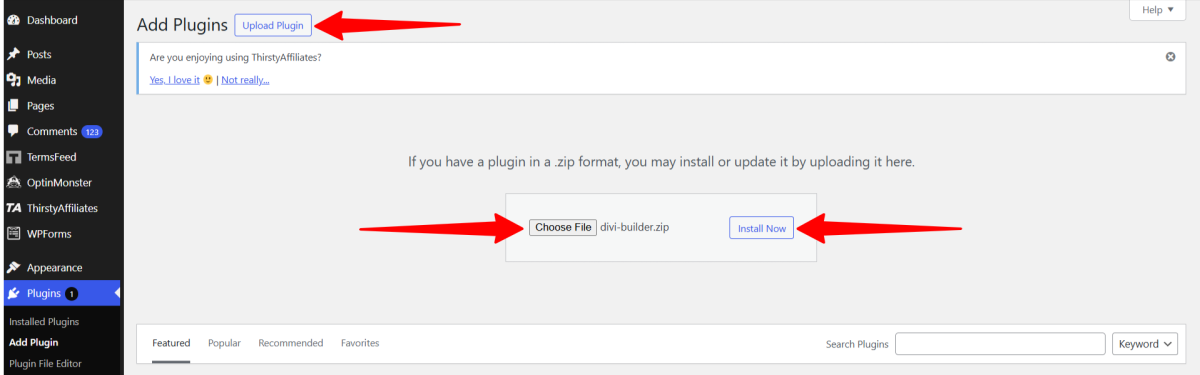
Next, I hit “Upload Plugin,” selected the Divi plugin ZIP file, and selected “Install Now.”
Step 6: Activate the Plugin
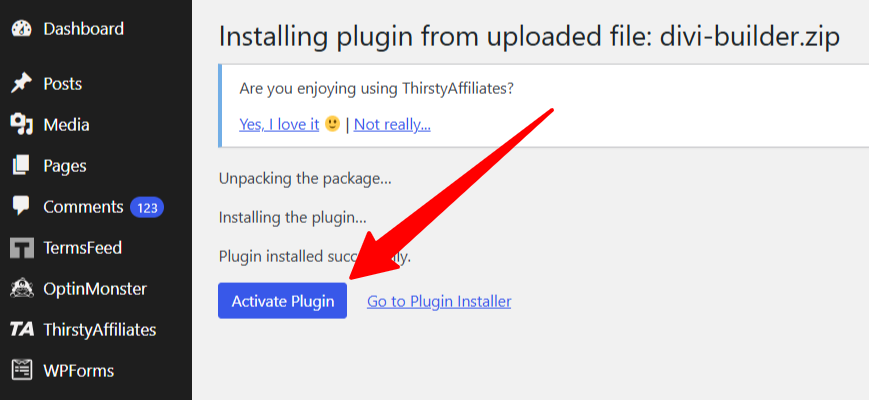
From there, I hit “Activate Plugin.”
Step 7: Adjust the Divi Plugin Settings

After installing and activating the plugin, I noticed a new “Divi” menu item in my WordPress dashboard. This was where I could adjust the plugin settings, create website templates, add layouts, and assign roles.
Step 8: Generate an Article

Next, I wanted to generate a post with Divi. I went to my posts and selected one of them. I selected the purple Divi button at the top.
Step 9: Edit with the Divi Builder
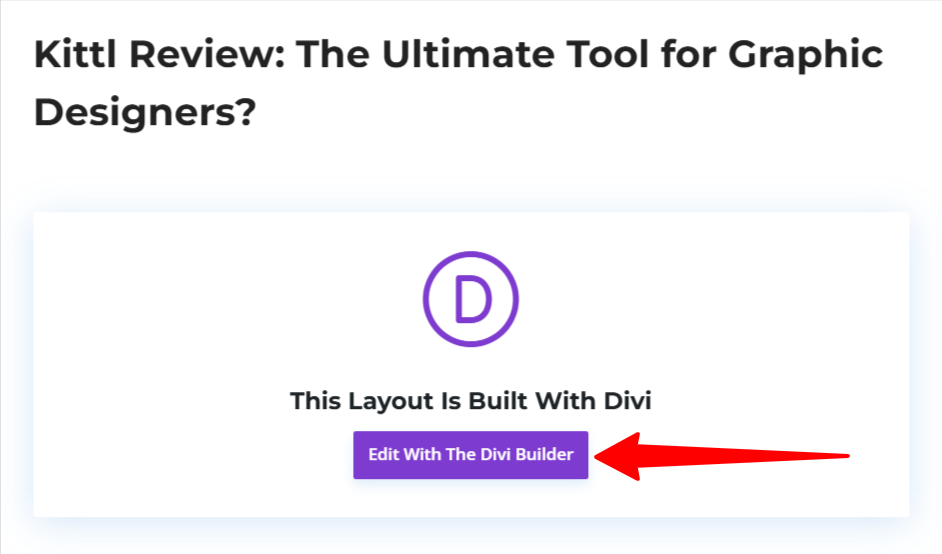
Next, I selected “Edit With The Divi Builder.”
Step 10: Start Building

This took me to the Visual Builder, where I could either start building with Divi or take the tour. I decided to jump right in and start building.
Step 11: Generate a Layout with AI

Divi presented three options for how I wanted to start building:
- Use existing content: Retain existing page content while using the Divi builder.
- Choose a premade layout: Pick from hundreds of ready-made layouts, use one of your saved layouts, or duplicate an existing page.
- Build with AI: Describe your page content and let Divi AI build your page with the click of a button.
Naturally, I was most curious about the third option: Build with AI. Not only was it the easiest way to build with Divi, but I wanted to see what Divi AI was capable of.
Step 12: Authenticate Your Elegant Themes Subscription

Before generating text with Divi AI, I had to authenticate my Elegant Themes subscription with an API key and username.
Step 13: Access Your Username & API Key
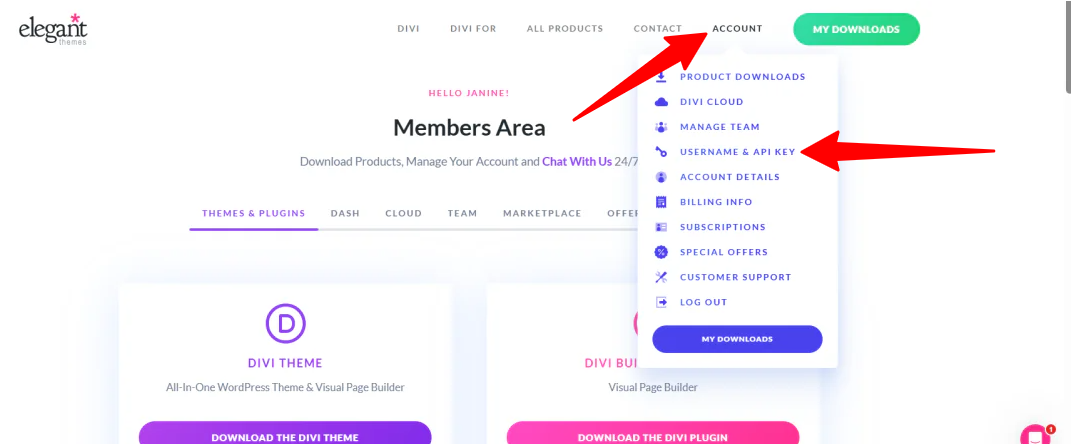
To locate my username and API key, I logged into my Elegant Themes account, hovered over”Account,” and selected “Username & API Key.”
Step 14: Generate an API Key

At the bottom, I selected “Generate New API Key.”
Step 15: Authenticate Your Account

From there, I copied and pasted my username and API key into the empty fields on WordPress and hit “Submit.”
Step 16: Describe the Page

Next, Divi asked me to describe the page I wanted it to create. Optionally, I could describe my website. For the best results, I’d recommend providing both.
Here’s the prompt I gave Divi:
“Create a Kittl review, including the verdict, pros, cons, what it is, who it’s best for, its key features, how to use it, and the top three alternatives.”
I also provided Divi with a description of my website:
“This website offers the best design tools, resources, and inspiration that are ranked & reviewed by a graphic designer.”
Step 17: Choose the Images & Fonts

There were also three types of images I could get Divi to use on my page:
- Stock images
- AI-generated images
- Placeholder images
Lastly, I could customize the fonts and colors of my page.
I decided to let AI generate the images for me and choose the colors and fonts to see what it would come up with.
Once everything was filled out, I hit “Generate Layout.”
Step 18: Generate the Layout

A few minutes later, Divi generated an entire article in an organized layout that was fully customizable. I could hover over any block to move it, duplicate it, delete it, and more. I could also access the settings to update the content and design.
While the results weren’t perfect and the content needed fact-checking, the Divi AI Plugin proved to be a powerful tool for kickstarting content creation and design. It saved time, provided structure, and made it easy to customize every detail without starting from scratch.
Top 3 Divi Alternatives
Here are the best Divi alternatives I’d recommend.
Wix
The first Divi alternative I’d recommend is Wix. Wix is a user-friendly website builder with drag-and-drop editing. It’s designed for those with little to no technical web design experience.
On the one hand, Wix stands out with its fully hosted solution. That means you don’t have to manage hosting or maintenance, and it includes features like the AI website builder for AI-assisted website creation.
On the other hand, Divi offers more advanced design options with frontend and backend builders, a full-site theme builder, and integration with WordPress plugins and WooCommerce.
For all-in-one hosting and AI-assisted design, choose Wix. For full creative control and WordPress integration, choose Divi!
Visit Wix or read my Wix Review!
B12
The next Divi alternative I’d recommend is B12. B12 is an AI platform that specifically helps businesses quickly build and launch professional websites with little effort or technical skill.
B12 uses AI to speed up design and content creation. It’s an excellent option for anyone who wants to generate a professional website quickly with built-in SEO.
Meanwhile, Divi stands out with its visual builder and customization options. Divi makes it easy to create personalized websites with control over every element. It also integrates WooCommerce and a large library of pre-made layouts.
For deep design customization and full control over website elements, choose Divi. For instant AI website creation, choose B12!
Brizy
The final Divi alternative I’d recommend is Brizy. Brizy makes it easy to create attractive, responsive websites with drag-and-drop editing, 180+ premade templates, and a clean interface.
Brizy focuses on simplicity and speed. It also offers cloud collaboration and a lighter, faster performance.
Meanwhile, Divi stands out with its Theme Builder for full control over headers, footers, and templates. It also supports WooCommerce with dedicated e-commerce modules and global styling features.
Choose Divi for full design control, custom templates, and strong WooCommerce support. Otherwise, choose Brizy for speed, simplicity, and collaboration.
Divi Review: The Right Tool For You?
After testing Divi for myself, I can confidently say it strikes a strong balance between flexibility and ease of use. The drag-and-drop builder, thousands of templates, and customization gave me more control than I’ve had with most tools. Plus, the AI features helped me build faster.
For me, Divi is a great fit because I value creative freedom, deep customization, and the ability to scale projects without coding. However, if you’re curious about the best Divi alternatives, here’s what I’d recommend:
- Wix is best as an all-in-one hosted solution with no technical setup and an AI builder.
- B12 is best for quickly creating professional business websites.
- Brizy is a simple, fast, lightweight builder with collaboration features.
Thanks for reading my Divi review! I hope you found it helpful. Try the Divi theme or plugin builder and see how you like it!
Frequently Asked Questions
What are the disadvantages of Divi?
Divi’s disadvantages include being overwhelming for beginners due to its many features. It can also slow down page loading if not optimized, especially on large or complex sites.
Is Divi better than Wix?
Wix is best for beginners who want an all-in-one website with templates and AI help. Meanwhile, Divi is better for full design control, customization, and WordPress/WooCommerce integration.
Is Divi better than Squarespace?
Divi is better for full customization, control over every design element, and WooCommerce integration. Squarespace is better as an all-in-one hosted solution with templates for quick setup.
Is Divi good for beginners?
Yes, Divi is good for beginners. Its drag-and-drop builder makes it easy to design websites without coding, and the library of templates helps quickly create professional sites.
Does Divi use AI?
Divi integrates AI features through Divi AI, which is built into Divi 5 and its visual builder. With Divi AI, you can generate text, images, code snippets, and even entire websites with simple prompts.



