AI Tools 101
Higgsfield AI Review: I Made AI Films on a Budget Laptop

 Add Unite.AI to your preferred sources on Google
Unite.AI may receive compensation when you use links to products we review. This does not influence our editorial evaluations. Read our affiliate disclosure.

Have you ever had an idea in your head that looked cinematic, but the second you tried to create it, it came out flat, robotic, or just off? That gap between imagination and output is exactly where Higgsfield AI tries to step in.
What makes it interesting is how fast it’s growing in the AI video space. The platform has already powered tens of millions of video generations, showing just how quickly creators are leaning into cinematic AI tools instead of traditional editing workflows. And once you actually use it, it becomes clear why: it doesn’t feel like a simple generator, it feels like a control room for directing shots.
Here’s what I made with Higgsfield:
Instead of typing a prompt and hoping for the best, you’re actively dictating the camera movement, lens style, lighting, and scene structure. It’s closer to directing a short film than using a typical text-to-video tool.
In this Higgsfield AI review, I’ll discuss the pros and cons, what it is, who it’s best for, and its key features. Then, I’ll show you how I used it to create a short cinematic clip with control over the camera lens, style, and genre.
I’ll finish the article by comparing Higgsfield with my top three alternatives (Kling AI, Luma AI, and HeyGen). By the end, you’ll know which tool is right for you!
Verdict
Higgsfield AI delivers highly cinematic videos that look incredibly realistic. It comes with excellent creative controls and supports multiple workflows like text-to-video and image-to-video. However, it can be harder to learn, it may struggle with complex scenes, and it can get expensive with heavy use.
Pros and Cons
- Advanced cinematic controls
- Video generations are incredibly realistic
- Generate multiple shots with a single text prompt
- Supports multiple workflows (text-to-video, image-to-video, lipsync, etc.)
- Great for ads, UGC-style content, and social videos
- Tools are creator-friendly
- Can struggle with consistency in complex or fast-moving scenes
- There may be a learning curve for advanced controls
- Credit system can feel expensive for frequent use
- Occasional glitches or rendering issues
What is Higgsfield AI?
Higgsfield AI is an AI video generator for creating cinematic videos and images. It places a strong emphasis on camera-movement control, image-to-video workflows, and creator-friendly editing tools. It’s primarily designed for social media creators, marketers, and filmmakers who want to produce professional short-form content without the complexity of traditional editing.
Founders & Background
Higgsfield was founded in 2023 by Alex Mashrabov, the former Head of Generative AI at Snap Inc. (SNAP ), and was recognized in the Forbes 30 Under 30 list. He has a background in consumer AI innovation, so you can feel confident knowing Higgsfield was created by someone with hands-on experience building and scaling generative AI products for mainstream users.
Core Mission & Traction
Its core mission isn’t to help you quickly slap together a TikTok. Higgsfield is chasing something bigger: cinematic realism and what they call “director-level creative control.”
In terms of traction, the numbers are impressive: over 20 million users, over 50 million videos generated, and a valuation of $1.3 billion. Investors like Accel and Menlo Ventures are even backing it, so you know there’s some serious money and confidence behind the platform.
That level of support usually signals more than hype. It suggests Higgsfield is being positioned for long-term scale, not just a short-term trend.
Who is Higgsfield AI Best For?
Higgsfield AI is best for creators and teams that want cinematic AI video with more creative control than typical social-content tools:
- Social media and UGC (user-generated content) creators making short-form videos without the complexity of traditional editing.
- Marketers and brand teams producing professional ads, promotions, and explainers.
- Filmmakers and video directors experimenting with AI-generated shots.
- Creators who need consistent characters, locations, and props across scenes.
Higgsfield AI Key Features
Higgsfield AI offers a robust suite of tools focused on cinematic video and image generation.
Core Generation Models
- Cinema Studio 3.5: Generate cinematic videos with full control over shots, lighting, and scene composition.
- Soul 2.0: Describe the scene you are envisioning to generate photorealistic images specifically for fashion content.
- Soul Cinema: Describe a scene, character, mood, or style to generate high-quality cinematic images with natural lighting and textures using Nana Banana Pro.
- Higgsfield DOP: Upload or generate an image and describe your scene to create cinematic videos emphasizing camera movements and visual effects. There are 250+ presets, or you can use the general preset for manual control.
- Higgsfield Popcorn: Generate storyboards with AI to plan narratives with multiple shots.
- Integrated models like KLING 3.0, Seedance 1.5 Pro, and Nano Banana Pro for text-to-video, image-to-video, and 4K image editing.
Editing & Control Tools
- WAN Camera Controls: Precisely control zooms, pans, and dollies to keep multiple shots consistent.
- Soul ID: Create a character by uploading multiple photos at different angles, and use the character consistently across images and videos.
- Lipsync Studio & Talking Avatars: Upload a photo or video, type to generate speech or upload audio, and choose a model to synchronize dialogue with realistic facial animations for explainers.
- Cinema Studio: Generate professional content in an AI Film Studio. Control focal length, sensor size, and camera movement. Build characters, locations, and props as shared elements across projects.
- Inpaint: Upload an image and paint over specific regions to apply changes only in those areas.
- Face Swap: Upload a photo of the face you want to replace, along with the face you want to insert, to instantly swap faces.
- Upscale: Upload images and videos to instantly enhance their quality.
How to Use Higgsfield AI
Here’s how I used Higgsfield Cinema Studio 3.5 to generate a cinematic video in minutes:
- Sign Up for Higgsfield
- Open Cinema Studio 3.5
- Change the Model to 3.5
- Add a Prompt
- Add the Genre, Style, and Camera
- Adjust the Settings & Generate
- Preview the Video
- Download the Video
Step 1: Sign Up for Higgsfield

I started by going to higgsfield.ai and selecting “Sign Up” on the top right.

Front and center were the platform’s most popular features, mainly focused on generating cinematic and marketing-style videos. If you want to dive deeper, the top navigation bar gives you quick access to the rest of its tools and capabilities.
Step 2: Open Cinema Studio 3.5

At the top, I hovered over “Video” and selected “Cinema Studio 3.5” to start creating videos with an AI director.
Step 3: Change the Model to 3.5

Immediately, I was taken to Cinema Studio 2.5. I wanted to try Cinema Studio’s newest version to see what it was capable of, so I clicked on “Cinema Studio 2.5” at the bottom and selected “Cinema Studio 3.5” to change the model.
Step 4: Add a Prompt
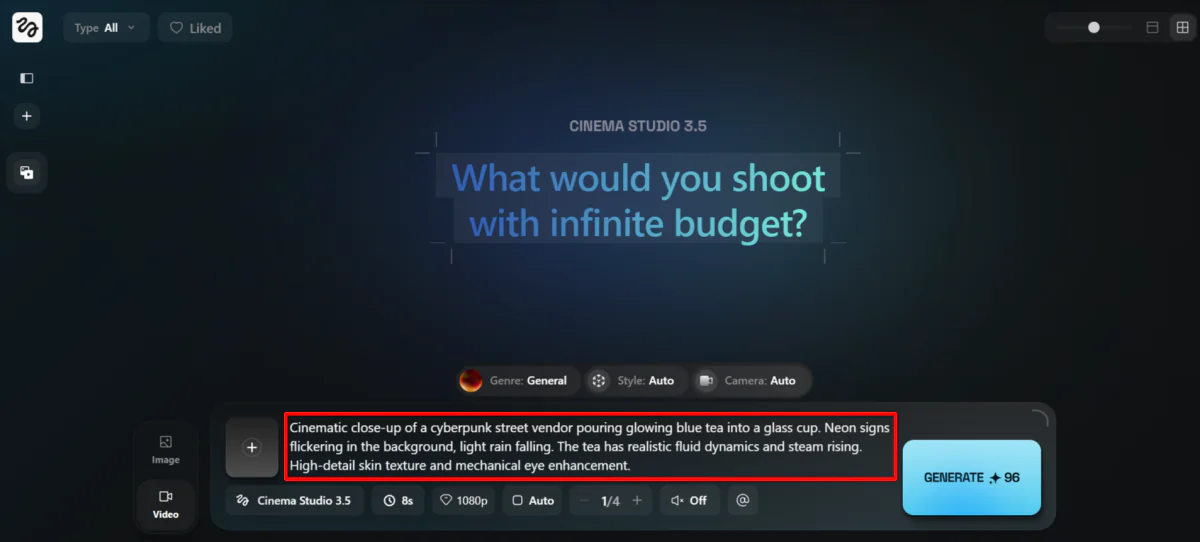
I started by adding my prompt. I wanted to test 3.5’s abilities, so I gave it something with complex lighting, fluid physics (liquid), and consistent character details:
“Cinematic close-up of a cyberpunk street vendor pouring glowing blue tea into a glass cup. Neon signs flickering in the background, light rain falling. The tea has realistic fluid dynamics and steam rising. High-detail skin texture and mechanical eye enhancement.”
Step 5: Add the Genre, Style, and Camera
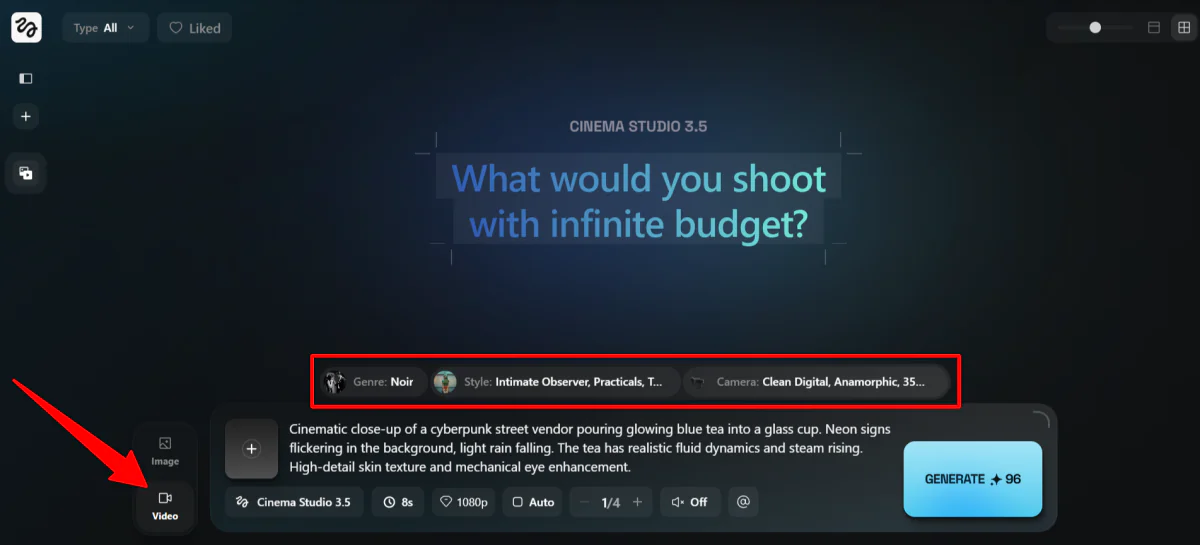
On the left, I made sure it was set to “Video,” not “Image.”
Above my prompt were three settings to tweak:
- Genre (general, action, horror, comedy, noir, drama, or epic).
- Style (adjust the color palette, lighting, and camera movement style).
- Camera (adjust the camera, lens, focal length, and aperture).
I chose the settings I felt fit with my prompt the most:
- Genre: Noir
- Style: Teal Orange Epic, Practicals, and Intimate Observer
- Camera: Clean Digital, Anamorphic, 35mm, f/1.4 Wide Open
Adjusting these settings made it feel like I was stepping into the role of a director, with each option resembling physically adjusting a camera in real time.
You can keep all of these on “General” and “Auto,” but for the best results, I’d recommend tweaking these settings to better align with your vision.
Step 6: Adjust the Settings & Generate

At the bottom, I could choose the following:
- Duration (4-15 seconds)
- Resolution (480p, 720p, 1080p)
- Aspect Ratio (square, portrait, landscape)
- Batch Size (1-4)
- Audio (on or off)
- Elements (created characters and locations to reuse across scenes)
I chose the following for my video:
- Duration: 8 seconds
- Resolution 1080p
- Aspect Ratio: landscape (16:9)
- Batch Size: 2
- Audio: On
- Elements: None (I haven’t created any)
In total, this video generation would cost me 192 credits. Just keep in mind that adjusting your settings will also affect the credit cost.
Step 7: Preview the Video
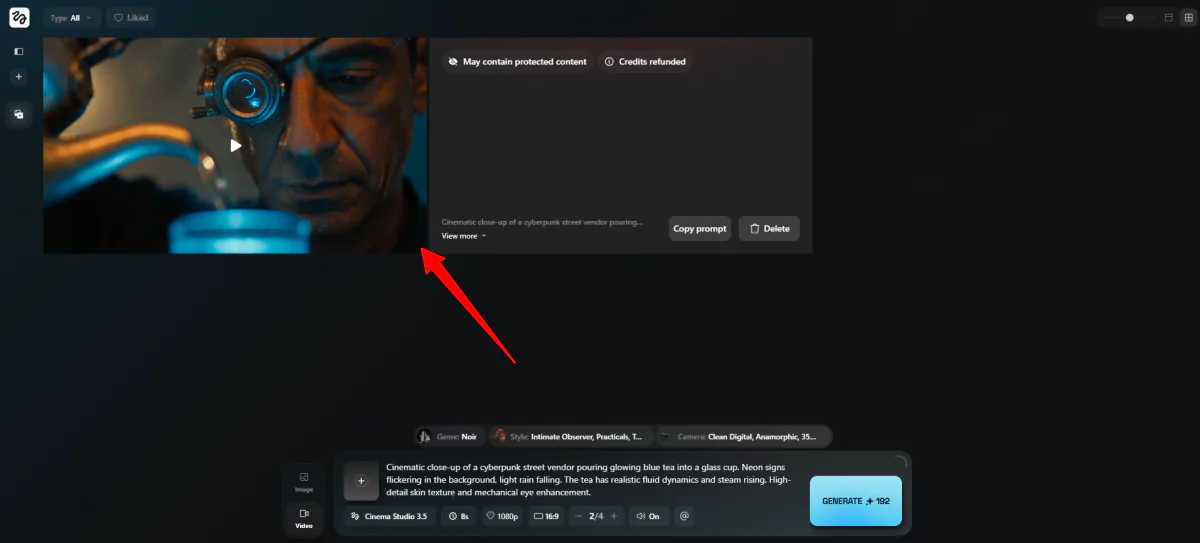
Higgsfield immediately got to work generating two videos for me.
About two minutes later, one of the two videos was successfully generated. Unfortunately, the second video said “may contain protected content,” and my credits for that video were refunded.
Here’s how the video came out:
The duration was the exact length I requested, and everything aligned exactly to my prompt, broken into three shots. The first scene was of the street vendor picking up the tea kettle, the second was of him pouring the drink into the glass in his hand, and the third was of him watching the tea pouring in.
The detail was incredible, from the skin texture to the lighting. In the last scene, I noticed something in his robotic eye move. Even the background noise was accurate and sounded very realistic.
Step 8: Download the Video
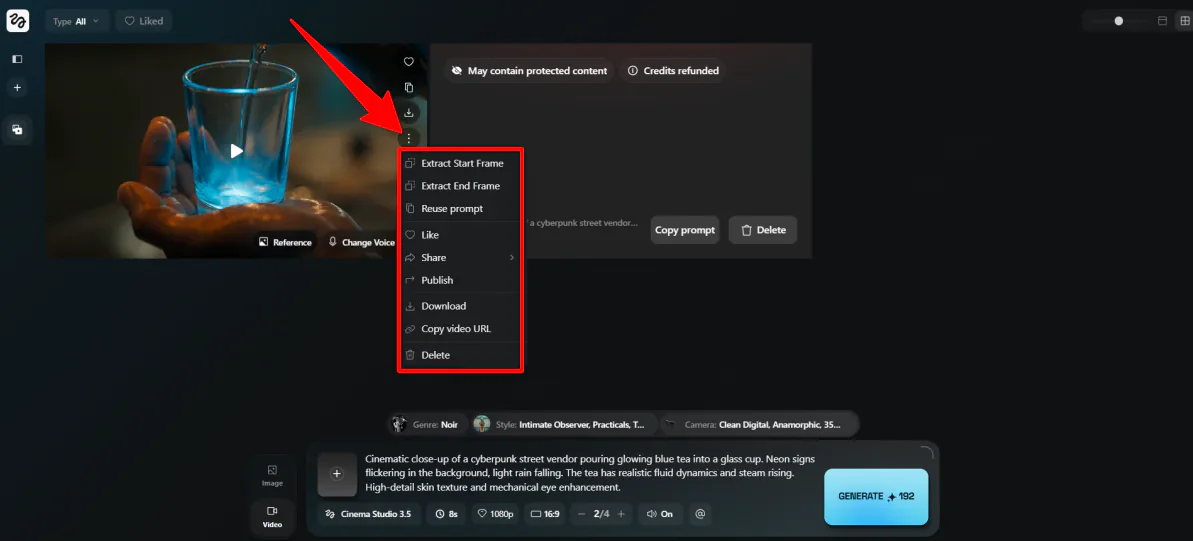
From here, you can preview your clip, download it, or make quick edits to refine the result. If something feels off, tweak your prompt or adjust the Genre, Style, and Camera settings, then generate again.
You can also build on what you’ve created by using Elements to keep characters and environments consistent across multiple scenes, which is especially useful if you’re planning a longer sequence.
Overall, while Higgsfield leans more technical with its camera-style controls, the experience still felt smooth and effortless. At the same time, it offered a level of creative control that goes far beyond typical text-to-video tools.
Top 3 Higgsfield AI Alternatives
Here are the best Higgsfield AI alternatives I’ve tried:
Kling AI
The first Higgsfield AI alternative I’d recommend is Kling AI.
When I tried it for myself, I started with this prompt: a chef kneading dough, flour puffing into the air, realistic lighting. I ran it on the 3.0 Omni model at 1080p.
A few minutes later, I was stunned at the results:
Everything, including the dough, looked incredibly realistic, and the sound synced naturally to the hand movements. The whole thing looked like it could’ve been shot on a real set.
I also tested the multi-shot feature: an extreme close-up of the hands, then a medium shot of the chef smiling and wiping his brow:
The consistency between shots held up better than I expected. That’s where a lot of AI video tools fall apart, and Kling didn’t.
The lip-sync dialogue was solid too, though not flawless:
The logo on the chef’s shirt came out distorted, and some background sounds I described didn’t show up. It’s small stuff, but good to be aware of.
Compared to Higgsfield, Kling is faster and more automated. It also has excellent physics-based motion. Meanwhile, Higgsfield gives you more granular, director-style control over how your shots actually feel, from the type of lens to the style and genre.
For quickly generating realistic multi-shot videos with audio, choose Kling. But for deeper cinematic control, stick with Higgsfield.
Read my Kling AI review or visit Kling AI!
Luma AI
The next Higgsfield AI alternative I’d recommend is Luma AI. What surprised me most was how fast the whole thing moved.
I started in Dream Machine, not even knowing what to create, so I gave it one of their prompt suggestions: “Make me a minimal backpack design with an accent color.” Seconds later, I had four images that matched my description.
Then I noticed the “concept pills.” They’re clickable words inside the prompt that expand into style variations like retro, futuristic, or organic. I picked retro, got four more images, and found one I liked.
From there, I turned the image into a video with one click. A few minutes later, Luma had animated the backpack with realistic motion, and the original design stayed accurate throughout.
While both are AI video generators, Luma is a pretty different experience from Higgsfield. Both generate high-quality videos, with Luma focusing on
Luma pulls you through a creative workflow almost automatically, with tools that build on each other naturally. It also tends to focus more on product marketing and 3D animations.
Meanwhile, Higgsfield makes you slow down and consider specific elements of your video, like camera movement, shot framing, and cinematic feel. One automates the process, the other hands you the director’s chair.
For fast generation with a smooth creative workflow, go with Luma. For granular cinematic control, choose Higgsfield.
Read my Luma AI review or visit Luma AI!
HeyGen
The final Higgsfield AI alternative I’d recommend is HeyGen.
I started with their Video Agent, which generates a full video from a single prompt. I gave it the following prompt: a high-energy travel creator at a Tokyo street market, moody neon lighting, dynamic hand movements.
HeyGen came back with a complete video outline before generating anything. I just said, “Looks great, let’s proceed,” and it got to work:
The output was solid. Realistic lip-syncing, scenes that flowed logically, and production quality that would work for most marketing or training content. It still had that slight AI feel if you looked closely, but nothing that would necessarily stop most viewers.
It even came with scene-level editing. I flagged one scene where the hand gestures felt off, and HeyGen regenerated just that scene while leaving everything else alone.
Lastly, I tested the avatar cloning feature. I uploaded some footage of myself, and watched an AI version of me deliver a script I’d never actually recorded. It was a bit weird, but it worked, and the voice match was closer than I expected.
Compared to Higgsfield, HeyGen is built for speed and scale. Higgsfield hands you the director’s chair, while HeyGen just gets it done.
For scalable video with avatars and global reach, choose HeyGen. For cinematic control, go with Higgsfield.
Read my HeyGen review or visit HeyGen!
Higgsfield AI Review: The Right Tool For You?
After spending time with Higgsfield, what stood out most was how intentional the whole process felt. It didn’t just generate a video; it made me think like a director. The results looked shockingly close to something you’d expect from a real shoot.
With that said, it’s not for everyone. If you only want to generate quick videos, you might want to consider these alternatives:
- Kling AI is best for realistic multi-shot videos with strong physics and minimal setup.
- Luma AI is best for guided workflows and product-style or 3D-animated visuals.
- HeyGen is best for beginner-friendly video creation, avatars, and scalable content.
But if you care about how your shots look, move, and feel, Higgsfield gives you a level of control that’s hard to find elsewhere.
Thanks for reading my Higgsfield AI review! I hope you found it helpful. Try Higgsfield for yourself and see how you like it!
Frequently Asked Questions
Is Higgsfield AI free or paid?
Higgsfield AI is mainly a paid tool for creators, with a limited free plan to try it out. For high-quality video generation, you’ll need a paid subscription.
Is Higgsfield safe to use?
Yes, Higgsfield is safe to use, with excellent camera controls and video generation.
What can Higgsfield AI do?
Higgsfield AI is a platform for creating cinematic AI videos and images. It focuses on long-term character consistency and camera movement control.