AI Tools 101
ChatGPT Images 2.0 Review: It Finally Knows How to Spell

 Add Unite.AI to your preferred sources on Google
Unite.AI may receive compensation when you use links to products we review. This does not influence our editorial evaluations. Read our affiliate disclosure.
What if your AI image generator could think before it creates? That’s no longer a hypothetical.
ChatGPT Images 2.0 is here, and it’s rewriting what we expect from AI-generated visuals. According to OpenAI, this isn’t just an upgrade. It’s a change in how AI understands and executes visual tasks.
I’ve been watching AI image tools evolve for years, and nothing quite compares to what Images 2.0 brings to the table. This model renders dense text, follows complex multi-step instructions, generates up to 2K resolution, supports various aspect ratios, and (for the first time in ChatGPT) produces up to eight cohesive images in a single prompt.
Here’s one of the eight images I generated with a single prompt using Images 2.0 on the Plus plan:

That’s some of, if not the, best detail I’ve seen in an AI-generated image. And the setting and character stayed consistent across all eight images.
In this ChatGPT Images 2.0 review, I’ll discuss the pros and cons, what it is, who it’s best for, and its key features. Then, I’ll show you how I used it to generate and edit high-quality images like the one I just showed you.
I’ll finish the article by comparing Images 2.0 with my top three alternatives (Google’s Nano Banana Pro , Midjourney, and Adobe Firefly ). By the end, you’ll know which AI image generator is right for you.
Whether you’re a marketer, developer, educator, or creative professional, this tool is about to change your workflow. Let’s break it all down.
Verdict
ChatGPT Images 2.0 is a major leap forward for AI image generation, with far more accurate text rendering, better design quality, more accurate prompt handling, and improved consistency across edits and image sets. While higher-quality generations can still be slower and occasionally require cleanup or iteration, it’s one of the most capable and flexible AI image tools currently available.
Pros and Cons
- Much better at generating readable text in images
- Stronger layout and design quality for things like infographics
- More accurate with detailed prompts and complex instructions
- Easier to refine with targeted edits and revisions
- Better consistency across characters, styles, and related images
- Improved support for multilingual and non-Latin text
- Instant mode for quick generations, Thinking mode for higher-quality results
- Slower in Thinking mode (higher-quality results can take more time)
- Errors and visual artifacts can still happen
- Generations still may require iteration or cleanup
- Can be excessive for simple tasks
- Image generations are limited on the free plan, and there is no thinking mode for higher-quality images
What is ChatGPT Images 2.0?
ChatGPT Images 2.0 is OpenAI’s newest image model built into ChatGPT. It creates clear visuals with better text rendering, multilingual support, stronger design capabilities, and smart “thinking” features that help it reason through and refine image results.
1.5 vs. 2.0
OpenAI released ChatGPT Images 2.0 in April 2026, and it’s available through the OpenAI API under the model name “gpt-image-2.” It succeeds GPT Image 1.5 and is described by OpenAI as a significant upgrade in following instructions, text rendering, and handling layouts.
Unlike earlier versions, Images 2.0 includes a reasoning step that helps the model interpret complex prompts and handle spatial relationships, text placement, and visual logic before generating the final image.
Overall, it generates noticeably different (and often better) outputs compared with GPT Image 1.5, especially on prompts requiring precise layout or readable in-image text.
A Complete Revamp
While GPT Image 1 launched in April 2025, GPT Image 1.5 followed in December 2025, and Images 2.0 arrived just four months later. That’s three models in thirteen months.
That pace tells you OpenAI isn’t messing around. According to Research Lead Boyuan Chen, the underlying architecture has been “revamped from scratch,” making this feel more like a complete redesign than a simple update.
So what does Images 2.0 unlock? The model can generate up to eight images from a single prompt with object and character continuity, search the web for real-time information, double-check its own output, and support multiple aspect ratios at up to 2K resolution.
Instant vs. Thinking Mode
There are two ways to access it, and the difference depends on what you need.
- Instant mode brings core quality improvements to every ChatGPT user, including the free tier.
- Thinking mode requires a Plus, Pro, Business, or Enterprise subscription and is better for more complex prompts, especially when layout, text, or consistency matters.
If you’re a casual user, you’ll still notice the improvement. But if you’re using this for actual work, Thinking mode is where things get interesting.
ChatGPT Images 2.0 is the first time I’d call an AI image model capable of strategic visual design rather than just rendering, and that’s why people in content and marketing are paying attention to it.
Who is ChatGPT Images 2.0 Best For?
ChatGPT Images 2.0 is best for people who need high‑quality, text‑rich, and layout‑aware images without heavy design work:
- Content creators and marketers can create quality social graphics, ads, banners, and branded visuals with readable text and layout variations from a single prompt.
- UI/UX, product, and web designers can quickly generate wireframes, mockups, and interface concepts with clean layouts and consistent design elements.
- Educators, writers (e.g., film), and presenters can turn ideas into diagrams, illustrations, infographics, and storyboards that are easier to explain visually.
- Enterprise and multilingual teams can create localized visuals with multilingual text and more consistent large-scale creative projects.
- Graphic designers can explore creative concepts, generate logo ideas and variations, and create visuals for branding, posters, and packaging.
- Restaurant owners can use Images 2.0 to design high-quality menus and quickly update or refine specific text and visual elements as needed.
- Developers can use Images 2.0 to generate UI assets, mockups, and visual content for apps or prototypes. They can also integrate image generation into workflows via the API to automate design tasks.
ChatGPT Images 2.0 Key Features
Here are ChatGPT Images 2.0’s key features:
- Produces up to 2K‑resolution images
- Cleaner textures, better lighting, and more natural colors than previous models
- Handles small text, headings, UI elements, and mixed‑language text (including Japanese, Korean, Hindi, Bengali) for menus, infographics, and mockups.
- Includes a reasoning step (“Thinking Mode”- only available on the paid plans) where the model interprets complex prompts, double‑checks outputs, plans layouts, and handles multi‑step visual requirements before generating.
- Can generate up to eight coherent images from a single prompt (e.g., storyboards, comic strips, multi‑frame ad variants), with character and scene consistency across frames.
- Follows instructions closely, preserves details, and reduces hallucinations compared to earlier models.
- Make iterations with prompts or use the Select tool to highlight and refine parts of images.
- Adjust aspect ratios instantly.
- Strong multilingual support with more natural results for non‑Latin languages like Japanese, Korean, Chinese, Hindi, and Bengali.
- Available as gpt‑image‑2 through the OpenAI API, with pricing and output quality tied to resolution and tier.
How to Use ChatGPT Images 2.0
Here’s how I used ChatGPT Images 2.0 to generate and edit high-quality images:
- Try Images 2.0 in ChatGPT
- Give It a Prompt
- Edit with Prompts
- Use the Select Tool to Edit
- Change the Aspect Ratio
- Create an Image Grid
- Upgrade to Plus for Multi-Image
- Change to Thinking Mode With a Prompt
- View the & Download the Images
Step 1: Try Images 2.0 in ChatGPT

I started by going to the release page for ChatGPT Images 2.0 on openai.com and selecting “Try in ChatGPT.”

Another option: Go to chatgpt.com, start a “New Chat” on the top left, and select “Create an image.”
Otherwise, you can type a prompt into the main chat to start using the Images 2.0 model.
Step 2: Give It a Prompt

Unlike earlier versions that preferred short, punchy prompts, ChatGPT Images 2.0 thrives on extreme specificity.
Because it understands spatial relationships better, I described the scene like a director:
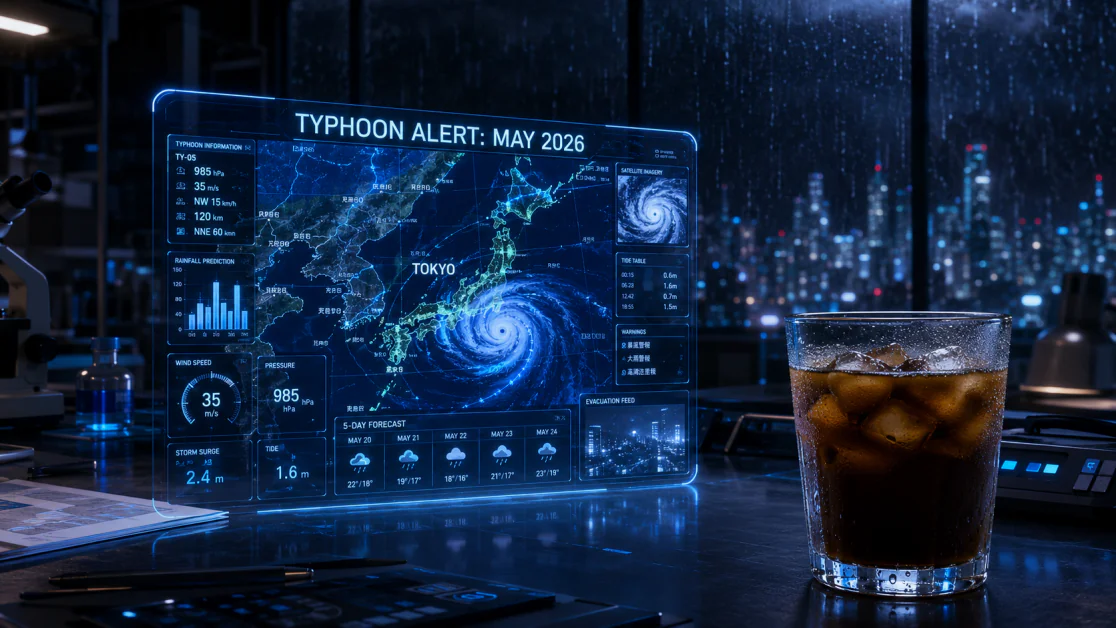
“A wide 16:9 cinematic shot of a high-tech laboratory desk. In the bottom-right foreground, a realistic glass of iced coffee with condensation beads on the glass. In the center-midground, a transparent holographic tablet displays a complex weather map of Tokyo. The text at the top of the hologram reads ‘TYPHOON ALERT: MAY 2026’ in a sharp, legible neon blue font. In the background, out of focus, a window shows a rainy city skyline at night with streaks of rain on the glass. Ensure the text is spelled perfectly and the lighting from the hologram reflects accurately onto the coffee glass. 8k resolution, photorealistic.”
Immediately, ChatGPT got to work. Here’s the image it spat out:
Referring back to my prompt, the image ChatGPT generated checked all the boxes:
- A wide 16:9 cinematic shot
- A high-tech laboratory desk
- A realistic glass of iced coffee with condensation beads in the bottom-right foreground
- A transparent holographic tablet displays a complex weather map of Tokyo in the center-midground
- Text at the top of the hologram that reads ‘TYPHOON ALERT: MAY 2026’ in a sharp, legible neon blue font
- A window showing a rainy city skyline at night with streaks of rain on the glass in the background and out of focus
Everything was accurate and spelled perfectly.
Step 3: Edit with Prompts

Despite generating an image that accurately matched my description, I still wanted to see if I could make edits. I selected “Edit” on the image.

In the empty field, I gave ChatGPT the following prompt to change the original image:
“The coffee looks great, but make the hologram orange instead of blue and change the text to ‘SUNNY DAY.’ Keep everything else the same.”

A few seconds later, ChatGPT had my original image generated with the requested edits:
- The hologram was orange instead of blue
- The text was changed to “SUNNY DAY”
- Everything else stayed the same
That’s how quick and easy it is to generate images with prompts as detailed as a full cinematic scene description. The text accuracy and overall image quality were incredibly consistent, even after making specific edits to the original prompt.
Step 4: Use the Select Tool to Edit

If you want to get really specific, click on the generated image and go to “Select” on the top right. It allows you to “paint” over a specific part of your image and change only that area, leaving the rest of the image untouched.

I wanted to see if ChatGPT could change the iced coffee in the foreground. I hit “Select,” painted over the iced coffee, and gave it this prompt:
“Replace the coffee with a glowing blue energy drink in a metallic can.”
A few seconds later, ChatGPT did exactly what I asked:

Not only was the quality excellent and the energy drink fit right into the image (reflections and all), but I was also impressed by the legibility of the words on the can.
Step 5: Change the Aspect Ratio
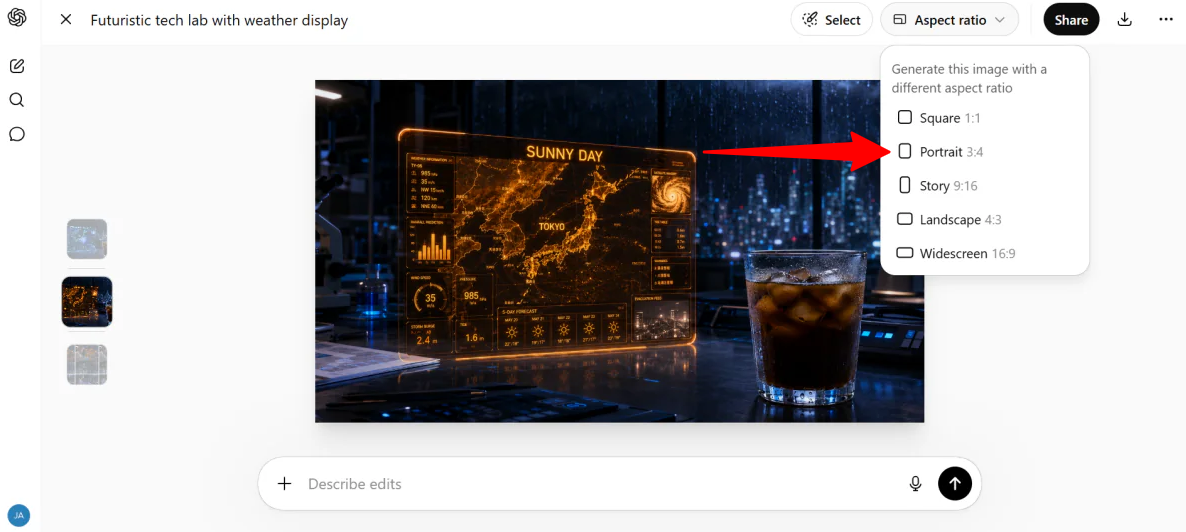
When selecting the image, I could also instantly change the aspect ratio by selecting “Aspect ratio” on the top right.
There is a wide range of aspect ratios to choose from: Square, Portrait, Story, Landscape, Widescreen. I selected Portrait (3:4) for my image.

A few seconds later, my image was automatically cropped into a Portrait aspect ratio! I was happy to see that nothing was cut off.
But as much as I was impressed, I still wanted to take things up a notch. After all, Images 2.0 is capable of more than generating single images, changing the aspect ratio, and applying edits.
Step 6: Create an Image Grid

Let’s say I want to turn this into a series of images featuring the same character in different scenes and situations while keeping the look and style consistent.
Here’s the prompt I gave ChatGPT:
“Generate 8 separate images in a sequence. All images should feature the same female scientist (short silver hair, wearing a white lab coat) in the rainy Tokyo lab from my previous prompt.
- Images 1-3: She is meticulously adjusting the orange hologram.
- Images 4-6: She is taking a sip of the iced coffee while looking out the rainy window.
- Images 7-8: She is typing on a futuristic glass keyboard.
Ensure her facial structure and the lab’s lighting remain 100% consistent across all 8 frames. Output these as 8 high-resolution individual files.”
Here’s how it came out:

Despite being mostly accurate (each scene featured a female scientist wearing a lab coat with short silver hair, and her actions aligned with what I specified), it was essentially one image split into 9 (not 8) images. What I requested was 8 separate images.
This is because I am on the Free ChatGPT plan. To generate up to 8 separate images with a single prompt, upgrade to the Plus ChatGPT plan.
Step 7: Upgrade to Plus for Multi-Image

To upgrade my plan, I selected “Get Plus” on the top right.
Step 8: Change to Thinking Mode With a Prompt

Once my account was upgraded to the Plus plan (enabling up to eight image generations with a single prompt), I gave ChatGPT this detailed prompt describing my scenes:
“Establish a visual anchor for a female scientist (Dr. Thorne) in her late 30s with short, messy silver hair and sharp features, wearing a white lab coat. Establish a secondary anchor for a high-tech lab at night with rain streaking against a large window, lit by a mix of blue ambient rain-light and orange holographic-light.
Generate 8 separate, individual high-resolution image files in a sequence (do not generate a single grid or collage).
The Storyboard Sequence:
- IMAGE 1 (Wide): Dr. Thorne stands in the center of the lab, looking at a massive orange holographic DNA helix.
- IMAGE 2 (Close-up): Her face reflects the orange light of the hologram, with an intense expression.
- IMAGE 3 (Action): She reaches her hand into a floating light panel to adjust a setting.
- IMAGE 4 (POV): Looking past her shoulder at a holographic tablet reading ‘SYSTEM STABILITY: 98%’.
- IMAGE 5 (Medium): She steps back to take a sip of iced coffee from a condensation-covered glass.
- IMAGE 6 (Wide): She watches a robotic arm mimic her hand movements via the orange interface.
- IMAGE 7 (Low Angle): A dramatic shot looking up at her as the holograms pulse rapidly.
- IMAGE 8 (Close-up): Her face as she notices a flashing red light reflected on her cheek from the rainy window.
Maintain 100% character and lighting consistency across all 8 files.”
I also changed the mode from “Instant” to “Thinking.” This changes how the model processed my query, from fast responses to deep, reasoned analysis.

As ChatGPT began generating the images, I could see it thinking. It explained its thought process in real-time. Kind of spooky, but also fascinating to watch unfold.
Step 9: View & Download the Images

This time around, the generations took a bit longer (about three and a half minutes), but it was worth it.
I referred back to the prompt I gave, and every image was accurate. Not only that, but the quality was incredible, the character and environment were accurate, and the images stayed within the original style.
Overall, ChatGPT Images 2.0 felt noticeably more accurate, flexible, and capable than earlier image-generation tools I’ve tried. This proved to be especially true when working with detailed prompts, readable text, and specific edits.
The experience felt a little surreal at times, particularly in Thinking mode. But in the end, the final results looked polished enough to create cinematic scenes, storyboards, or creative projects.
Top 3 ChatGPT Images 2.0 Alternatives
Here are the best ChatGPT Images 2.0 alternatives I’d recommend.
Google’s Nano Banana Pro
The first ChatGPT Images 2.0 alternative I’d recommend is Nano Banana Pro. Both platforms handle complex prompts well, produce high-quality output, and provide effective editing.
But where they split is in how they’re built. On the one hand, Nano Banana Pro leans hard into its controls, like blending multiple images with up to 14 inputs, advanced lighting and camera adjustments, localized editing, and detailed infographic generation.
Meanwhile, ChatGPT Images 2.0 wins on workflow. The conversational editing is intuitive, the text rendering inside images is still best-in-class, and character consistency across a batch of related images is something Nano Banana hasn’t fully matched in my testing.
If you need deep creative controls, choose Nano Banana Pro. For fast, flexible, and conversational editing, choose ChatGPT Images 2.0. Both are good; it ultimately comes down to how you work.
Midjourney
The next Images 2.0 alternative I’d recommend is Midjourney.
Getting into Midjourney is a bit of a “journey” (as the name suggests) compared to ChatGPT Images 2.0. You have to join their Discord server, get a paid membership, and then find a “newbie” bot channel to type your first prompt. Meanwhile, with ChatGPT Images 2.0, you just… use.
Once I was in, I typed “/imagine” followed by a prompt: “whimsical cloud carnival with candy rides, pastel sky, fantastical costumes, and playful animals.”

It generated four images in seconds. From there, I could upscale individual results, generate variations, and even extend the image outward in any direction without touching the original. The creative controls are fun to play with.
But something I noticed is that Midjourney is built more for aesthetic exploration, like mood, beauty, and imaginative storytelling. ChatGPT Images 2.0 is built for work.
If you need readable text in an image, structured layouts, infographics, or UI mockups, Midjourney will frustrate you. ChatGPT Images 2.0 handles all of that and lets you refine through conversation rather than re-prompting from scratch.
If you want stunning artistic visuals and don’t mind a bit of a learning curve, choose Midjourney. But if you need structured, text-aware, editable design work with a faster workflow, stick with ChatGPT Images 2.0.
Read my Midjourney review or visit Midjourney!
Adobe Firefly
The last Images 2.0 alternative I’d recommend is Adobe Firefly.
ChatGPT Images 2.0 is where I go when I need something fast and specific. It has strong prompt accuracy and the ability to keep refining through conversation without starting over. For that kind of workflow, it’s hard to beat.
Firefly is more like picking up a full toolbox instead of a single, really good wrench. It spans image, video, audio, and vector generation, all baked into the Adobe ecosystem.
If you’re already using Photoshop or Premiere, Firefly fits naturally. It’s built for creating content at a professional scale, and that integration is valuable if your workflow already runs through Adobe.
Where ChatGPT Images 2.0 wins is iteration speed and control. You describe what you want, refine it through conversation, and get quality outputs without a lot of back and forth between tools. Firefly gives you more format flexibility and a broader creative suite.
If you’re a solo content creator or marketer who needs fast, accurate, text-aware image generation, choose ChatGPT Images 2.0. If you’re on a creative team that already runs Adobe tools and needs a full production pipeline, Firefly makes a lot more sense.
ChatGPT Images 2.0 Review: The Right Tool For You?
After spending time pushing ChatGPT Images 2.0 through everything from cinematic prompts to iterative edits and full storyboard sequences, it felt less like a simple image generator and more like a creative partner that understands direction. The workflow became natural: describe, refine, adjust, and instantly see changes without breaking momentum.
But it’s not perfect. Thinking mode slowed things down, and you’ll still occasionally hit artifacts or need to clean things up. But for most real-world creative work, especially where precision and iteration matter more than random exploration, it’s one of the most practical tools available right now.
If you want something that behaves like a responsive design assistant rather than a static generator, trying Images 2.0 is absolutely worth it. Otherwise, try these alternatives:
- Nano Banana Pro is best for deep control over image construction (e.g., multi-image blending, advanced lighting/camera manipulation, and technical visual adjustments).
- Midjourney is best for artistic exploration, where aesthetic quality matters more than text accuracy or structured layouts.
- Adobe Firefly is best for professional creative pipelines that need full-suite capabilities (image, video, audio, vectors) and integration with Adobe tools like Photoshop and Premiere.
Thanks for reading my Images 2.0 review! I hope you found it helpful.
You can try Images 2.0 by asking ChatGPT to generate an image for you. But for the full experience (like Thinking mode for higher-quality images and up to eight generations per prompt), I’d recommend upgrading to the Plus plan.
Frequently Asked Questions
Is there a ChatGPT for images?
Yes, ChatGPT can generate and edit images from text prompts.
How to get access to GPT-Image 2?
To access GPT-Image 2 (also called ChatGPT Images 2.0), the easiest way is to start a new chat and describe the image you want to generate.
Is GPT-Image 2 out yet?
Yes, OpenAI’s GPT Image 2 (ChatGPT Images 2.0) was released on April 21, 2026.