AI Tools 101
Voicy Review: I Replaced My Keyboard With My Voice

 Add Unite.AI to your preferred sources on Google
Unite.AI may receive compensation when you use links to products we review. This does not influence our editorial evaluations. Read our affiliate disclosure.

As a writer who tests and reviews AI software, I spend most of my day with my hands on a keyboard: researching a new tool, testing it for myself, and then writing up exactly what I found.
In the end, typing becomes the bottleneck. I can talk through what I liked or didn’t like about a tool a lot faster than I can type it out, so I’ve always been curious about whether or not voice dictation could actually speed up my workflow.
That’s what drew me toward Voicy. It promises 99%+ accuracy across 50 languages, automatic punctuation, and the ability to write “3x faster than typing” in more than 20,000 apps and websites, without ever touching a keyboard. It claims to work everywhere I already write: Gmail, Slack, Notion, ChatGPT, or even a terminal.
In this Voicy review, I’ll show you how it worked, what impressed me, and where I think it still falls short. I’ll finish the article by comparing it to my top three alternatives (Wispr Flow, Speechify Dictation, and Otter.ai). By the end, you’ll know which tool is right for you!
Verdict
Voicy is a fast and accurate speech-to-text tool that works almost everywhere you type, and its privacy-first approach is a real differentiator. It’s not a meeting transcriber or an entire writing suite, but if your hands (or your patience) are tired of typing, it’s one of the best dictation apps I’ve tested.
Pros and Cons
- Works in more than 20,000 apps and websites, so you’re not locked into one platform or browser.
- 99%+ accuracy across 50+ languages, even if you stumble over your words.
- Automatic punctuation and grammar cleanup mean you don’t have to say “period” or “comma” out loud.
- Dictation speed reaches around 120 words per minute, close to 3x faster than average typing speed.
- Works on Mac, Windows, Linux, iOS, and Android, plus a Chrome extension.
- Transcripts stay local on your device and are never used to train AI models.
- Functions inside terminals and IDEs, making it useful for developers who want to dictate.
- Add technical jargon or uncommon names to the Dictionary to improve transcription accuracy.
- Free trial with 30 minutes of recording and no credit card required.
- Lifetime plan if you’d rather pay once than subscribe monthly.
- Fair pricing policy that caps margins instead of maximizing subscription revenue.
- Free trial is capped at 30 minutes total, not a recurring monthly allowance.
- Requires an Internet connection for transcription; it’s not a fully offline tool.
- No meeting transcription features, so it’s not a replacement for tools like Otter.ai.
- The desktop app needs your device’s accessibility permissions, which some may hesitate to grant.
- Team plan requires a minimum of 3 users, so it’s not made for a single team member upgrading alone.
- Fewer editing and personalization features than more established dictation tools like Wispr Flow.
What is Voicy?
Voicy is an AI speech-to-text app that turns your voice into typed text almost anywhere you write on your computer or phone. Instead of hunting for a dictation button buried in your OS settings, Voicy runs in the background (as a desktop app, mobile app, or Chrome extension) and drops your words directly into whatever you’re working on.
How Voicy Works
How Voicy works is simple: talk instead of type, and let AI do the cleanup. All you do is hit a shortcut (or tap a button), start talking, and Voicy transcribes your speech in real time with automatic punctuation, capitalization, and light grammar correction.
Voicy claims over 99% accuracy across more than 50 languages. When I used it, I found that even when I stumbled over my words (which I unfortunately tend to do) the transcription was still surprisingly accurate.
The other thing that stood out to me was how unrestricted Voicy feels. It doesn’t just work in a handful of apps; Voicy claims compatibility with more than 20,000 apps and websites.
Privacy-First Design
Another thing I love is how much Voicy leans into privacy.
According to Voicy, transcripts are stored locally on your device rather than on their servers. That means recordings are never used to train their AI models, and no third party gets access to what you dictate.
For anyone dictating sensitive information (whether that’s client details, medical notes, or unreleased work) that’s a meaningful difference from competitors that reserve the right to use your data for “product improvement.”
Cross-Platform & App Compatibility
Voicy works on Mac, Windows, Linux, iOS, and Android, and there’s a Chrome extension for dictating on your browser. That’s a wider net than some dictation tools that are limited to only supporting Mac or specific browsers.
Voicy also markets itself against dictation tools like Apple’s and Windows’ built-in options. It claims 99%+ accuracy compared to their roughly 90%.
Overall, Voicy isn’t reinventing what dictation software does. It’s making a pretty confident bet that if it nails accuracy, speed, and app coverage while staying private, it can win over people who’ve been burned by clunky native dictation alternatives.
Who is Voicy Best For?
Here’s who Voicy is best for:
- Professionals who regularly write lots of emails, reports, or documents and want to save time without hiring anyone or learning a new workflow.
- Writers and content creators who think out loud and want to turn spoken ideas into a rough draft faster than they can type it.
- Developers who want to dictate comments, commit messages, or notes in their IDE or terminal.
- Students who need to quickly take notes or draft assignments (and can take advantage of the 20% student discount).
- People with arthritis, carpal tunnel, or other conditions that make typing painful.
- People who work in multiple languages who need accurate dictation across 50+ languages rather than just English.
- Those who value privacy who don’t want their dictation used to train someone else’s AI model.
- Remote workers and people who regularly use tools like Slack, Notion, Gmail, and ChatGPT who want a faster way to communicate across all of them.
Voicy Key Features
Here are Voicy’s key features:
- Real Time Speech-to-Text: Converts spoken words into text as you talk, with a claimed 99%+ accuracy across 50+ languages.
- Automatic Punctuation & Formatting: Automatically adds commas, periods, and capitalization so you don’t have to say them out loud.
- AI Editing (Rewrite Mode): Cleans up filler words, false starts, and awkward phrasing as part of the transcription process.
- Universal App Compatibility: Works inside more than 20,000 apps and websites, including Gmail, Slack, Notion, Word, and ChatGPT.
- Cross-Platform Support: Available on Windows, Mac, Linux, iOS, and Android, plus a Chrome extension.
- Developer Friendly Dictation: Recognizes code syntax and technical terminology well enough to use inside terminals and IDEs.
- Local Transcript Storage: Keeps your transcripts on your own device instead of storing them on Voicy’s servers.
- No AI Training on Your Data: Recordings and transcripts are never used to train Voicy’s AI models.
- 50+ Language Support: Handles dictation in languages including English, German, French, Spanish, Portuguese, and Mandarin.
- Custom Dictionary: Add specific words, phrases, or technical terms so Voicy recognizes them correctly.
- Text Replacement: Set shortcuts that automatically replace a word or phrase with longer text, such as your email address or phone number.
- File Transcription: Upload audio or video files and get a full transcript without having to dictate them manually.
- Unlimited Personal Devices (Pro Plan): Use Voicy across all of your own devices on a single subscription.
- Lifetime Plan Option: Pay once for permanent access instead of committing to a recurring subscription.
- Fair Pricing Policy: Voicy’s pricing stays within 20% of its total operating costs.
- Free Trial with No Credit Card: Test the full feature set with 30 minutes of free recording before paying anything.
- Team Plan: Shared billing and priority support for teams of three or more people.
How to Use Voicy
Here’s how to get started with Voicy:
- Download Voicy
- Start the Setup
- Grant Microphone & Accessibility Permissions
- Choose Your Language & Formatting Preferences
- Record Your First Transcript
- Set Your Recording Shortcut
- Open the App You Want to Dictate Into
- Start Recording & Dictate Your Text
- Add Words to the Dictionary
- Use Voice Commands for Formatting
Step 1: Download Voicy

Start by going to usevoicy.com and downloading Voicy to your device.

Voicy can be downloaded for Mac, Windows, or Linux (or the mobile app for iOS/Android, or the Chrome extension if you’d rather dictate only in the browser).
You get 30 minutes of recording time with full feature access and no credit card required.
Step 2: Start the Setup
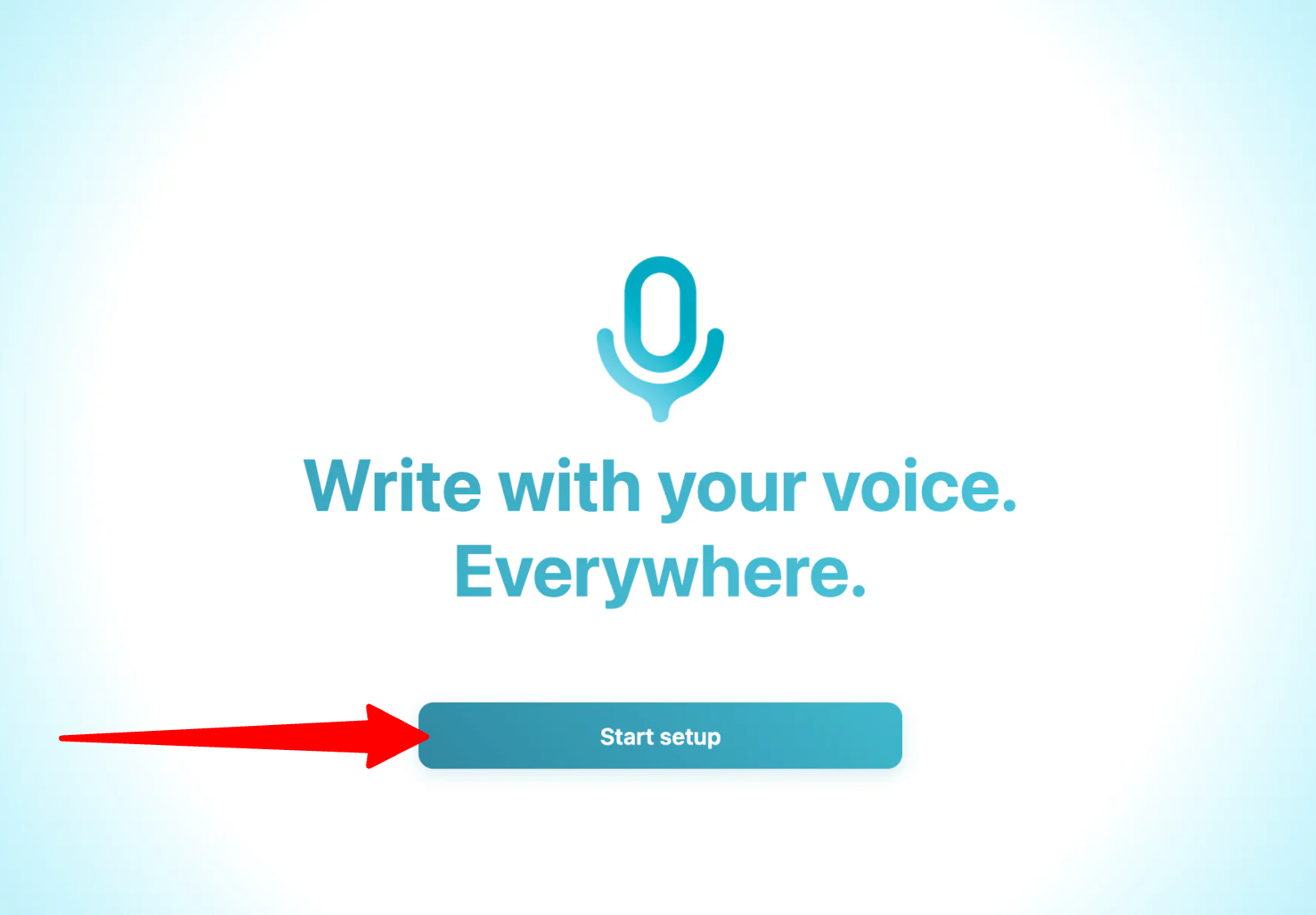
Once Voicy is downloaded, a window will appear. Start the setup.
Step 3: Grant Microphone & Accessibility Permissions
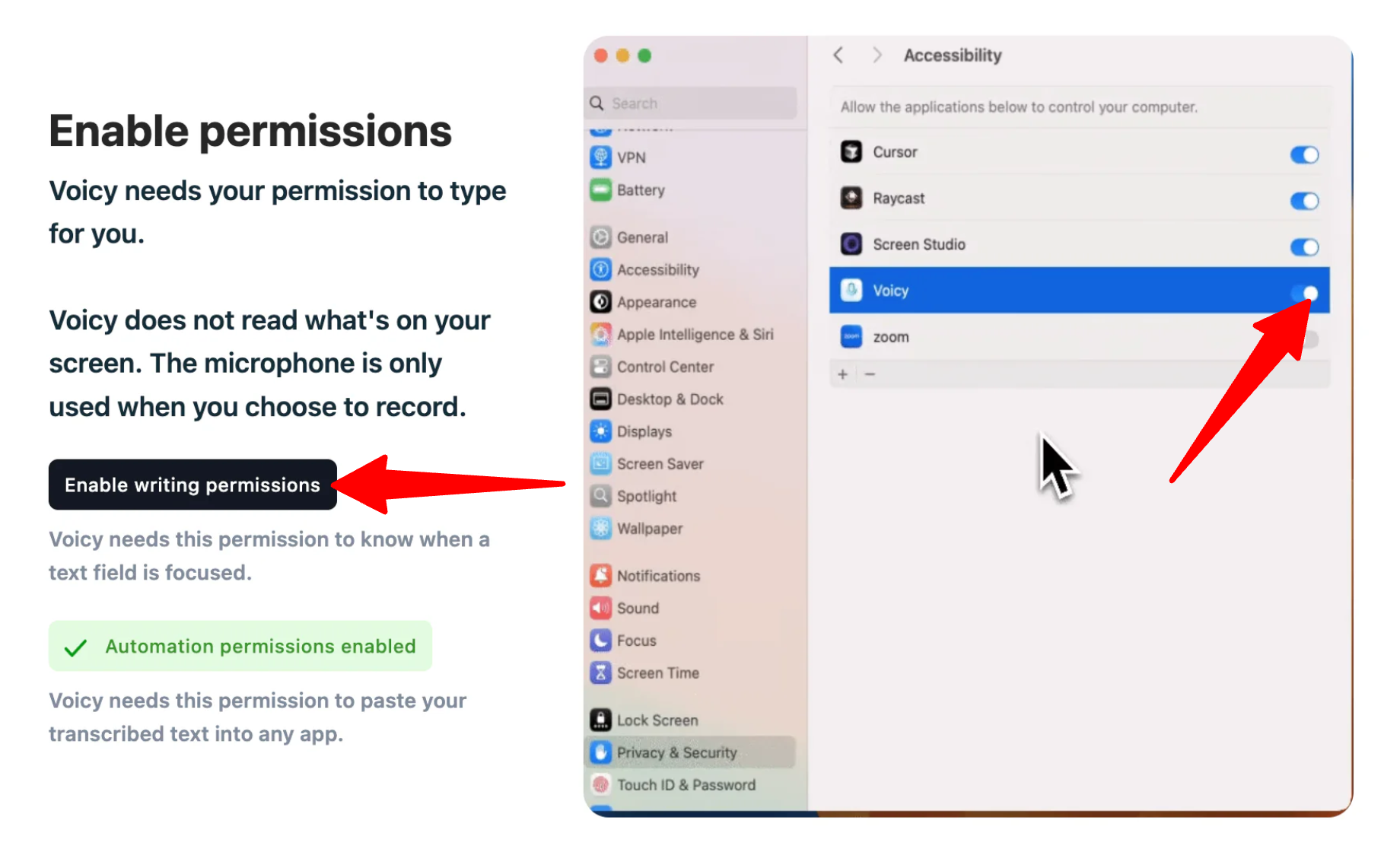
The first time you launch Voicy, you will be asked to grant microphone access and (on desktop) accessibility permissions so Voicy can insert text into other apps. You may need to restart the app after granting these.
Step 4: Choose Your Language & Formatting Preferences
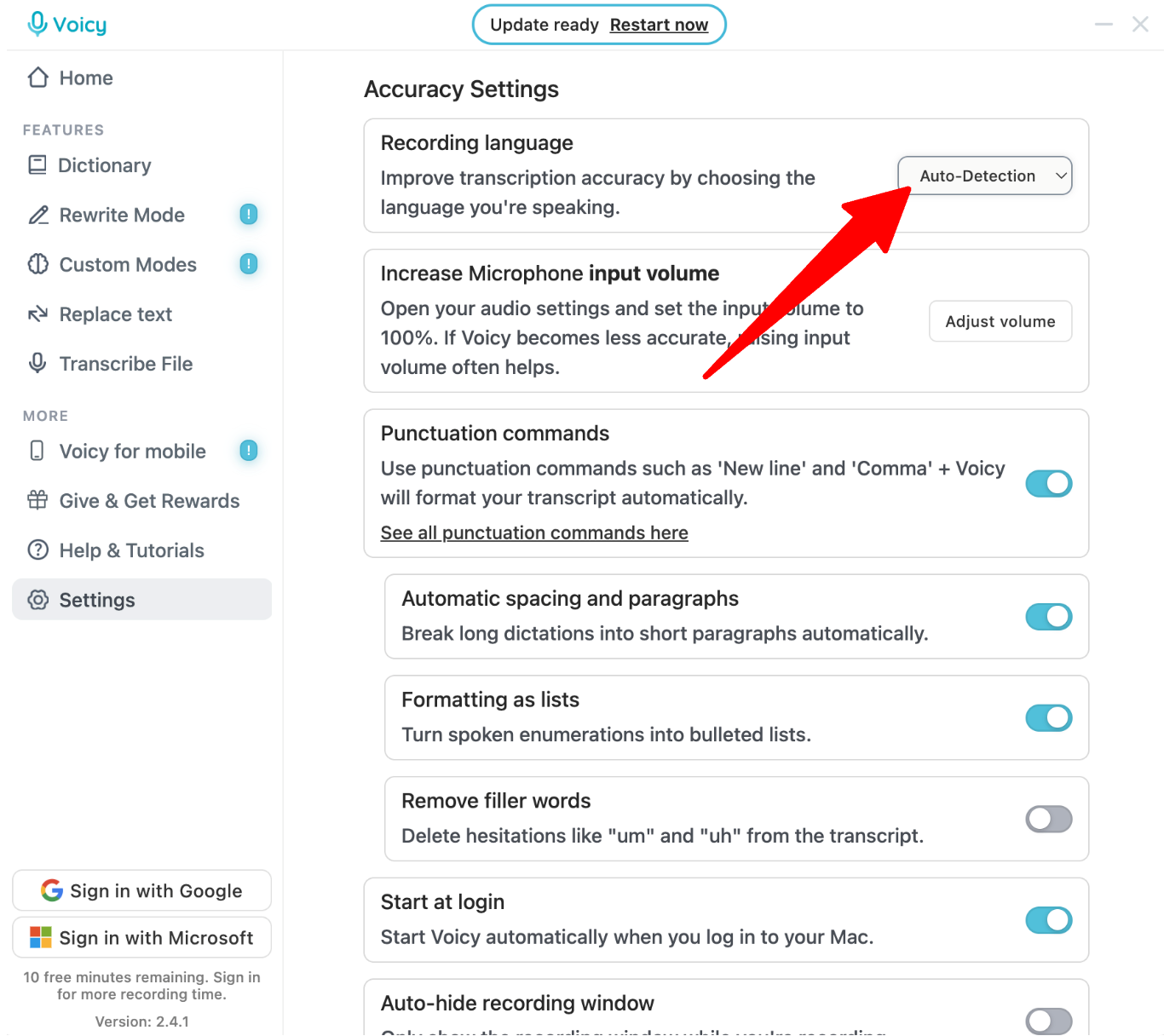
In the app settings, select your primary dictation language from the 50+ supported languages. You can leave this on auto-detection, but choosing a specific language improves the transcription accuracy.
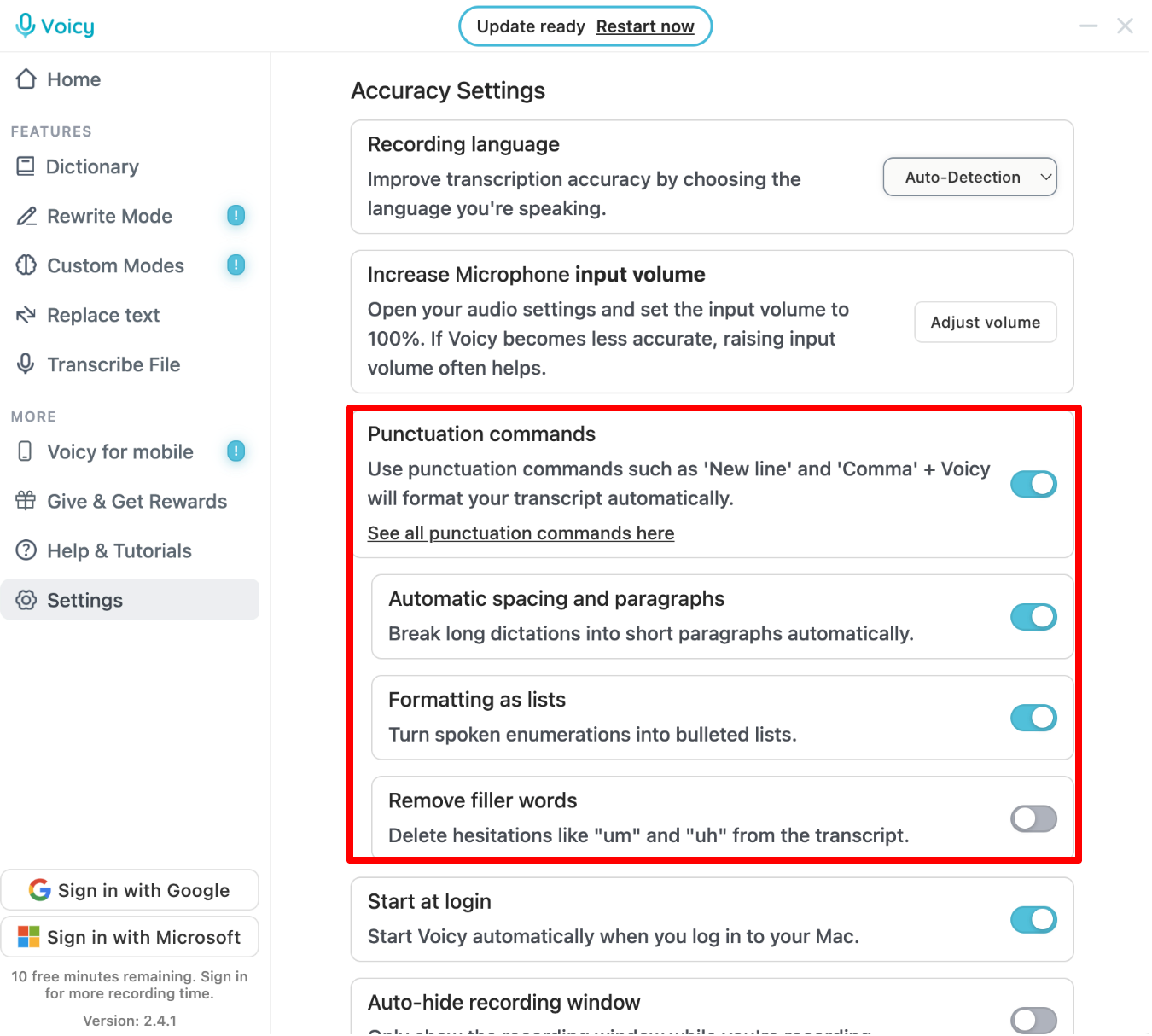
You can also adjust preferences like auto-punctuation and filler-word removal.
Step 5: Record Your First Transcript
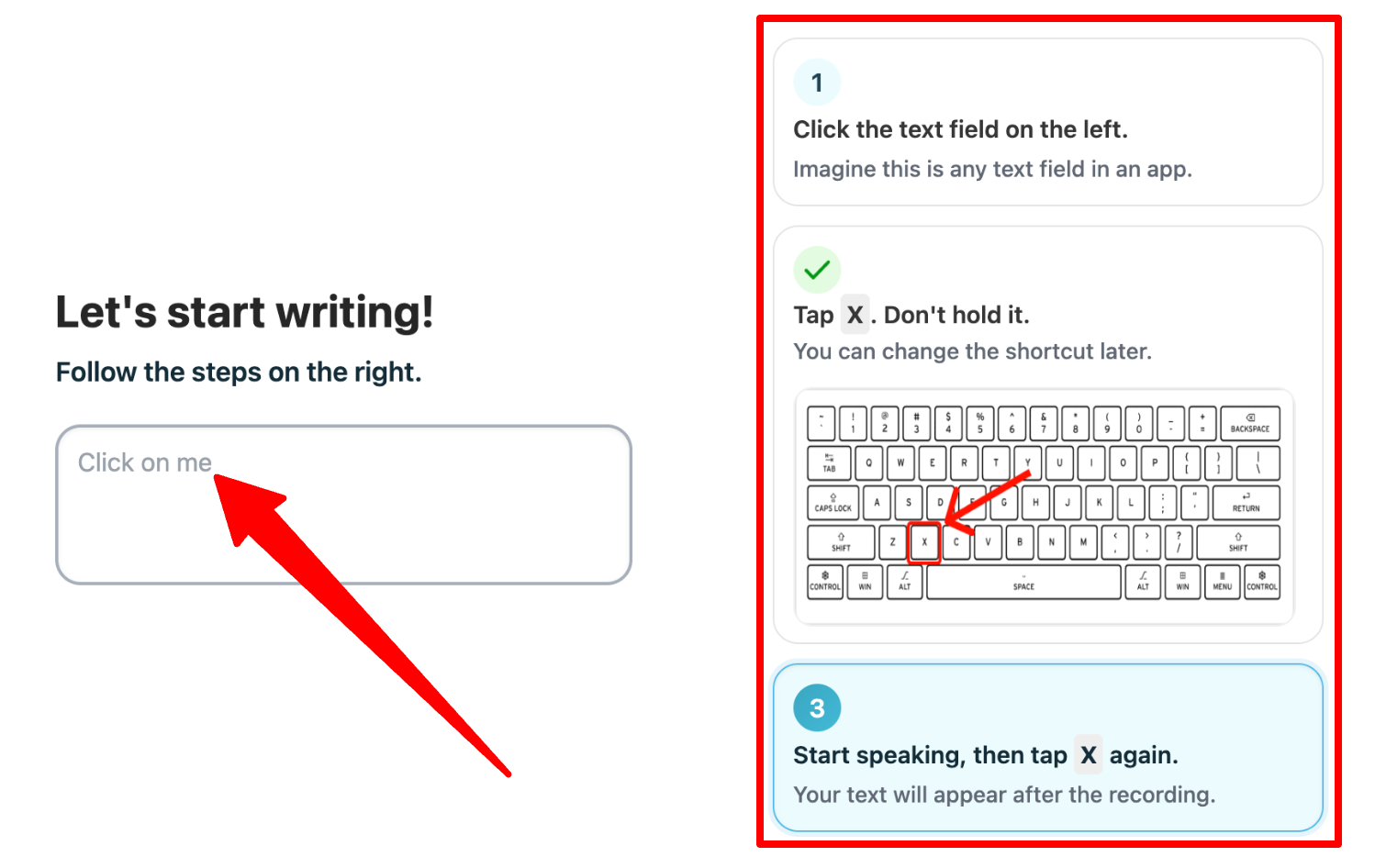
In the setup wizard, follow these steps:
- Click on the text field.
- Tap (don’t hold) the “x” key.
- Start speaking, then tap “x” again.
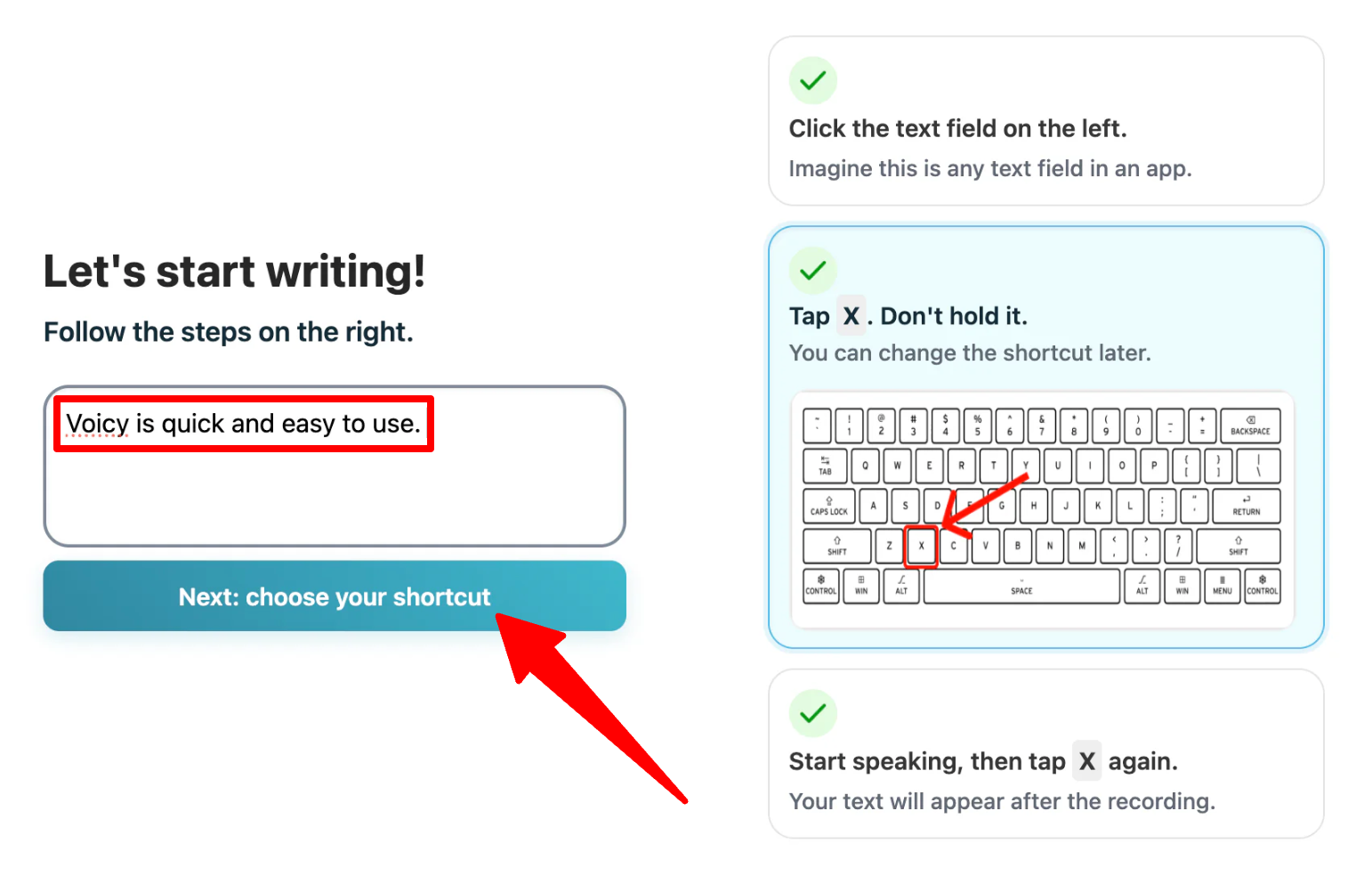
Your text will appear in the field. Continue in the setup wizard.
Step 6: Set Your Recording Shortcut
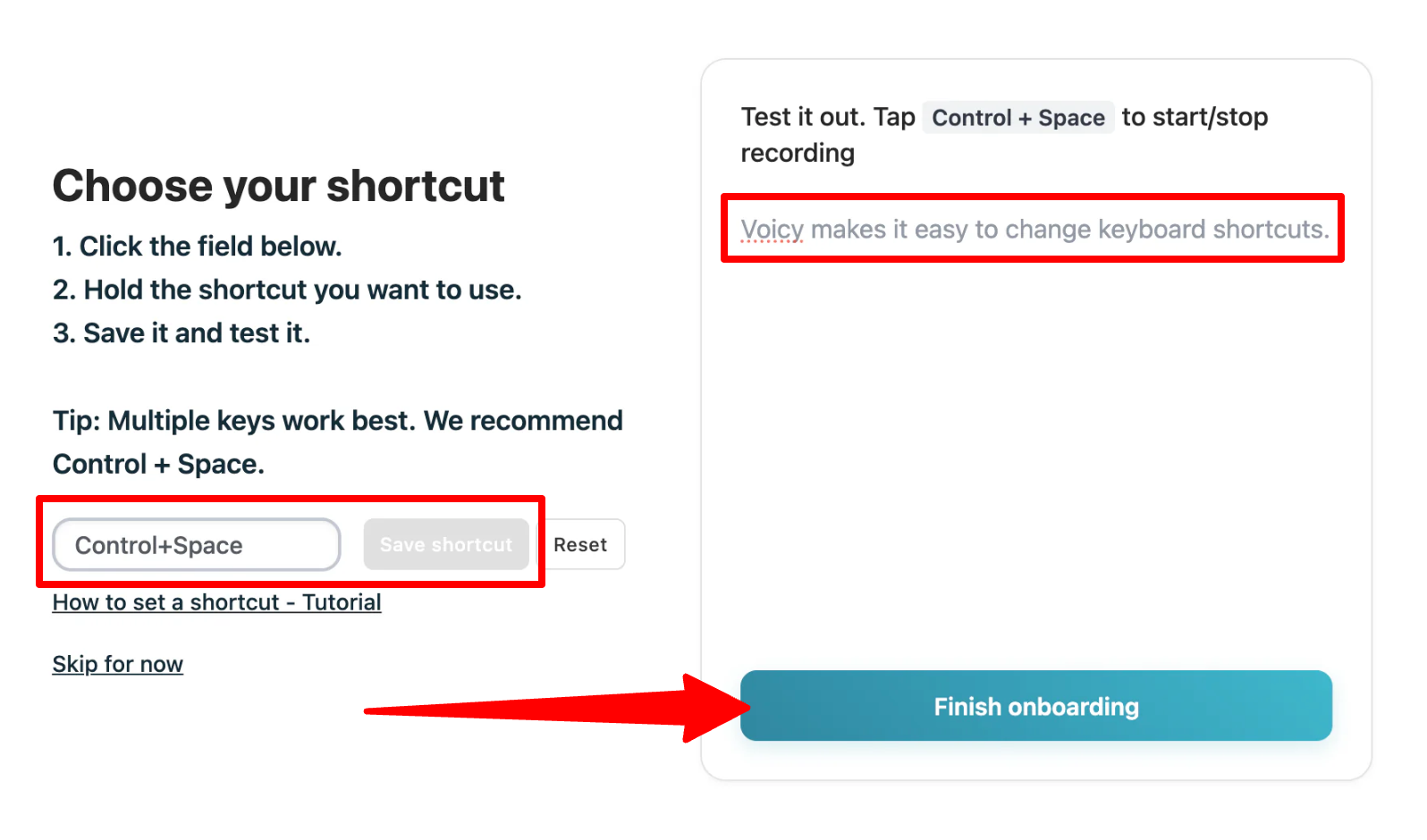
Voicy lets you assign a keyboard shortcut to start and stop dictation. Pick something you won’t accidentally trigger while typing normally (e.g. Control+Space) and test it in the empty field. If everything is working, go to “Finish onboarding.”
Step 7: Open the App You Want to Dictate Into

Click into any text field, whether that’s an email draft, a Slack message, a Google Doc, or a line in your IDE.
Step 8: Start Recording & Dictate Your Text

Trigger your shortcut and start talking at a normal pace. Voicy transcribes what you say in real time, formats, and removes filler words wherever your cursor is.
Skim what Voicy generated before sending or saving it. In my experience, the punctuation and structure needed very little manual cleanup. But AI isn’t perfect, so it’s worth a quick read especially for names or niche terms.
Step 9: Add Words to the Dictionary
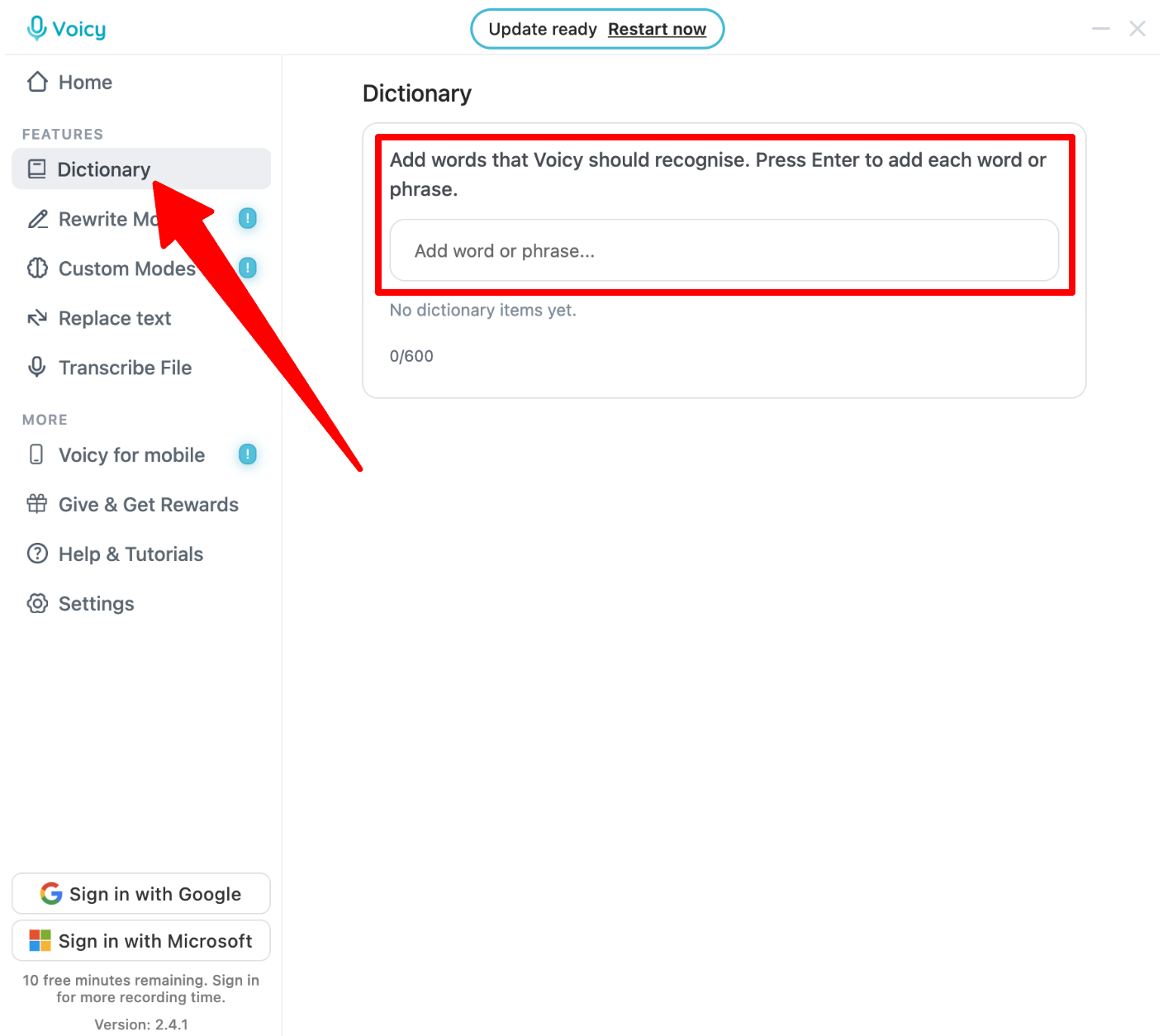
You can also add words to Voicy’s dictionary so it recognizes them correctly next time.
Step 10: Use Voice Commands for Formatting

Rather than manually editing your text afterward, use the built-in voice commands to structure your email with your voice.
Position your cursor at the end of your draft and dictate the following out loud:
“New line, new line. Here are the three main priorities for this week: new line, bullet point, finish the design review, new line, bullet point, update the client deck, new line, bullet point, submit the weekly report.”
Voicy turns these voice prompts into actual edits instead of typing out the words you say:
“Hey team,
Just wanted to check in on the project status. Let me know if you need anything from my end.
Thanks!
Here are the three main priorities for this week:
- Finish the design review
- Update the client deck
- Submit the weekly report”
Overall, Voicy made dictating emails and other text feel surprisingly natural. The transcription was surprisingly accurate and there was very little cleanup.
Top 3 Voicy Alternatives
Here are the best Voicy alternatives I’ve tried that I’d recommend.
Wispr Flow
The first Voicy alternative I’d recommend is Wispr Flow. It’s a dictation tool that works across your device, turning what you say into clean text in almost any app on Mac, Windows, iPhone, or Android. It claims a dictation speed of roughly 220 words per minute compared to about 45 wpm for typing.
Both tools work across different apps, have custom dictionaries, and automatically clean up what you say.
However, Wispr Flow detects and transcribes 100+ languages as opposed to Voicy’s 50 languages. They also lean hard into letting you edit and rewrite text with verbal instructions. Meanwhile, Voicy puts more of an emphasis on privacy by keeping transcripts stored locally and claiming support for more than 20,000 apps.
For more language support and advanced voice commands, choose Wispr Flow. For a stronger focus on privacy and broad app support, choose Voicy.
Read my Wispr Flow review or visit Wispr Flow!
Speechify Dictation
The next Voicy alternative I’d recommend is Speechify Dictation. It’s the voice typing side of Speechify’s broader AI writing and reading suite. It offers roughly 4x faster dictation than typing, automatic filler-word removal, and support for more than 50 languages.
Both tools let you dictate across different apps and automatically clean up your grammar and punctuation. They also work across desktop and mobile.
However, Speechify currently markets its voice typing feature as free with no subscription required, while Voicy’s free trial is capped at 30 minutes before you need to upgrade. The main difference is that Voicy is built specifically for dictation and writing, while Speechify is a broader reading and writing tool that offers dictation as one of its features.
For a free dictation option built into a larger app ecosystem, choose Speechify Dictation. For a dedicated dictation tool with more specialized writing features, choose Voicy.
Read my Speechify review or visit Speechify!
Otter.ai
The final Voicy alternative I’d recommend is Otter.ai. It’s an AI transcription tool built for meetings that automatically joins Zoom, Google Meet, and Microsoft Teams calls to generate transcripts, summaries, and action items.
Both tools rely on AI to turn speech into accurate text, but they solve different problems.
On the one hand, Otter.ai captures conversations between multiple people, not for dictating your own writing into everyday apps. On the other hand, Voicy is built for individual dictation: writing emails, documents, and messages in your own voice across thousands of apps.
If you need automated meeting notes, transcripts, and summaries, choose Otter.ai. If you want to write faster by dictating directly into the apps you already use, choose Voicy.
Read my Otter AI review or visit Otter.ai!
Voicy Review: The Right Tool For You?
After dictating instead of typing with Voicy, I came away genuinely impressed. The accuracy held up across my rambling sentences, the punctuation was cleaner than I expected, and I didn’t hit a single app where it refused to work.
Also, the privacy angle isn’t just marketing fluff. Knowing my transcripts stay local made me more comfortable dictating things I’d normally hesitate to say otherwise.
The biggest downsides for me are the 30-minute free trial (it goes fast once you get used to talking instead of typing) and the lack of deeper voice-editing commands that competitors like Wispr Flow offer. But if you’re mostly writing independently (especially across a lot of different apps) and privacy matters to you, Voicy is one of the better dictation tools I’ve tested.
If Voicy doesn’t feel like the right fit, here are the alternatives I’d recommend:
- Wispr Flow is best for people who want advanced voice editing commands and deeper personalization on top of their dictation.
- Speechify Dictation is best for people who want a free voice typing tool bundled into a larger reading and writing app.
- Otter.ai is best for people who need automated meeting transcripts and summaries rather than everyday dictation.
Thanks for reading my Voicy review! I hope you found it helpful.
If you want to try Voicy for yourself, you can start a free 30-minute trial (no credit card required) and see how it feels for your own workflow.