AI Tools 101
Wispr Flow Review: Write 4X Faster (Without a Keyboard)

 Add Unite.AI to your preferred sources on Google
Unite.AI may receive compensation when you use links to products we review. This does not influence our editorial evaluations. Read our affiliate disclosure.

You know those times when your thoughts are moving faster than your fingers can type, and you end up either losing the idea or spending way too long trying to catch up?
I used to do that a lot. What felt like juggling half-written sentences across notes, emails, and documents was really just an attempt to keep up with my own thinking.
That is until I tried Wispr Flow.
It turns out the average person types around 40–50 words per minute, but speaks at roughly 150–200 words per minute. That gap is exactly where tools like Wispr Flow start to feel less like something optional and more like a real shift in how work gets done.
Instead of fighting the keyboard, I started… talking. Emails, documents, even quick ideas dropped straight into clean, structured text without the usual editing mess afterward. Who knew it could be so easy?
And what surprised me most wasn’t just the speed of this thing. It was how much mental friction disappeared when writing stopped feeling like a separate step from thinking.
In this review, I’ll break down what Wispr Flow does, where it stands out, and whether it’s worth adding to your workflow. I’ll also show you how I used it to write and edit a structured email (yes, using only my voice).
I’ll finish the article by comparing Wispr Flow with my top three alternatives (Otter, Google Docs Voice Typing , and Microsoft 365 Dictation ). Enough talking, let’s see which tool is right for you.
Verdict
Wispr Flow is a powerful voice dictation tool that makes writing up to 4x faster, with accurate transcription, effortless cleanup, and seamless use across virtually any app and device. While it works well for everything from coding to emails, it requires an Internet connection, can struggle in noisy environments, and may slow down your computer.
Pros and Cons
- 4x faster than typing (writes at around 220 wpm vs 45 wpm)
- Accurately picks up whispered words
- Command Mode lets you highlight text and make edits by speaking
- Works in any app like Gmail, Notion, Slack, Cursor, VS Code, or your browser
- Automatically removes filler words and fixes messy speech
- Adjusts tone and structure depending on where you’re writing
- Understands code syntax, file names, and developer-specific terms
- Works on Mac, Windows, iPhone, and Android
- Quick setup (press a hotkey and start speaking)
- Supports 100+ languages with translation
- Zero-data retention and enterprise-grade compliance for privacy
- Free plan available with usage limits on desktop and mobile
- Two-week free trial to Flow Pro
- Requires Internet
- Struggles in loud environments
- The free version’s weekly word caps can be restrictive for heavy use
- Not a lightweight app (can slow down your computer)
What is Wispr Flow?
Wispr Flow (often called just Flow) is an AI speech-to-text app that lets you write by speaking instead of typing.
Developed by Wispr AI (founded in 2021 by Tanay Kothari and Sahaj Garg), it converts spoken words into text in real-time across any app on your device.
Auto-Edit Technology
What separates Flow from competitors is its AI auto-edit technology. It doesn’t just transcribe what you say, it understands what you mean and cleans it up automatically.
Here’s what I mean. When I dictate, I talk like a human (because, surprise, I am one). I say things like, “Okay, so, um, the main point here is… wait, let me back up… the thing I want to say is that…”
Meanwhile, traditional tools (like Apple Dictation or Windows Voice Typing) write every single word of that. Every “um,” every false start, and every rambling tangent have you spending more time editing than you would have typing.
Flow doesn’t do that. It takes your messy, unstructured speech and converts it into clean, formatted writing almost instantly. It figures out your intent, drops the filler words, and formats the output to match the tone of wherever you’re writing.
Where It Works
Wispr Flow works across every app on your device. That includes Gmail, Notion, Slack, Google Docs, your browser search bar, literally anywhere you can type.
On Mac and Windows, it runs as a background app. Plus, there are mobile versions for iPhone and Android when you’re on the go. You just hold a shortcut key, speak, and your words appear (already cleaned up) wherever your cursor is sitting.
Compare that to traditional dictation tools, which are usually locked to a specific app or require you to dictate into their interface and then copy-paste your text over. That friction adds up fast and defeats the entire purpose.
How Flow Works
The way Flow works is that it uses a large language model to process your speech in real time. It’s not just pattern-matching phonetics like older speech recognition software. It’s reading context.
So if you say “their” vs “there,” it figures out which one belongs based on the sentence. If you ramble for two minutes about a topic, it can distill that into three tight, readable sentences. It’s pretty impressive.
Internet Requirements & Setup
One thing worth knowing: Flow requires an Internet connection since the AI processing happens in the cloud. It’s not a dealbreaker, but it’s worth knowing upfront if you work offline a lot.
I also found the setup dead simple. You download the app, go through a short onboarding where it learns a bit about your writing style and voice, and you’re good to go.
Bottom line: Wispr Flow isn’t just a dictation tool. It’s more like a writing assistant that works at the speed of your voice.
If you’ve tried voice-to-text before and gave up on it, I encourage you to give Wispr Flow a shot. It’s free to try, and it might forever change the way you write.
Who is Wispr Flow Best For?
Wispr Flow is mainly used by professionals to turn their thoughts into text faster.
- Developers can dictate code, send messages, and prompt coding tools like Cursor and VS Code.
- Content creators can respond to DMs and comments, draft content faster, and stay more easily active on platforms like X, LinkedIn, and WhatsApp with less typing.
- Teams can quickly send updates and collaborate more efficiently without typing.
- Sales professionals can follow up immediately after meetings, personalize outreach, and refine pitches with their voice.
- Customer support teams can respond to questions faster and engage with individuals more naturally.
- Students can capture ideas on the fly, take notes without typing, and draft longer assignments or study materials with voice dictation.
- Lawyers can use their voice to dictate emails, legal documents, and client communications.
- Leaders and executives can communicate faster, manage their inboxes, and follow up after meetings more easily.
- Anyone who finds typing difficult or wants a hands-free way to work can use Wispr Flow.
Wispr Flow Key Features
Wispr Flow comes with a variety of dictation, personalization, developer, and team features:
Core Dictation Features
- Removes unnecessary words, adds proper punctuation, organizes lists, and fixes typos as you type
- Writes at ~220 wpm when speaking, as opposed to 45 wpm typing speed
- Auto-detects and transcribes in 100+ languages
- Captures what you are saying even when whispering
- Correctly transcribes uncommon names based on context to reduce the need for manual corrections
- Command Mode lets you highlight text and make edits with voice commands to the AI (e.g., “make this more concise,” “change the tone,” or “fix typos”)
Personalization & Customization
- When you correct the spelling, Flow automatically adds it to your dictionary. You can also manually add terms to your dictionary
- Create voice shortcuts for commonly used scheduling links, phrases, and FAQs. Flow will automatically insert it
- Adjust tone based on the context (e.g., formal in docs, casual in messages, enthusiastic in emails)
- The dictionary, style, and settings synchronize across all your devices
Platform & Compatibility
- Desktop: Native apps for Mac and Windows
- Mobile: Native apps for iOS (as a third-party keyboard) and Android
- Everywhere: Any app with a text field (Gmail, Notion, Google Docs, WhatsApp, VS Code, Cursor, Slack, LinkedIn, etc.)
Developer-Focused Features
- Understands code syntax, file names, and formatting
- Understands developer jargon like Supabase, Cloudflare, and Vercel. Otherwise, add it to your personal dictionary
- Handles file names and paths by voice, automatically tagging files in Cursor and Windsurf IDEs to bring context into AI prompts
Team & Enterprise Features
- Shared dictionary to store team jargon, product terms, and acronyms
- Shared snippets to create voice shortcuts for commonly used phrases (like schedule links and FAQs)
- Usage dashboards to track adoption, like total words, top apps, and usage trends
- HIPAA-Ready on all plans to protect sensitive information
- SOC 2 Type II on Enterprise plans only to safeguard data
How to Use Wispr Flow
Here’s how easy it is to set up and start using Whispr Flow:
- Download Wispr Flow
- Explore the App
- Choose a Writing Style
- Start Speaking
- Turn on Command Mode
- Highlight Text
- Apply Edits
- Use Wispr Flow Everywhere
Step 1: Download Wispr Flow

Go to wisprflow.ai and download the installer (available on macOS and Windows). It only takes a few minutes to get everything set up.
Step 2: Explore the App
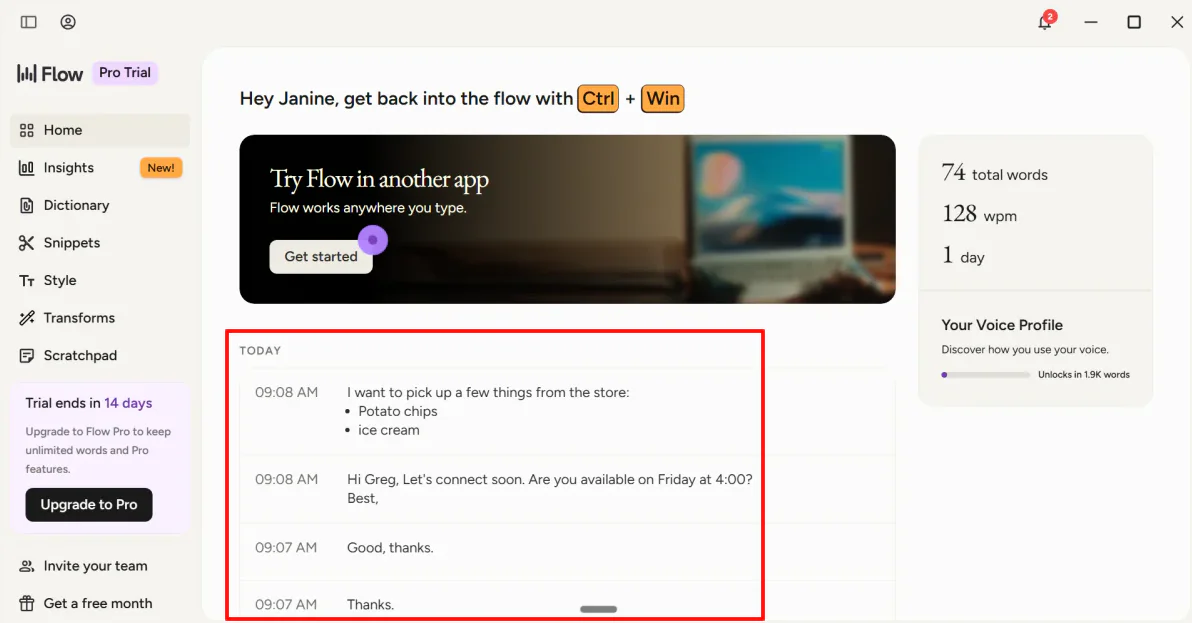
Once installed, opening the main app takes you to the homepage. It serves as your main dashboard, where you can view your past recordings and quickly jump back into anything you’ve worked on before.
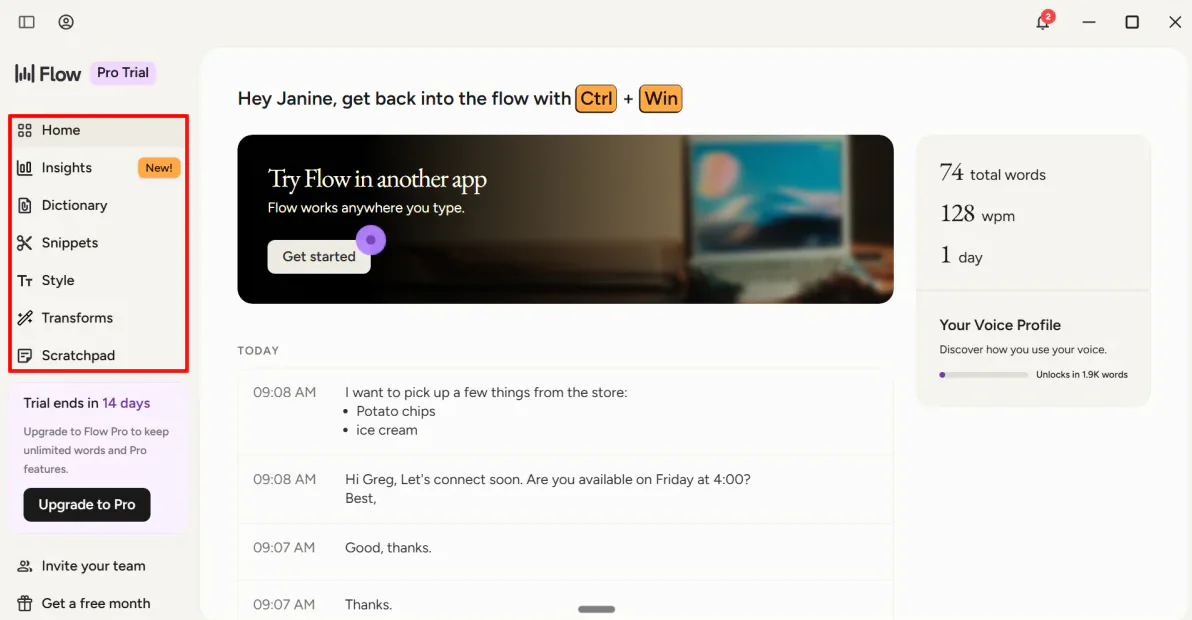
The navigation bar had the following:
- Insights: A dashboard showing dictation activity, usage patterns, and other statistics to help you understand how you’re using Flow over time.
- Dictionary: Add custom words, names, acronyms, and industry-specific terms so Flow can recognize and transcribe them more accurately.
- Snippets: A collection of reusable text templates that can be inserted with voice commands, saving time on frequently typed phrases.
- Style: Settings that let you customize how Flow writes, including tone, formatting preferences, and writing conventions.
- Transforms: Tools that automatically rewrite, clean up, or restructure dictated text based on your instructions.
- Scratchpad: A place to capture thoughts, notes, and ideas without opening another application.
Step 3: Choose a Writing

For most professionals, email is a huge daily time drain. I’m going to show you how Wispr Flow instantly turns a messy brain dump into a professional email.
But before we get ahead of ourselves, let’s take a look at the Styles tab.
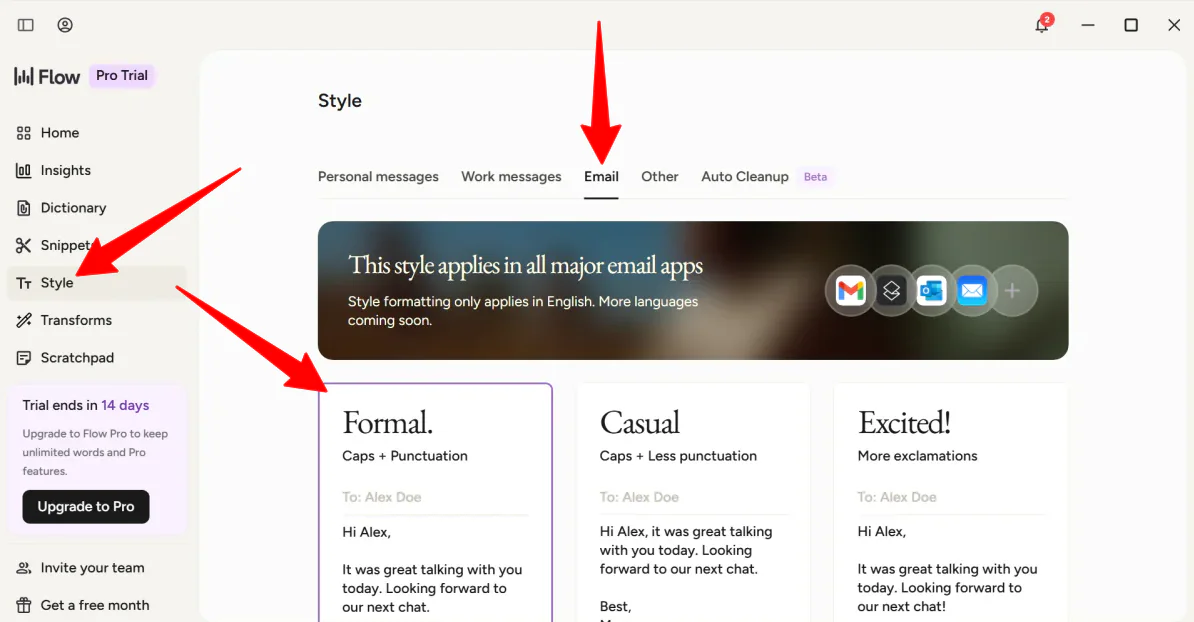
During configuration, Flow will ask you how you prefer to write your messages:
- Formal: Applies strict capitalization, professional punctuation, and formal syntax rules.
- Casual: Drops the rigid tone for platforms like Slack or Teams while remaining readable.
- Very Casual: Applies minimal capitalization and loose punctuation (best for things like texting on WhatsApp Web or iMessage).
For this Gmail test, I chose Formal. This tells Flow that even if I speak casually, the final text pasted into the email draft must feature proper capitalization and strict punctuation rules.
Step 4: Start Speaking

To put Wispr Flow’s auto-cleanup intelligence to the test, log in to your email account (mine is Gmail) and compose a new message.
To initiate dictation, press and hold the default shortcut:
Ctrl + Win/Fn on macOS
I deliberately spoke a messy, rambling run-on sentence into my microphone:
“Hey, Sarah… hold on, let me start over. Hey Sarah, just wanted to follow up on that Q2 marketing deck. I looked over the slides, and they look mostly good, but uh, slide 4 has a typo on the revenue graph. Can you fix that before the 3 PM meeting? Actually, make it the 4 PM meeting because John rescheduled. Thanks, talk later.”

The moment I released the hotkey, Flow immediately processed the audio and typed this into the empty field:
“Hey Sarah,
Just wanted to follow up on that Q2 marketing deck. I looked over the slides, and they looked mostly good, but slide four has a typo on the revenue graph. Can you fix that before the 4 p.m. meeting because John rescheduled?
Thanks!
Talk later.”
I was impressed at how accurately it captured my words and how well it was formatted. It didn’t just transcribe the message; it preserved the tone and intent exactly as I spoke it.
Step 5: Turn on Command Mode

Another cool thing I discovered: Flow has a feature called Command Mode that lets you edit your text (like rewriting or even translating) by highlighting the text and giving a verbal command.
To start using Command Mode, go to Settings and then Experimental in the app. Toggle on Command Mode.
Step 6: Highlight Text

Highlight any text.
Here’s the most important part: Rather than using the Dictation Hotkey (Ctrl + Win), use the Command Mode Hotkey:
Ctrl + Win + Alt on Windows/Fn + Ctrol on macOS
Step 7: Apply Edits

Say a command (I said “Make more concise”) and watch Flow magically make edits right before your eyes. As expected, my sentence became more concise.
Step 8: Use Wispr Flow Everywhere
Once you get a feel for managing your email inbox, you can easily pivot the same workflow into other tech stacks:
- Vibe Coding: Use your voice to write prompts for AI coding tools like Cursor or Windsurf without losing formatting.
- Documents: Use your voice to quickly draft blog posts, meeting notes, or strategies without touching your keyboard.
Overall, Wispr Flow made it feel effortless to turn my messy thoughts into structured writing without touching the keyboard. It fits naturally into everyday workflows like email, notes, and documents, while keeping formatting and tone accurate.
Top 3 Wispr Flow Alternatives
Here are the best Wispr Flow alternatives.
Otter
The first Wispr Flow alternative I’d recommend is Otter. I signed up for the free plan and set it up to record and transcribe a meeting.
Both tools use AI to turn spoken words into usable text to save time and avoid manual note-taking.
However, Otter is built specifically for online meetings and conversations. What I loved about Otter was the user-friendly interface. The dashboard was clean and easy to navigate, with recordings, transcripts, and summaries all organized clearly in one place.
I recorded a conversation, watched the transcript appear in real time, and then reviewed a summary with keywords, speakers, and timestamps. It also made sharing easy, with options to send notes to teammates and use built-in chat for discussing parts of the conversation.
For meeting recording, real-time transcription, and turning conversations into searchable notes, choose Otter. For faster hands-free writing across any app on your device, choose Wispr Flow.
Read my Otter AI review or visit Otter!
Google Docs Voice Typing
The next Wispr Flow alternative I’d recommend is Google Docs Voice Typing. It’s a built-in tool that lets you use your voice to type and edit directly inside Google Docs and Slides.
Both tools let you convert speech into text, making it easier to write documents, notes, and other content without typing.
However, Wispr Flow is a system-wide tool that works across any app on your device. Google Docs Voice Typing exclusively works in Google Docs and Google Slides in a supported browser, making it a more limited option.
Wispr Flow also cleans up your speech, adjusts tone, and works across all your apps. Meanwhile, Google Docs Voice Typing focuses mainly on basic speech-to-text.
For fast dictation inside Google Docs, choose Google Docs Voice Typing. For a more powerful, all-in-one voice writing tool that works across your entire workflow, choose Wispr Flow.
Microsoft 365 Dictation
The final Wispr Flow alternative I’d recommend is Microsoft 365 Dictation. Microsoft 365 Dictation is a speech-to-text tool in Microsoft Office apps that lets you use your voice to create documents, emails, notes, and presentations with a simple microphone and Internet connection.
Both tools let you turn speech into written text, making it easier to write without typing and speeding up everyday communication.
However, Wispr Flow works across your entire device. You can use it in apps like Gmail, Slack, Notion, or VS Code, and it automatically cleans up and formats your speech as you go.
Meanwhile, Microsoft 365 Dictation is mainly designed for Microsoft apps like Word, Outlook, PowerPoint, and OneNote. But it offers a reliable experience with no extra installation needed for Office users.
Choose Wispr Flow for AI dictation that works across your entire computer. Otherwise, choose Microsoft 365 Dictation for simple voice typing in Microsoft Office apps.
Wispr Flow Review: The Right Tool For You?
Overall, Wispr Flow feels less like a dictation app and more like an AI tool that helps me write anywhere I work. My ideas moved quickly from thought to text.
In practice, it works best when writing is scattered across different places. Emails, docs, chats, and code all feel more natural because the output is automatically structured. The biggest shift is not just speed, but the reduced friction between thinking and typing.
With that said, it’s not perfect. It depends on a stable Internet connection, and it can slow down machines with lower specs. It’s also not the best when you’re in a noisy environment.
If most of your writing happens across multiple apps and speed matters, it’s a huge time saver. But if your work is mostly inside one ecosystem (like Google or Microsoft) or offline, you might want to try these alternatives:
- Otter.ai is best for meetings, interviews, and group discussions. It captures conversations, builds summaries, and keeps everything searchable in one place. This tool works best when the goal is to capture what was said, rather than create new written content.
- Google Docs Voice Typing is best for simple dictation inside Google Docs.
- Microsoft 365 Dictation is best for people already working inside Word, Outlook, or PowerPoint. It offers reliable voice typing without leaving the Microsoft ecosystem.
Thanks for reading my Wispr Flow review! I hope you found it helpful.
Flow has a free plan and a 14-day free trial of Flow Pro. Try it for yourself and see how you like it!
Frequently Asked Questions
Does Wispr Flow actually work?
Yes, Wispr Flow is a trusted AI voice-to-text tool that helps you write much faster and more accurately. It does more than simple transcription by removing filler words, formatting text, and learning your vocabulary.
Is Wispr Flow free?
Yes, Wispr Flow offers a free plan, but it has weekly word caps, among other limitations.
How good is Wispr Flow?
Wispr Flow is a highly rated AI dictation tool that lets you speak up to 4x faster than typing. It works across any app and reduces editing by cleaning up and correcting your speech as it transcribes.
Is the Wispr Flow app safe?
Wispr Flow is generally safe and uses standard encryption, but it runs in the cloud instead of offline. Because your speech is processed online, it depends on your privacy preferences.