AI Tools 101
Julius AI Presentation Maker: Data-Driven Decks in Minutes

 Add Unite.AI to your preferred sources on Google
Unite.AI may receive compensation when you use links to products we review. This does not influence our editorial evaluations. Read our affiliate disclosure.

Have you ever spent hours putting together a presentation only to realize the hardest part wasn’t the information. It was making everything fit together? Between choosing the right layout, rewriting awkward slide text, and creating visuals that actually support your message, a simple deck can quickly become an all-day project.
That’s where tools like Julius AI Presentation Maker comes in. It takes a simple idea, document, or set of notes and turns it into a structured presentation in minutes. I tested Julius AI’s Presentation Maker to see if it could actually deliver on that promise by creating a mock investor pitch deck from a single prompt.
Julius impressed me with how quickly it generated a professional presentation with organized sections, charts, and visuals. While it still needed some editing before it was ready to share, it gave me a strong starting point that saved far more time than building a deck from scratch.
In this Julius AI Presentation Maker review, I’ll discuss the pros and cons, what it is, who it’s best for, and its key features. Then, I’ll show you how I used Julius AI to turn a prompt into an editable presentation deck in minutes.
I’ll finish the article by comparing the Julius AI Presentation Maker with my top three alternatives (Gamma, Plus AI, and Beautiful.ai). By the end, you’ll know which AI presentation maker is right for you!
Verdict
Overall, the Julius AI Presentation Maker impressed me by quickly turning a simple prompt into an editable presentation with charts and visuals. It still needs some editing and fact-checking, but it’s a great tool for creating business presentations, reports, and pitch decks much faster than starting from scratch.
Pros and Cons
- Quickly creates entire editable presentations from prompts or uploaded files.
- Exports to PowerPoint, Google Slides, PDF, and PNG.
- Generates charts and slides easily.
- Creates presentations and supporting reports in one workflow.
- Produces slides that look like a professional designer made it.
- SOC Type 2 Certified to protect your data.
- Requires edits to wording, formatting, and branding.
- Can add unnecessary content or make slides longer than needed.
- Fact-check information before sharing presentations.
- Better suited for business and presentations than highly creative designs.
- No native manual editing (must export first)
What is Julius AI Presentation Maker?
While this article focuses on the AI Presentation Maker, Julius is more than that. It’s part of a broader AI toolkit that includes chat-based data analysis, report generation, image creation, and even video generation. If you’ve already used Julius to analyze spreadsheets or create reports, the presentation builder fits right into the same workflow.
How the AI Presentation Maker Works
How the AI presentation maker works is that you tell Julius your topic, audience, and main points in a sentence or two, and it drafts each slide with text and visuals in place. Not placeholders, but real, rendered copy sitting on the slide that’s ready to tweak.
You won’t be able to make manual tweaks directly in Julius itself (however, you can make tweaks to your slides in the workspace by chatting with the AI agent). You’ll only be able to make direct changes to your slides by exporting them to PowerPoint or Google Slides, where all elements remain fully editable.
My Experience
I tested the AI presentation maker by creating a mock pitch deck for an AI B2B SaaS startup with a “Swiss Modern” template. Julius did a great job turning my prompt into a structured presentation.
The slide content was on point, the overall design looked professional, and it had all the right sections and messaging. However, I still needed to refine the wording and details. Regardless, Julius made it a much stronger starting point than building a deck from scratch.
Clean Text Rendering on Slides
One thing worth knowing is that Julius generates text on each slide rather than baking it into images. That means the text stays sharp, readable, and fully editable instead of becoming blurry when you zoom in or make changes.
That’s a common issue with some AI slide generators, where the text is actually part of an image. Julius avoids that by creating slides with properly rendered text elements instead.
Who is Julius AI Presentation Maker Best For?
Julius AI is best for anyone who wants to create professional presentations quickly with AI:
- Founders can create professional pitch decks for investors, partners, and stakeholders in minutes with AI.
- Marketing teams can turn campaign results into professional presentations for clients and internal stakeholders.
- Agencies can quickly create branded client proposals, reports, and presentations with AI.
- Students can turn ideas, research, and notes into presentations without starting from scratch.
- Sales teams can generate structured pitch decks and client presentations faster with AI.
Julius AI Presentation Maker Key Features
While this review focuses on Julius AI’s presentation maker, it’s part of a broader AI workspace for creating and analyzing content.
Here are its main features:
- AI Presentation Maker: Create presentations from text with AI using thousands of professionally designed templates. Julius automatically generates matching images, charts, and branded graphics, then lets you export your presentation to PowerPoint, PDF, PNG, or Google Slides.
- AI Chatbot: Ask questions in plain English. Julius writes the code, analyzes your data, and explains the results with charts and visuals.
- AI Report Generator: Upload a spreadsheet or describe what you need. Julius analyzes your data and generates reports with charts and insights.
- AI Image Generator: Create product images, marketing visuals, and report graphics from a text prompt.
- AI Video Generator: Generate videos, animate images, edit footage, and extend clips with AI.
- Slack Agent: Get data insights and collaborate with your team directly in Slack.
- Data Connectors: Connect your data sources and ask questions in plain English.
- Scheduled Runs: Automate recurring analyses and receive updated insights automatically.
- Team Collaboration: Share workspaces and manage roles within your team.
- AI Notebooks: Edit, rerun, version, and share notebooks to keep workflows organized.
How to Use Julius AI Presentation Maker
Here’s how to use Julius AI to turn a text prompt into an editable presentation deck in minutes:
- Sign Up for Julius AI
- Go to Slides
- Add a Prompt
- Choose a Template
- Generate the Deck
- Export the Presentation
Step 1: Sign Up for Julius AI

Go to julius.ai and sign up for a free account.
Step 2: Go to Slides

Select “Slides” from the navigation menu to launch the presentation builder. From here, Julius gives you two ways to feed it your content:
- Prompt-Based Generation: Describe what you want in a few sentences, covering your goal, audience, and key points. While a simple prompt like “Create a seed-stage pitch deck covering the problem, solution, market size, traction, and funding ask” works, you get significantly better results by giving the AI a little more context.
- Document Transformation (PDF to PPT): If you already have raw notes, a draft outline, or an existing PDF report, you can upload it directly. Julius will take the document and automatically restructure it into a structured slide deck.
Don’t worry about perfect wording. Julius can turn rough bullet points into clear presentation slides.
Step 3: Add a Prompt

Rather than relying on generic text, unlock richer visuals and tailored copy by layering two key details into your prompt:
- Target audience or industry context (gives the AI relevant jargon and layout suggestions).
- Tone or style directives (ensures the generated text matches your brand voice).
Here is the prompt I used to test the tool:
“Create a seed-stage pitch deck for an AI-powered B2B SaaS platform targeting HR teams. Include slides for the problem, solution, market size (TAM/SAM), current traction, and a $1.5M funding ask. Keep the tone professional, concise, and modern.”
Step 4: Choose a Template

Before you generate, choose a presentation structure:
- Template Library: Choose from layouts tailored for specific use cases (Pitch Decks, Quarterly Business Reviews, Project Proposals, etc.).
- Custom Branding: If you’re building for a specific client or company, upload the brand kit. Julius locks in your brand colors, typography, and logo placements across every slide.
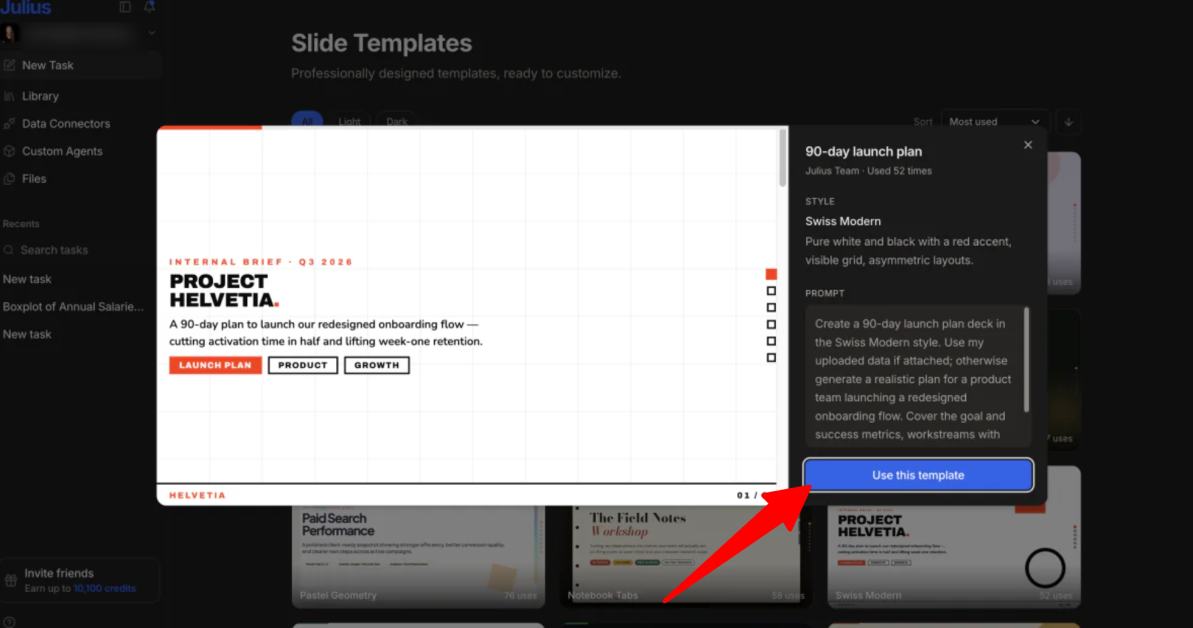
For my template, I chose “Swiss Modern” for its readability, crisp typography, data clarity, and structure.
Step 5: Generate the Deck

Click generate and watch Julius build your deck slide-by-slide.

I was pleased to see that Julius did exactly what I’d asked:
- It made a seed-stage pitch deck for an AI-powered B2B SaaS platform targeting HR teams called PeopleOS (AI-native workflows that help HR teams turn fragmented employee signals into clear, timely action).
- It included slides for all the components I requested: the problem, solution, market size (TAM/SAM), current traction, and a $1.5M funding ask.
- The entire deck was professional, concise, and modern.
Unlike traditional tools that output static blocks of text, Julius generates clean text elements, custom data charts, and branded visuals simultaneously.
Step 6: Export the Presentation
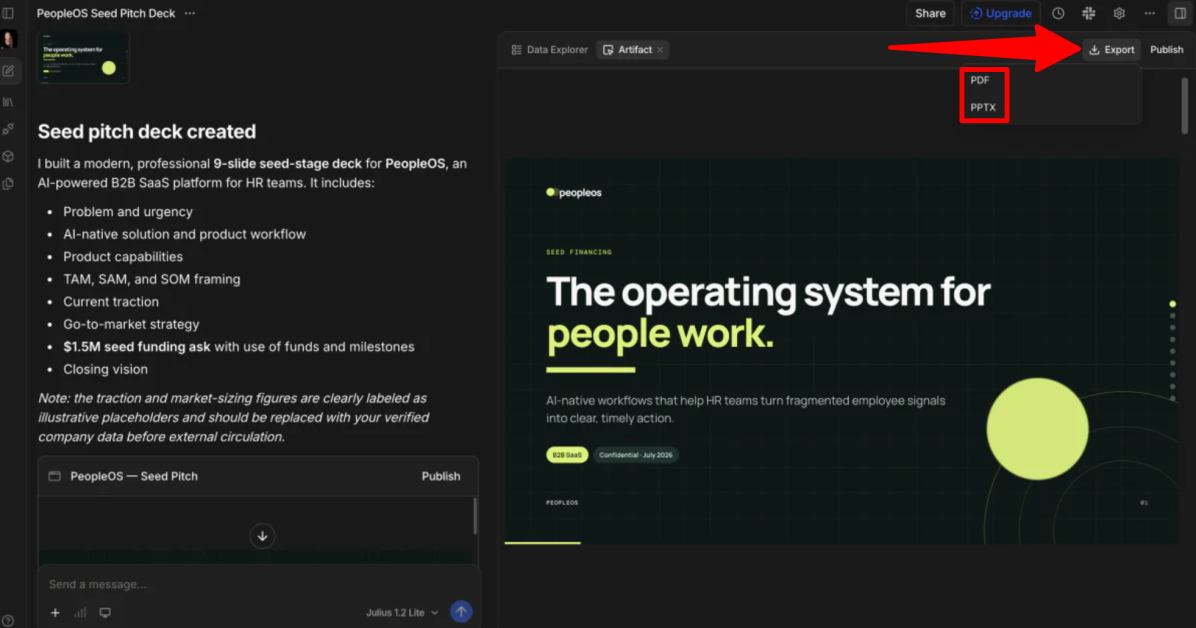
Before exporting, you can refine your slides directly in the workspace using natural language prompts (e.g., “convert paragraph two into three bullet points” or “change the bar chart in slide 7 to a donut chart”).
Once your draft is ready, review your slides in the interface and export your deck in the format you need:
- PowerPoint (.PPTX): Keeps everything fully editable, including text, shapes, and layouts.
- Google Slides: Export directly to Google Drive for easy collaboration.
- PDF or PNG: Best for quickly sharing finished slides or static presentations to clients or colleagues.
Overall, Julius AI impressed me with how quickly it turned a simple prompt into a professional presentation with clear structure and visuals. The ability to generate slides from prompts or existing documents makes it a useful tool for quickly creating pitch decks, reports, and client presentations without starting from scratch.
Top 3 Julius AI Presentation Maker Alternatives
Here are the best Julius AI Presentation Maker alternatives I’ve tried.
Gamma
The first Julius AI Presentation Maker alternative I’d recommend is Gamma. It’s an AI presentation tool that turns prompts and existing content into presentations, documents, websites, and more.
Both platforms make it easy to create professional presentations with AI, generating slide layouts, visuals, charts, and text from simple prompts.
In my testing, Gamma created a full presentation in about a minute. It generated strong visuals, accurate information, and a clean layout. It also stood out with its drag-and-drop editing, AI layout suggestions, and ability to customize themes, images, and content before generating the final deck.
The biggest difference is their focus. Julius AI is built around data analysis, making it a better option for business reports and presentations packed with charts and insights.
Meanwhile, Gamma feels more like a content creation platform, with stronger design flexibility and support for presentations, websites, documents, and social posts. Which one is better really depends on whether you prioritize analytics or creative presentation design.
Read my Gamma review or visit Gamma!
Plus AI
The next Julius AI Presentation Maker alternative I’d recommend is Plus AI. It’s another AI presentation assistant that works directly in Google Slides and PowerPoint, making it easy to create and edit presentations without leaving the apps you already use.
Both platforms generate presentations from prompts or uploaded files, create charts and visuals, and export editable slide decks.
However, Plus AI stands out with its native Google Slides and PowerPoint integration. It lets you generate an outline, choose from 100+ templates, and continue editing your presentation with AI tools like Rewrite and Remix without leaving your presentation.
When I tested it, I was impressed by how quickly it generated a presentation with organized slides and images. It even gave me the flexibility to adjust the outline before creating the final deck. Meanwhile, Julius AI excels at creating business presentations alongside data analysis, reports, and charts.
For AI presentations backed by data analysis and reporting, choose Julius AI Presentation Maker. For effortless presentation creation and editing directly in Google Slides or PowerPoint, choose Plus AI.
Read my Plus AI review or visit Plus AI!
Beautiful.ai
The final Julius AI Presentation Maker alternative I’d recommend is Beautiful.ai. It creates presentations quickly with AI, Smart Slides (templates), and auto-aligning slide layouts that automatically keep your designs clean and consistent.
Both platforms use AI to generate presentations from prompts, making it easier to create professional presentations in less time.
However, Beautiful.ai puts a stronger focus on presentation design. Its Smart Slides automatically keep layouts aligned as you edit, making it a great choice if you don’t want to worry about formatting. Meanwhile, Julius AI Presentation Maker is better for turning prompts or documents into business presentations with AI generated charts, data analysis, and reports.
If your work revolves around presentations and reporting, Julius AI Presentation Maker is the better fit. If presentation design and branding are your top priorities, choose Beautiful.ai.
Julius AI Presentation Maker: The Right Tool For You?
After testing Julius AI’s Presentation Maker, I came away impressed by how quickly it turned my prompt into a professional pitch deck. It followed my instructions closely, included every section I requested, and even generated relevant charts and visuals. It gave me a strong first draft.
However, the biggest drawback I found was that there were no native manual editing tools. To make direct changes to individual slides, I had to export the presentation to PowerPoint or Google Slides first. It’s an extra step that can slow down the editing process.
But if you regularly create business presentations, reports, or investor decks, Julius AI is an excellent choice. If your priority is creative slide design or deep presentation editing, one of these alternatives may be a better fit:
- Gamma is best for content creators, marketers, and anyone who wants maximum design flexibility for presentations, documents, and websites.
- Plus AI is best for professionals who primarily work in Google Slides or PowerPoint and want AI built directly into their existing workflow.
- Beautiful.ai is best for teams that want branded presentations with minimal formatting and design effort.
Thanks for reading my review on the Julius AI Presentation Maker! I hope you found it helpful. Sign up to get 25 daily credits and see how you like it.
Frequently Asked Questions
Is Julius AI free to use?
Julius AI offers a free plan with limits like 25 daily credits.
What’s the best free AI presentation maker?
The best free AI presentation maker depends on what you need. But the best one for creating business presentations, reports, and pitch decks is Julius AI. It can generate slides, charts, and insights from prompts or uploaded files.
What is the difference between Julius AI and ChatGPT?
The main difference between Julius AI and ChatGPT is their focus. On the one hand, Julius AI is built for data analysis, statistics, and visualizations. Meanwhile, ChatGPT is a general AI assistant for tasks like writing, coding, and brainstorming.