AI Tools 101
Meshy AI Review: I Let an AI Agent Design My 3D Model

 Add Unite.AI to your preferred sources on Google
Unite.AI may receive compensation when you use links to products we review. This does not influence our editorial evaluations. Read our affiliate disclosure.

I still remember opening Blender for the first time and feeling completely overwhelmed. Between learning sculpting tools, managing topology, fixing textures, and figuring out exports, creating even a simple 3D model felt like a skill that would take years to master.
That’s why I find AI 3D generators so interesting. They promise to remove the technical barrier and let creators focus on the idea instead of getting caught up in the process and technicalities. In fact, the global 3D modeling software market is expected to grow significantly, driven by broader adoption of AI powered and automated design workflows across industries.
So I decided to put Meshy AI to the test. Could an AI tool actually help me create a usable 3D asset without spending hours inside traditional 3D software?
For my first experiment, I used Meshy’s new AI Agent Mode to create a cute forest sprite from scratch. Instead of typing one prompt and hoping for the best, I collaborated with the AI through a conversation, refined the design, reviewed the concept before generation, and watched it transform into a textured 3D model.
The result surprised me. Meshy didn’t make me feel like I was using an image generator. It felt more like working with a creative assistant that understood the direction I was going for.
In this Meshy review, I’ll discuss the pros and cons, what it is, who it’s best for, and its key features. Then, I’ll show you how I used the new AI agent feature to generate a forest sprite character in a matter of minutes.
I’ll finish the article by comparing Meshy with my top three alternatives (Tripo AI, Hyper3D (formerly Rodin), and Sloyd AI). By the end, you’ll know which AI 3D generator is for you.
Verdict
Overall, Meshy AI is one of the best AI 3D generators for quickly creating textured models, concept art, and animated characters without a steep learning curve. While it isn’t a complete replacement for traditional 3D software and some outputs still need cleanup, its AI Agent, Meshy 6 engine, and browser-based workflow make it an excellent choice for fast 3D creation.
Pros and Cons
- Fast 3D model and and automatic PBR texture generation.
- Beginner-friendly interface.
- Great for prototypes and concept art.
- High-quality textures and useful outputs.
- Supports popular export formats (.FBX, .GLB, .3MF, .OBJ) and API integration.
- AI agent pauses to review concepts before spending credits on generation.
- Automatically animate characters online with AI.
- Meshy 6 creates cleaner models with sharper details.
- 600+ motion presets that let you animate characters directly in the browser.
- Some models require manual cleanup.
- Better for starting projects than final production assets.
- Results depend on the quality of your prompts.
- Limited control for detailed edits.
- Some users report issues with subscriptions and credits.
What is Meshy AI?
Meshy AI is a 3D creation platform, and what sets it apart isn’t just one trick; it’s the whole pipeline.
You can go from a text description, a reference image, or just a rough creative concept straight to a previewable, editable, exportable 3D asset. It has everything you need, including Text to 3D, Image to 3D, AI Texturing, Animation, and a full API for developers who want to bolt this into their own tools.
That last part matters more than people realize. A lot of “AI 3D” tools are just a pretty front-end with no way to actually plug into a real production pipeline.
My First Test
My first test was creating a cute chibi forest sprite using Meshy’s AI Agent Mode.
What surprised me most was how much it felt like working with a concept artist rather than just typing a prompt and hoping for the best. I spent most of my time refining the idea through the chat, mixing different design directions until the final 3D model matched what I had in mind.
The biggest takeaway: don’t rush through the feedback stage. The Agent’s ability to tweak the concept before generating the model is what makes the workflow so much more effective.
Who Created Meshy AI?
As for who’s behind it, Meshy is rooted in Silicon Valley. It’s a global team that includes alumni from MIT and Harvard, alongside veterans from NVIDIA (NVDA ), Microsoft (MSFT ), and Google.
The CEO, Ethan Hu, isn’t just a business guy. He earned his PhD in graphics and AI from MIT, where he developed the Taichi GPU programming language. If you’re into graphics programming at all, it’s kind of a big deal in that world.
Meshy feels like a tool made by people who actually understand 3D pipeline basics (topology, UVs, rigging, and export) as opposed to a team that glued AI onto a web app.
Named a Top 3D AI Tool
And it’s not just me singing its praises. Meshy was the only 3D AI tool featured in A16Z’s 2024 AI Tools Survey.
That’s the industry saying Meshy isn’t just another AI experiment. It’s one of the leading tools pushing 3D generation forward.
Where it Fits in the Broader AI 3D Generation Landscape
But where does Meshy sit in the bigger landscape?
Think of it less as a text-to-3D novelty and more as an actual production tool. Something game developers, product designers, and even 3D-printing hobbyists are integrating into workflows.
Who is Meshy AI Best For?
Meshy AI is best for people who need fast 3D generation more than perfect control:
- Game developers can quickly create generate 3D models, apply PBR textures, animate characters, and export to game engines.
- Indie creators and solo developers who need speed because they lack a full art team.
- Concept artists can quickly turn 2D ideas into 3D references.
- 3D animators can run their entire animation pipeline from model to motion.
- Film producers can generate 3D assets for their films with text or image prompts.
- Jewellery designers can use text and image to design jewellery like rings and pendants in minutes.
- VFX artists can generate models, textures, and animations from text or images.
- E-commerce sellers can turn their product ideas into 3D models for their online store.
- Gamers can turn a text prompt into a 3D avatar to be used in every major gaming engine.
- Product designers can go from sketch to prototype in minutes.
- Toy designers can go from sketch to printable 3D prototype.
- Interior designers can go from layouts, furniture, and decor to virtual staging.
- Architects can generate models from text and images to turn concepts into 3D building models.
- Students can learn about 3D modeling from sketch to print.
- Anyone can print 3D miniatures if they own a resin printer.
Meshy AI Key Features
Here are Meshy AI’s key features.
Core Creation Tools
- Generate fully textured 3D models from a prompt or collaborating with an AI agent.
- Turn a photo, sketch, or concept image into a 3D mesh.
- Apply AI generated textures to existing models from text or image prompts.
- Generate animations for dynamic characters and lifelike animals.
- Create reference images from text or image prompts for 3D generation.
- Generate videos from text or image prompts using the latest AI models.
- Render images from 3D scenes created with your models.
- Turn images or 3D model files into any popular 3D format.
- View and preview 3D models online without installing software.
- Turn text into customizable 3D letters and typography.
- Reduce 3D model file sizes without losing quality.
Additional Features
- Automatically generate PBR maps for more realistic 3D models.
- Choose from a range of art styles including Realistic, Cartoon, Anime, and Voxel.
- Integrate 3D model generation into your apps with Meshy’s API.
- Export models in popular formats like OBJ, FBX, USDZ, GLB, STL, and BLEND.
- Automatically resize models to fit your project requirements.
- Adjust polygon counts from 3,000 to 100,000 with triangle or quad options.
- Explore community models and share your own creations.
- Edit and enhance textures with AI editing tools.
- Create 3D models with an easy-to-use interface for all skill levels.
- 580,000+ free downloadable AI models.
Creative Workflow Features
- Rig and animate characters or animals with built-in motion options.
- Generate reference images to guide your 3D projects.
- Render scenes from your generated or community models.
- Create videos from text or image prompts.
How to Use Meshy AI
Here’s how to use Meshy’s new conversational AI agent to co-create and sculpt a 3D character from scratch in less than ten minutes:
- Sign Up for Meshy
- Go to Agent Mode
- Give the Agent a Prompt
- Specify the Design Concept
- Generate a 2D Rendering
- Convert the Design to 3D
- Preview the Rendering
- Experiment with Lighting & Texture
- Download the Asset
Step 1: Sign Up for Meshy

Start by going to meshy.ai and signing up for free.
Step 2: Go to Agent Mode

While there is an option for “Quick Generate” where you can instantly turn single prompts or images into 3D models, choose “Agent Mode.” It’s Meshy’s latest feature that is a conversational AI that brainstorms ideas, generates batches of 2D concepts, and refines them into 3D models through chat.
Agent Mode is better for creating higher-quality 3D models through a conversation rather than relying on a single prompt. Just remember that in order to use this feature, you’ll have to upgrade to the Pro plan.
Step 3: Give the Agent a Prompt

Next, give the agent a prompt. Something like:
“Create a cute, chubby chibi forest sprite. Give it big, round anime eyes, tiny stubby arms, and a friendly smile.”
Since results depend on the quality of your prompts, here’s how Meshy recommends you structure your prompts:
[Subject Description] + [Material/Texture] + [Art Style] + [Technical Specs]
Keep the model settings on auto for the best results.
Step 4: Specify the Design Concept

Once you hit generate, a chat with the AI agent will begin.
The Meshy AI Agent doesn’t just blindly render a model, but actually pauses to pitch concept ideas like a human concept artist. That means you don’t have to code or struggle with a 3D sculpting brush; you just reply to the Agent like a coworker.
It’ll ask you clarification questions so it knows which creative direction to go. For example, it may suggest several design concepts based on your prompt, explain the unique style of each one, and ask which version or color palette you prefer before generating the final 3D model.
I decided to mix the Mossy Acorn and the Sprout Sprite suggestions by replying with this:
“I love the Mossy Acorn direction, but let’s mix in the Sprout Sprite. Give him the acorn-shaped body and mossy green cap hat, but add the tiny seedling sprout antenna on top of the cap. Let’s go with a vibrant spring green color palette.”
Step 5: Generate a 2D Rendering

Immediately, the AI agent will get to work. A few seconds later, it’ll generate a 2D concept image based on your prompt, giving you the chance to review the design before it’s transformed into a fully textured 3D model.

Look at how cute this little guy is!
Step 6: Convert the Design to 3D

The Meshy AI agent will describe the design’s blueprint right in the chat, breaking down the visual details it’s cooking up.
Before a single 3D polygon is rendered, the agent leaves the floor open for your feedback. It will ask you if you want to tweak anything, offering a quick checklist of adjustments like changing the size of the sparkly anime eyes, intensifying the blush on his cheeks, or opting for a more rugged, bumpy bark texture instead of a smooth acorn shell.
This conversational checkpoint means you get to co-create and refine your concept as a team until it nails the look you want, so you never waste precious credits baking a model that isn’t absolutely perfect.
If you wanted to adjust the eye size or make the cap texture bumpier, you would just type it here. But since it nailed the look for me, I responded with “This is perfect! Let’s move forward and convert this design into a fully detailed 3D model using the Meshy-6 engine.”
Step 7: Preview the Rendering

Once you give the green light, the Agent hands the blueprint over to the Meshy-6 generation engine. A few minutes later, the 2D concept will be transformed into a fully realized, rotatable 3D asset in your browser viewport.
Step 8: Experiment with Lighting & Texture

In the Preview mode, you can play around with different lighting and texture settings.
Step 9: Download the Asset
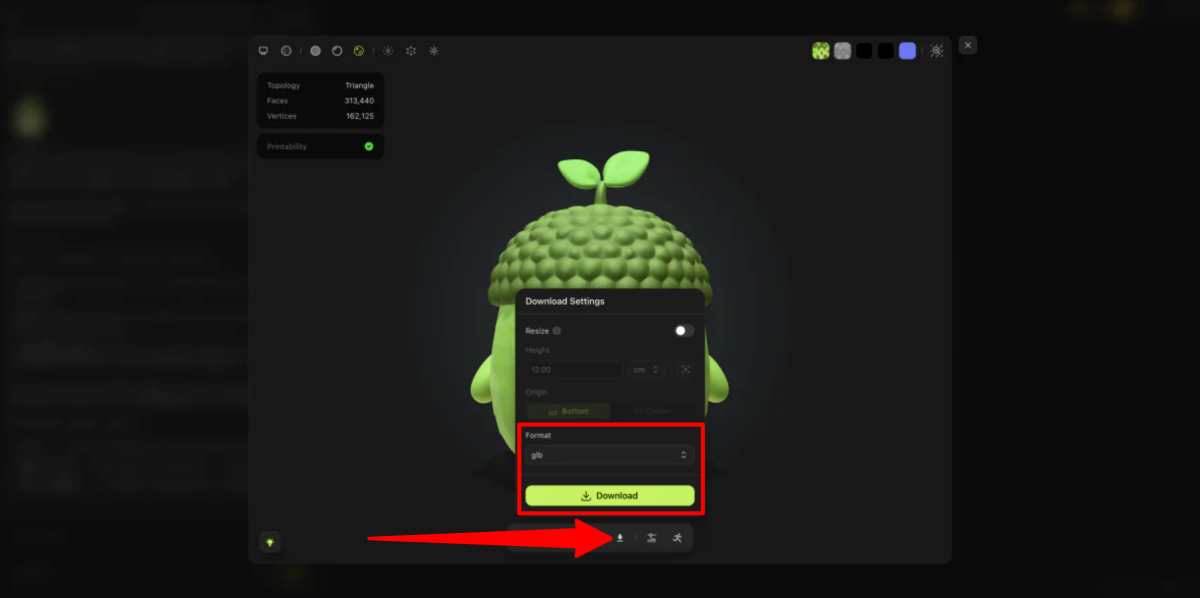
Now that your Sprout Sprite is sitting in the viewer, hit “Download.”
Meshy will package the asset into a clean .GLB or .FBX file. Because the Agent optimized the mesh boundaries during your conversation, the model is ready to be dropped into a game engine like Unity or thrown into a 3D printer slicer for a physical desktop toy!
Overall, Meshy AI made creating a 3D model feel much easier than traditional workflows. The Agent Mode was the standout feature because I could refine my idea through a simple conversation before generating the final asset.
Top 3 Meshy AI Alternatives
Here are the best Meshy AI alternatives.
Tripo AI
The first Meshy alternative I’d recommend is Tripo. Tripo is good for fast 3D model generation from text, images, or sketches, with textured outputs, instant rigging, and tools that speed up the entire modeling process.
Both platforms make it easy to create AI generated 3D models and make refinements with text-to-texture tools, making them excellent choices for prototyping, game assets, and creative projects.
However, Tripo stands out with its clean topology and one-click rigging so models are instantly ready for animation. Meanwhile, Meshy offers more creative flexibility with its conversational AI Agent, broader export options, and a more expansive toolkit.
Choose Meshy for more advanced editing, animation, and texture tools. Otherwise, choose Tripo for faster generation, cleaner quick prototypes, and simpler 3D asset creation.
Read my Tripo review or visit Tripo!
Hyper3D (formerly Rodin)
The next Meshy alternative I’d recommend is Hyper3D. It’s a powerful AI 3D generator platform that creates high-quality 3D assets from text prompts and images. It has advanced controls for geometry, textures, and output quality.
On the one hand, Hyper3D stands out with its controllable generation features like multiple reference images, direction controls, Focal Mode for high-detail assets, Zero Mode for cleaner surfaces, and SmartLowPoly options for optimized models. It also includes OmniCraft tools for model format conversion, HDRI generation, texture creation, and DCC software integrations with platforms like Blender, Unreal, Unity, and Maya.
Meanwhile, Meshy focuses on a beginner experience with fast text-to-3D and image-to-3D generation, automatic PBR texturing, animation tools, and support for popular export formats like FBX, GLB, OBJ, and 3MF.
For professional 3D artists, game developers, and creators who need more control over model quality and customization, choose Hyper3D. For beginners who want the fastest way to generate and texture 3D assets with minimal setup, choose Meshy!
Sloyd AI
The final Meshy alternative I’d recommend is Sloyd AI. It’s an AI 3D creation platform that makes it easy to generate unlimited 3D models from text prompts, images, or customizable templates.
Both platforms help creators quickly turn ideas into 3D assets without advanced modeling skills.
However, Sloyd AI stands out with its combination of unlimited AI generation and parametric templates that give creators more control over their models. It offers AI text-to-3D and image-to-3D generation, topology control, AI rigging and animation, Roblox avatar creation, and plugins for tools like Unity, Unreal, and Blender. Meanwhile, Meshy focuses on fast AI 3D generation with high-quality textures, automatic PBR materials, and a beginner-friendly workflow.
For unlimited 3D experimentation, customizable templates, and more control over asset creation, choose Sloyd AI. For fast AI model generation with high-quality textures and a broad range of export options, choose Meshy!
Read my Sloyd AI review or visit Sloyd AI!
Meshy AI Review: The Right Tool For You?
After creating a 3D model from scratch, Meshy AI completely changed how I think about 3D modeling. Instead of staring at a blank canvas or learning complicated sculpting tools (I’m looking at you, Blender), I described my idea, collaborated with the AI Agent, refined the concept, and watched it become a fully textured 3D asset in minutes.
The biggest highlight was Agent Mode. The ability to brainstorm designs, review a 2D concept, and make adjustments before spending credits on the final model made the process feel much more intentional. It felt less like generating a random AI asset and more like working with a creative partner.
But with that said, Meshy is not going to replace professional 3D artists who need complete control over every polygon. Some models may still require manual cleanup before being used in production workflows. But for beginners, indie game developers, designers, and creators who want to quickly bring ideas to life, Meshy is one of the easiest ways to get started with AI 3D generation.
If you want to experiment with 3D modeling without the steep learning curve, Meshy AI is absolutely worth trying. It is especially impressive for concept creation, prototypes, 3D printing projects, and anyone who wants to quickly turn their imagination into a usable asset.
But if you’re curious about the best Meshy AI alternatives, here’s what I’d recommend:
- Tripo AI is best for fast and clean AI generated 3D models with quick prototypes.
- Hyper3D is best for professionals who need advanced control over geometry and asset quality.
- Sloyd AI is best for creators who want unlimited AI generation with customizable templates and flexible workflows.
Thanks for reading my Meshy AI review! I hope you found it helpful. Sign up to get 300 credits for free and see how you like it.
Frequently Asked Questions
Is Meshy AI fully free?
Meshy AI is not completely free, but it offers a free plan with monthly credits to generate 3D models from text or images. Premium features (like generating models with the AI agent) and unlimited downloads require a paid plan.
Does Meshy AI actually work?
Yes, Meshy AI works but its results depend on your needs. It’s great for fast prototypes, organic shapes, and 3D-printable models, but it can struggle with precise mechanical designs and fine details.
Is there anything better than Meshy AI?
Whether a tool is “better” than Meshy depends on your workflow. Meshy 6 stands out for speed, ease of use, and production-ready 3D assets, but other platforms may be better for specific needs.
Is Meshy AI secure?
Yes, Meshy AI is a secure platform for creating 3D models and textures. Meshy says they take data security seriously and it’s stored in Amazon (AMZN ) Web Services in the United States.