
AI Tools 101
Guideless Review: From Screen Recording to Guide in Minutes

 Add Unite.AI to your preferred sources on Google
Unite.AI may receive compensation when you use links to products we review. This does not influence our editorial evaluations. Read our affiliate disclosure.

As someone who regularly reviews AI software, I spend a lot of time testing tools and documenting how they work. That often means capturing the process with screenshots, and writing out each step so someone else can follow along.
That’s why I was interested in trying Guideless. Instead of manually documenting a workflow after completing it, I could simply record myself doing the task and let Guideless turn that recording into a video guide.
To see how well this worked, I used Guideless to document a simple project-tracking workflow in Google Sheets.
In this Guideless review, I’ll walk you through the process, what impressed me, and where I think the platform still falls short. I’ll also compare it with three of my top alternatives (Trupeer, Riverside, and Descript). By the end, you’ll know which AI screen recording tool is right for you.
Verdict
Overall, Guideless makes it quick and easy to turn a single screen recording into a narrated video guide and written documentation without touching a timeline or a microphone. However, it isn’t designed for complex video editing. But for onboarding, SOPs, and product walkthroughs, it removes a lot of the usual hassle.
Pros and Cons
- Turns a single screen recording into a fully narrated video guide and written documentation with no manual scripting or voiceover needed.
- AI writes step-by-step instructions and you can generate humanlike narration after you finish recording.
- Supports AI narration in 40+ languages, letting you localize training content without re-recording anything.
- Edit the generated script, swap screenshots, or regenerate narration without redoing the actual recording.
- Export finished guides as MP4 (up to 4K), PDF, or Markdown, or share instantly via link or embed.
- The free plan isn’t a time-limited trial. You get up to 3 guides with AI narration included for as long as you want.
- Built-in engagement analytics show views, play rates, and completion rates, so you know if people are actually finishing your guides.
- Integrates with Slack, Notion, and Confluence to fit into workflows teams already use.
- Team workspaces let multiple people collaborate on and manage a shared library of guides.
- Backed by a funded team (a €1M pre-seed round) and already used by companies like Vinted.
- The free plan caps you at 3 guides total, which won’t get you far if you’re documenting more than a handful of workflows.
- No timeline editor or manual cutting tools, so people used to frame-by-frame control may feel boxed in.
- It relies on a Chrome extension, so it may not be the best if your team uses other browsers.
- AI narration can occasionally misread technical terms or product names, so you’ll want to proofread before publishing.
- Advanced features like SSO and custom domains are locked behind Enterprise, with custom pricing.
- It is a relatively young product, so larger teams should assess its workflow and administration features against their requirements.
- MP4 exports and removing the watermark require the Pro plan.
What is Guideless?
Guideless is an AI screen recorder that turns any online walkthrough into a narrated video guide and step-by-step documentation. Instead of manually recording a video, writing a script, recording a voiceover, and editing everything together, you just perform the task while Guideless captures it, then lets its AI handle the rest.
From Frustration to Funding
Guideless was founded by Evaldas Bieliūnas and Dovydas Remeika, and the company is based in Lithuania. According to reporting on the company’s funding, the founders built Guideless after getting frustrated with existing walkthrough and documentation tools that still required too much manual editing to produce something usable.
That frustration turned into real traction. Guideless recently raised a €1 million pre-seed round led by Superhero Capital, with backing from FIRSTPICK VC and angel investors, including executives from Vinted. The company says it’s grown to more than 3,000 users and paying customers across 15 markets, with organizations like Vinted, Masan Consumer Holdings, and the Nevada Hospital Association using it for training and documentation.
How Guideless Actually Works
Guideless breaks the process down into three stages: Capture, Generate, and Publish.
First, you perform your task normally (clicking through a piece of software, filling out a form, whatever the workflow is) while the Guideless Chrome extension automatically records the steps in the background. The nice thing is, there’s no need to narrate out loud or plan what you’re going to say ahead of time.
From there, Guideless’s AI takes over. It writes step-by-step instructions based on what it captured, generates a natural voiceover to match, creates captions, and applies your branding. You’re not stitching together a timeline. You’re reviewing and refining what the AI already built for you.
Once you’re happy with the result, publishing is the easy part. You can share a guide as a link, embed it, or export it as an MP4, PDF, or Markdown file. On the free plan, you’re limited to sharing via link and embed. Unlocking MP4 exports and removing the Guideless watermark requires upgrading to Pro.
Updating Guides Without Starting Over
One thing I appreciate about Guideless is that it doesn’t treat your guide as a locked video file. Instead, it separates the workflow into editable steps, so a guide behaves more like a living document than a video you’d have to fully re-record if one screen changes.
In other words, if a button moves or a step gets added, you can update just that piece instead of scrapping the whole recording and starting over. That’s a pretty big deal if you’re documenting software that changes often, which is most software.
Who is Guideless Best For?
Here’s who Guideless is best for:
- Onboarding and HR teams can turn new employee training into narrated video guides without scheduling live walkthroughs every time someone new is hired.
- Customer success and support teams can build step-by-step guides for common product questions instead of answering the same email every time.
- Product teams can document new features the moment they ship, keeping help documents up to date with the actual product instead of falling behind.
- IT and operations teams can create consistent SOPs without hiring an instructional designer.
- Agencies and consultants can hand clients professional training material without billing extra hours for video editing.
- Remote teams can replace live training sessions with guides employees can watch anytime, from anywhere.
- Global teams can use the 40+ language voice options to create training in different languages without re-recording anything.
- Solo founders and small teams can keep their help center up to date without hiring someone just for documentation.
Guideless Key Features
Here are Guideless’s key features:
- One-Click Workflow Capture: The Chrome extension automatically records what you do on your screen as you complete a task, so you don’t have to manually edit the recording.
- AI Generated Instructions: Converts your recorded actions into a step-by-step written script without you typing a word.
- AI Voiceover Narration: Generates humanlike spoken narration to match the written instructions, replacing the need to record your own voice.
- 40+ Language Support: Translates and re-narrates guides in dozens of languages, making them easy for global teams to follow.
- Auto-Generated Captions: Creates captions for the guide; review technical terms and timing before publishing.
- Script & Screenshot Editing: Lets you edit instructions, replace screenshots, or regenerate narration without re-recording the entire workflow.
- Custom Branding: Create guides that match your brand with your logo, colors, and themes.
- Multiple Export Formats: Download guides as MP4 (up to 4K), PDF, or Markdown.
- Shareable Links & Embeds: Publish guides as a link or embed code.
- Engagement Analytics: Track views, play rates, and completion rates to see whether people are actually finishing your guides.
- Team Workspaces: Collaborate with others in a shared workspace to build and manage a library of guides together.
- App Integrations: Connects with tools like Slack, Notion, and Confluence to fit into workflows your team already uses.
- Assign Roles: Manage who can create, edit, or view guides across your organization.
- Enterprise Security & SSO: Includes single sign-on and custom data storage locations.
- Editable “Living” Documentation: Structures guides as editable steps rather than a locked video file, so updating a guide doesn’t mean re-recording it from scratch.
How to Use Guideless
Here’s how I used Guideless to document a project-tracking workflow in Google Sheets:
- Sign Up for Guideless
- Install the Chrome Extension
- Start a New Capture
- Choose Your Browser Tab
- Perform Your Workflow
- Let AI Generate Your Guide
- Review & Edit the Script
- Add Your Branding
- Choose Your Export Format
- Publish & Share Your Guide
Step 1: Sign Up for Guideless

I started by going to guideless.ai and creating a free account. No credit card was required to get started, and the free plan doesn’t have a time limit.
Step 2: Install the Chrome Extension
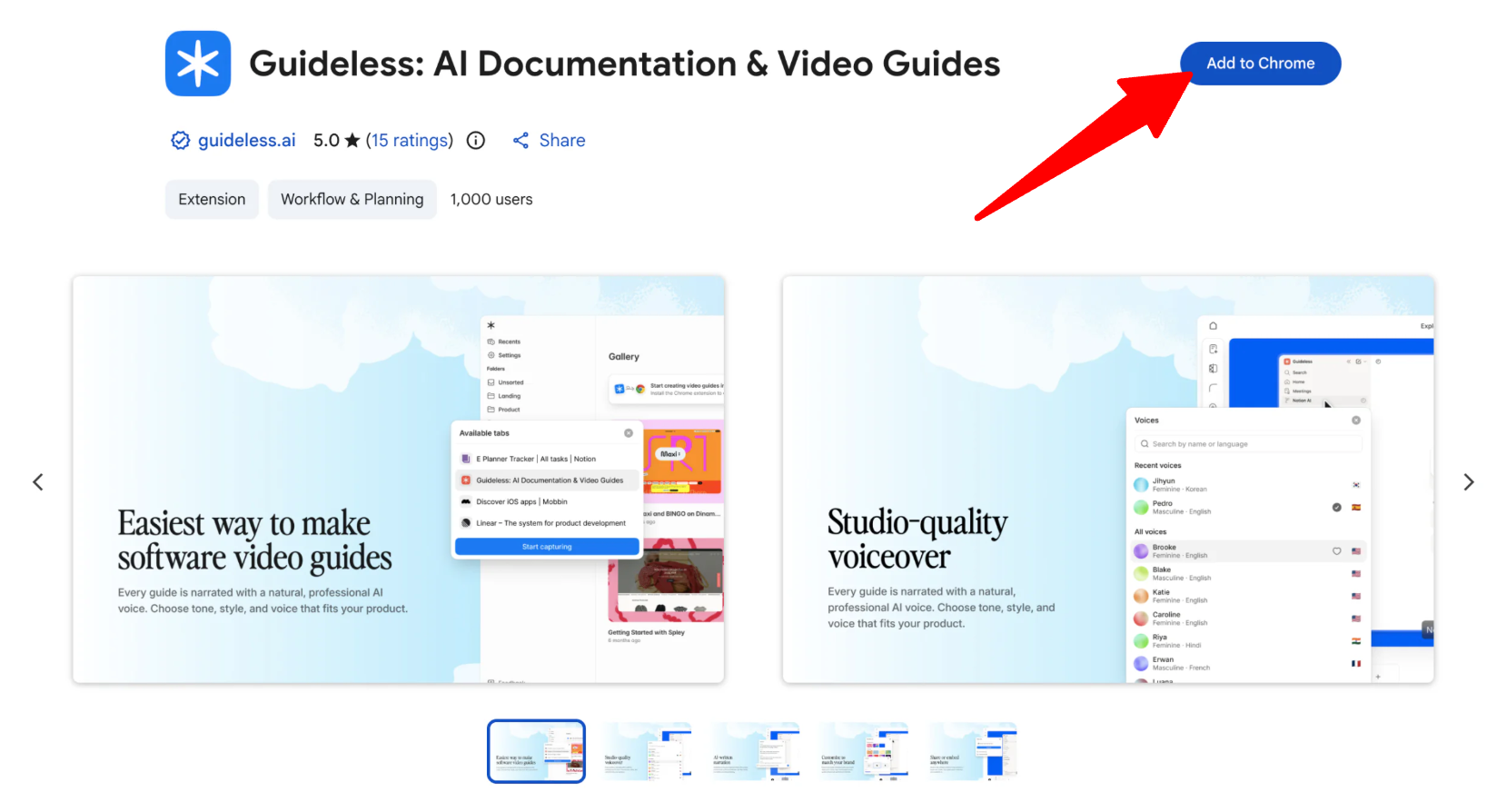
Next, I installed the Guideless Chrome extension. This is what captures your workflow, so you’ll need it before you can start recording.
Step 3: Start a New Capture

From my dashboard, I clicked to start a new capture. Guideless prompted me to name the guide I was about to create, which made it easier to keep everything organized as I created more guides.
Important note: Before recording, make sure no sensitive information is visible on your screen or entered into any fields. This includes passwords, API tokens, financial details, and customer information. For public walkthroughs, it’s better to use a demo or sandbox account rather than a live one.
Step 4: Choose Your Browser Tab
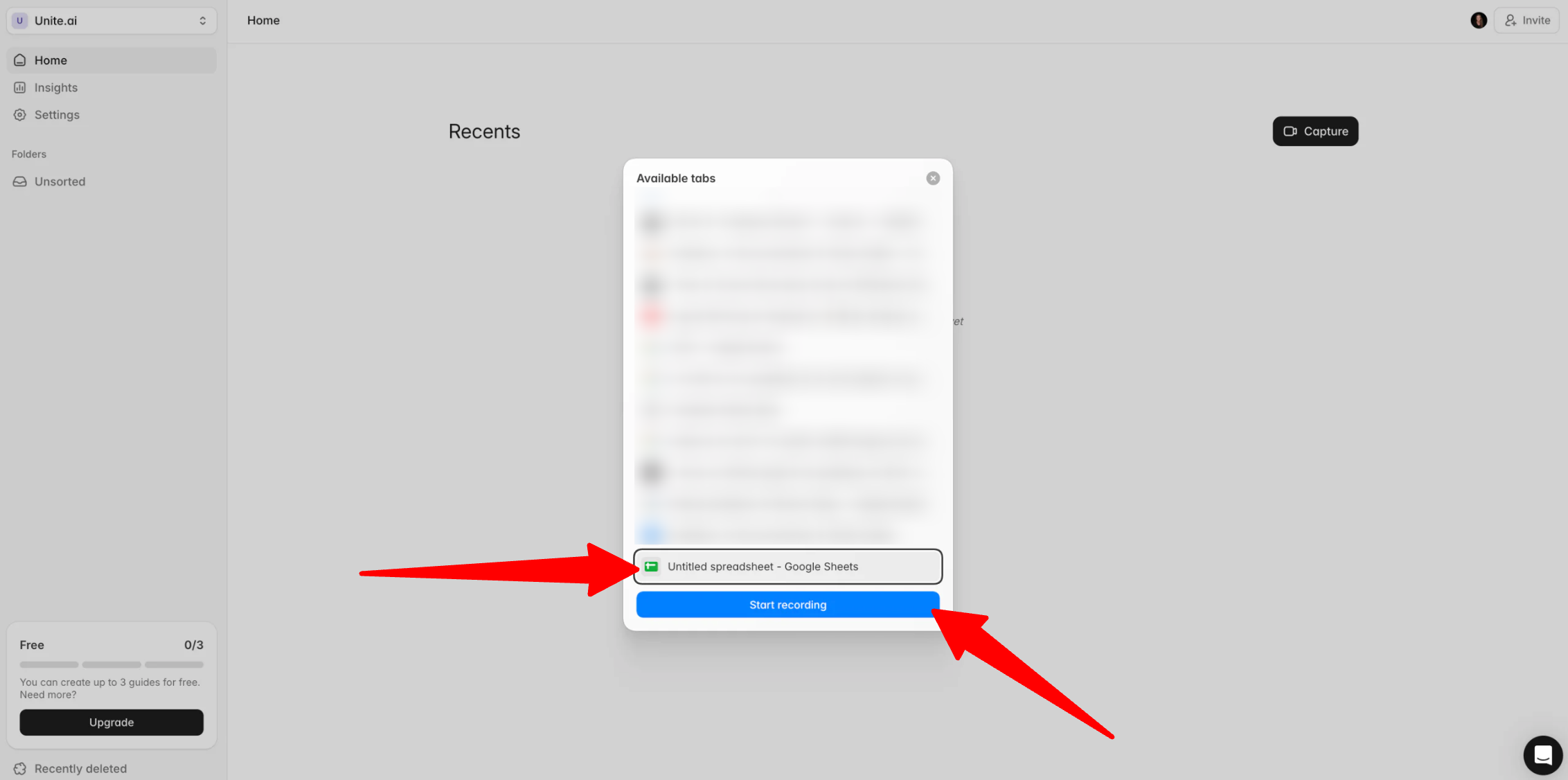
Before recording, Guideless showed me the available browser tabs. This made it easy to choose exactly what I wanted to capture without accidentally recording something else.
I chose the tab I wanted to work in and clicked “Start recording.”
Step 5: Perform Your Workflow
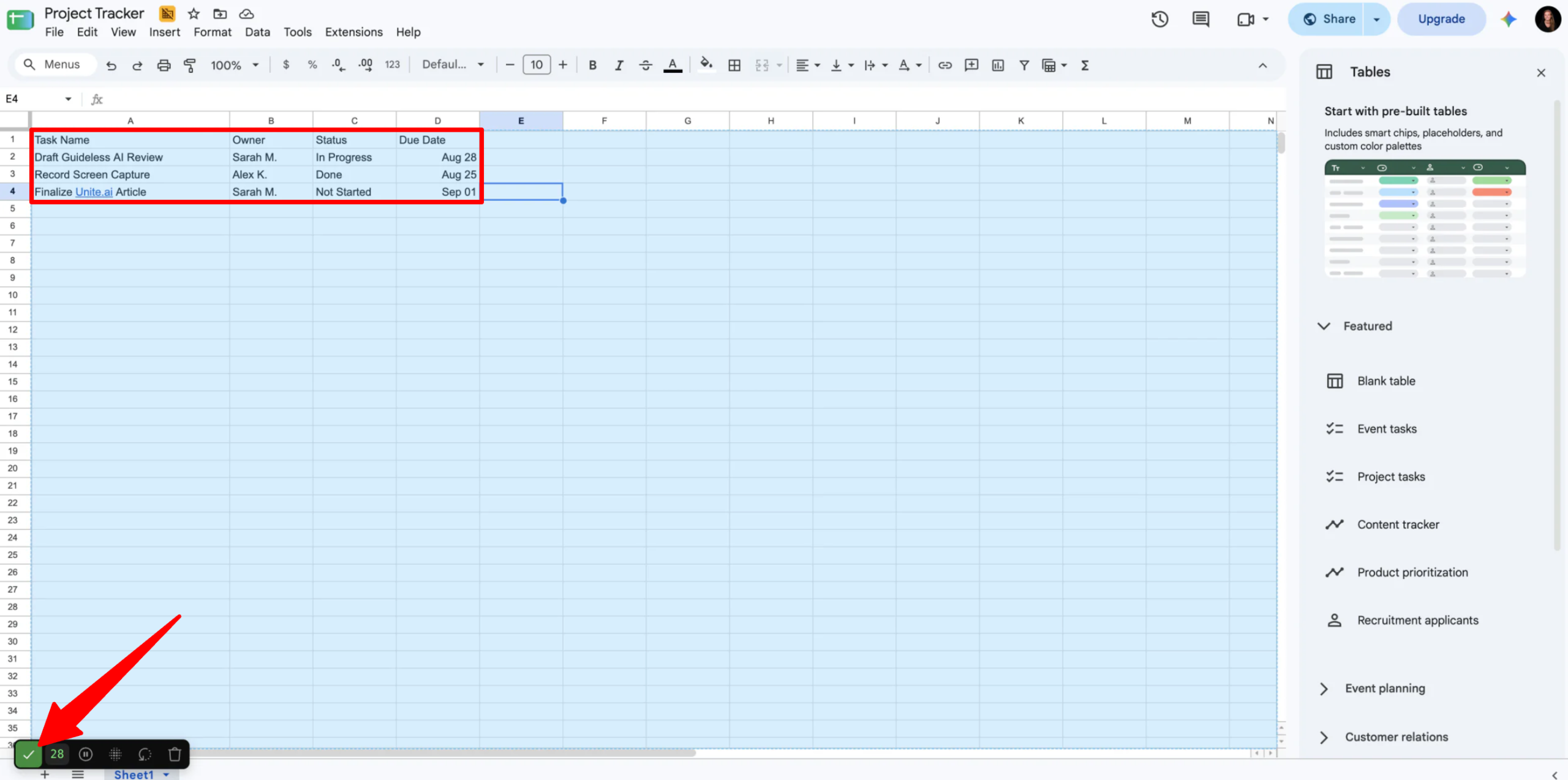
With the capture running, I documented a simple common task: setting up and sharing a project tracking sheet in Google Sheets.
I didn’t narrate anything out loud or follow a script. I just performed the task normally while Guideless captured my clicks, text inputs, and pop-up menu interactions in the background.
For this example, I:
- Opened a blank spreadsheet.
- Renamed the file.
- Added column headers: Task, Owner, Status, and Due Date.
- Updated the share permissions to “Anyone with the link.”
Once I finished the workflow, I stopped the capture from the extension’s floating controls. This is where the manual part of the process ends and Guideless takes over.
Step 6: Let AI Generate Your Guide

Guideless immediately got to work. Within a couple of minutes, it turned my recording into step-by-step instructions and added captions. I didn’t have to write a single sentence myself.
It also generated a video of the entire process that I could play back. This gave me a quick way to see exactly what I had recorded before editing the guide.
Step 7: Review & Edit the Script
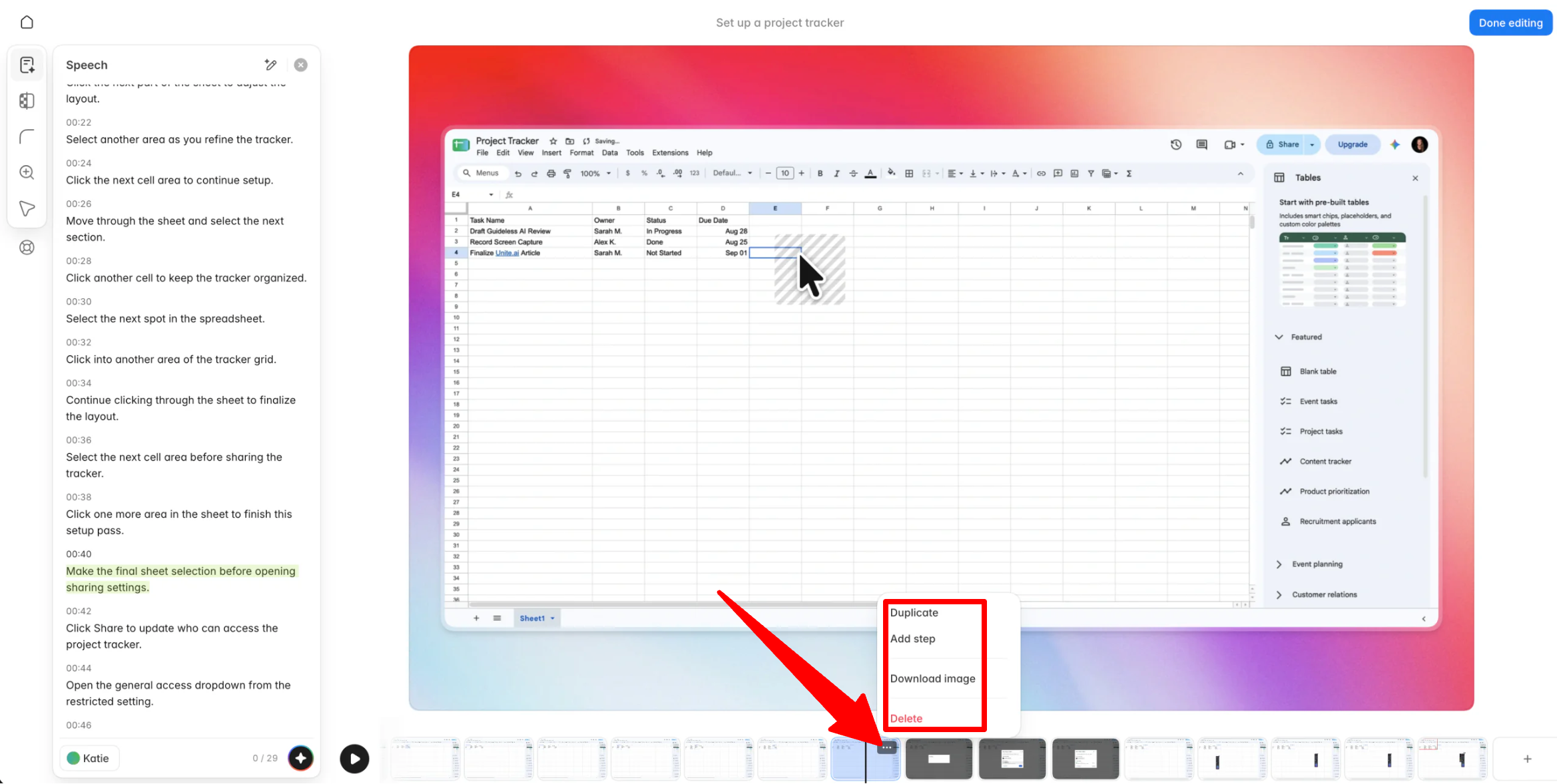
I noticed that Guideless had captured some extra clicks that I didn’t want included. Playing back the video made it easy to spot those extra steps and see where they happened.
I deleted a step by clicking the three dots on the step card and selecting the delete option. You can also download the image, add a step, or duplicate a step from this menu.

I also generated an AI voiceover by clicking the AI button.
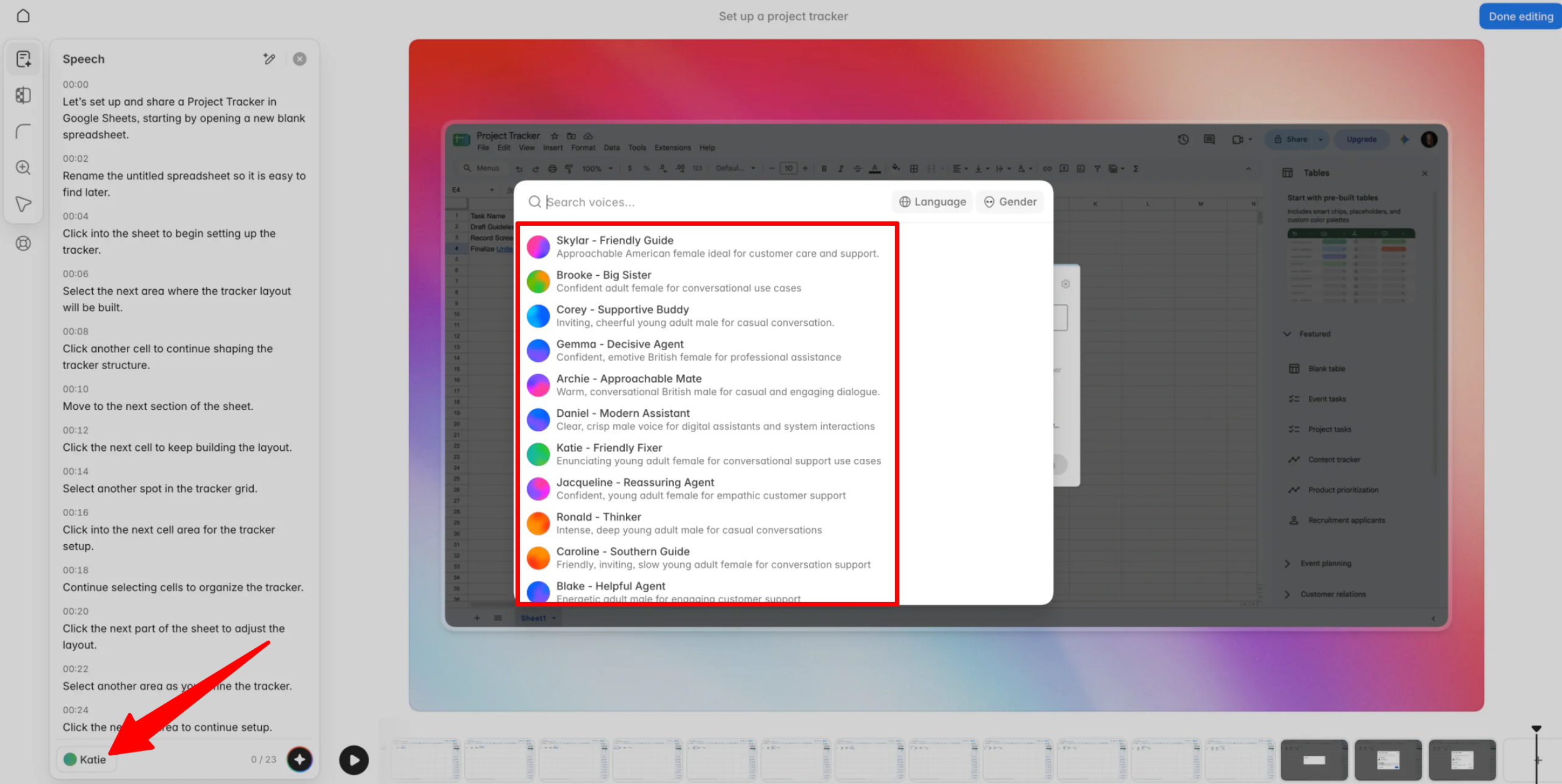
There are voice options in 42+ languages, and the ones I tried sounded surprisingly clear and natural.
Step 8: Add Your Branding

Next, I added some basic branding by changing the background to better match the workflow I was documenting. I also made a few small adjustments to the border and cursor style.
You can upload a custom background too, although this step is optional. I found it made the guide feel more professional when sharing it with others.
Step 9: Choose Your Export Format

Once I was happy with everything, I clicked “Done editing.”
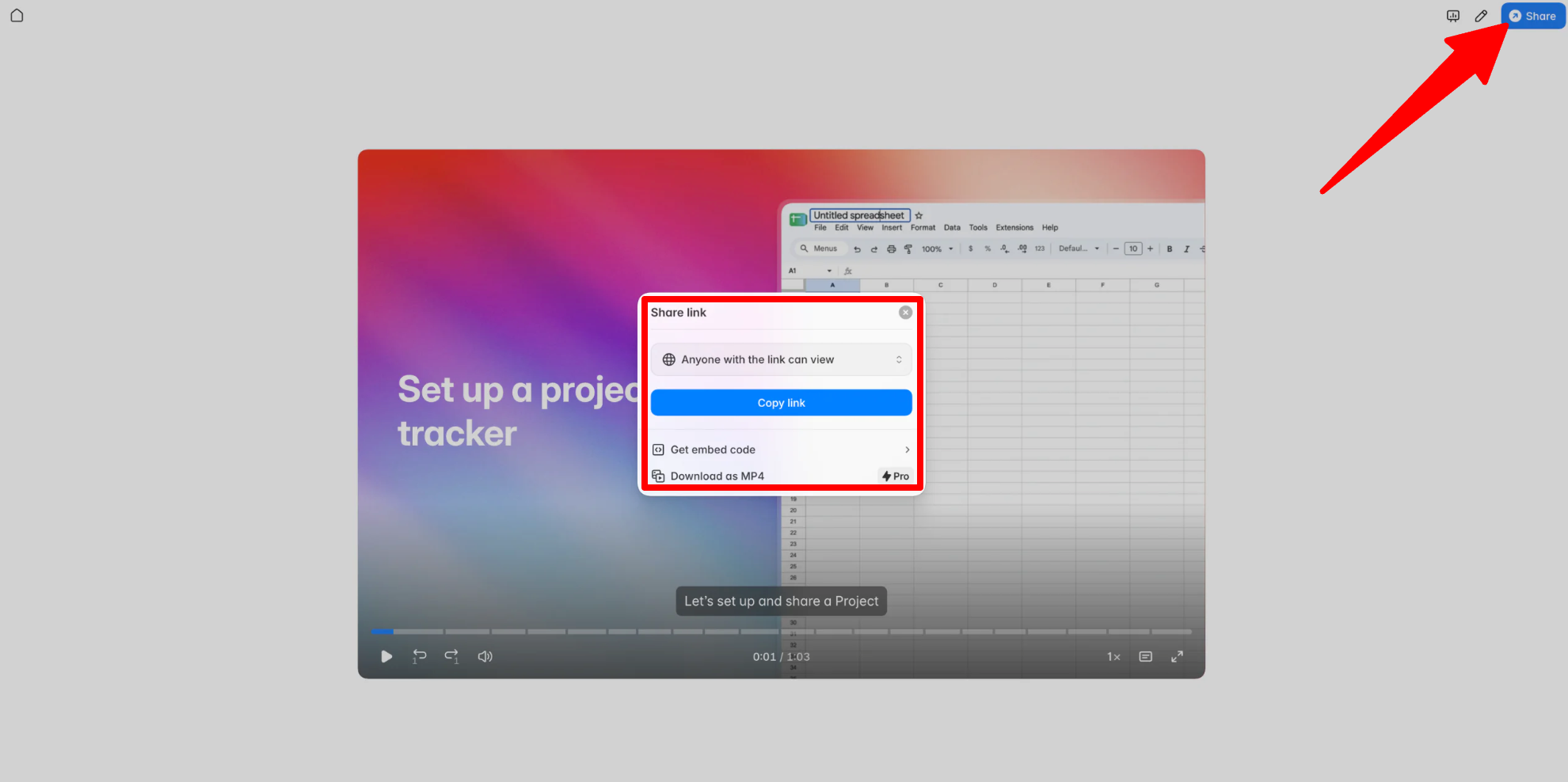
Next, I went to “Share” and chose how I wanted to export the finished guide.
Guideless offers shareable links, embeds, MP4 exports on paid plans, and PDF or Markdown exports for written documentation.
Step 10: Publish & Share Your Guide
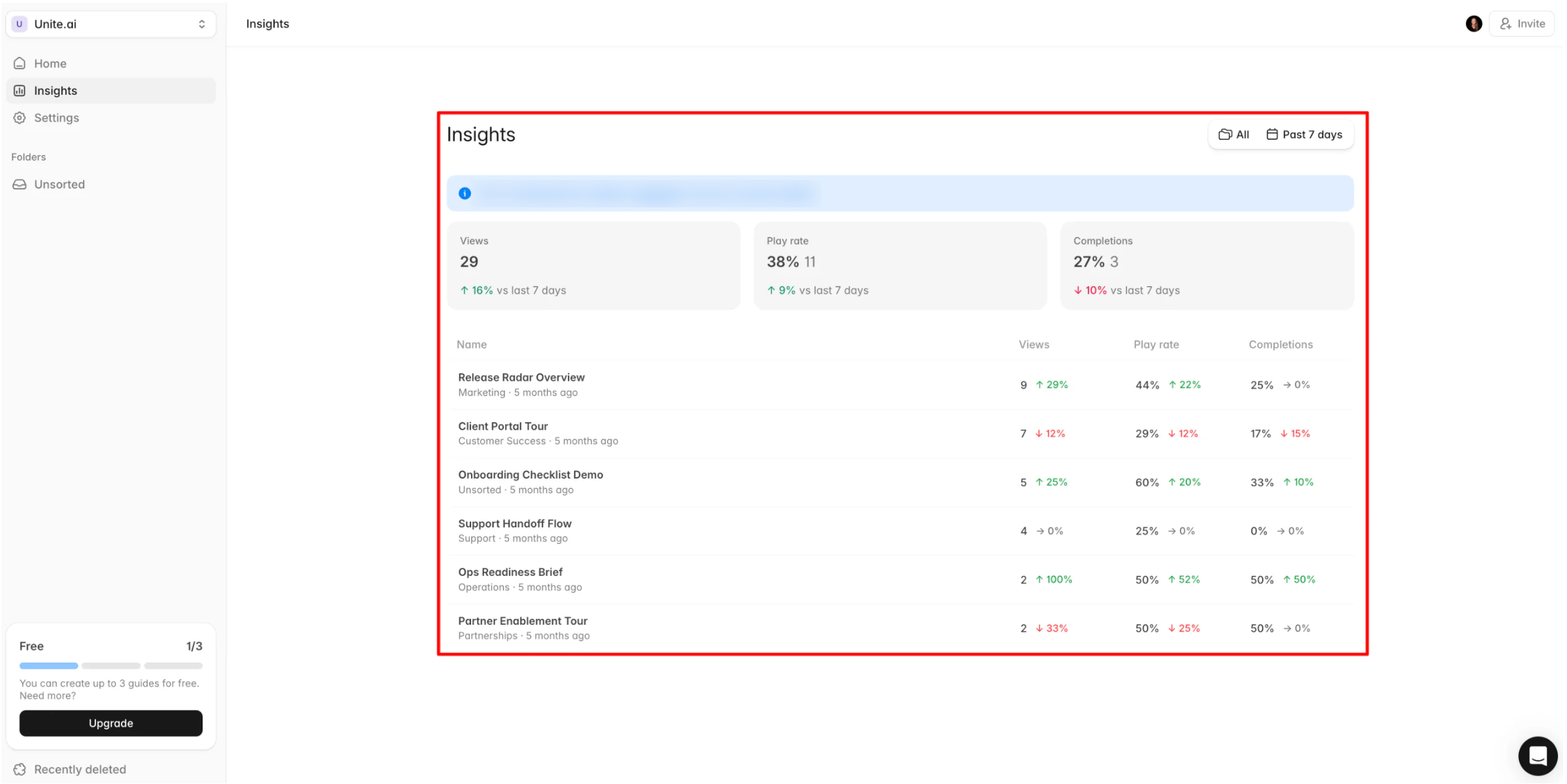
From the dashboard, I could also see analytics tracking views and completion rates once people started opening it.
Overall, Guideless made it surprisingly easy to turn a normal screen recording into a shareable guide without having to write a script or narrate the process myself. I still needed to review and remove a few unnecessary steps, but the AI generated instructions, voiceover, captions, and editing tools saved me a lot of time.
Top 3 Guideless Alternatives
Here are the best Guideless alternatives I’ve tried that I’d recommend.
Trupeer
The first Guideless alternative I’d recommend is Trupeer. It’s an AI tool that turns basic screen recordings into professional videos and guides with AI generated scripts, AI voiceover options, and multilingual video and document workflows on eligible plans.
Both tools automate the first draft of a narrated guide. Creators can then review the generated steps, adjust wording, and refine the finished result.
However, Trupeer puts more emphasis on creating professional training videos, with AI avatars, automated zooms, and background music. Meanwhile, Guideless keeps things simpler and focuses on speed, letting you swap screenshots, rewrite steps, and update narration without re-recording the entire video.
For more produced, avatar-based product demos, choose Trupeer. For simple guides that are easy to update as your product changes, choose Guideless.
Read my Trupeer review or visit Trupeer!
Riverside
The next Guideless alternative I’d recommend is Riverside. It’s a remote recording platform built for podcasts, interviews, and live streams. It records each person locally for better quality, then adds AI tools for things like transcription and creating clips.
While both Riverside and Guideless help you create video content, they serve pretty different purposes.
On the one hand, Riverside is designed for conversations with multiple people where audio and video quality are the priority. It records each guest separately, making it easier to edit without affecting anyone else’s recording.
Meanwhile, Guideless is made for individual screen recordings by turning what you do on your screen into step-by-step guides that can be narrated.
For recording interviews, podcasts, or video content with multiple guests, choose Riverside. For documenting software workflows and getting AI to handle the script and narration for you, choose Guideless.
Read my Riverside review or visit Riverside!
Descript
The final Guideless alternative I’d recommend is Descript. It’s a video editor where you can get AI to make edits for you, or you can do them yourself by making manual edits to the transcript. It also includes tools for removing filler words, cleaning up background noise, and cloning your voice.
Both platforms use AI to make editing easier, but they take different approaches.
On the one hand, Descript gives you a full editing workspace where you can trim, rearrange, and fine-tune your video down to the sentence. Meanwhile, Guideless automates the scripting, narration, and structuring so you’re not manually assembling a video. That makes it a better fit for fast documentation, even though light editing is still part of the workflow.
For more manual control over your videos and podcasts, choose Descript. To quickly turn a workflow into a narrated guide, choose Guideless.
Read my Descript review or visit Descript!
Guideless Review: The Right Tool For You?
After using Guideless to turn a screen recording into a fully narrated guide, I came away impressed by how little manual work was required and how professional the video came out looking. I didn’t write a script, I didn’t record my voice. All I did was record the process by going through the workflow normally, then let Guideless handle the screenshots, script, voiceover, and captions for me.
I ended up with a professional guide in a matter of minutes. My favorite part was how the guides are editable steps instead of one locked video, so a small product change doesn’t mean starting over.
Guideless is best for teams that need to keep training material, SOPs, or product documentation up to date without dedicating someone to video editing full time. But if your needs lean more toward produced demo videos, recording multiple guests, or more hands-on video editing, you might prefer one of these alternatives:
- Trupeer is best for product demo videos with additional features like AI avatars and more control over the final video.
- Riverside is best for recording podcasts, interviews, and conversations with people in studio quality.
- Descript is best for more hands-on video and audio editing with control over the final cut.
Thanks for reading my Guideless review! I hope you found it helpful. Sign up for Guideless for free to create up to three guides and see how you like it.



