AI Tools 101
RoboForm Review: The Easiest Free Password Manager I’ve Used

 Add Unite.AI to your preferred sources on Google
Unite.AI may receive compensation when you use links to products we review. This does not influence our editorial evaluations. Read our affiliate disclosure.

It usually starts with your morning routine.
You open your laptop, click into a website you’ve used a hundred times before, and immediately hit that small moment of hesitation: What was that password again?
You try one. Wrong. Try another. Wrong again.
Before you know it, you’re digging through reset emails to get into a simple account you use every day.
Here’s something surprising: According to NordPass’s 2024 survey of 1,509 users, the average person manages 255 passwords total (168 personal + 87 work-related accounts). Yet, most people still rely on memory or reused credentials across multiple websites.
That gap is exactly why password managers like RoboForm exist.
RoboForm takes that daily friction and removes it almost entirely. It remembers everything for you, fills in logins instantly, and even handles long, annoying online forms with a single click.
What stood out most when I was testing it was how quickly it disappears into the background. Once it’s set up, it just works. Logins are automatic, form fills are fast, and saving new credentials is effortless.
RoboForm is not trying to be flashy or complicated. It’s focused on making everyday browsing smoother and more predictable.
In this review, I’ll show you how RoboForm works, where it stands out, where it feels a bit behind newer tools, and whether it’s the right fit for how you manage your passwords today.
Verdict
RoboForm stands out for its form-filling, easy setup, and affordable pricing. It’s never experienced a data breach or hack in nearly 30 years of operation, and you can store unlimited passwords for free on a single device. While it covers most everyday needs well, it feels less modern and offers fewer advanced features than some competing tools.
Pros and Cons
- Automatic logins fill both your username and password for quick sign-ins
- Browser extension conveniently saves, manages, and autofills passwords while you browse
- Excellent form-filling for addresses, payment details, and online forms
- Affordable pricing with a generous free plan
- Simple and easy-to-use interface
- Works on all major devices and browsers
- Strong security with encryption, passkeys, and two-factor authentication
- Optional offline storage without cloud syncing
- Monitors email addresses for data breaches
- Easy to import passwords from other password managers and browsers
- Useful business features for managing employee access
- Emergency access option for trusted contacts
- Dated interface that can feel less modern than competitors
- The free plan is limited to one device with restricted access
- Lower default security settings compared to some rivals
- Manual password entry requires more steps than expected
- Occasional need for manual syncing on older devices
- Fewer advanced tools for more technical users
- Passwordless login requires extra setup
- The default password length may be unnecessarily long for some sites
What is RoboForm?
RoboForm is a password manager that helps securely save, create, and autofill passwords and personal information across devices.
It’s actually been around since 1999, way before most people were even thinking about password managers. It was built by a company called Siber Systems.
At the time, the whole idea was pretty revolutionary. The Internet was still the Wild West, and nobody was really talking about password security the way we do now.
Fast forward 25 years, and RoboForm has grown into one of the most established names in the password management space. That kind of longevity in the tech world means something.
What RoboForm Does
At its core, RoboForm is two things: An encrypted password vault and a form filler.
You store all your login credentials in one secure place, and then the browser extension does the heavy lifting every time you need to log in somewhere.
When you visit a site you’ve saved, RoboForm recognizes it and autofills your username and password automatically.
How the Browser Extension Works
The browser extension is pretty straightforward.
When you log into a website for the first time, RoboForm pops up and asks if you want to save those credentials. You say yes, it saves them, and that’s pretty much it.
The next time you visit that website, it fills everything in for you. It also captures form data (like your name, address, and payment information) so online shopping becomes much less of a chore.
Platform Support
RoboForm also has strong platform support. It runs on Windows, Mac, iOS, and Android, with browser extensions for Chrome, Firefox, and Edge.
So whether you’re switching between your laptop and your phone or using a work computer during the day, everything stays in sync.
The Zero-Knowledge Encryption Model
The zero-knowledge encryption model sounds complicated, but the idea is simple. Your passwords are encrypted on your device before they ever leave it. That means RoboForm can’t see anything.
The encryption uses AES-256, which is the same standard used by banks and government agencies. Even if someone somehow broke into RoboForm’s servers, all they’d find is scrambled data that’s completely useless without your master password. You’re the only one who holds the key.
And if that’s still not enough to put your mind at ease, RoboForm has been around since the 1990s and has never been hacked. That kind of long-term track record is hard to ignore when you’re trusting a company with your most sensitive information.
It’s not a perfect system (no tool is), but the combination of decades of experience, affordability, and reliable encryption standards makes RoboForm hard to dismiss.
Who is RoboForm Best For?
RoboForm is best for certain types of individuals and small businesses:
- Budget-conscious users who want affordable pricing with one of the best free plans available.
- Users who need form-filling that saves time on logins, checkouts, and online forms.
- Multi-device users who want easy access to passwords across every device and browser.
- Users who want strong security features that are easy to set up and use.
- Small businesses that want simple password management and secure sharing for teams.
- Users who value import flexibility like quick and easy migration from browsers, CSV files, and other password managers.
RoboForm Key Features
RoboForm has a range of password management, security, form-filling, and sharing features:
Password Management
- Unlimited password storage on all plans, including the free tier
- Create, store, and autofill passwords across any device
- One-click login to websites, apps, and Windows applications across any browser or device
- Password sync across all devices with cloud backup
- Password audit monitors weak, duplicate, and compromised passwords
Security Features
- AES-256 encryption for all stored data
- Two-Factor Authentication (2FA) supporting passkeys, trusted devices, hardware security keys, email, SMS, and authenticator apps
- Passwordless Unlock using passkeys verified by face, fingerprint, or device PIN
- Data Breach Monitoring scans up to 5 email addresses on the dark web and alerts you to exposures
- Local-only mode option to store data exclusively on your device without cloud sync
Form Filling & Productivity
- Save and fill any online form (not just passwords)
- Works on multiple platforms: Windows, Mac, iOS, Android, and all browsers, including incognito/private mode
- Import from anywhere, including major browsers, other password managers, or CSV
Sharing & Emergency Access
- Share passwords and folders securely with individuals with customizable access levels
- Emergency Access for trusted contacts to access your data in case of death or incapacitation
- Built-in TOTP authenticator for 2FA codes
Additional Features
- Passkey management
- Safenotes for secure text storage
- Bookmark management
- Password change history
- 24/7 support (priority support with Premium/Family plans)
Free Tools
- Random Password Generator to create strong and unique passwords
- Random Passphrase Generator to create strong and unique passphrases
- Password Evaluator to see how secure your password is
- Email Exposer to see if your email was leaked in a data breach
How to Use RoboForm
Here’s how easy it is to set up and start using RoboForm:
- Create a RoboForm Account
- Create a Master Password
- Pin RoboForm to Your Browser
- Save Login Credentials
- Log In with a Click
- Manually Add Login Credentials
- Import Credentials from Password Managers
Step 1: Create a RoboForm Account

Go to roboform.com and create an account. Head straight to your browser’s extension store and install the RoboForm extension.
Step 2: Create a Master Password
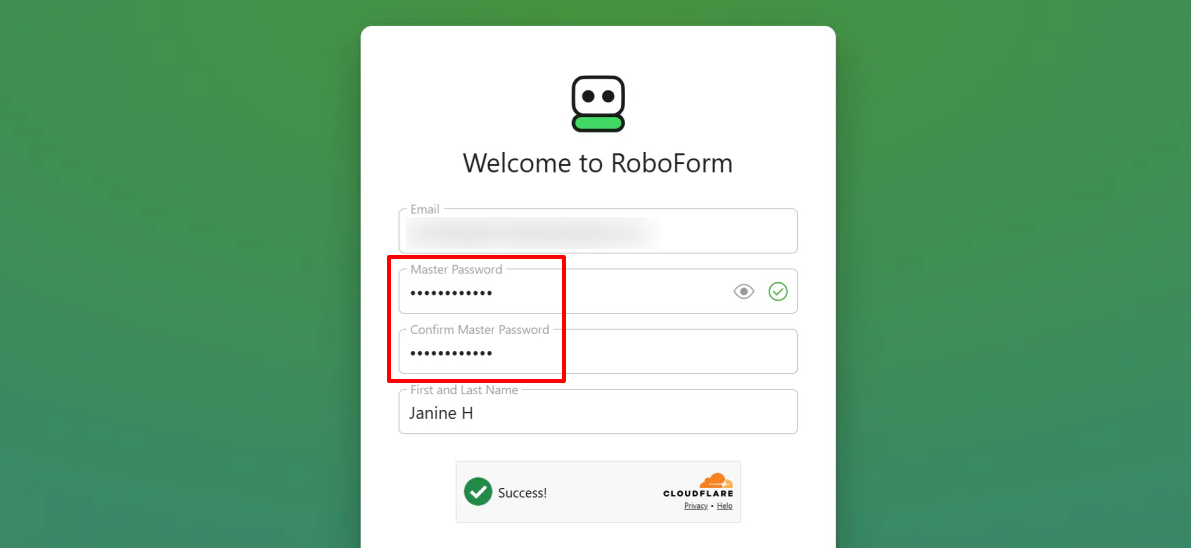
Once installed, RoboForm will prompt you to create a Master Password. This is the single key used to encrypt and unlock your vault.
RoboForm doesn’t give you any suggestions for this password, just that it needs to be 12 characters with 4 letters or symbols.
I came up with a string of random letters and numbers in varying cases. Otherwise, feel free to use RoboForm’s Random Password Generator to generate a password.
RoboForm operates on a “zero-knowledge” model. They do not store your Master Password, meaning it cannot be recovered if you forget it. Write it down and store it in a secure physical location.
Step 3: Pin RoboForm to Your Browser
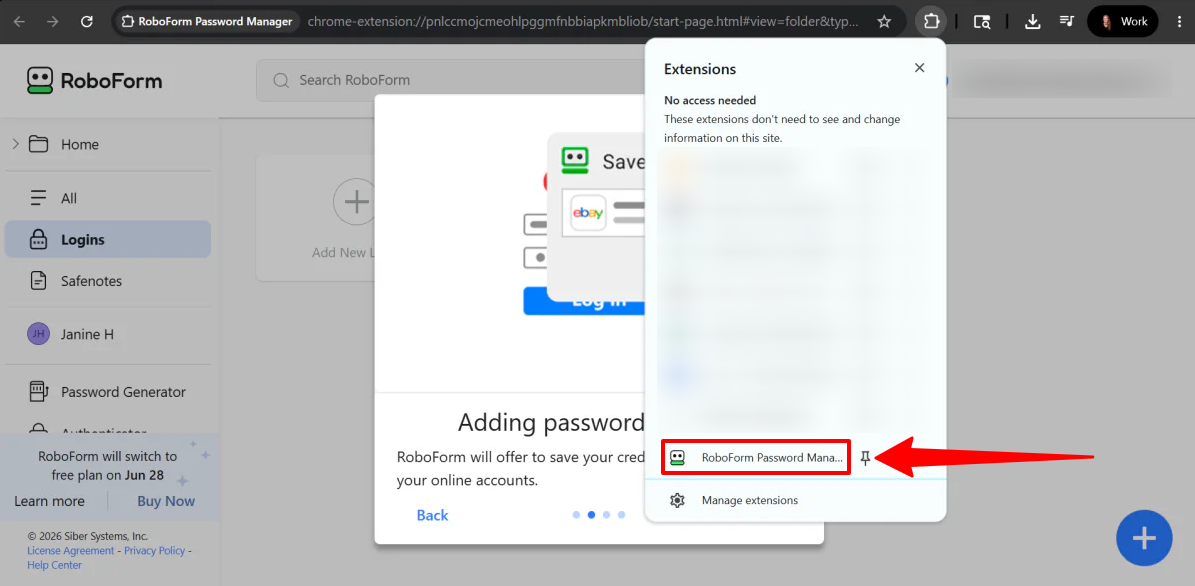
For quick access, pin the extension to your browser toolbar. Click the puzzle piece icon (extensions menu) in the top-right corner of your browser, find RoboForm, and click the pin icon.
Step 4: Save Login Credentials
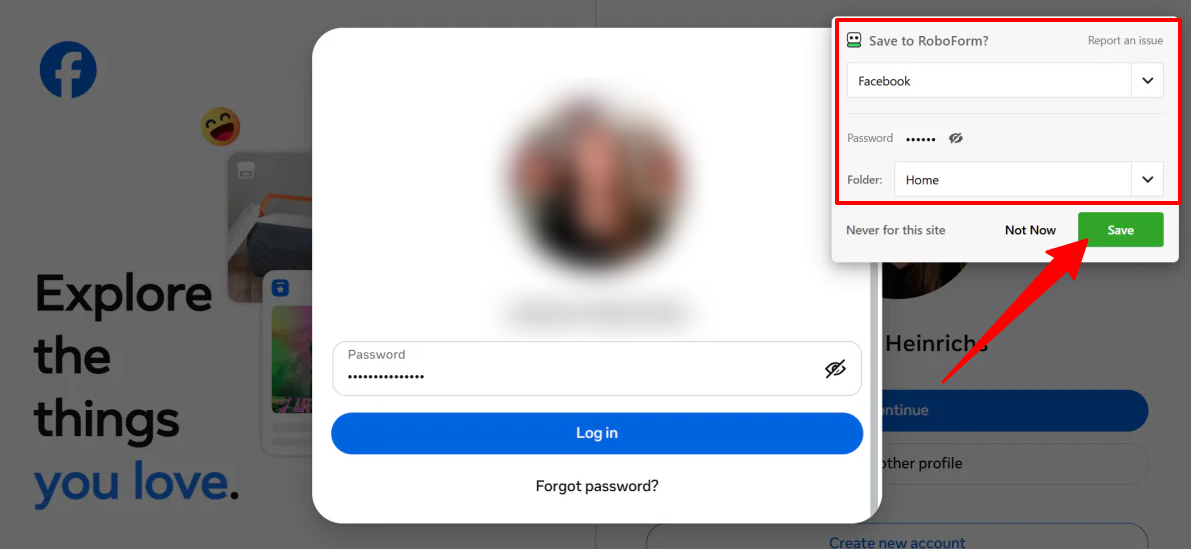
The easiest way to build your vault is as you go.
Navigate to any website and log in normally. RoboForm will automatically detect the login and display a pop-up asking if you want to save the data.
You can name the entry and organize it into a specific folder right from the pop-up.
Step 5: Log In with a Click
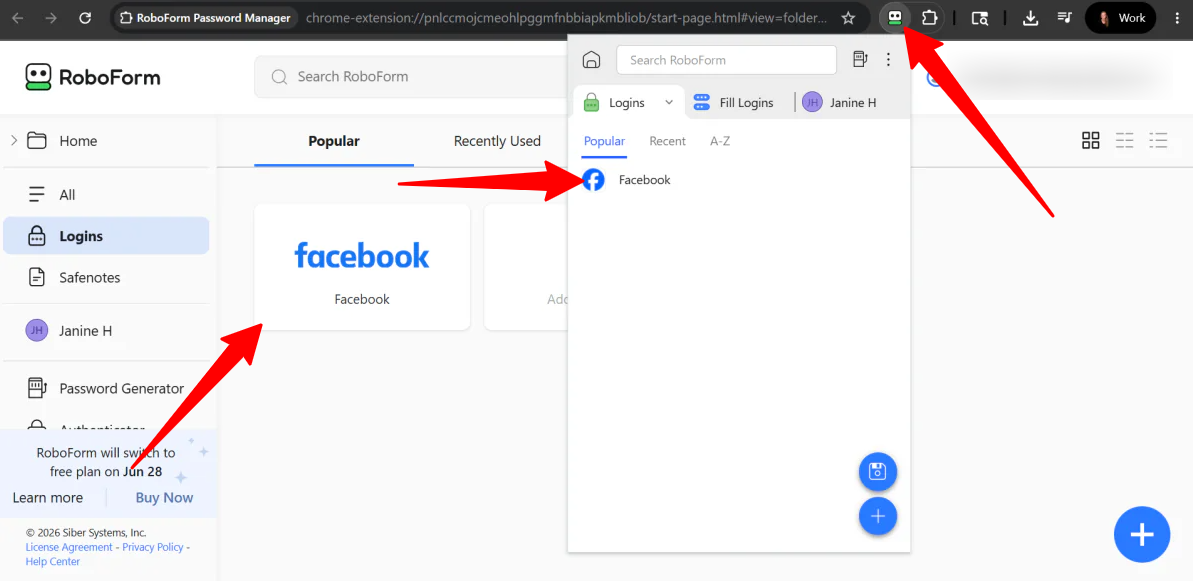
Once a password is saved, logging in from RoboForm is effortless.
You can either:
- Click the RoboForm extension icon in your toolbar, select the website, and let it auto-fill and log you in.
- Click the icon that appears in RoboForm’s Logins page.
Step 6: Manually Add Login Credentials
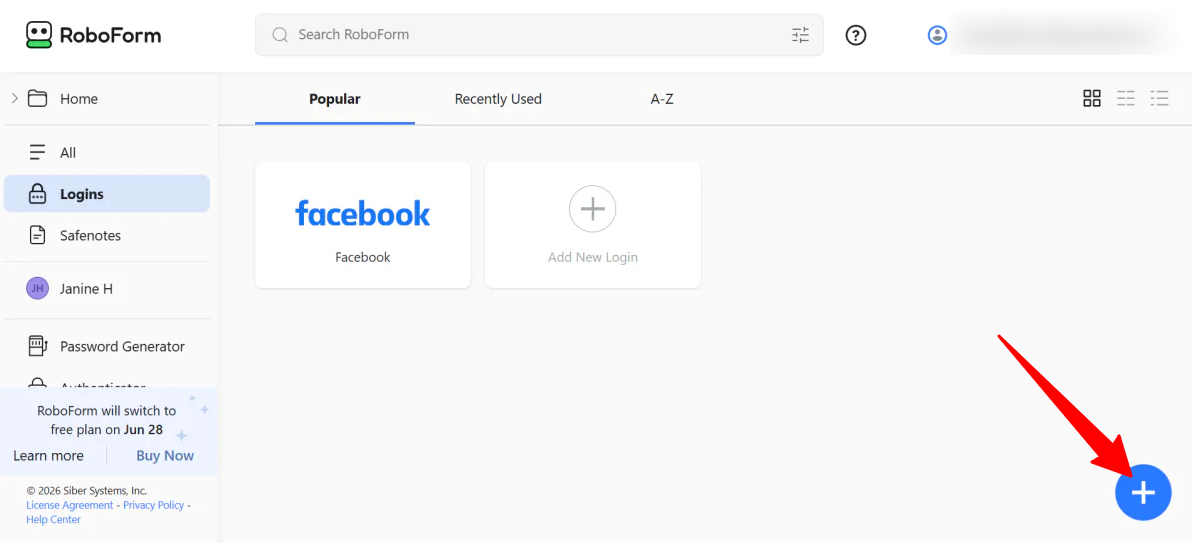
If you want to manually add logins, open the RoboForm extension or desktop app and click the blue “+” icon.
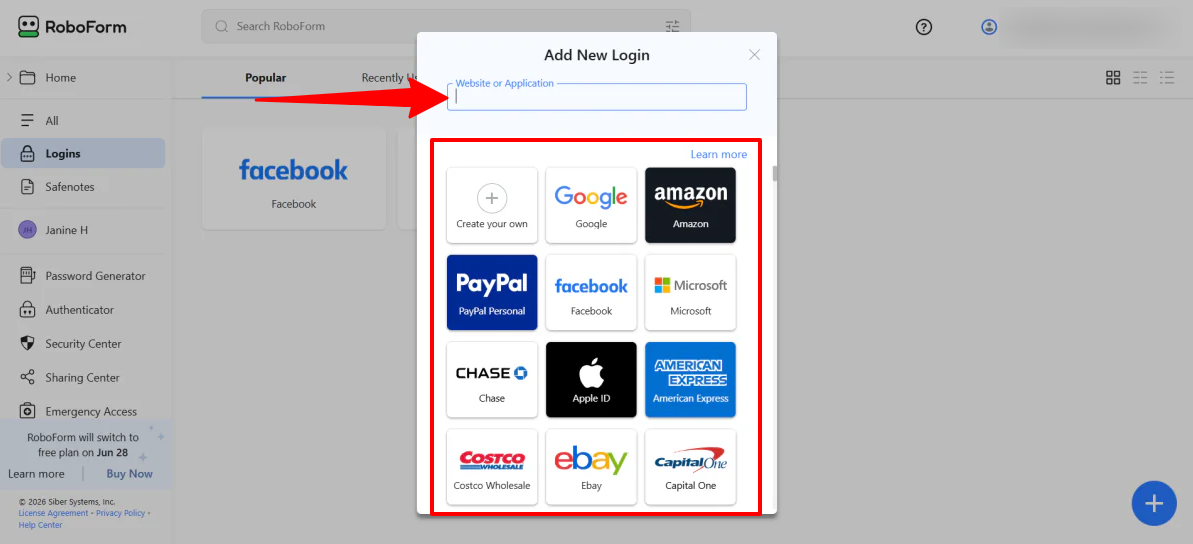
You can search for popular websites or enter a custom URL, then fill in your username and password.
Step 7: Import Credentials from Password Managers

If you are migrating from Chrome, Safari, or another password manager, the fastest way to import your passwords is to bulk-import your data.
Click your profile icon in the top right of the RoboForm interface and select Import
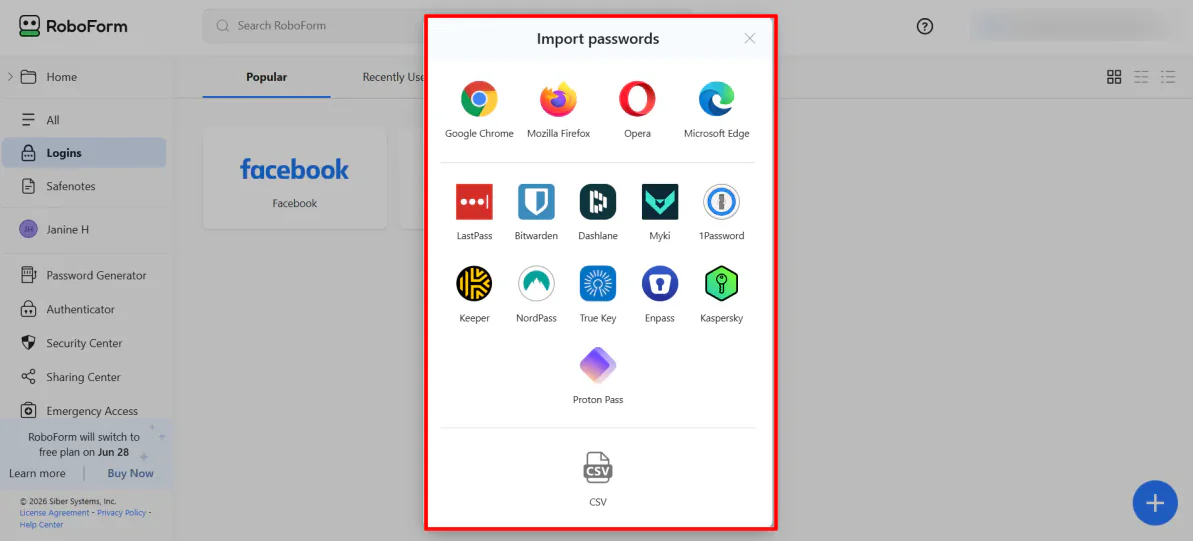
Choose your previous browser or password manager, or upload a CSV file.
And that’s how easy it is to start using RoboForm! By setting up your Master Password, pinning the extension, and letting the tool auto-save your credentials as you browse, you eliminate the daily headache of remembering logins.
Compared to the other password managers I’ve tried, RoboForm keeps things delightfully straightforward. It’s an efficient, affordable tool that prioritizes security and ease of use above all else.
Top 3 RoboForm Alternatives
Here are the best RoboForm alternatives, most of which I have tried.
1Password
The first RoboForm alternative I’d recommend is 1Password. It’s a modern, security-focused password manager with excellent vault organization and access controls.
Both tools handle core password management (including storage, autofill, and device access), making them solid options for everyday use. However, 1Password stands out for its cleaner interface and better security and team management features.
In my experience using 1Password, the setup felt very structured from the start. The dashboard was clean and clearly separated vaults, reports, and policies. Importing passwords was also straightforward, whether from Chrome, a CSV file, or another manager.
Then there were features like Watchtower, which made it easy to spot weak or reused passwords. The built-in password generator made creating strong passwords simple without overthinking it. I also found adding team members and setting up shared vaults surprisingly easy, especially when assigning permissions or creating dedicated spaces for controlled access.
Meanwhile, RoboForm focuses more on simplicity and speed with excellent form-filling and a more affordable entry point. It’s easier to pick up and use right away, but it doesn’t go as deep into modern security architecture or organizational controls.
For a user-friendly, affordable password manager with excellent form-filling, choose RoboForm. For more control and stronger security architecture, choose 1Password.
Read my 1Password review or visit 1Password!
NordPass
The next RoboForm alternative I’d recommend is NordPass. It’s another modern password manager with a strong focus on simple setup, centralized control, and high-level security built around zero-knowledge encryption.
Both tools help you store, generate, and autofill passwords across devices, making them solid options for everyday password management and form filling.
However, NordPass stands out with a more modern interface and a stronger emphasis on enterprise-grade security features, policy controls, activity logs, and breach monitoring at scale. It also uses a streamlined setup process where you create a Master Password that acts as a key for your vault, with no recovery option from support due to its zero-knowledge design.
In my own experience setting it up, getting started was straightforward: I signed up for a business trial, created my Master Password, and immediately accessed the dashboard where I configured security policies, invited members, and set password rules. I also tested the Data Breach Scanner, which quickly flagged exposed credentials.
For a simple and affordable password manager with strong form-filling capabilities, choose RoboForm. For a more modern experience with deeper security controls and scalable team management, choose NordPass.
Read my NordPass review or visit NordPass!
Bitwarden
The final RoboForm alternative I’d recommend is Bitwarden. It’s a highly trusted, open-source password manager designed for strong security, easy password management, and access on all devices.
Both tools offer password storage, autofill, and work across all major devices and browsers, making them solid choices for everyday password management.
However, Bitwarden stands out with its open-source transparency, stronger security model, and flexible self-hosting. It also offers more modern collaboration features, such as secure password sharing, audit logs, and integrations with enterprise tools, while RoboForm focuses more on simplicity and form-filling efficiency.
For maximum control, stronger security visibility, and scalable business features, choose Bitwarden. For a simpler setup and form-filling capabilities, choose RoboForm.
RoboForm Review: The Right Tool For You?
After trying RoboForm, it stood out to me as one of the simplest password managers to get up and running. The setup is quick, the browser extension does most of the heavy lifting, and the form-filling is great for everyday use.
What I liked most is how little effort it takes to use. Once your vault is set up, it quietly handles logins, fills long forms, and saves new credentials without much intervention. It’s the most affordable password manager I’ve found, which is why I recommend it for anyone who wants a secure way to store passwords and sensitive information.
However, it does feel a bit dated compared to more modern tools, and it’s not the most feature-rich option if you want deeper security controls or advanced customization. It’s more about simplicity and convenience than power-user flexibility.
For a user-friendly and affordable password manager that’s great at autofilling and storing credentials, RoboForm is a great choice. But for more advanced security features and a more modern design, you might want to consider one of these alternatives:
- 1Password offers a modern interface, strong security tools, and great vault organization.
- NordPass provides a simple setup, XChaCha20 encryption, and excellent business security features.
- Bitwarden delivers open-source transparency, self-hosting control, and deep security customization.
Thanks for reading my RoboForm review! I hope you found it helpful. Try RoboForm for free and see how you like it!
Frequently Asked Questions
Can RoboForm be trusted?
Yes, RoboForm is widely considered trustworthy. It’s one of the oldest password managers available and has never experienced a known data breach or hack in nearly 30 years of operation.
Has RoboForm ever been breached?
No, RoboForm has never been hacked or experienced a data breach. Since launching in 1999, it has maintained a clean security record.
What is RoboForm used for?
RoboForm is a password manager that creates, stores, and autofills passwords, personal information, and payment details. It lets you access everything with one master password and makes logging in and filling out forms much faster.
Which is better, 1Password or RoboForm?
It depends on what you value most. Choose 1Password for stronger security features, a more modern interface, and better organization with multiple vaults. Otherwise, choose RoboForm for the lowest price, primarily need password storage and autofill, and frequently fill out online forms.
What is the most trustworthy password manager?
The most trustworthy password manager depends on your needs, but the best options are usually those with transparent security practices, zero-knowledge encryption, and a strong track record.