AI Tools 101
HappyScribe Review: Near Perfect Transcription in Minutes

 Add Unite.AI to your preferred sources on Google
Unite.AI may receive compensation when you use links to products we review. This does not influence our editorial evaluations. Read our affiliate disclosure.

You know that moment when a recording finally ends, and you realize the real work is just beginning?
Hours of audio sit in front of you, waiting to be turned into something usable. Notes, captions, a blog draft. A quote you know you heard but can’t quite find again. It’s slow, repetitive, and easy to underestimate until it eats up your entire afternoon.
That’s exactly where HappyScribe comes in. It turns spoken content into structured text in minutes, supporting 150+ languages and reaching up to 95%+ AI accuracy, with human transcription pushing even closer to near-perfect results.
What once took hours of manual typing can now be reduced to the length of a coffee break. For creators, teams, and researchers handling interviews, meetings, or video content, that shift changes the game.
Still, speed alone isn’t the full story. The real question is whether the output holds up when the details matter, and how much cleanup is still needed before it’s truly usable.
In this HappyScribe review, I’ll discuss the pros and cons, what it is, who it’s best for, and its key features. Then, I’ll show you how I used it to transcribe and create subtitles for a technical video in minutes.
I’ll finish the article by comparing HappyScribe with my top three alternatives (Fieldy, Otter, and Descipt). By the end, you’ll know which AI transcription tool is right for you!
Verdict
HappyScribe is a powerful transcription tool with solid accuracy, broad language support, and helpful features for editing, collaboration, and repurposing content. However, it’s not ideal for real-time transcription, and AI-generated results may still require some manual cleanup.
Pros and Cons
- High transcription accuracy (~85–95% with AI and up to 99% with human transcription)
- Supports 150+ languages (great for multilingual use)
- Batch create transcripts and translations into multiple languages simultaneously
- Automatically adds punctuation and can detect different speakers
- Built-in editor makes it easy to review and fix transcripts and subtitles
- AI features for repurposing content into different written formats
- Flexible export options in popular formats like Word, PDF, TXT, JSON, SRT, or VTT
- iOS and Android apps for easy recording and uploads on the go
- Collaboration tools for sharing and editing transcripts with teams
- Integrations and API access for platforms like YouTube, Google Drive, Zoom, and Zapier
- Glossary for adding your own terms, acronyms, and jargon for transcript consistency
- Style guide helps maintain a consistent brand tone of voice across all content
- Safe and secure platform (GDPR compliance, SOC 2 Type II certification, strong encryption, and full control over your files and data
- Live recording in virtual meetings and on mobile
- Doesn’t show text live as people speak (not useful for real-time captions during events)
- Can’t connect to live streams (like YouTube or Twitch) for real-time captioning
- Machine-Generated AI transcripts require human review for accuracy
- Accuracy can vary with language and audio quality
- Subtitle customization can feel limited
What is HappyScribe?
HappyScribe is a transcription and subtitling tool that converts audio and video into text using AI speech recognition. It can generate transcripts, captions, and subtitles in more than 150 languages, making it useful for podcasts, interviews, meetings, webinars, and video content.
It supports automatic transcription through its AI engine, but it also offers a human transcription service if you need that extra layer of accuracy. That combination is what sets it apart from competitors.
Accessibility
HappyScribe is primarily an online platform, so you’ll usually use it in your browser on a desktop. However, it also offers iOS and Android apps, which make it easy to capture and upload recordings when you’re away from your desk.
Strong Emphasis on Data Privacy & GDPR Compliance
One thing I really respect about HappyScribe is where they come from. It was founded in Europe, and that origin actually shapes how they handle your data.
They’re built with GDPR compliance baked in, which means your files and transcripts are handled with stricter data privacy standards than many US-based alternatives. For anyone working with sensitive recordings, that’s a big deal.
HappyScribe is for many people, but it’s especially for anyone who’s been wasting time manually transcribing and hasn’t found a tool that actually keeps up.
Who is HappyScribe Best For?
HappyScribe is best for anyone who regularly works with audio or video and needs a fast way to turn it into text, captions, or translations.
- Content creators (podcasters, YouTubers, and course creators) can automatically generate captions and transcripts, making videos and podcasts more accessible. It can also turn spoken content into blog posts, show notes, and other written content with AI.
- Journalists can transcribe interviews without having to replay a 45-minute recording for three hours.
- Law firms can use it to transcribe interviews, client meetings, and other legal conversations without having to take detailed notes by hand.
- HR departments can record interviews and training sessions.
- Researchers and academics can use it for transcribing focus groups or lecture content.
- Multilingual content teams can translate transcripts, subtitles, and videos into 150+ languages, making it easier to reach international audiences.
- Enterprises can collaborate across teams by sharing transcripts, subtitles, and media files in one place, helping everyone work more efficiently.
HappyScribe Key Features
HappyScribe’s features fall into three categories: Audio & Video, Transcription, and Subtitles.
Audio & Video Tools
- Audio Converter: Instantly switch between 47+ audio formats, including MP3, MP4, FLAC, WAV, and more.
- Video Converter: Convert video files into any format like MP4, MKV, WebM, AVI, and more in seconds.
- Audio Compressor: Reduce file size by up to 90% its original size while keeping quality.
- Video Compressor: Shrink video files for easier sharing.
- Audio Trimmer: Cut audio clips to the exact length you need.
- Video Trimmer: Trim and edit video segments in seconds.
- Audio Joiner: Combine multiple audio tracks into one file.
- MP3 Joiner: Merge MP3 files smoothly into a single track.
- Voice Recorder: Record audio directly from your browser.
Transcription Tools
- Audio to Text: Convert spoken audio into written transcripts in 150+ languages with up to 99% accuracy.
- Video to Text: Automatically transcribe video content.
- Voice to Text: Turn live or recorded speech into text.
- Translate Audio: Translate spoken content into 150+ languages.
- Translate Video: Generate translations in 120+ languages from video files.
- Audio Summarizer: Create short summaries from audio recordings.
- Video Summarizer: Summarize YouTube and video content. Break down videos into key points.
- AI Notetaker: Generate meeting notes and action items automatically in 150+ languages.
- Human Transcription: Get a human to transcribe for you with 99%+ accuracy.
Subtitle Tools
- Subtitle Generator: Automatically create accurate subtitles.
- Add Subtitles to Video: Embed subtitles directly into video files with 95% accuracy.
- Subtitle Editor: Adjust timing, text, and styling on subtitles.
- Subtitle Converter: Convert subtitle formats like SRT, VTT, DOCX, TXT, and PDF.
- SRT Time Shift: Fix subtitle timing issues.
- Sync Subtitles: Automatically align subtitles with audio.
How to Use HappyScribe
Here’s how I used HappyScribe to transcribe and create subtitles for a technical video in minutes:
- Sign Up for HappyScribe
- Upload a File
- Choose Your Service & Language
- Open the Transcription
- Polish in the Interactive Editor
- Change the Speaker Name
- Turn the Transcript into a Blog Post
- Create Subtitles
- Customize Your Subtitles
- Export the File
Step 1: Sign Up for HappyScribe

Start by going to happyscribe.com and creating an account.
Step 2: Upload a File

Once you log into your dashboard, click Transcribe Files.

There are three ways to upload files:
- Drag or drop video or audio files
- Select files from your device
- Paste a link
There are also plenty of integrations to automate your transcriptions:
- YouTube
- Vimeo
- Google Drive
- Drobbox
- Wistia
- Box
Instead of downloading a file, I just dropped in a YouTube video from Marques Brownlee’s latest Smartphone Awards:
Why this video? I wanted to push the AI to its limits, especially with technical product names and more complex terms.
Step 3: Choose Your Service & Language

Next, the most critical step:
- AI or Human
- Transcribe with AI (ready in minutes, roughly 85% accurate, best for clean audio)
- Human (takes up to 24 hours, 99% accurate, best for complex audio or formal distribution)
- Select the language spoken in the video (HappyScribe supports over 60 languages).
I went with the AI transcription option and kept the language spoken in English.
Click Create Transcript and let the software run. If you choose the AI route, a longer video usually takes longer to process. You’ll get an email notification the second it’s done.
Step 4: Open the Transcription

Once processing is complete, click on the file in the Library to open HappyScribe’s text editor. This is where the magic happens.
Step 5: Polish in the Interactive Editor

Hit play at the bottom. The text will highlight in real-time as the audio plays. Looks like it’s accurate!

I went to a section where Marques dives into the technical details of a smartphone, and I was impressed to see that every product name and technical term was transcribed correctly.
Like, it captured “Xiaomi 17 Pro Max”? Not bad!
Step 6: Change the Speaker Name
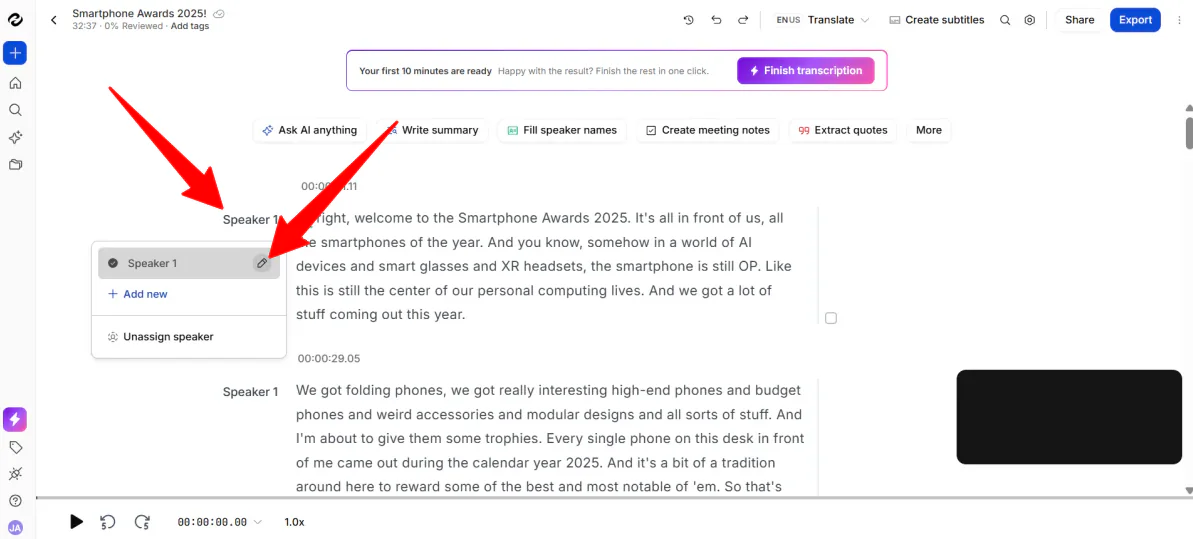
Click on Speaker 1 to change names globally across the entire transcript.
If you spot an error, making changes is easy.
Click where the correction is needed (like a Google Doc) and edit the text directly. You can insert new words, modify existing ones, or remove anything that isn’t accurate.
Step 7: Turn the Transcript into a Blog Post

If you want to turn the transcript into blog posts, show notes, or other content, you can do it without starting from scratch.
Just click Ask AI Anything, and a chat box will open where you can prompt the AI to convert the transcript into whatever format you need. I used it to generate a blog post.
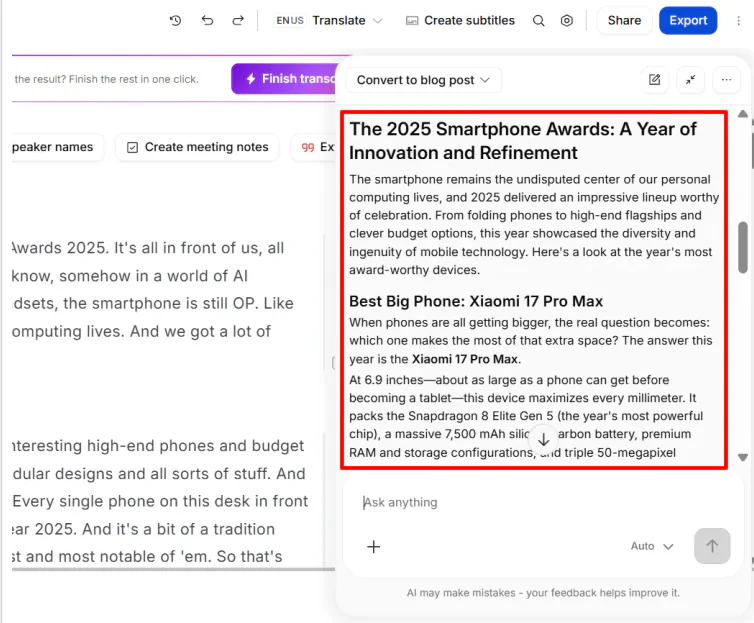
A few seconds later, HappyScribe generated an excellent starting point for a blog post, complete with clear headings and a solid structure. It’s not perfect, but it gives you a good foundation to build on and refine into a polished final draft.
Step 8: Create Subtitles
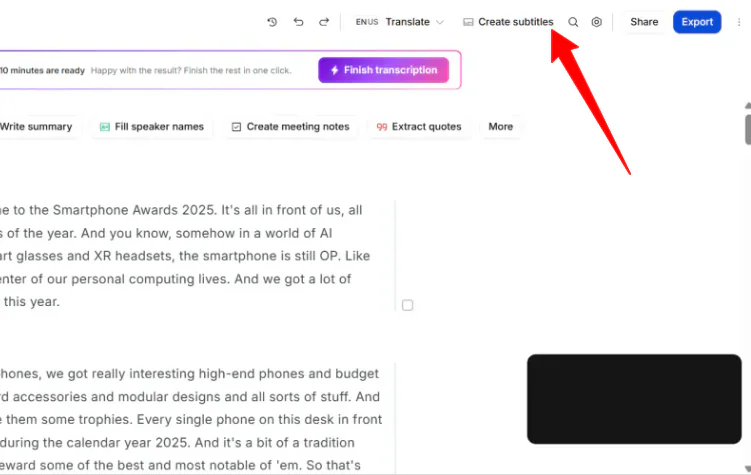
If you want to convert your transcript into subtitles, click Create Subtitles at the top.

A few minutes later, your video will have embedded subtitles! You can still make edits by working directly in the document.
Step 9: Customize Your Subtitles

To adjust how they look, click the small paintbrush icon at the top.

Here, you can change the font, background, and position of your subtitles.
Step 10: Export the File

When you’re happy with the edits, click the Export button in the top right.
- For Transcripts: Export as Word, PDF, TXT, or JSON.
- For Subtitles: Export as SRT or VTT.
Overall, HappyScribe made the whole transcription process feel quick and simple. The AI handled technical terms surprisingly well, and the built-in editor made it easy to clean everything up and export a final file.
Top 3 HappyScribe Alternatives
Here are the best HappyScribe alternatives I’ve tried.
Fieldy
The first HappyScribe alternative I’d recommend is Fieldy. It’s a wearable AI note-taking device that captures in-person conversations and turns them into summaries, tasks, and searchable insights.
Fieldy is built for hands-free, real-world use. It continuously records conversations, recognizes speech, and lets you quickly pull up key details from past interactions through its AI chat. I actually tried it for myself and was impressed by its accuracy and features.
Both tools convert speech into text and improve productivity for meetings, interviews, and content workflows.
But the difference is in how they work. Fieldy captures conversations live as they happen, making it useful when you can’t stop to take notes. It also automatically extracts tasks so nothing gets missed.
HappyScribe focuses more on post-processing, with a smooth editing interface and reliable subtitle tools for creators working with pre-recorded media.
Choose Fieldy for live, hands-free conversation capture and AI memory support. Otherwise, choose HappyScribe for fast transcription and subtitle generation from uploaded files.
Read my Fieldy review or visit Fieldy!
Otter AI
The next HappyScribe alternative I’d recommend is Otter AI. It’s an AI meeting assistant that focuses on real-time transcription, summaries, and collaboration. It automatically joins online meetings and turns spoken conversations into structured notes.
Both platforms are excellent choices for transcription. They turn speech into text with reliable accuracy and editing options. Both are widely used for transcribing meetings and interviews.
However, Otter AI stands out for real-time meeting capture. It can automatically join Zoom, Google Meet, and Microsoft Teams calls. It also generates summaries and action items during conversations for live collaboration and fast follow-ups.
Meanwhile, HappyScribe stands out for post-production workflows. It supports transcription, subtitles, and translations across many languages. It also gives more control for editing exported transcripts and media files.
Choose Otter AI for real-time meeting notes, live summaries, and AI chat during meetings. Otherwise, choose HappyScribe for transcribing recordings, turning transcriptions into video subtitles, and multilingual videos.
Read my Otter AI review or visit Otter AI!
Descript
The final HappyScribe alternative I’d recommend is Descript.
Both HappyScribe and Descript convert spoken content into text. HappyScribe is better suited to clean transcription, subtitles, and translation, while Descript lets you edit video and audio directly from the transcript, making it feel like editing a document instead of a traditional timeline.
HappyScribe is excellent when the end goal is a clean transcript or subtitles. Descript is more useful when the goal is to actually produce and refine content (especially video or podcast material) without dealing with complex editing timelines.
In terms of features, HappyScribe stands out with accurate transcription and strong subtitle localization. Descript stands out with AI tools like filler-word removal, audio cleanup, screen recording, and text-based video editing.
For fast, accurate transcription and subtitles, choose HappyScribe. For turning transcripts into finished audio or video with AI editing, choose Descript.
Read my Descript review or visit Descript!
HappyScribe Review: The Right Tool For You?
After trying HappyScribe, it felt like one of those tools that removes friction from a workflow you didn’t realize was slowing you down. Upload a file, get a solid transcript, clean it up, and move on.
Where it really stood out was consistency. Technical speech, product names, and long-form content held up better than expected. The editor also made small corrections feel painless, especially when renaming speakers or polishing phrasing.
However, if the goal is advanced video editing or generating summaries and action items, it falls short. If that’s what you’re looking for, consider these alternatives:
- Fieldy is best for capturing real-world conversations hands-free. It’s great for meetings, interviews, and remembering action items without manual note-taking.
- Otter AI is best for live meeting transcription, summaries, and collaboration during calls in online meeting tools like Zoom and Google Meet.
- Descript is best for turning transcripts into edited podcasts or videos, especially when you want to remove traditional timeline editing entirely.
Otherwise, choose HappyScribe for reliable transcription and subtitles without getting pulled into a heavier editing workflow. It works best when you already have your recording and need it converted into accurate text or captions.
Thanks for reading my HappyScribe review! I hope you found it helpful. Sign up for HappyScribe to transcribe ten minutes of a video for free.
Frequently Asked Questions
Is HappyScribe legitimate?
Yes, HappyScribe is a legitimate tool with millions of users and incredibly accurate transcription.
Is HappyScribe free to use?
Happy Scribe is not fully free, but it offers a free tier with 10 minutes worth of transcription, subtitling, and translation.
Is transcribing worth it as a side hustle?
With AI tools like HappyScribe, transcription can become a practical side income since you no longer need to listen attentively and type everything out.
How to earn money on HappyScribe?
You can make money with HappyScribe by doing freelance transcription or subtitling work, or by joining their affiliate or referral programs.
Is the HappyScribe converter safe?
Yes, HappyScribe is a safe and legitimate audio-to-text tool. It protects files with strong security.
What is the free alternative to HappyScribe?
Otter.ai gives you a free plan with 300 transcription minutes per month.