
AI Tools 101
OpenAI Codex Review: It Fixed Every Bug I Threw at It

 Add Unite.AI to your preferred sources on Google
Unite.AI may receive compensation when you use links to products we review. This does not influence our editorial evaluations. Read our affiliate disclosure.

Key PointsCodex fixed all nine planted bugs from a vague report without any follow-up prompt.
View more
- Codex fixed all nine planted bugs from a vague report without any follow-up prompt.
- Codex could not open its own built apps in a browser so users must verify results themselves.
- Computer use failed twice until Mac privacy settings were updated to grant access.
You need to build a simple tool, fix a bug that isn’t working, or finally put together that comparison table you’ve been avoiding all week. None of it is hard. It’s just tedious work that eats an afternoon, and if you can’t code, it doesn’t get done.
That’s the gap OpenAI is aiming at with Codex. Unlike some AI coding tools, it doesn’t just suggest code. It writes the files, runs them, tests them, and can even click around your other apps in the background to finish the job.
A lot has changed since I first reviewed Codex. It now lives inside the ChatGPT desktop app and runs on a new GPT-6 lineup. So instead of walking you through menus, I gave Codex three real jobs and judged what it handed back.
In this Codex review, I’ll show you how it worked, where it impressed me, and where I think it still falls short. I’ll finish the article by comparing it to my top three alternatives (Claude Code, Cursor, and Replit). By the end, you’ll know which tool is right for you!
Verdict
Codex produced genuinely usable work in all three of my tests: a working invoicing app, all nine planted bugs fixed, and a pricing spreadsheet with every price right. The weak spot is checking its own work, since it couldn’t open the apps it built in a browser. Also, computer use needs Mac permissions.
Pros and Cons
- Built a functioning invoicing app from one prompt in about six minutes. The totals were right to the cent.
- Found and fixed all nine bugs I hid in a test app from a vague report.
- All 18 prices in its spreadsheet matched the official pricing pages.
- Told me what it couldn’t verify.
- Saves its work in a folder on your computer.
- Works in apps like Numbers and Chrome in the background with your permission.
- Summaries make it usable for non-developers.
- Included with every ChatGPT plan, including Free.
- Available on Mac, Windows, the web, iOS, and Android. It also works in your terminal or code editor.
- Handles research and spreadsheets as well as coding.
- I had to check the results myself in two of my three tests because Codex couldn’t test them in a browser.
- Computer use failed twice before I updated my Mac’s privacy settings.
- It switched to Excel without asking when Numbers wouldn’t open.
- The Free plan only offers the lightweight GPT-6 Luna model. More GPT-6 Astra usage requires Pro.
- Plus limits are hard to predict. GPT-6.1 Sol can handle anywhere from 15 to 160 messages in five hours.
- Letting Codex control apps on your computer can come with security risks.
- Codex is easy to miss in the app it shares with Chat and Work.
- Its summary left out one bug it fixed.
What is Codex?
Codex is OpenAI‘s AI agent for software work. You describe what you want, and it reads your files, writes and edits code, runs commands, tests the result, and reports back. It launched in 2025 as a coding tool for developers, but it has since grown into the engine behind a lot more of ChatGPT as one of the most widely used AI assistants.
Codex Now Lives Inside ChatGPT
The biggest change is where Codex lives. In July 2026, OpenAI folded the Codex app into a redesigned ChatGPT desktop app alongside a new agent called ChatGPT Work. OpenAI says Codex is used by more than 5 million people a week.
My desktop app had two tabs at the top: Chat and Work. Coding happens in Work once you attach a project folder from your computer, and Codex is the agent doing the job.
What Happens When You Use Codex
You pick a folder, type a request, and Codex gets to work. It shows a running log and a summary with links to the files it created, which open in a preview pane next to the chat.
New conversations now run in the cloud by default, so you can pick up the same chat online or the app. Codex can still reach the files and apps on your connected computer.
The Models Behind It
On a paid plan, you choose a model and a thinking level (Light to Extra High). The current lineup is:
- GPT-6.1 Sol: The default for Codex on Plus, balancing quality and speed. I used it at Medium for all my tests.
- GPT-6.1 Terra: A faster, cheaper model released October 26, 2026, built for visual reasoning and computer use.
- GPT-6 Luna: The lightweight model, and the only one my Free account offered.
- GPT-6 Astra: The top model. Plus gets a small allowance (OpenAI estimates 5–45 messages per five hours), and Pro gets much more.
GPT-5.5 (the model from my original review) was retired from Codex on October 14, 2026.
Computer Use
On desktop, Codex can operate other apps on your computer (like Chrome or Numbers) by clicking and typing in the background.
The first time it wants access like this for an app, it asks:
- Allow it for this conversation
- Always allow it
- Deny
This feature is the most impressive and the least reliable part of the product, as you’ll see in my tests. It also widens what an agent can touch, which is why security researchers keep flagging agent attack surfaces.
It’s also the feature that needs the most setup. Approving each app in the chat isn’t enough. Your Mac’s privacy settings have to allow it too, as I found out in my tests. It also gives an agent access to more things, which is why security researchers keep flagging agent attack surfaces.
Who is Codex Best For?
Here’s who Codex is best for:
- Freelancers and small business owners can build useful tools, like an invoice generator or client tracker, just by describing what they need. No developer required.
- Developers working on older projects can give Codex a vague bug report and let it find and fix the problems. It also explains what it changed, so they don’t have to dig through the code themselves.
- Founders with an app idea can turn it into a working prototype in minutes, then keep improving it through chat. It’s one of the many ways AI tools for business can save time.
- Content creators and researchers can ask Codex to find information from official sources and organize it into a spreadsheet with charts and links to the sources.
- Teams already paying for ChatGPT can try Codex without paying extra, making it worth a shot before spending money on another AI software development tool.
- Mac and Windows users with repetitive tasks can use Codex to move information between apps, although they’ll need to give it the right permissions first.
Codex Key Features
Here are the key features that stood out to me:
- Project folders: Point Codex at a folder on your computer, and it reads, writes, and runs files there. Everything it makes stays on your machine.
- Building and testing: Writes the code, then runs its own automated checks on the result.
- Summaries: Every task ends with a summary of what it built or changed.
- Computer use: It can work in desktop apps and Chrome in the background once you give it permission to use each app and have the right computer settings.
- Built-in browser & preview pane: Opens web pages and generated files (including spreadsheets) next to the chat.
- Internet research with sources: Searches official sites and cites the pages it used.
- Cloud tasks: Work continues on OpenAI’s servers, so you can pick it up on the web or the iOS app.
- Model & reasoning control: Choose GPT-6.1 Sol, Terra, Luna, or Astra (plan permitting) and set reasoning effort from Light to Extra High.
- Developer tools: Review and comment on code changes, choose which edits to keep or undo, and review changes across multiple code repositories. You can also review pull requests on GitHub and use Codex from your terminal or code editor.
- Plugins & scheduled tasks: Connects to tools like Slack and Google Drive, and runs recurring jobs.
Hands-On Testing: What Codex Produced
I ran three tests in the ChatGPT desktop app on my Mac, using GPT-6.1 Sol at Medium reasoning on the Plus plan.
Test 1: Building a Freelance Invoicing App From One Prompt
For my first test, I skipped the usual AI website builder landing page and asked Codex to build something I actually could use:
“Build me a freelance time tracker and invoice generator as a web app I can open in my browser. I’m a freelance writer who bills clients by the hour.”
I listed six requirements:
- Clients with hourly rates.
- A timer and manual hours.
- Clients with hourly rates.
- A timer and manual hours.
- Editable entries.
- date-range invoices with 13% HST, PDF download, and saved data.
I also asked it to work on a phone, test itself in a browser, and tell me what it couldn’t get working.

After 6 minutes and 21 seconds, Codex delivered “Billable,” a 27 KB HTML file with no installation or account needed. It even wrote its own PDF generator.

Then I put it to work. I added two clients (one at $87.50/hour), ran the timer, logged five entries (including one from October and one for the other client), edited one, deleted another, and generated an invoice for November 1–11.
The invoice included the right three entries and left out the October work and the other client’s hours. The math also held up to the cent:
| Line | Codex’s result | Correct? |
|---|---|---|
| 3.25 h × $87.50 | $284.38 | ✅ |
| 1.333 h × $87.50 | $116.64 | ✅ |
| Timer entry (4 seconds) | $0.10 | ✅ |
| Subtotal | $401.12 | ✅ |
| HST (13%) | $52.15 | ✅ |
| Total (CAD) | $453.27 | ✅ |
The PDF downloaded as a one-page invoice.

On mobile, the sidebar turned into a top menu, nothing scrolled sideways, and the buttons were easy to tap.

My Take
This is a tool I’d genuinely use as a freelancer if I had clients and was billing by the hour. Everything worked seamlessly on the first try, and it made smart choices I didn’t ask for. Each time entry saves the hourly rate you charged at the time, so if you raise a client’s rate later, your previous work won’t be affected.
But it wasn’t perfect:
- Codex admitted it couldn’t test the timer, saving, the download, or the phone layout because “the browser blocked the local preview.” The testing was on me.
- Hours display oddly when you type an awkward number. My 1.333 hours showed as “1.3331 h” on the invoice.
- The PDF has no due date or payment terms (I didn’t ask, but real invoices need them).
- Data is only saved in that one browser, with no backup or export.
I’d use this after one follow up prompt to add payment terms and a data export button.
Test 2: Finding & Fixing Bugs From a Vague Bug Report
For my next test, I built a small budget-tracking app and deliberately added nine bugs. Some caused totals to combine numbers as text instead of adding them, another made the delete button remove the wrong item. There was even a security flaw that allowed code to run through an expense name.
Then I gave Codex the kind of bug report people actually send: “People keep telling me this budget app is broken. I don’t know what’s wrong with it. Find and fix every bug you can, test your fixes, then give me a plain-English list of what was broken and what you changed.”
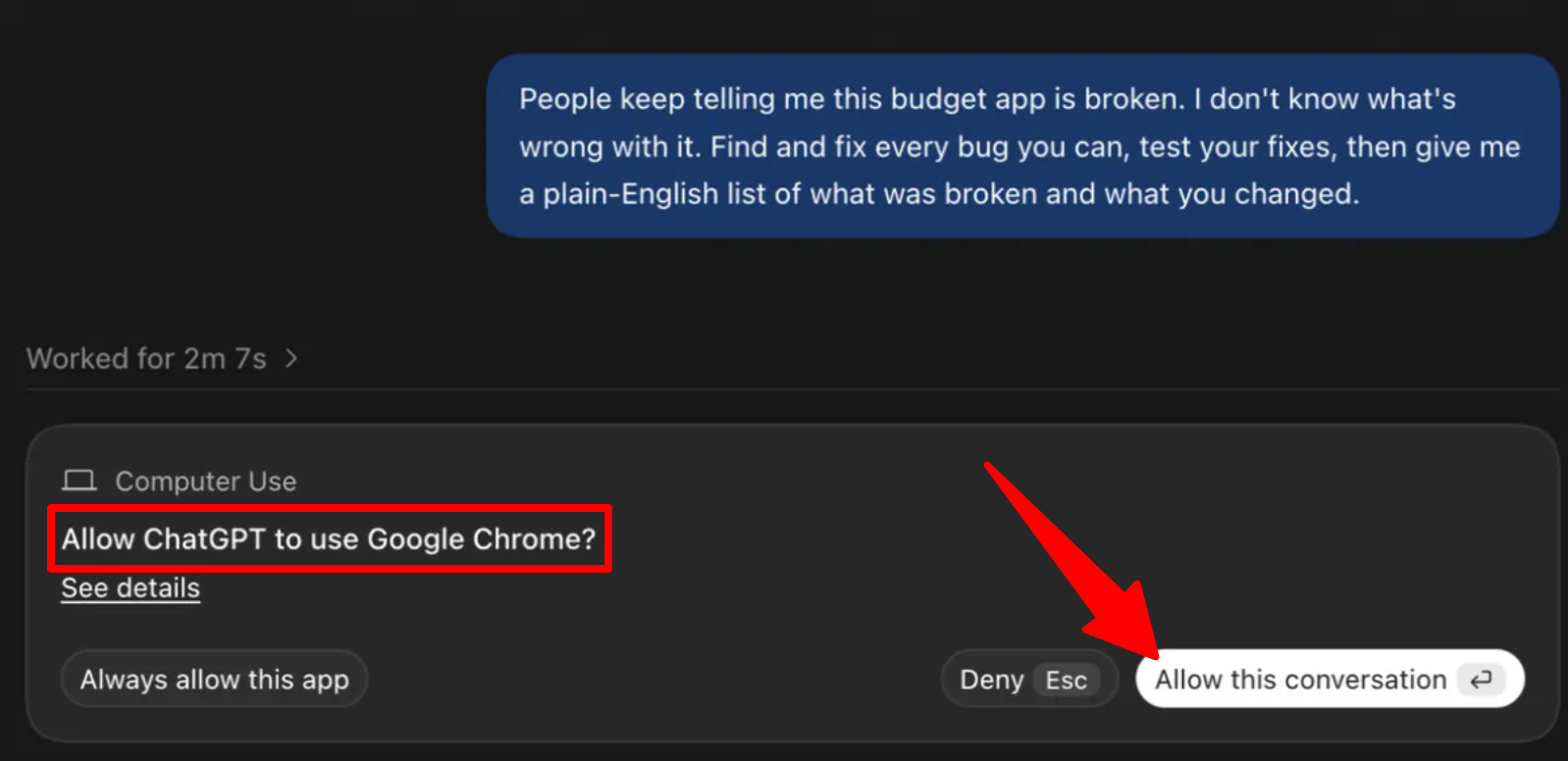
Codex worked for 7 minutes and 56 seconds. Partway through, it asked permission to use Google Chrome so it could test the app, which I allowed for that conversation.

It came back with a two-column table of what was broken and what it changed, and said eleven automated checks passed. I ran my own checks against my bug list:
| Planted bug | Fixed? |
|---|---|
| Page reloaded on every submit, wiping the entry | ✅ (but missing from its summary) |
| Amounts added as text instead of numbers | ✅ |
| Remaining balance calculated backwards | ✅ |
| “NaN%” when income is blank | ✅ |
| Saved under one name, loaded from another | ✅ |
| Delete removed the wrong expense | ✅ |
| Rounding errors like $0.30000000000000004 | ✅ |
| Expense names could run code (security) | ✅ |
| Broken layout on phones | ✅ |
The before and after difference is easy to see. With the same three expenses, the broken app showed total spending of “$01450312.40156” and 36,258% of income spent. The fixed version showed $1,918.40, $2,081.60 remaining, and 48%.

My Take
Codex fixed all nine bugs from a bug report that told it almost nothing, and it didn’t need a single follow-up prompt. For someone who can’t read code, that’s the difference between living with a broken app and paying a developer to find the problems.
However, its summary mentioned only eight of the nine bugs (it fixed the page-reload bug without saying so), so don’t treat it as a complete audit. And Chrome timed out, so it couldn’t check its fixes in a real browser.
Test 3: Researching Prices & Building a Spreadsheet in Numbers
For my final test, I asked Codex to check the official pricing pages for Codex, Claude Code, Cursor, and Replit, then open Numbers on my Mac and build a comparison spreadsheet. I asked for one row per plan, a bar chart of each tool’s cheapest paid plan, and source URLs, saved as “AI Coding Tool Pricing.”
Codex researched all four pricing pages and then asked permission to use Numbers. I allowed it.
Then: “Numbers didn’t open on your Mac, so I saved the workbook in Excel format.” Total time it took: 3 minutes and 48 seconds.

The spreadsheet itself was strong: 18 individual plans, each with a monthly price, a one-line summary of what it includes, and the source URL, with a chart driven by live formulas. I checked every price against the official pages, and all 18 were correct.

Since computer use had now failed twice (Chrome in Test 2 and Numbers here), I checked my Mac’s privacy settings and gave ChatGPT the access it was asking for. Then I asked Codex to try again.
In just 3 minutes and 10 seconds, it opened the workbook in Numbers, confirmed that all 18 rows, URLs, and the chart had carried over correctly, and saved it as a native .numbers file.

My Take
The research was excellent, and it’s the kind of tracker you’d otherwise build by hand or pay an analytics and reporting tool for. Getting all 18 prices right, especially when some had changed in the past month, is better than I’d expect from most first drafts.
But human judgment still matters. The chart compares ChatGPT Go ($8) with Claude Pro ($20) as each tool’s “cheapest paid plan,” which is technically correct but misleading. Go only includes the lightweight Luna model. I’d also double-check a few plan descriptions before publishing.
Computer use worked, but only after some setup most people wouldn’t know how to do. And when it failed, Codex didn’t stop to ask. It switched to an Excel file and only mentioned it afterward, without explaining why Numbers wouldn’t open or how to fix it.
Results & Output Quality
The output quality was better than I expected. The invoice math was right to the cent across six lines, the bug fixes held up against every check I ran, and every spreadsheet price matched its source. None of the three outputs needed fixing.
Instead, the editing they needed was about judgment, not correctness: payment terms on the invoice, giving a more detailed explanation of what changed, and a fairer chart comparison. Meanwhile, speed was consistent at roughly 3 to 8 minutes per task, with no hand-holding beyond approving app access.
The biggest weakness was testing. In both tests where it built or fixed an app, Codex couldn’t open it in a browser to click through it. Its browser blocked the local file, and Chrome timed out before I’d set up my Mac’s privacy permissions. It relied on automated checks instead and was upfront about it, but you’ll still need to test the results yourself.
Computer use needed more setup than I expected. Approving each app in the chat wasn’t enough: my Mac’s privacy settings also had to allow it. Until then, Chrome timed out and Numbers wouldn’t open. Once the settings were in place, it opened Numbers and saved the file without any problems.
How to Use Codex
Here are some things that make a big difference to your results:
- Download the ChatGPT desktop app from chatgpt.com/codex. All my tests used GPT-6.1 Sol, which needs Plus or higher. Free and Go only include the lighter GPT-6 Luna model, so results may differ.
- Give Codex a dedicated folder. Codex can read, edit, and run anything in the project folder you attach, so don’t point it at your entire Documents folder.
- Set up permissions first. For computer use, grant ChatGPT Accessibility and Screen Recording access in your Mac’s Privacy & Security settings. This would have saved me from my failed attempts.
- Describe the outcome, not the steps. A little prompt engineering helps. List what you need, and ask it to tell you what it couldn’t get working.
- Test the output yourself. Codex’s summaries are clear, but they don’t list every change. Open what it builds and try it before relying on it.
Top 3 Codex Alternatives
Here are the best Codex alternatives I’ve tried that I’d recommend.
Claude Code
Claude Code is Anthropic’s coding agent, and the closest rival to Codex. It works in the terminal, in IDEs like VS Code, on the desktop, and on the web. It’s included with Claude Pro, and Max and Ultra plans raise the usage limits.
Both tools cost a similar amount at the level I tested (ChatGPT Plus vs. Claude Pro), and both come bundled with a broader AI assistant that also handles research, spreadsheets, and computer use. Codex’s cheapest paid plan is ChatGPT Go, but that only includes the lighter Luna model in the desktop app.
The practical choice comes down to which assistant you already pay for. Pro’s usage limits reset across five-hour and weekly windows, much like ChatGPT Plus.
Choose Claude Code if most of your work is in an existing codebase and you already use Claude. Otherwise, choose Codex if you want one subscription for coding and everyday tasks.
Read my Claude AI review or visit Claude Code!
Cursor
Cursor is an AI code editor built on VS Code, with autocomplete, multi-file editing, and agents built into the place you write code. When I tested it originally, it built a habit-tracking app with Tailwind and local storage within seconds.
Cursor has changed a lot since then. SpaceX acquired Cursor in August 2026, and since October it has been sold through “The X Subscription.” Cursor Plus uses Grok and Cursor’s own models only. Premium adds cloud agents and Bugbot code review, but Claude and GPT models are billed separately at API rates.
The difference comes down to control. Cursor keeps you in the editor, reviewing changes line by line. Meanwhile, Codex is better when you’d rather hand off the entire task and judge the finished result, and it doesn’t charge extra for OpenAI’s top models on your plan.
Read my Cursor AI review or visit Cursor!
Replit
Replit is an online workspace where Replit Agent 4 plans, builds, tests, and publishes apps from a chat. It sets up databases for you, has a visual Design Canvas for design mockups and app screens, and publishing is built into the same workspace.
Codex can publish too through OpenAI’s Sites feature. But in my test, it saved the app as a file on my computer, and I didn’t try publishing it. Replit is built around hosting from the start.
Pricing is similar at the entry level. However, Codex is the better choice for working on files and projects already on your computer, while Replit is better for non-developers who want something live online.
Read my Replit review or visit Replit!
Codex Review: The Right Tool For You?
I went into this expecting Codex to work quickly but still need a lot of fixing. What I got was better. Codex built a working invoicing app with flawless tax math, fixed all nine bugs I hid from it, and got 18 out of 18 prices right in a spreadsheet. None of those outputs needed fixing.
What surprised me most were the small, thoughtful decisions, like locking each time entry to the hourly rate it was logged at so raising a client’s rate doesn’t change old invoices. Those are the choices a careful developer makes.
What disappointed me was verification. Codex rarely managed to test its own work in a browser, it forgot to mention one of the fixes it made, and computer use failed twice times until I changed my Mac’s privacy settings.
If you already pay for ChatGPT Plus, Codex is easily worth it, especially since you’re already paying for it. Freelancers, business owners, and small teams can use it to build tools that actually work. However, developers who live in an existing codebase may still prefer Claude Code or Cursor, and anyone who wants a published app without touching files should look at Replit.
Thanks for reading my Codex review! I hope you found it helpful. If you want to try Codex for yourself, you can sign up for free and see what it can build for you.
Frequently Asked Questions
Is Codex free?
Yes, Codex is free. Codex is included on ChatGPT’s Free plan for quick coding tasks in the desktop app, but my Free account only offered the lightweight GPT-6 Luna model. Go adds more usage, and Plus fully unlocks GPT-6.1 Sol and Terra.
Is Codex better than Claude Code?
Neither Codex nor Claude Code wins outright in terms of which is “better.” In my tests, Codex was excellent at building new tools and fixing bugs from vague instructions. It also handles non-coding work like spreadsheets. Meanwhile, Claude Code is more focused on working inside large existing codebases. If you already pay for one of them, try that one first.
Can Codex use my computer?
Yes, Codex can use your computer on the Mac and Windows desktop app. It can operate apps like Chrome and Numbers in the background, and it asks permission for each app. On a Mac, you’ll also need to give ChatGPT Accessibility and Screen Recording access in System Settings. Without them, it failed in my tests.
Is Codex safe to use?
Codex is safe to use, so long as you are mindful with it. It only works in folders you’ve approved, and it asks before using each app on your computer. You can choose how much it does without asking in OpenAI’s approval and security settings. Give it a dedicated project folder, and review its changes before using them on anything important.


