Инструменты ИИ 101
Обзор 1Password: никогда больше не беспокойтесь о взломе паролей

 Добавьте Unite.AI в избранные источники в Google
Unite.AI может получать вознаграждение, когда вы используете ссылки на рассмотренные нами продукты. Это не влияет на наши редакционные оценки. Читайте раскрытие об аффилированности.
Честно говоря, сколько ваших паролей до сих пор является какой-то версией имени вашего питомца, за которым следует номер?
Исследования показали, что примерно 80% утечек данных связаны со слабыми или повторно используемыми паролями. Это означает, что многие люди находятся в одном шаге от очень плохого дня.
Именно здесь на сцену выходит 1Password. После использования его стало ясно, что это не просто место для “хранения логинов”. Это больше похоже на безопасный центр управления вашей цифровой идентичностью.
В этом обзоре 1Password я обсуждаю плюсы и минусы, что это такое, для кого оно лучше всего подходит, и его ключевые функции. Затем я покажу, как я использовал его для импорта паролей, генерации уникальных паролей, приглашения членов команды и предоставления агентам ИИ эксклюзивного доступа к конфиденциальной информации.
Я закончу статью, сравнив 1Password с моими тремя лучшими альтернативами (Bitwarden, NordPass и Keeper). Надеюсь, что к концу статьи вы сможете решить, подходит ли 1Password вам.
Вердикт
В целом, 1Password – это безопасный и удобный в использовании менеджер паролей, который работает на многих устройствах с полезными функциями для сохранения паролей в безопасности и организованности. Хотя он требует подписки и может иметь периодические проблемы с автоматическим заполнением, он остается сильным претендентом для всех, кто хочет надежную и продвинутую безопасность паролей.
Плюсы и минусы
- Сильная безопасность с шифрованием, секретными ключами и защитой с нулевым знанием
- Удобный интерфейс на настольных компьютерах, мобильных устройствах и браузерах
- Работает на Windows, macOS, iPhone, Android, Linux и основных браузерах
- Включает поддержку ключей, оповещения о безопасности и встроенные инструменты двухфакторной аутентификации
- Облегчает безопасное обмен паролями с семьями, командами и бизнесом
- Нет бесплатного плана после периода пробного использования
- Автоматическое заполнение не всегда работает идеально на каждом сайте или приложении
- Требует ежемесячной или годовой подписки
- Может показаться слишком продвинутым для тех, кто нуждается только в базовом хранении паролей
Что такое 1Password?
В своей основе 1Password – это менеджер паролей. Но называть его просто менеджером паролей – это все равно, что называть швейцарский армейский нож “просто лезвием”. Он вырос в полноценную платформу безопасности идентичности, которая хранит ваши пароли, информацию о кредитных картах и все, что вы обычно записываете на стикерах и потом сожалеете.
Способ его работы довольно прост. Вы храните все свои учетные данные внутри зашифрованного “хранилища”, и 1Password занимается остальным: автоматическим заполнением логинов, генерацией сильных паролей (например, случайными 20-символьными строками, а не “Fluffy2009!”), и синхронизацией всего на ваших устройствах в режиме реального времени.
Как работает шифрование
1Password использует шифрование от конца до конца с AES 256-битным шифрованием, тем же стандартом, который используют правительства и банки. Это означает, что ваши данные шифруются до того, как они покинут ваше устройство. Если кто-то взломает серверы 1Password, они получат кучу бессмысленного текста.
Система двух ключей
Что отличает 1Password от многих конкурентов, – это его система двух ключей. Когда вы регистрируетесь, вы получаете две вещи:
- Мастер-пароль: что-то, что вы создаете и запоминаете.
- Секретный ключ: 128-битный, случайно сгенерированный ключ, который математически невозможно взломать и никогда не отправляется на серверы 1Password.
Для расшифровки хранилища нужны оба ключа. Я рекомендую распечатать секретный ключ и в день регистрации положить его в ящик, а лучше — в сейф. Его потеря означает потерю доступа ко всему.
1Password не может восстановить его за вас — в этом и заключается смысл архитектуры с нулевым разглашением. Сервис также предлагает создать аварийный комплект с несколькими печатными и цифровыми копиями. ( (source)source)
Личное использование против бизнеса
Вы можете использовать 1Password двумя разными способами: Личное использование и Бизнес.
- Личное использование предназначено для отдельных лиц и семей. Вы получаете неограниченное хранение паролей, до 5 членов семьи в плане Families, и общее хранилище для вещей, таких как пароли Netflix . Это все, что нужно большинству людей.
- Бизнес предназначен для команд и включает функции, такие как административные контроли, журналы действий и интеграцию с единой системой входа (SSO) с инструментами, такими как Okta и Azure Active Directory. Если вы управляете командой и люди делятся логинами через Slack (вероятно, не делайте этого), план Business стоит каждой копейки.
Где можно использовать 1Password?
1Password работает практически на любой платформе, которую вы можете придумать:
- Windows и Mac в качестве полноценных настольных приложений
- iOS и Android в качестве мобильных приложений с биометрической блокировкой (Face ID и отпечаток пальца)
- Расширения для браузеров для Chrome, Firefox, Safari, Edge и Brave
- Linux в качестве родного приложения
Расширение для браузера – это то место, где происходит магия автоматического заполнения. Когда вы попадаете на страницу входа, просто нажмите поле имени пользователя/пароля или иконку 1Password, чтобы инициировать процесс заполнения. (source)
Вердикт
В целом, 1Password стоит того, особенно если ваша текущая система паролей – “запомнить и надеяться на лучшее”.
Комбинация военного уровня шифрования, модели безопасности двух ключей, поддержки нескольких платформ и удобства автоматического заполнения делает его одним из самых практичных инструментов, которые я когда-либо добавлял в свой рабочий процесс. Время, необходимое для настройки и импорта старых паролей, заставит вас пожалеть, что вы не сделали этого годы назад.
Если вы сомневаетесь, они предлагают бесплатную 14-дневную пробную версию без необходимости кредитной карты. Попробуйте, и в худшем случае вы вернетесь к старым привычкам. В лучшем случае вы никогда больше не забудете пароль.
Для кого 1Password лучше всего?
1Password лучше всего подходит для отдельных лиц и команд, которые хотят безопасный, удобный в использовании менеджер паролей, который работает на устройствах и браузерах:
- Люди, которые хотят надежное место для хранения паролей, ключей, платежных карт и другой конфиденциальной информации.
- Семьи, которые хотят безопасно делиться некоторыми конфиденциальными предметами, такими как пароли Netflix, при этом сохраняя другие частными.
- Бизнес и команды всех размеров, которые нуждаются в общих хранилищах, обмене и административных контролях.
- Разработчики, которые хотят хранить ключи SSH, токены API и другие секреты.
Ключевые функции 1Password
Вот ключевые функции 1Password, которые вы должны знать:
- Сильная генерация паролей и автоматическое заполнение для логинов и форм.
- Поддержка ключей для безпарольного входа.
- Безопасный обмен учетными данными и другими элементами хранилища с отдельными лицами или командами.
- Оповещения Watchtower для слабых, повторно используемых или скомпрометированных паролей и взломанных сайтов.
- Шифрование от конца до конца с защитой AES-256.
- Мастер-пароль плюс секретный ключ для безопасности учетной записи.
- Разблокировка с помощью SSO для поддерживаемых поставщиков идентификации.
- Пользовательские политики для правил безопасности команд.
- Журнал аудита для мониторинга событий учетной записи.
- Хранение ключей SSH и генерация.
- Поддержка командной строки.
- Управление секретами для рабочих процессов разработки.
- Генератор паролей, который создает сильные пароли для вас.
Как использовать 1Password
Вот как я использовал 1Password, чтобы импортировать пароли, сгенерировать новые пароли, пригласить членов команды и предоставить агентам ИИ доступ к конкретной конфиденциальной информации:
- Зарегистрироваться в 1Password
- Сгенерировать секретный ключ
- Создать резервную копию секретного ключа
- Изучить панель управления
- Импортировать пароли
- Выбрать источник импорта
- Экспортировать данные
- Выбрать хранилище
- Загрузить файл CSV
- Просмотреть импортированные элементы
- Добавить новый элемент
- Добавить новый пароль
- Создать новый пароль
- Выбрать условия пароля
- Перейти на вкладку “Люди”
- Пригласить людей
- Пригласить людей по электронной почте
- Создать новое хранилище
- Дать хранилищу имя
- Импортировать данные
- Создать учетную запись службы
- Дать учетной записи службы имя
- Установить разрешения на “Только для чтения”
- Скопировать/сохранить токен учетной записи
- Получить агентов для получения секретов
Шаг 1: Зарегистрироваться в 1Password

Я начал с перехода на 1password.com и выбора “Начать бесплатно”.
Шаг 2: Сгенерировать секретный ключ
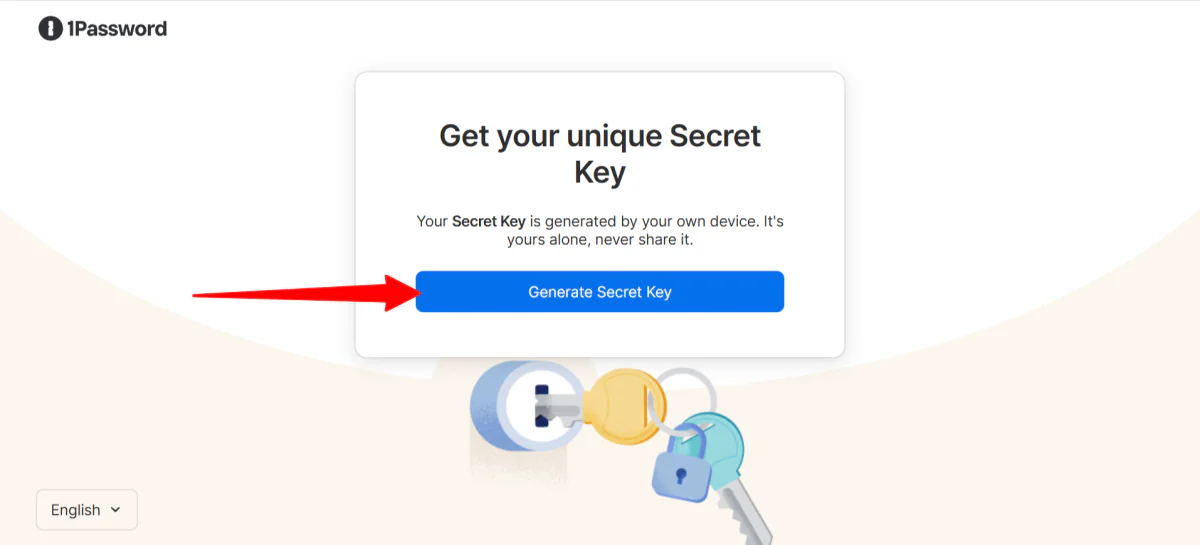
После регистрации по электронной почте и создания пароля (важно запомнить; 1Password не может сбросить забытые пароли) я сгенерировал секретный ключ.
Этот пароль и секретный ключ работают вместе, чтобы защитить ваши данные.
Шаг 3: Создать резервную копию секретного ключа

Я сохранил свой секретный ключ в качестве PDF.
1Password не имеет записи о секретном ключе и не может восстановить его, поэтому имеет смысл хранить его в другом месте (например, в безопасном автономном резервном копии или распечатанном экземпляре, хранящемся в безопасном месте), чтобы не рисковать потерять доступ позже.
Шаг 4: Изучить панель управления

Оттуда меня перенаправили на мою панель управления.
Панель управления сама по себе проста, чиста и легко навигируется. Мне понравилось, как она давала мне четкий обзор членов команды, приостановок и гостей.

Панель навигации слева была более подробной, с хранилищами, отчетами, политиками, выставлением счетов и многим другим.
Шаг 5: Импортировать пароли
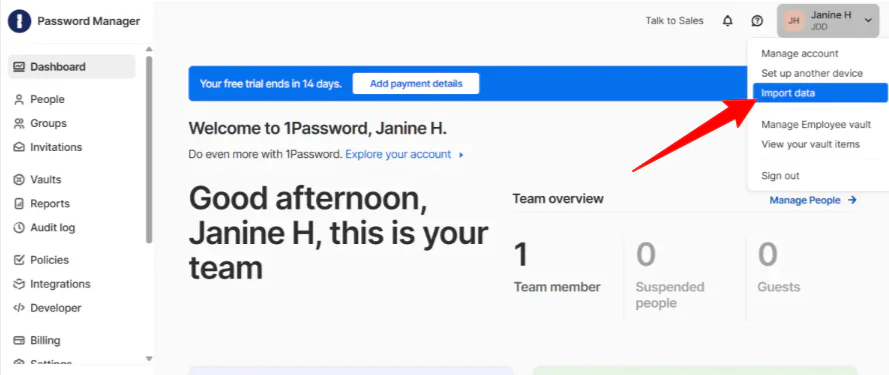
Мой первый шаг был импортировать существующие пароли в хранилище. Чтобы начать импортировать данные, я выбрал свой профиль в правом верхнем углу и нажал “Импортировать данные”.
Шаг 6: Выбрать источник импорта

Эта страница показывает вам, откуда вы можете импортировать пароли, будь то браузер, такой как Chrome, менеджер паролей, такой как LastPass, или где-то еще (запомненные пароли, ручка и бумага, электронные таблицы или файл CSV). Я выбрал “Chrome”.
Шаг 7: Экспортировать данные

1Password начал с предоставления мне простых инструкций для экспорта моих данных из Chrome. Мне потребовалось около минуты, чтобы получить файл, и я нажал “Продолжить”.
Шаг 8: Выбрать хранилище

Далее мне пришлось выбрать хранилище для хранения моих данных. У меня было два хранилища: Employee и Shared. Я оставил его на “Employee” и нажал “Продолжить”. Вы всегда можете создавать, настраивать и управлять хранилищами для паролей в вкладке “Хранилище” слева.
Шаг 9: Загрузить файл CSV

Оттуда мне просто нужно было перетащить и бросить файл CSV и нажать “Продолжить”, чтобы загрузить мои данные в 1Password.
Шаг 10: Просмотреть импортированные элементы

Импорт был завершен, и я мог просмотреть импортированные элементы.
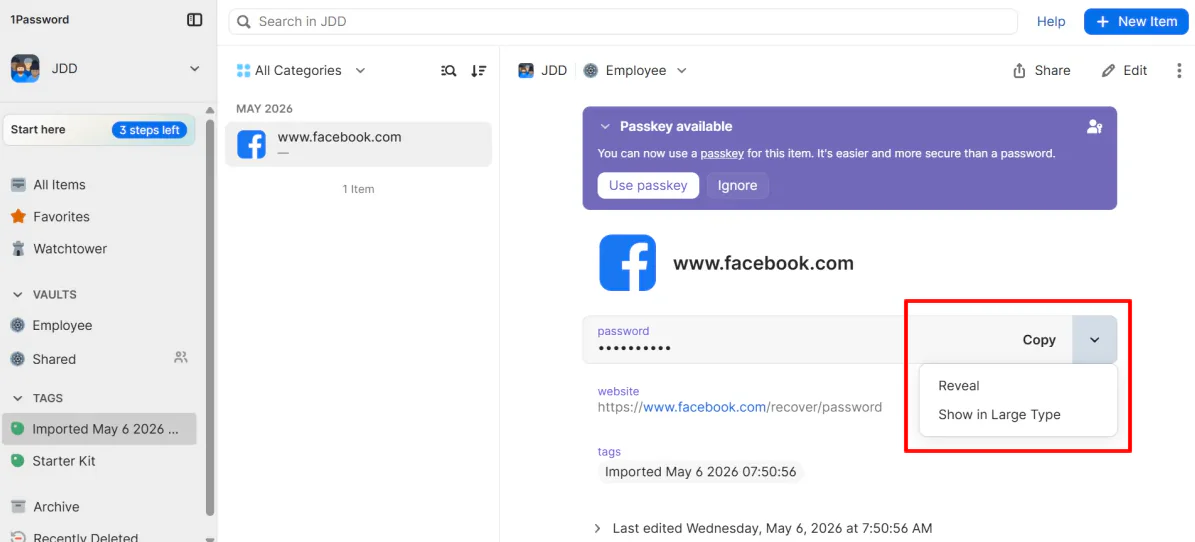
В моем хранилище я мог скопировать и раскрыть мой пароль.

Он даже дал мне рейтинг моего пароля на основе его силы (мой был оценен как “Отлично”). Если ваш пароль слишком слаб или скомпрометирован, функция Watchtower 1Password уведомит вас. (source)
Шаг 11: Добавить новый элемент

Чтобы создать новый случайный пароль с помощью встроенного генератора 1Password, я перешел на “Новый элемент” в правом верхнем углу.
Шаг 12: Добавить новый пароль

Далее 1Password спросил меня, что я хотел добавить. Вот некоторые из наиболее распространенных вариантов:
- Вход
- Безопасная заметка
- Кредитная карта
- Идентификатор
- Пароль
- Документ
Я выбрал “Пароль”, чтобы получить доступ к генератору паролей.
Шаг 13: Создать новый пароль
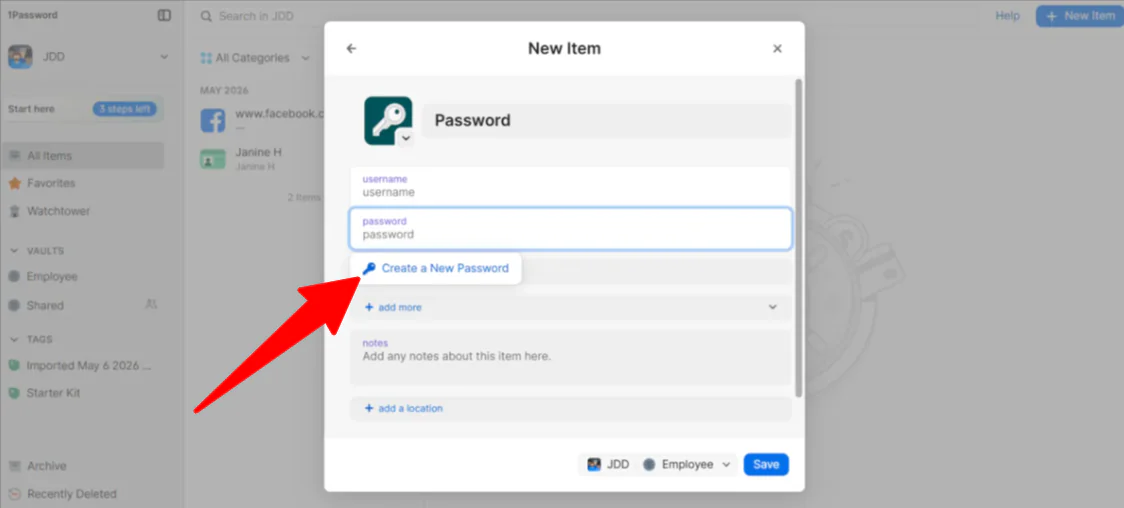
Оттуда я поместил курсор в поле “Пароль”, и появилось выпадающее меню “Создать новый пароль”.
Шаг 14: Выбрать условия пароля

В окне я мог выбрать тип пароля (случайный, запоминающийся или PIN), количество символов (8-100) и хотел ли я символы или числа. Эти пароли можно затем сохранить в пользовательское хранилище.
Шаг 15: Перейти на вкладку “Люди”

Как только мое собственное хранилище было настроено, пришло время решить вопрос с остальной частью команды. Добавление моей человеческой команды было простым. Из моей панели управления я выбрал “Люди” слева.
Шаг 16: Пригласить людей

Оттуда я выбрал “Пригласить людей”.
Шаг 17: Пригласить людей по электронной почте

В пустом поле я мог добавить несколько электронных адресов, чтобы пригласить мою команду в качестве “Члена команды” или “Гостя”. Обратите внимание, что 1Password взимает плату за каждого члена команды.
Шаг 18: Создать новое хранилище

Если у вас есть агенты ИИ, метод, который я бы рекомендовал, – это предоставить им доступ к хранилищам без обмена вашими личными учетными данными.
Первое, что вам нужно сделать, – это создать выделенное хранилище и переместить туда только те учетные данные, которые нужны агенту. Я перешел на “Хранилища” и выбрал “Новое хранилище”.
Шаг 19: Дать хранилищу имя

1Password предлагает несколько предложений для типов хранилищ, которые вы можете создать (Социальное, Операции, Финансы и т. д.), но для этого примера я создал пользовательское хранилище, выбрав иконку и присвоив ему имя (“Агент по путешествиям ИИ”).
Если вы создаете пользовательское хранилище, лучше дать ему имя, которое четко идентифицирует его цель или конкретного агента, использующего его.
Шаг 20: Импортировать данные

Далее я переместил учетные данные, необходимые этому конкретному агенту ИИ, выбрав “Импортировать данные” в хранилище.
Шаг 21: Создать учетную запись службы

Оттуда я создал учетную запись службы, перейдя на “Разработчик” в боковой панели.
Шаг 22: Дать учетной записи службы имя

Я назвал учетную запись службы тем же именем, которое я назвал хранилищем: “Агент по путешествиям ИИ”. Присвоение хранилищу и учетной записи службы одинакового имени гарантирует, что вы всегда знаете точно, какие секреты может получить агент.
Шаг 23: Установить разрешения на “Только для чтения”

Далее мне нужно было выбрать, какие хранилища может получить доступ учетная запись службы. Я убедился, что поставил галочку рядом с хранилищем “Агент по путешествиям ИИ” и установил разрешение на “Чтение элементов” только (а не “Запись” или “Обмен”).
Шаг 24: Скопировать/сохранить токен учетной записи

Оттуда я создал учетную запись службы, и она сгенерировала токен учетной записи службы. Я мог либо скопировать токен и сохранить его в безопасном месте, либо сохранить его внутри 1Password.
Этот токен учетной записи службы важен, потому что он является цифровым ключом, который позволяет вашему агенту ИИ аутентифицироваться с 1Password без необходимости вашей личной электронной почты, мастер-пароля или ручного утверждения запроса.
Шаг 25: Получить агентов для получения секретов
Окончательный шаг: использовать SDK 1Password (Python, JavaScript, Go), чтобы позволить вашему агенту получать секреты во время выполнения.
Вам не нужно быть мастером кодирования, чтобы сделать это. Большинство современных агентов ИИ (например, тех, что в Claude Code, Cursor или пользовательских GPT) имеют место в своих настройках для “Переменных среды” или “Ключей API”.
Теперь, когда мой агент ИИ нуждается в доступе к паролю, он использует этот токен, чтобы “спросить” 1Password о пароле. 1Password проверяет разрешения, видит, что агент авторизован для этого конкретного хранилища, и безопасно передает логин только на этот момент.
Настроив все так, я превратил своего агента ИИ в безопасного “цифрового сотрудника”. Если я когда-либо перестану использовать этого агента, я могу удалить учетную запись службы в один клик, сразу же отключив его доступ без необходимости изменения своих собственных паролей.
В целом 1Password показался мне простым в навигации и удивительно простым в настройке, даже при управлении хранилищами, разрешениями команд и доступом агентов ИИ. Мне понравилось, как он сбалансировал сильную безопасность с удобством, сделав организацию паролей и контроль того, кто или что может получить доступ к конфиденциальной информации, намного проще.
Топ-3 альтернативы 1Password
Вот лучшие альтернативы 1Password, которые я бы рекомендовал.
Bitwarden
Первая альтернатива 1Password, которую я бы рекомендовал, – это Bitwarden. Это полностью ( (открытое программное обеспечение менеджер паролей, который генерирует, сохраняет и автоматически заполняет ваши пароли на всех ваших устройствах, все это завернуто в шифрование с нулевым знанием.source)source)
Оба они хорошо справляются с основными функциями. Вы получаете сильное шифрование, поддержку нескольких платформ, автоматическое заполнение, генерацию паролей и безопасный обмен на любой платформе. Если все, что вам нужно, – это надежное место для хранения логинов и прекращение повторного использования “Summer2019!”, любая из них изменит вашу жизнь.
Однако Bitwarden является открытым программным обеспечением и имеет регулярные аудиты безопасности третьих сторон, плюс функциональный бесплатный план и возможность самостоятельного хостинга для тех, кто хочет больше контроля над своими данными. Тем временем 1Password не предлагает самостоятельный хостинг, но имеет более чистый интерфейс, модель безопасности на основе секретного ключа и более гладкий опыт настройки для семей и команд.
На практике Bitwarden часто побеждает в гибкости и стоимости, в то время как 1Password часто побеждает в удобстве использования.
Если вы экономите бюджет, цените прозрачность или хотите гибкость самостоятельного хостинга, выберите Bitwarden. Бесплатный тарифный план в одиночку побеждает то, что предлагают многие платные инструменты.
Но если вы хотите что-то, что чувствуется премиальным с момента открытия, имеет дополнительный слой безопасности на основе секретного ключа и проводит вас через настройку, 1Password стоит того, чтобы заплатить.
NordPass
Следующая альтернатива 1Password, которую я бы рекомендовал, – это NordPass. Если вы когда-либо использовали NordVPN, вы узнаете семью. NordPass приходит из того же экосистемы безопасности Nord, и она приносит ту же энергию “держать все просто и безопасно” в управление паролями. (source)
NordPass хранит ваши пароли, автоматически заполняет ваши логины и синхронизирует все на ваших устройствах без того, чтобы заставить вас чувствовать, что вам нужно быть ИТ-специалистом, чтобы настроить все.
Оба инструмента хорошо справляются с основными функциями: безопасное хранение паролей, поддержка нескольких платформ, обмен паролями, поддержка ключей, мониторинг скомпрометированных паролей и слабых паролей. Вы получаете солидную защиту любым способом.
С одной стороны, NordPass сохраняет все просто. Интерфейс легко навигируется, биометрическая блокировка работает гладко, и он даже включает встроенную маскировку электронной почты (приятный бонус, которого вы обычно не видите в менеджере паролей).
Если вы уже находитесь в экосистеме Nord с подпиской NordVPN, она вписывается без дополнительной трения.
Тем временем 1Password более мощный для бизнеса. Он поставляется с лучшими административными контролями, настраиваемыми разрешениями хранилищ и солидной поддержкой рабочих процессов разработчиков и доступа агентов ИИ. Он построен для команд, которые нуждаются в чем-то большем, чем просто общие пароли.
Для чего-то простого, легкого в использовании и наполненного повседневными функциями безопасности выберите NordPass. Однако, если вы управляете командой и нуждаетесь в более глубоких контролях и инструментах для разработчиков, выберите 1Password.
Keeper
Окончательная альтернатива 1Password, которую я бы рекомендовал, – это Keeper. Она построена вокруг архитектуры с нулевым доверием, что означает, что она работает с предположением, что ни один пользователь, устройство или сеть не должен быть доверенным по умолчанию. (source)
Хотя это все еще менеджер паролей, это также полноценная платформа безопасности, охватывающая зашифрованные хранилища, управление привилегированным доступом и безопасный доступ как для человеческих команд, так и для агентов ИИ.
Обе платформы имеют сильную основу. Зашифрованные хранилища, поддержка нескольких платформ, ключи, обмен учетными данными команд и солидное управление паролями. Любой инструмент справляется хорошо для бизнеса, который серьезно относится к безопасности. ( (source)source)
С одной стороны, Keeper сильно склоняется в сторону корпоративной территории. Это включает в себя управление привилегированными сессиями, безопасный удаленный доступ к базам данных, мониторинг темной сети, отчеты о соблюдении требований и сертификаты, построенные для государственных и высоко регулируемых отраслей. Если ваша организация имеет строгие требования к соблюдению требований (например, HIPAA, FedRAMP или SOC 2), Keeper был разработан с учетом ваших потребностей.
Тем временем 1Password подходит к безопасности по-другому. Безопасность сильная, но фокус на том, чтобы сделать эту безопасность доступной. У него более чистый интерфейс, более простая настройка и лучший опыт для повседневных пользователей, семей, разработчиков и растущих бизнесов.
Если вы управляете предприятием с строгими требованиями к соблюдению требований, инфраструктурой с нулевым доверием или управлением привилегированным доступом, выберите Keeper. Но для мощной безопасности, которая одновременно удобна в использовании и работает так же хорошо для семьи, как и для растущего бизнеса, 1Password – это более сбалансированный выбор.
Обзор 1Password: правильный инструмент для вас?
В целом 1Password произвел на меня впечатление, потому что он показался мне одновременно мощным и доступным. Импорт паролей, организация хранилищ, приглашение членов команды и даже настройка безопасного доступа для агентов ИИ показались мне более гладкими и менее запутанными, чем я ожидал…
Что мне понравилось больше всего, – это то, какой контроль я имел над конфиденциальной информацией, не чувствуя себя погребенным под технической сложностью. Функции, такие как секретные ключи, оповещения Watchtower, настраиваемые разрешения хранилищ и учетные записи службы, сделали ясно, что 1Password построен для чего-то большего, чем просто хранение паролей. Это разработан для безопасного управления доступом на людей, команды и даже рабочие потоки ИИ.
Однако я не думаю, что 1Password – лучший выбор для всех. Например, если вам нужен только очень базовый менеджер паролей и вы хотите совершенно бесплатный вариант, он может показаться вам чем-то большим, чем вам нужно. Если это так, вы можете попробовать одну из этих альтернатив:
- Bitwarden – лучший выбор для тех, кто экономит бюджет, любителей открытого программного обеспечения и тех, кто хочет гибкость самостоятельного хостинга.
- NordPass – лучший выбор для начинающих или тех, кто хочет простой и легкий в использовании менеджер паролей.
- Keeper – лучший выбор для предприятий и организаций с продвинутыми требованиями к соблюдению требований и безопасности с нулевым доверием.
Но для сильной безопасности, простой навигации и инструментов, которые могут масштабироваться от личного использования до бизнеса и рабочих процессов разработки, 1Password – один из лучших менеджеров паролей, которые я когда-либо использовал.
Спасибо за чтение моего обзора 1Password! Надеюсь, он был полезен. Попробуйте 1Password Business бесплатно в течение 14 дней и посмотрите, как вам понравится.
Часто задаваемые вопросы
Является ли 1Password канадской компанией?
Да, 1Password – это канадская компания, базирующаяся в Торонто, Канада, и основанная в 2005 году.
Была ли 1Password когда-либо взломана?
Нет, у 1Password никогда не было взлома, который бы раскрыл данные хранилища или пароли клиентов. Однако компания столкнулась с инцидентами безопасности и попытками фишинга, но данные клиентов и хранилища не были скомпрометированы.
Могут ли хакеры получить доступ к 1Password?
Да, хакеры все еще могут получить доступ к учетной записи 1Password, но обычно не взломав его серверы. Вместо этого они пытаются обмануть или заразить устройство человека вирусом, чтобы украсть учетные данные через фишинг или вредоносное ПО.
Можно ли доверять 1Password?
Да, 1Password широко признан очень безопасным и заслуживающим доверия менеджером паролей. Он хранит ваши данные в зашифрованном виде на вашем устройстве, поэтому даже компания не может получить к нему доступ, и он часто рекомендуется для личного и делового использования.
Есть ли что-то лучше 1Password?
1Password – это эффективный менеджер паролей, но другие варианты могут быть лучше в зависимости от того, что вам нужно. Например, NordPass – это хороший выбор для простого и гладкого опыта, а Keeper – это отлично для предприятий и организаций. Для личного и делового использования 1Password рекомендуется.